

Many AI tools and Figma plugins are available to turn Figma-to-code (primarily HTML/CSS). All promise to do so fast and clean. But those who’ve tried any of them, will know the quality of the code generated can be anything but clean. And, in some cases, the workflow is also neither fast nor fitting. As an AI product designer, I sometimes find myself converting Figma designs to HTML. (Although my typical workflow is ‘first vibe design, and then vibe code’) I have tested a handful of the most popular ones and then Banani AI; and have found the latter to be better.
(I know this coming from the Banani website itself may sound unfair, but continue reading to see why.)
Figma-to-code Tools Comparison
Tool | Code Quality | Design Accuracy | Editability | Export Friction |
9/10 | 9/10 | 9/10 | Low | |
2/10 | 9/10 | 2/10 | Low | |
4/10 | 4/10 | 5/10 | Medium | |
7/10 | 7/10 | 5/10 | Low | |
6/10 | 5/10 | 7/10 | Low |
Top AI App Builders Compared >
How I compared Figma-to-Code plugins & tools
The intended objective of a Figma-to-code AI or plugin is straightforward: Import Figma design, get HTML/CSS. So is my comparison methodology: I provide a Figma website UI, import it in each tool, and assess the output. The assessment will be majorly on how clean the code is, how close it is to the original design, and the feature to edit the code. Plus, how smooth is the whole workflow.
Below is the landing page Figma design to be tested. (Mine is inspired by OpenClaw AI Assistant. You can run your own test with a mobile app UI reference as well.)
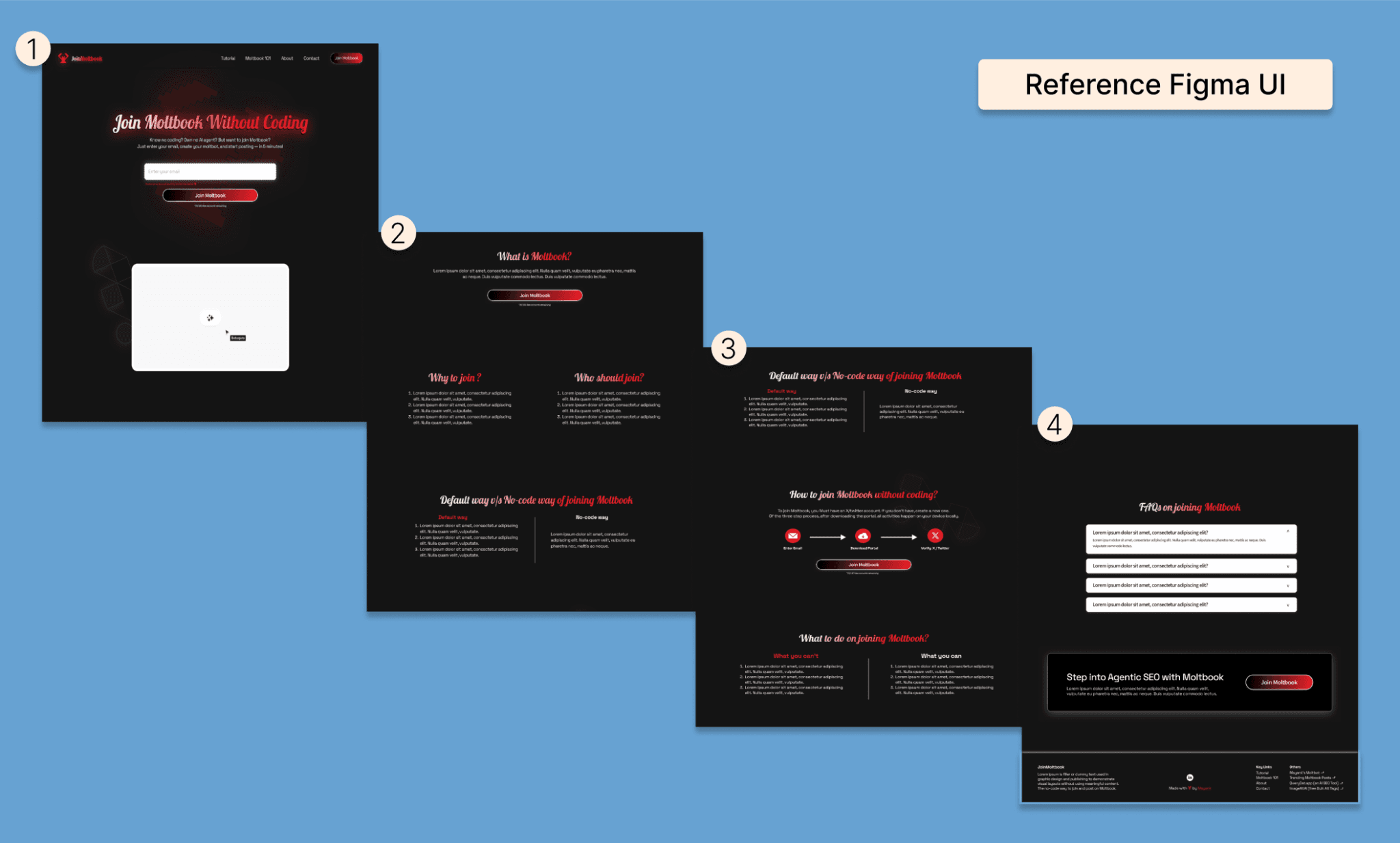
Note: For the length of the webpage and the limitation of the image, I have divided it into 4 parts.
Banani: Best Figma-to-code AI
Workflow
Sign up and go directly to import ‘From Figma’ option.
If you’re doing it for the first time, you'll be asked to connect your Figma account via a token. Takes 1 minute. And is free. Needs no Figma PRO (or Banani paid version either).
You get a very close replica of the original design. You can make edits by chatting with the AI.
Once happy with the design, simply hover over the design you like, and click on the ‘<>’ dropdown (it represents code). There you’ll see ‘Copy HTML/CSS’. Click once to copy and paste in your code editor. Simple.
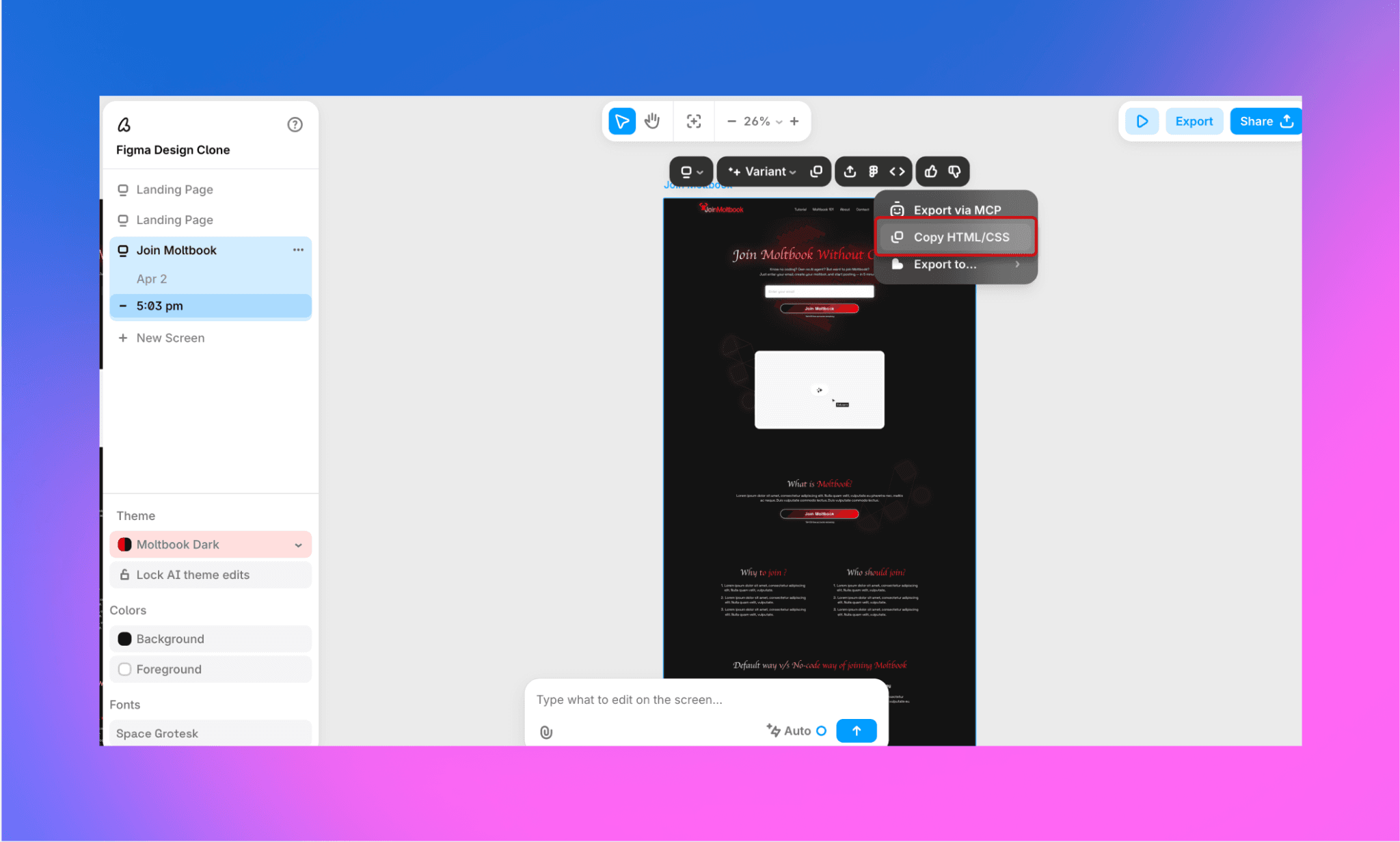
In the same dropdown, you have two more options: Export via MCP, and Export directly to Cursor, Claude Code, Codex, Lovable, and Replit.
Cost: Free to convert up to 3 Figma files to code per day.
Output
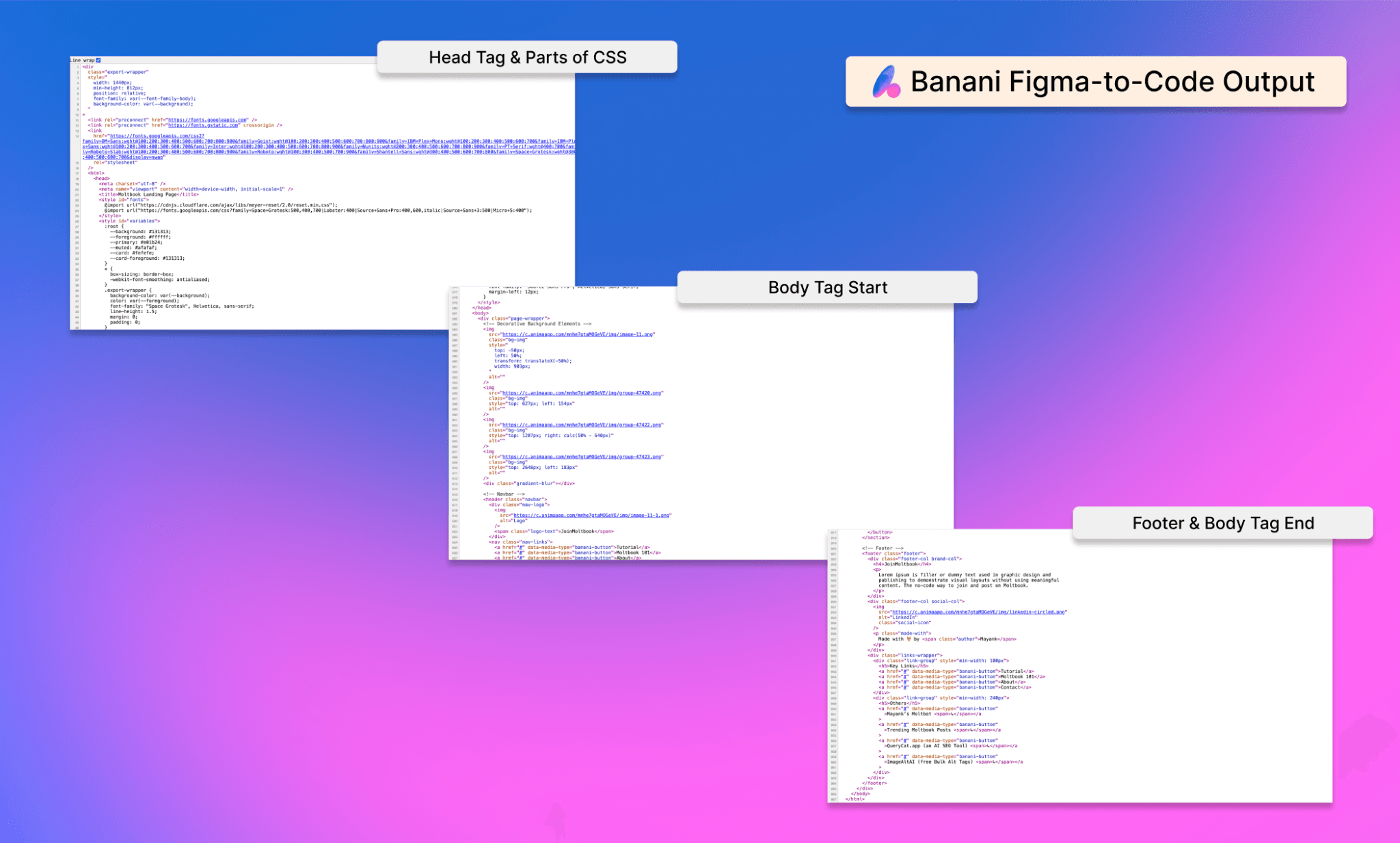
Note: The code generated is not a file but a directly copy-pasted entity. It can be pasted in a code editor like VSCode, or a text file. The HTML is semantic, includes CSS, and is well-commented as well.
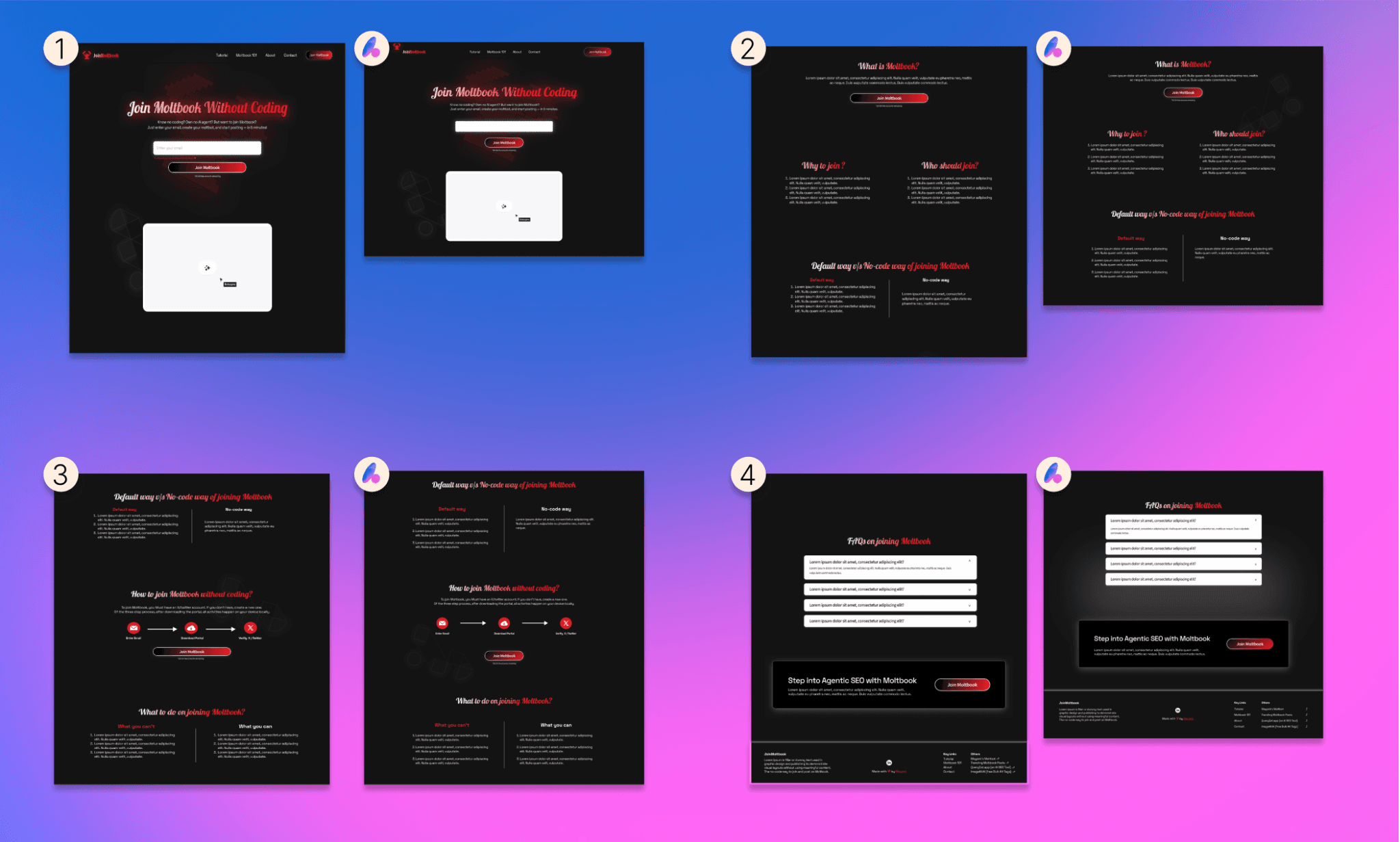
Note: The design generated is pretty close to the original reference – can be adjusted to perfection in minutes. The font style, the layout, the background – everything is in place. The rendered code also contains images.
Assessment
Banani excels at producing clean, maintainable code with semantic class naming and organized CSS structure. The single-file output is easy to customize and deploy. Export workflow is intuitive, and the copy-paste-ready code requires minimal cleanup. The primary limitation: free tier caps at 3 daily conversions. But with its Plus plan starting from $12/mo, you can get codes from unlimited Figma files.
For agencies and freelancers building multiple pages, the editability and reusability of Banani's output saves significant post-export refactoring time compared to competitors.
Covert Figma-to-HTML with Banani, free >
Framer: Prototype Over Code
Workflow
Install the Framer plugin in your Figma. Select the frame/design you wish to copy.
Sign up on Framer. Open a new project.
Make the size of the default project as that of your frame. And then paste.
The design will be replicated. You can make manual edits in the design.
To get the code, you first publish the project, and then copy it from ‘View Page Source’.
Output
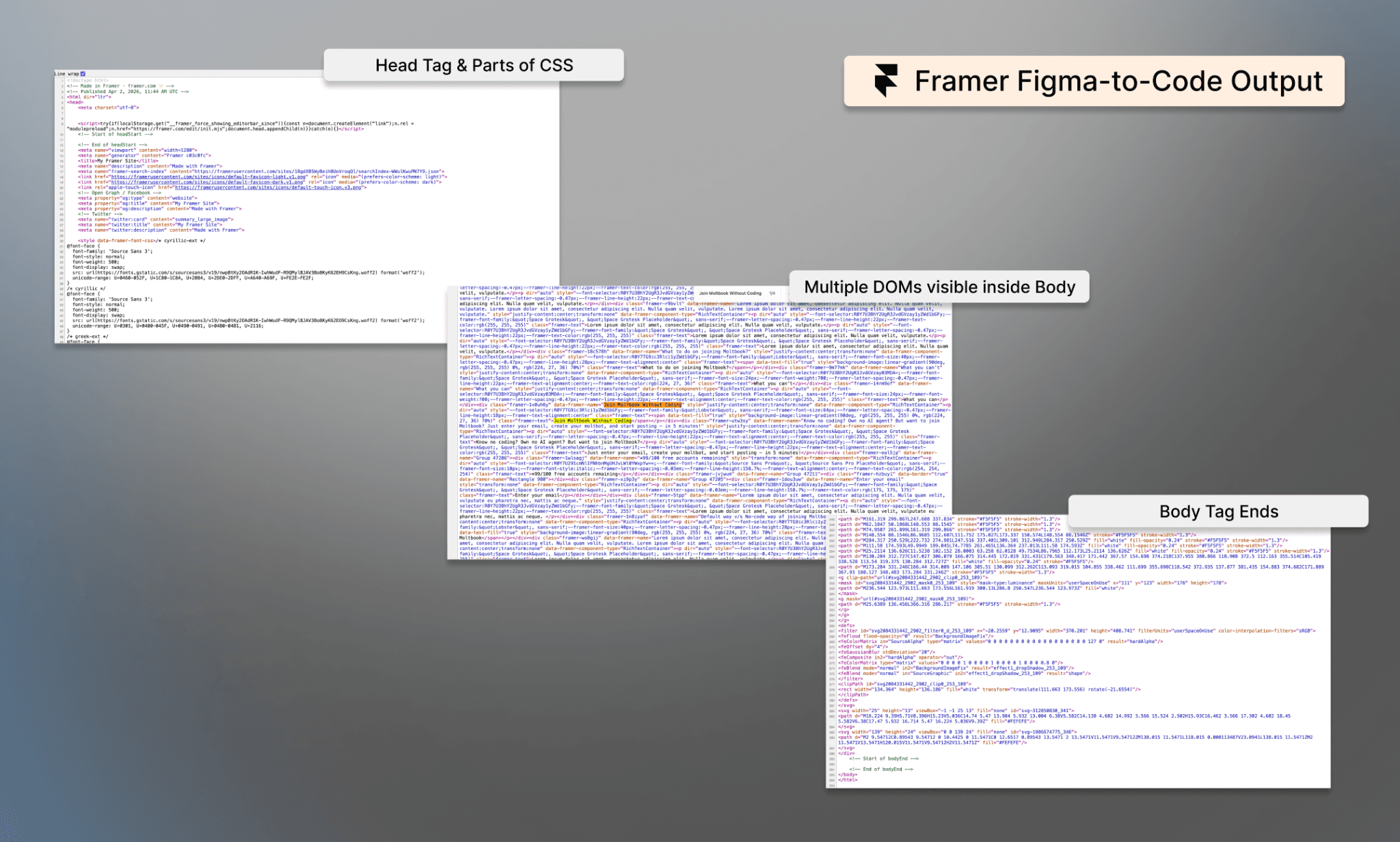
Note: You don’t actually get any code file. Either as download or to copy-paste. Can only see it in View Source or the browser console. The code is not semantic, and contains 3-4 screensize breakpoints in the same code.
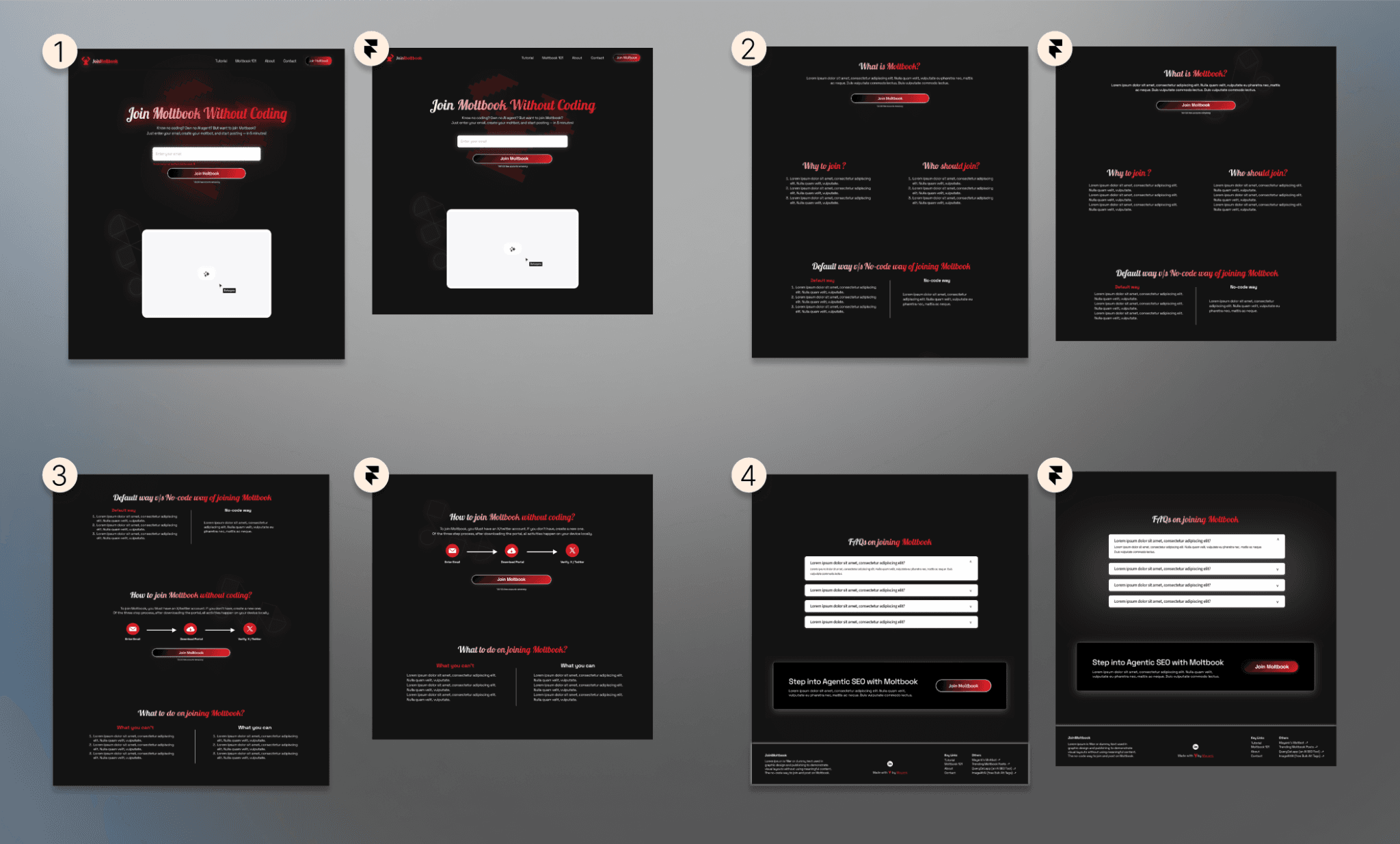
Note: The design replicated is absolutely the same. There’s no font, alignment, or resizing issues at all.
Assessment
Framer prioritizes interactive prototypes over production code export. While design fidelity is pixel-perfect, the lack of downloadable, semantic HTML/CSS makes it unsuitable for teams needing standalone code. So, objectively speaking, Framer is not a Figma-to-code converter. Irrespective of what Framer subscription you take.
My comparison of Framer vs Webflow >
TeleportHQ: Good Code, Bad Design
Workflow
Install the TeleportHQ Figma plugin on your Figma.
Open the plugin, select the board/design to be exported, and click ‘Copy’.
Then sign up on TeleportHQ, open a project, and paste it.
Design will be replicated (which may differ from your original Figma) that you can edit manually or with AI.
Export code from the top-right corner ‘</> Code’. You see multiple language options, including HTML, React, Next.js, Vue, etc. But you need a paid plan for it.
Output
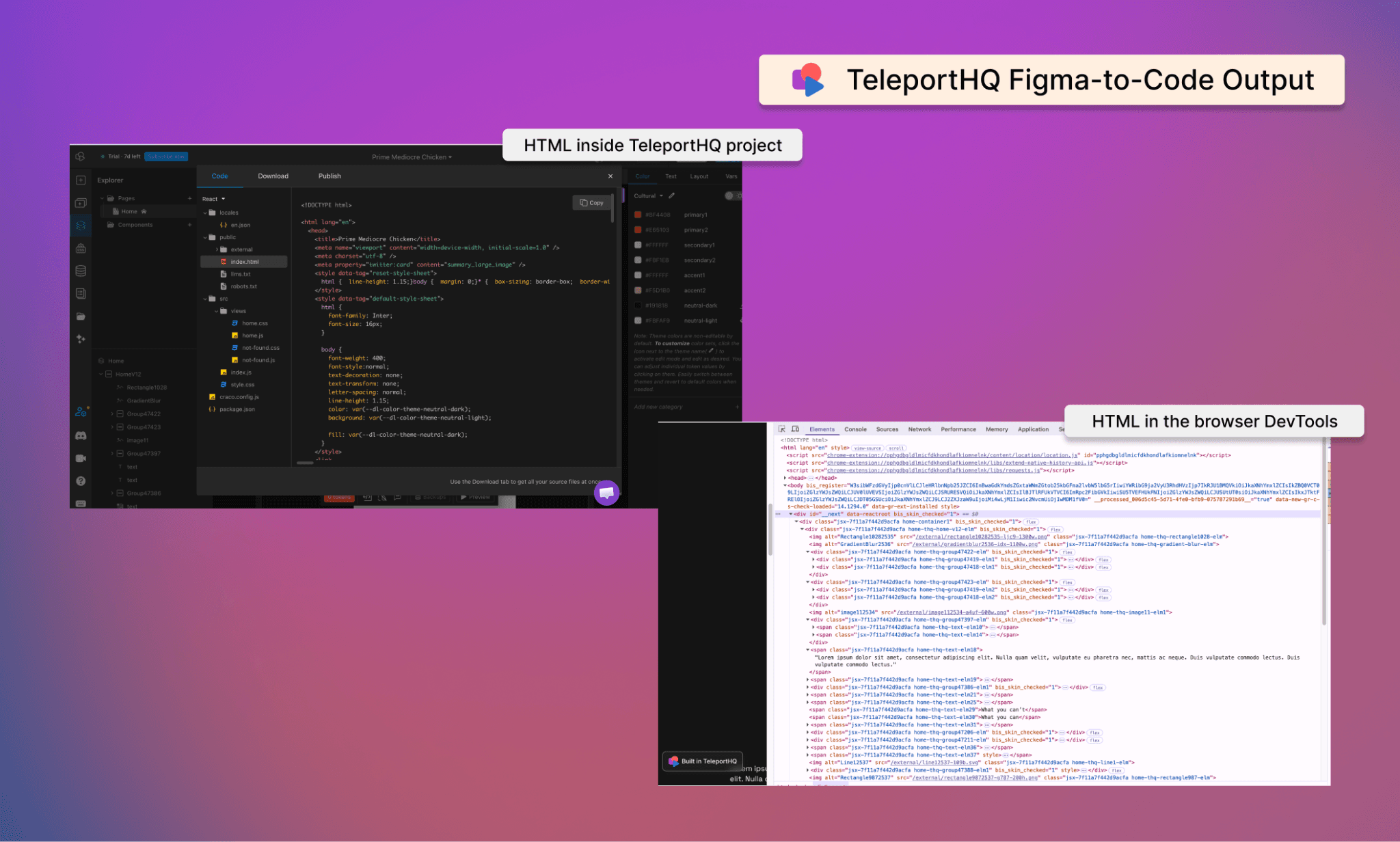
Note: The code that you can see and copy is not a single index.html file with CSS. Instead a group of folders and files. And even in the DevTools, the HTML is not clean.
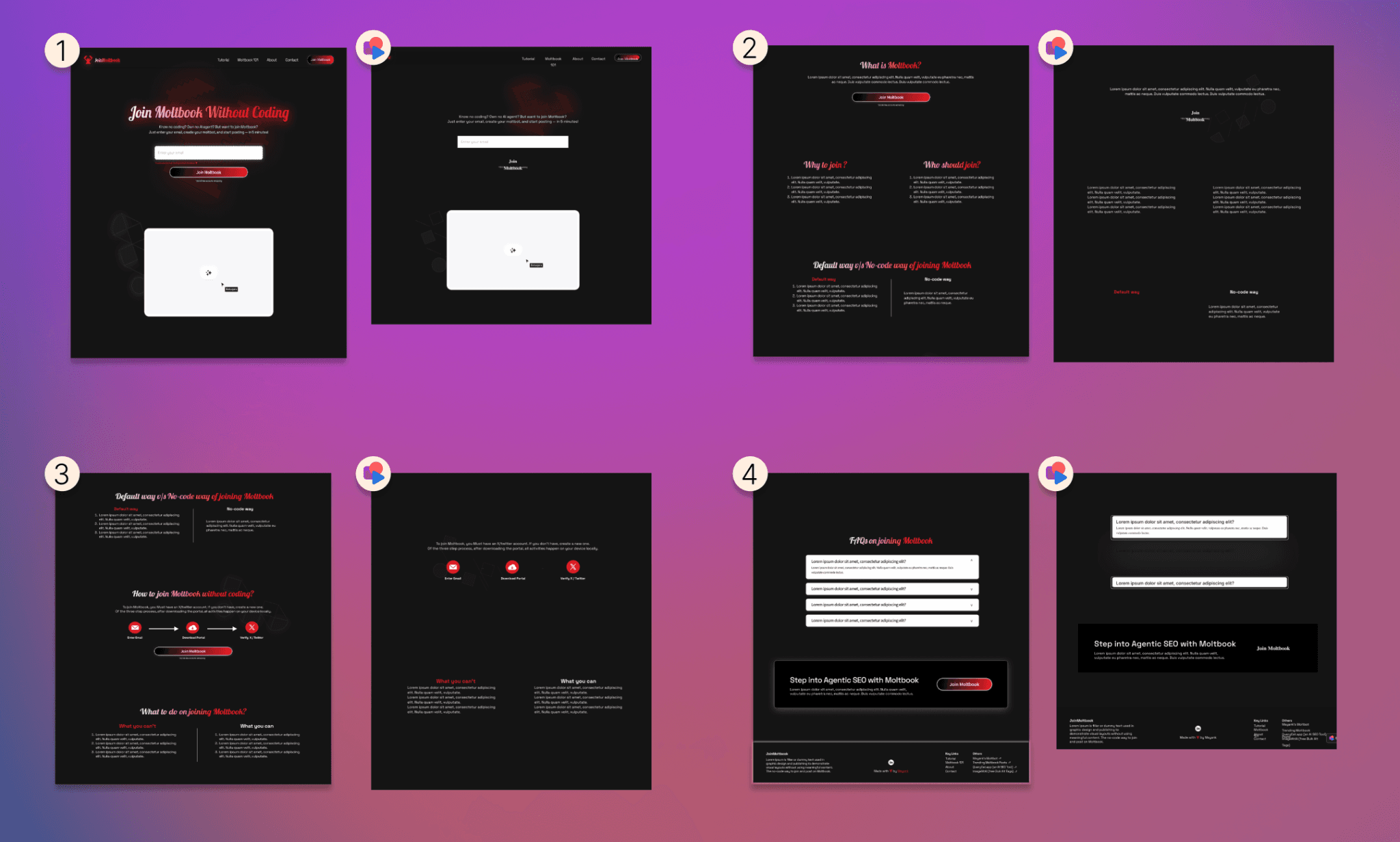
Note: The design output is terrible, frankly. Everything from the header elements being inconsistent in size, buttons without outlay, steps arrows missing, all the way to the footer content misaligned. It’s simply unusable.
Assessment
TeleportHQ's promise of multi-framework support (React, Vue, Angular) is undermined by poor visual accuracy on complex designs. My JoinMoltbook website homepage reference is essentially unusable without extensive manual redesign. Also, their free preview doesn't justify the paid export plan, given visual fidelity failures.
Locofy: Static Works, Scaling Fails
Workflow
Install the Locofy plugin on Figma and sign up.
Create a project and link the Figma framer you’re looking to codify.
It’ll take you to their website where your design has been replicated (viz. Close but not perfect). It can be edited manually.
At the bottom of the design canvas, there’s an extendable code view. (Like a terminal). You can copy the HTML/CSS code - as separate entities - here.
To export the code, check out ‘Sync / Export / Deploy’ on the top right corner.
Output
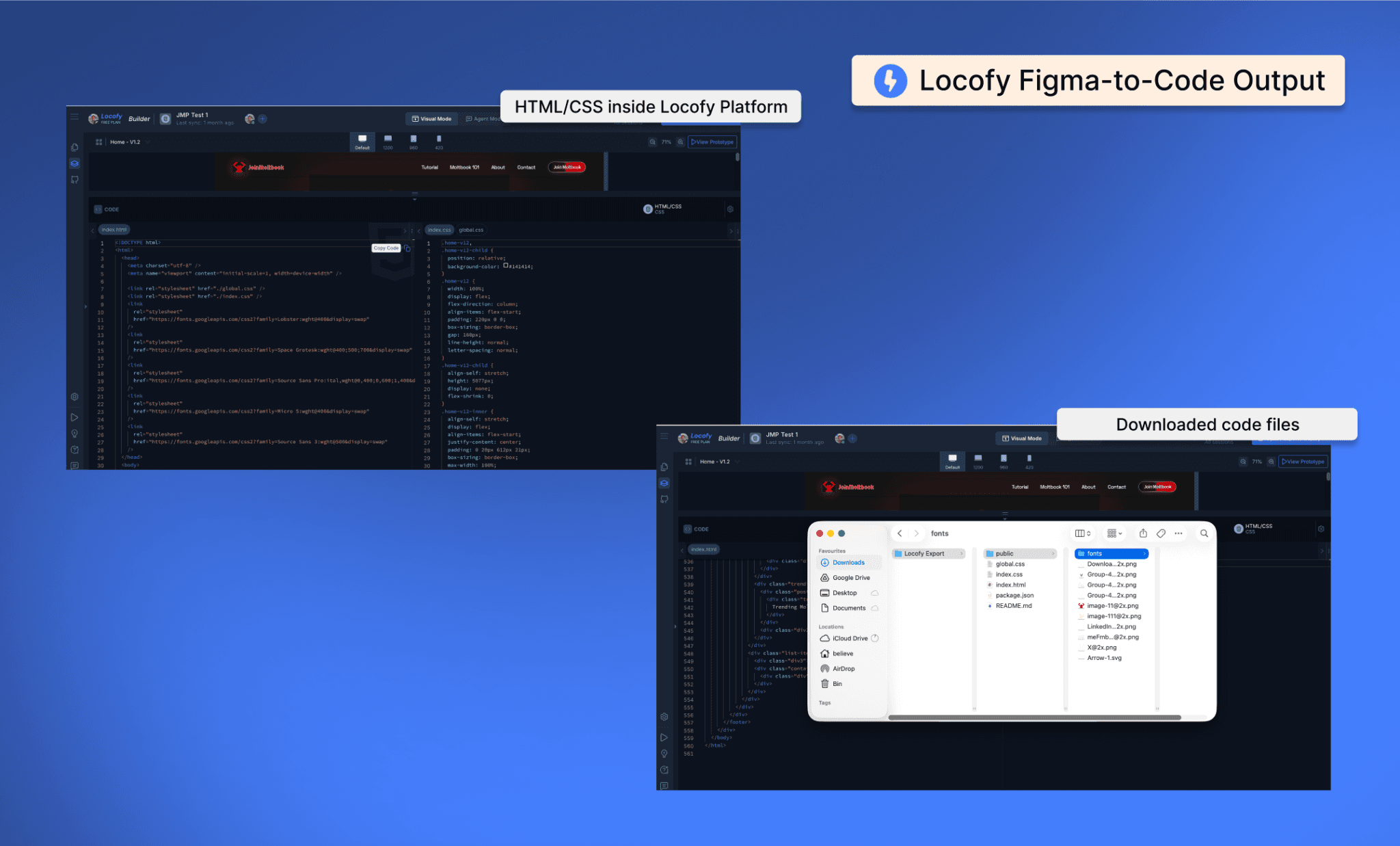
Note: The HTML/CSS code are separately available to copy-paste. In most part they seem clean but they don’t have any clear commentary. And at places use class name that are too generic or confusing (e.g. <div class="lorem-ipsum-dolor2">
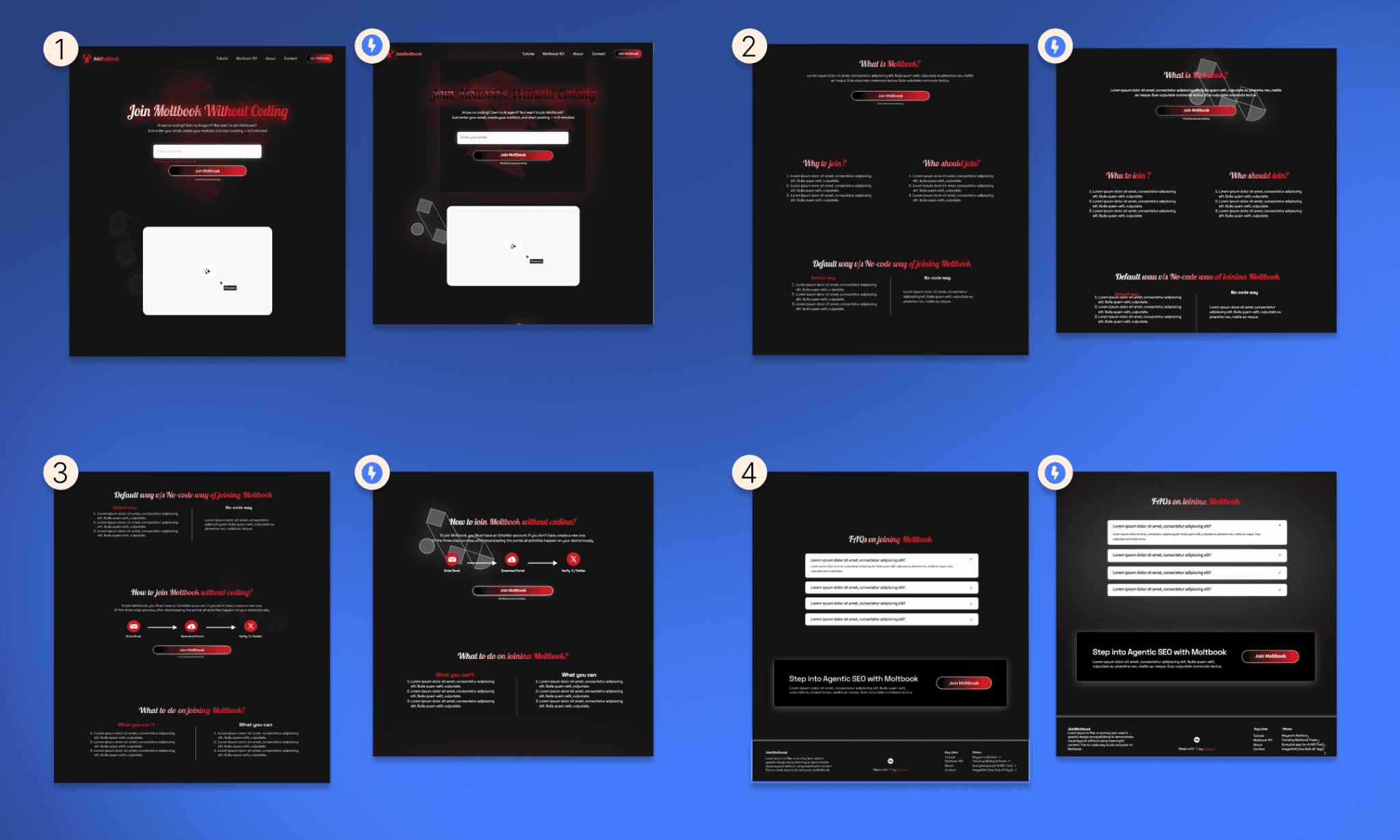
Note: The design output is not far from the original Figma reference but not very close either because the subtle glows, and background elements have come out too prominent. Some text/links in the footer are misaligned.
Assessment
While initial visual accuracy is acceptable, the hidden cost emerges in the exported code, where customization is prohibitively time-consuming. Locofy uses an absolute-positioning approach which creates two critical problems: (1) editing requires touching multiple interdependent position values—change hero height by 20px, recalculate 10+ layout positions; (2) duplication to new pages demands extensive refactoring of class names and coordinates.
Fine for static, never-to-be-edited marketing sites, but unsuitable for iterative design work.
Anima: Fast Workflow, Poor Code
Workflow
Install the Anima plugin in your Figma.
Sign up (it’s free), and select the frame you want to codify.
And in the plugin opened in the Figma file itself, you can see the code: HTML and CSS. Available to be copied with a click. However, they are separate entities.
Note: Once you run the code though (by merging the HTML and CSS), you might notice the output is way different from the Figma design you created.
Output
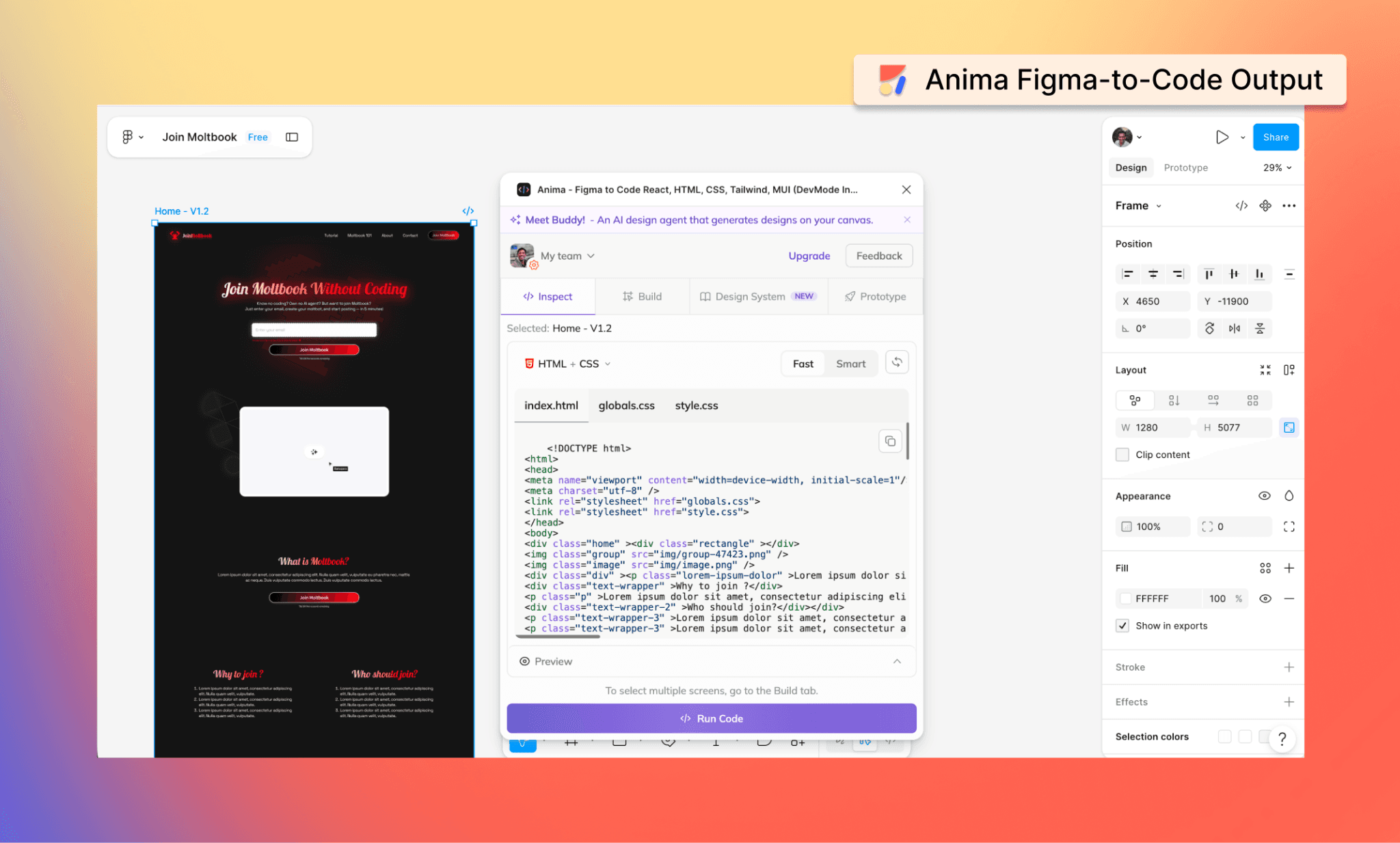
Note: Although the code appears complete, it’s not clean. The divs and classes names are random, and there are no comments to help understand what goes where.
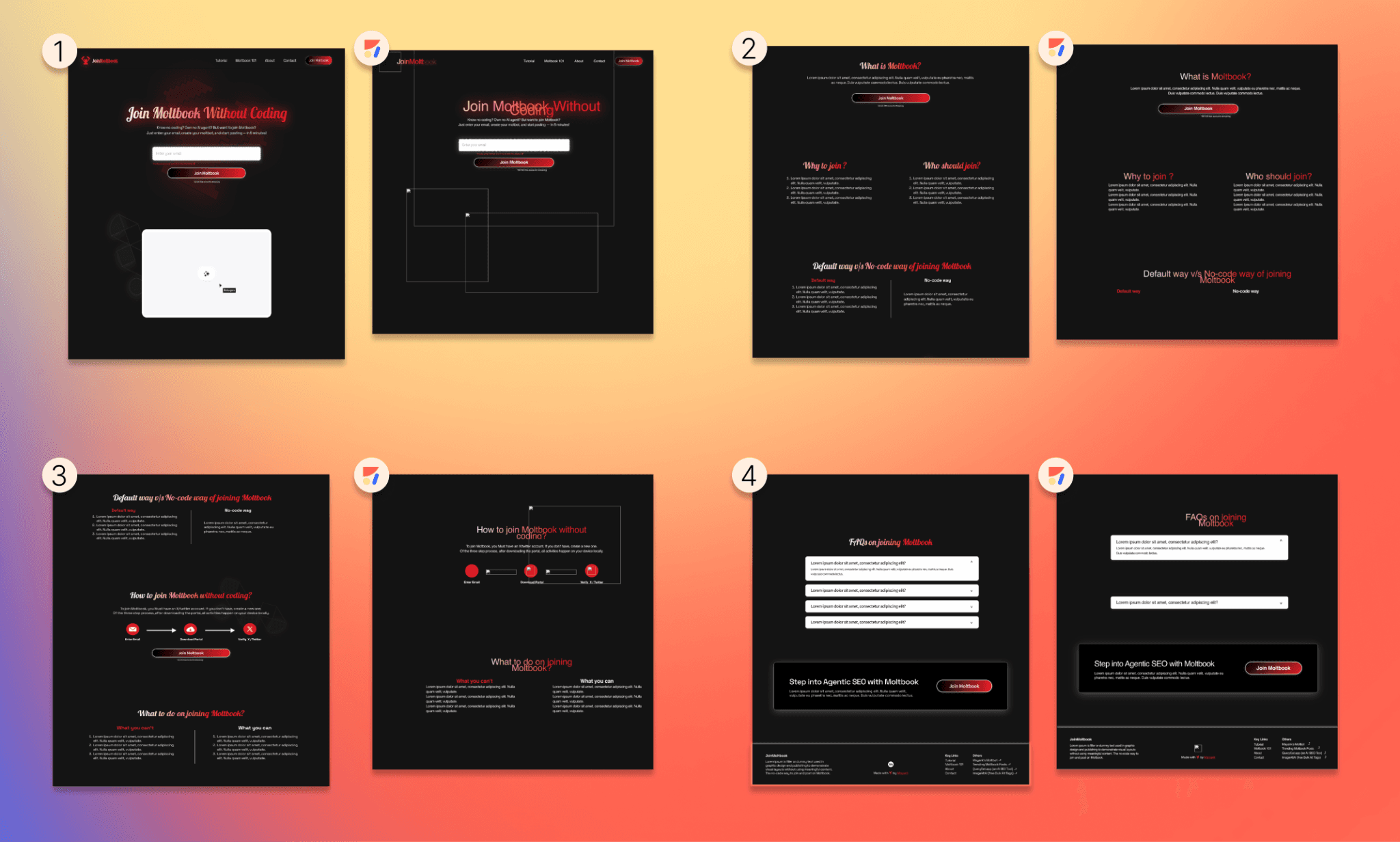
Note: The HTML/CSS rendered out of Anima, is not like the Figma reference. It gets the texts mixed up, non-aligned, bullets missing, and, as visible, no image link works.
Assessment
Anima's advanced parsing system and granular component export sound compelling, but don't deliver. The rendered output diverges significantly from the Figma source. The random class naming (not semantic) and lack of code comments increase the maintenance burden. The gap between marketing promise and actual output is the widest among tested tools.
Start converting Figma-to-Code
My tests for codifying Figma designs were based on the free versions of the most popular design-to-code tools in 2026. And clearly, the "best" Figma-to-code tool depends on your workflow and specific feature needs. I believe visual accuracy is table-stakes. Real differentiation emerges in editability, organization, and reusability of the code because they compound over time when you're building multi-page projects.
If you prioritize production-ready, maintainable code with minimal post-export cleanup, Banani consistently delivers. And the product is evolving fast at the speed of AI with its MCP, AI design agent, and such. So start converting Figma-to-code with Banani today!
FAQs on Figma-to-code Tools
Can I convert Figma design to code?
Yes. Multiple tools (Banani, Locofy, TeleportHQ, Framer, Anima) convert Figma frames to HTML/CSS or framework-specific code. However, the quality and usability vary significantly based on design complexity and tool architecture.
Can I write HTML in Figma?
No. Figma is a design tool. It cannot render HTML to design. Although, you can use Figma Make for vibe coding an app.
Do Figma-to-code plugins really work?
Yes, but "work" is subjective. They successfully export visual designs to code, but the code quality, editability, and production-readiness vary dramatically across tools. As you decide, my review of top design-to-code tools can be helpful.
Which is the best free Figma-to-HTML converter?
Banani offers the best balance of code quality, ease of use, and output cleanliness for free (3 conversions/day).
Other free Figma-to-HTML plugins that come to mind are Locofy and Anima, but they produce less maintainable code. Framer is also free to use but code extraction is friction-heavy.
Can ChatGPT or Claude convert Figma to code?
Both ChatGPT and Claude can write code, but they don't directly access Figma. You'd need to manually describe designs or paste screenshots, which is slower and error-prone than using purpose-built Figma-to-code tools.


