Best Image to Figma Converter 

Convert any image or screenshot to Figma with AI. Edit design and export code. In seconds, for free!

Convert any image or screenshot to Figma with AI. Edit design and export code. In seconds, for free!

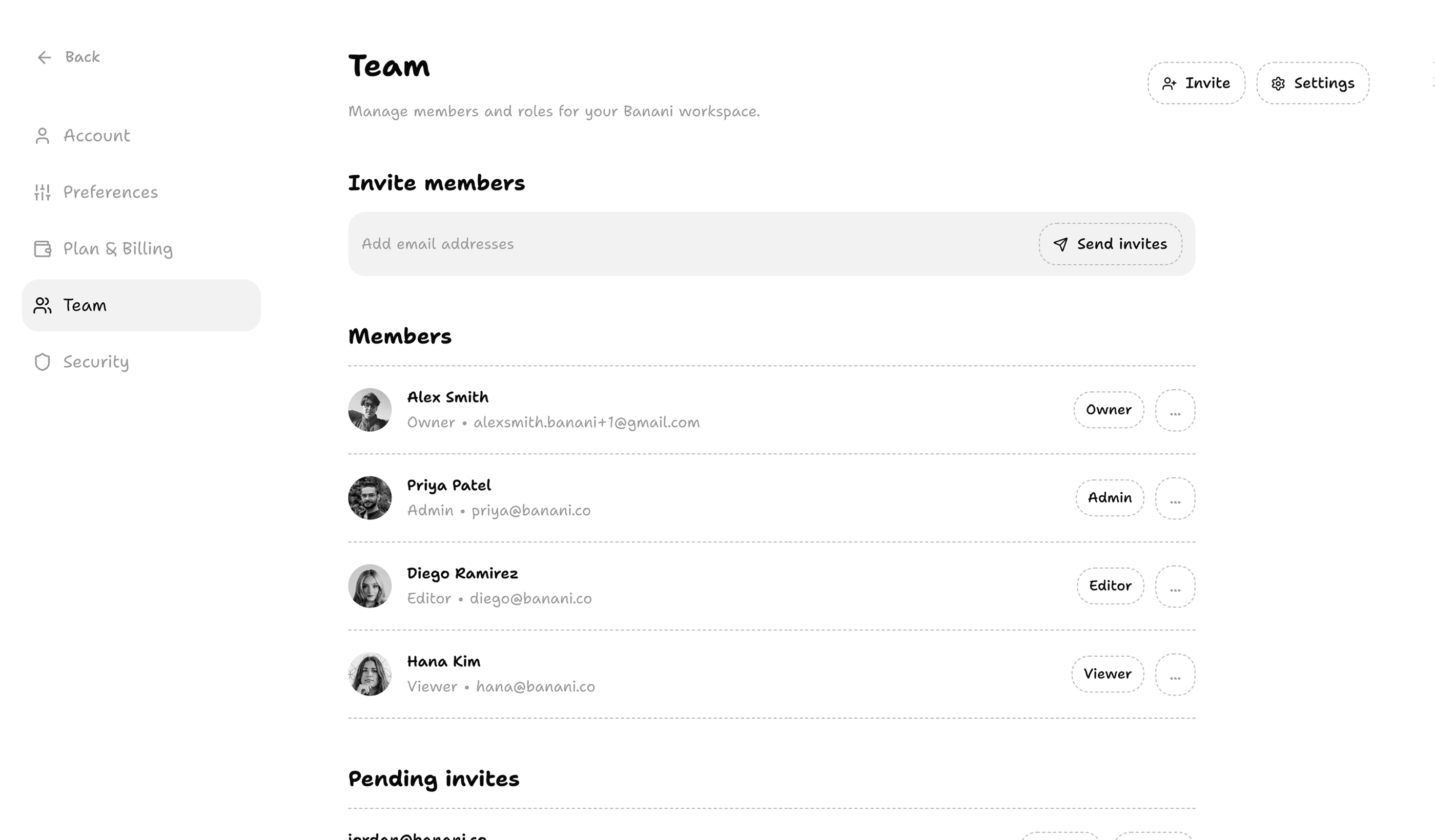
AI to convert screenshot to editable Figma design
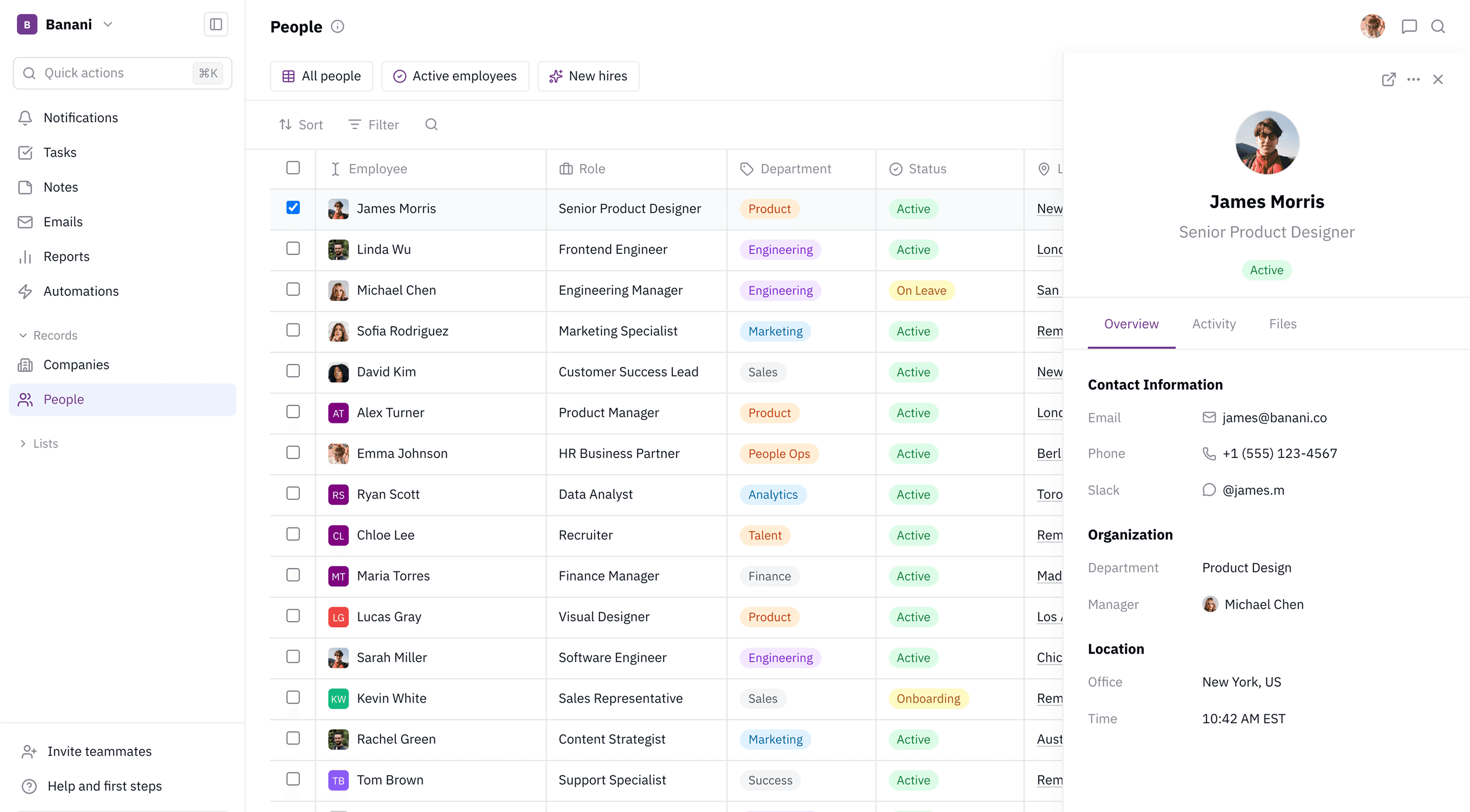
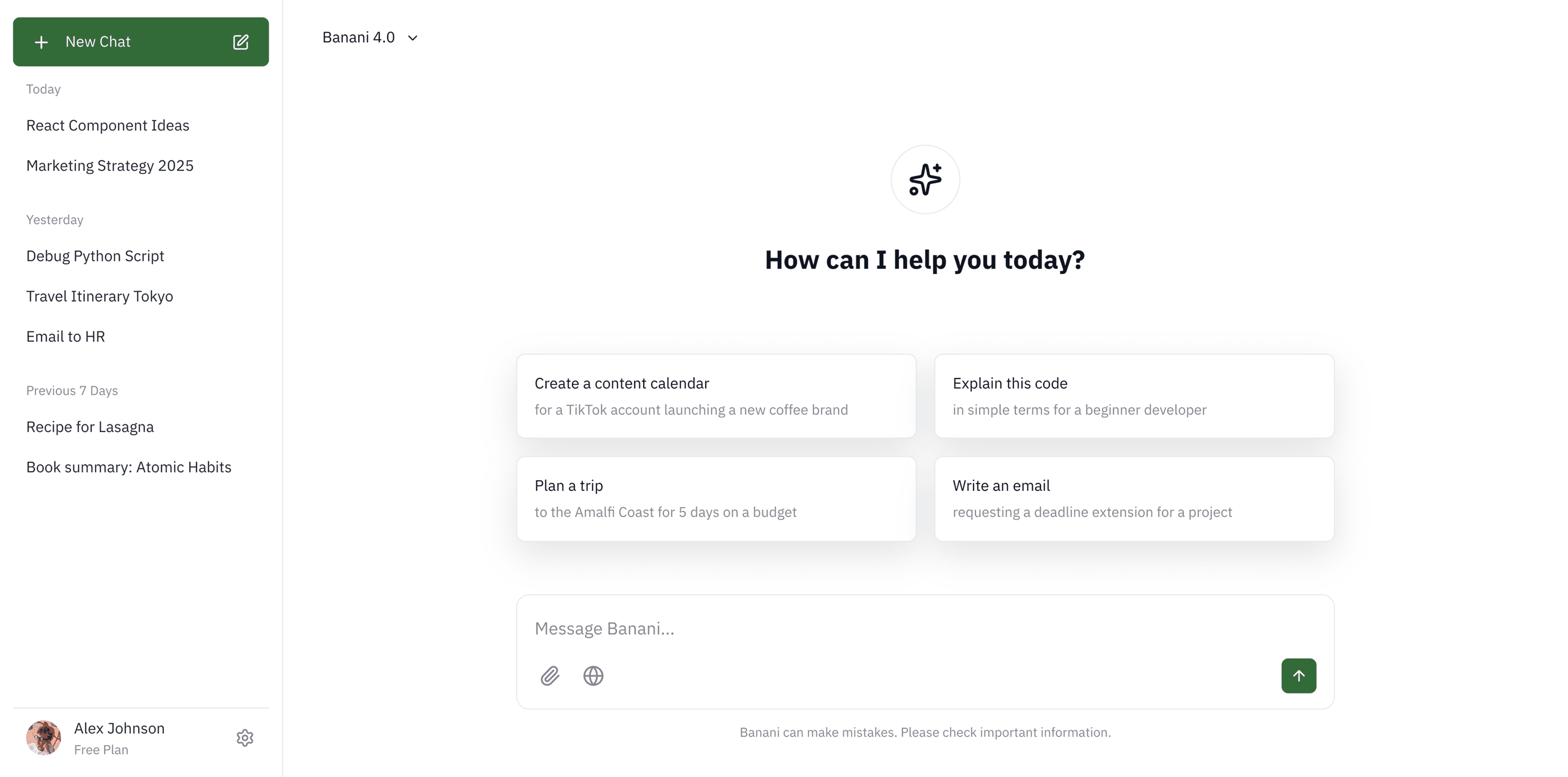
Banani.co project settings

All image formats

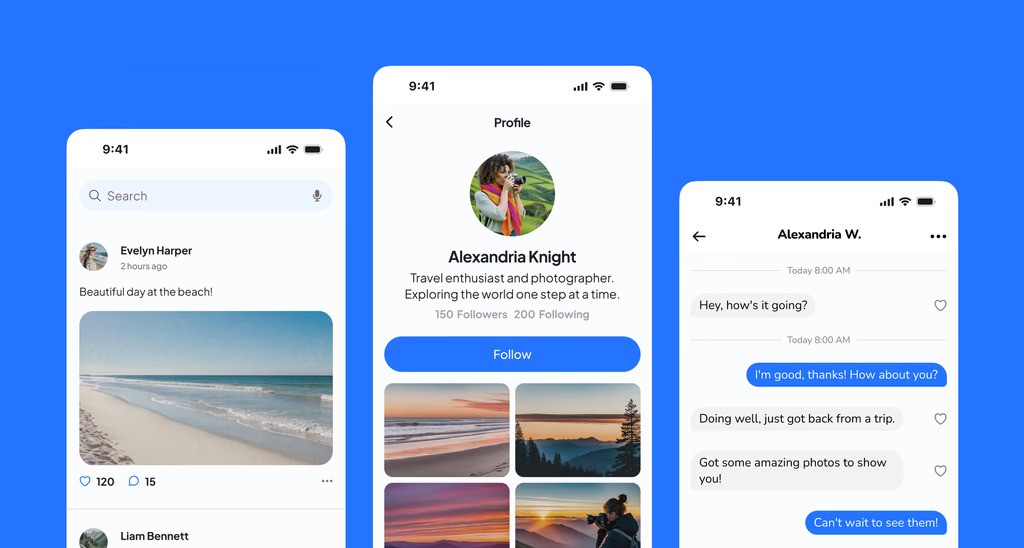
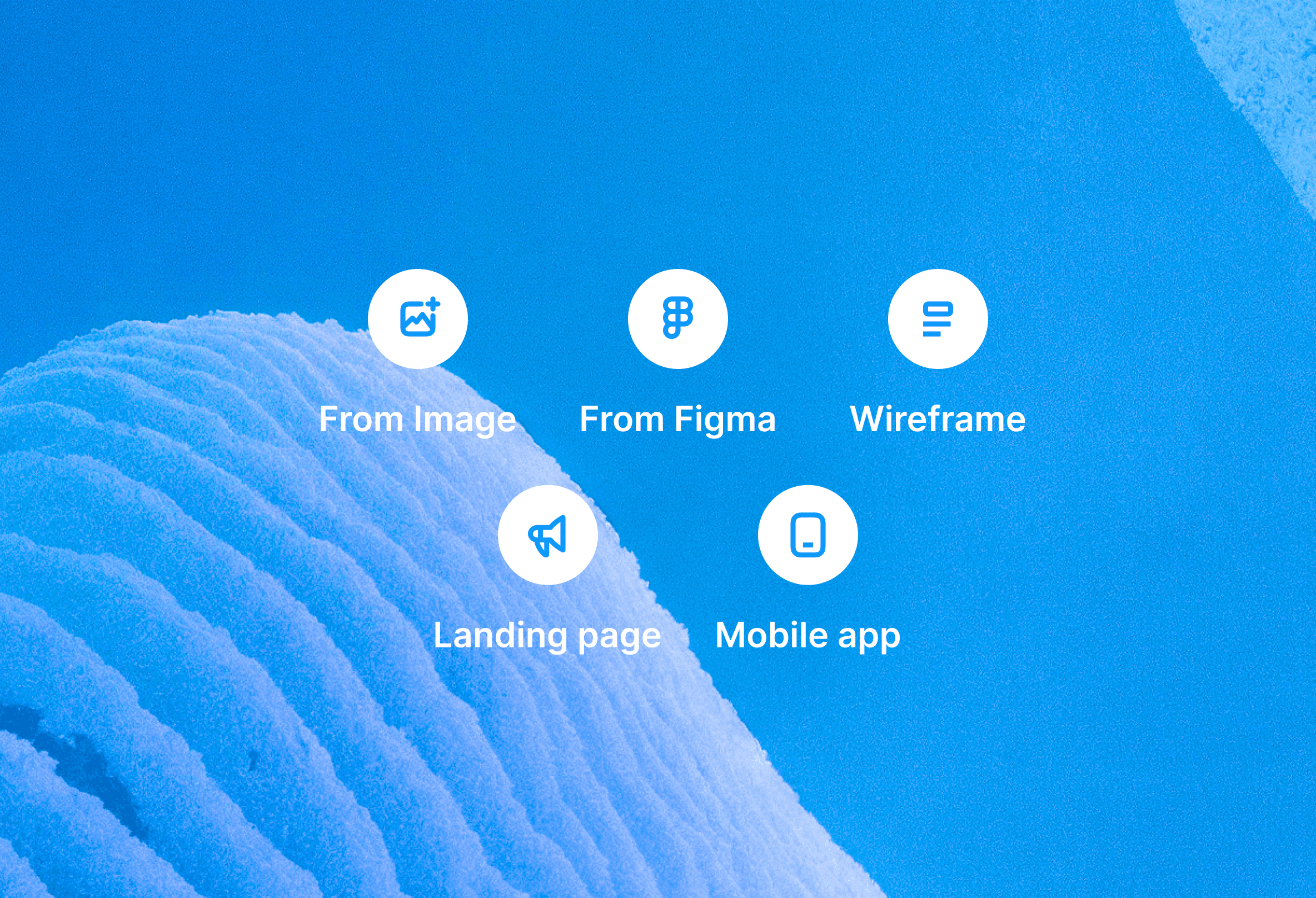
Be it PNG to Figma or JPG to Figma. From phone’s camera, or browser screenshot. Mobile UI, or desktop interface.

Be it PNG to Figma or JPG to Figma. From phone’s camera, or browser screenshot. Mobile UI, or desktop interface.

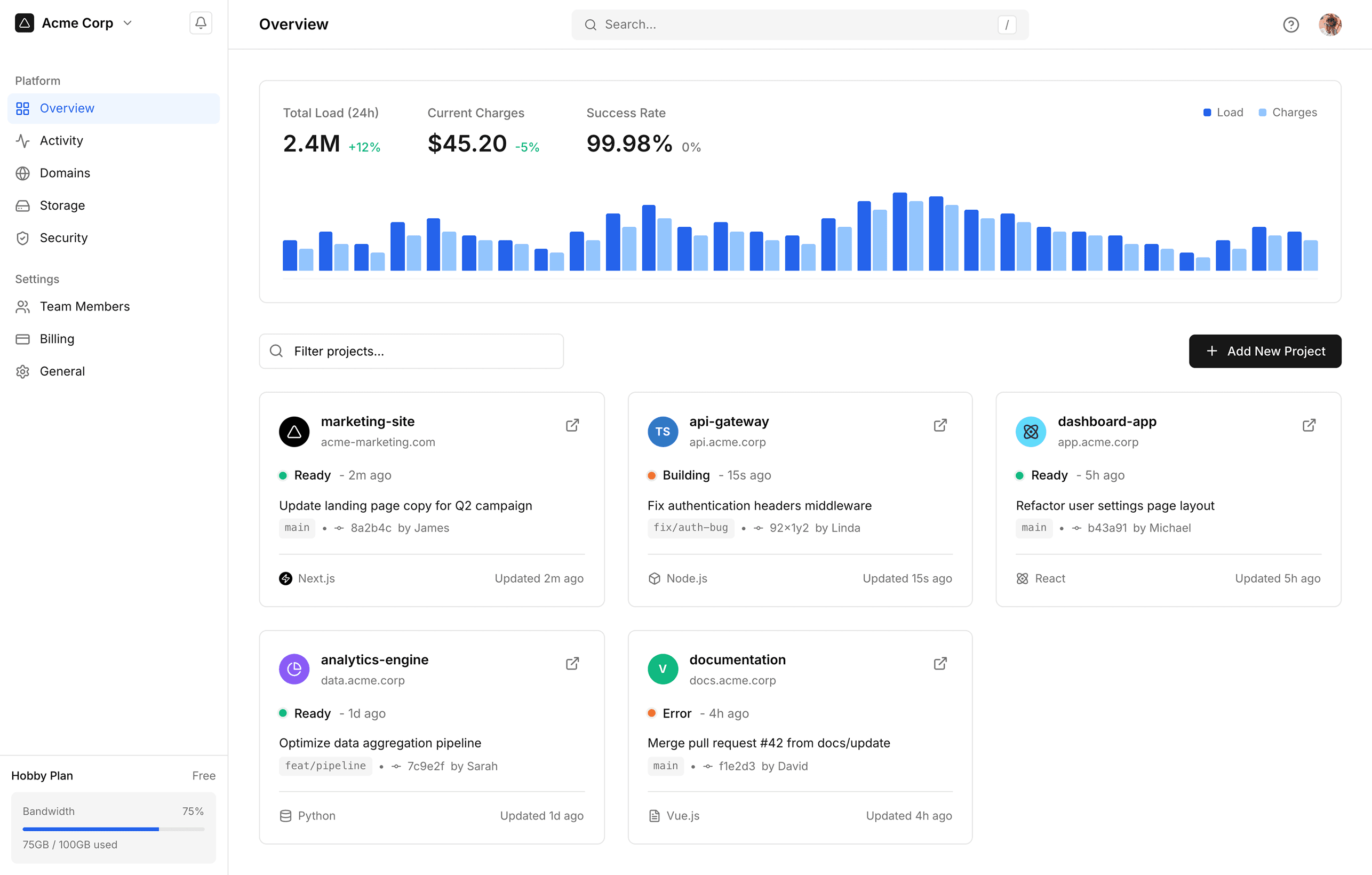
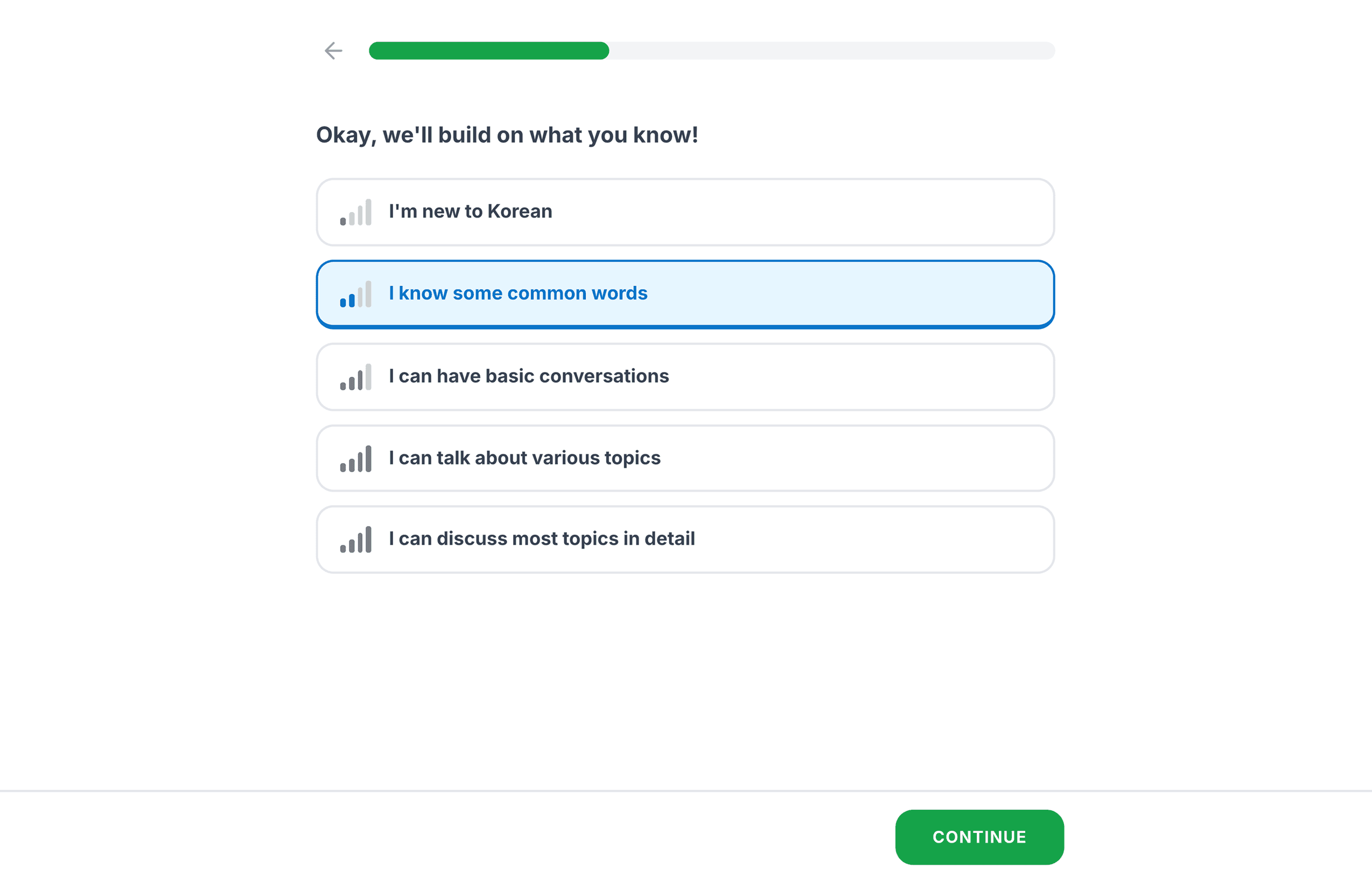
Interface of banani when using wireframing mode

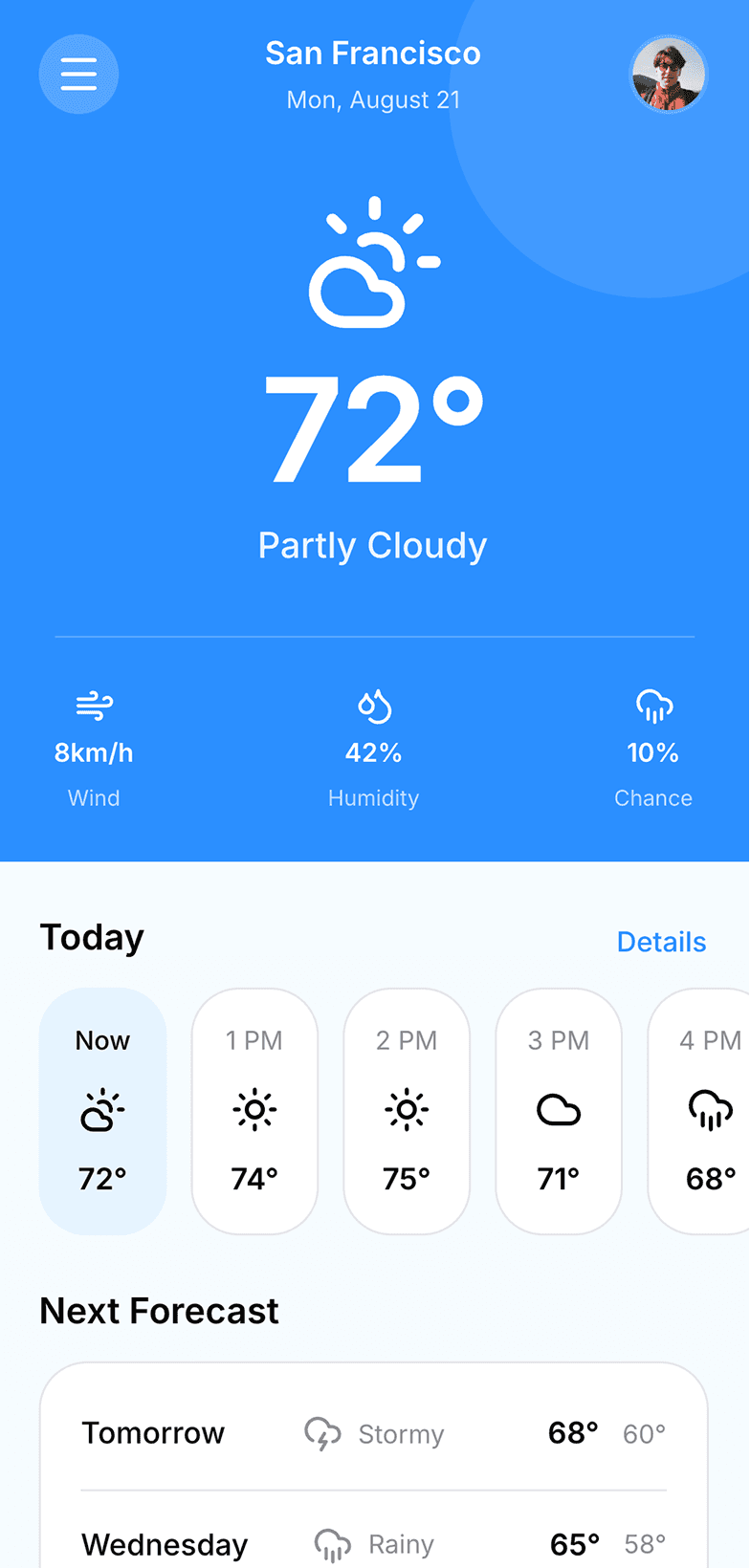
Smart layers recognition

Each layer, text, color, button, and spacing is preserved, by our free online image-to-Figma layer converter. 

Each layer, text, color, button, and spacing is preserved, by our free online image-to-Figma layer converter. 

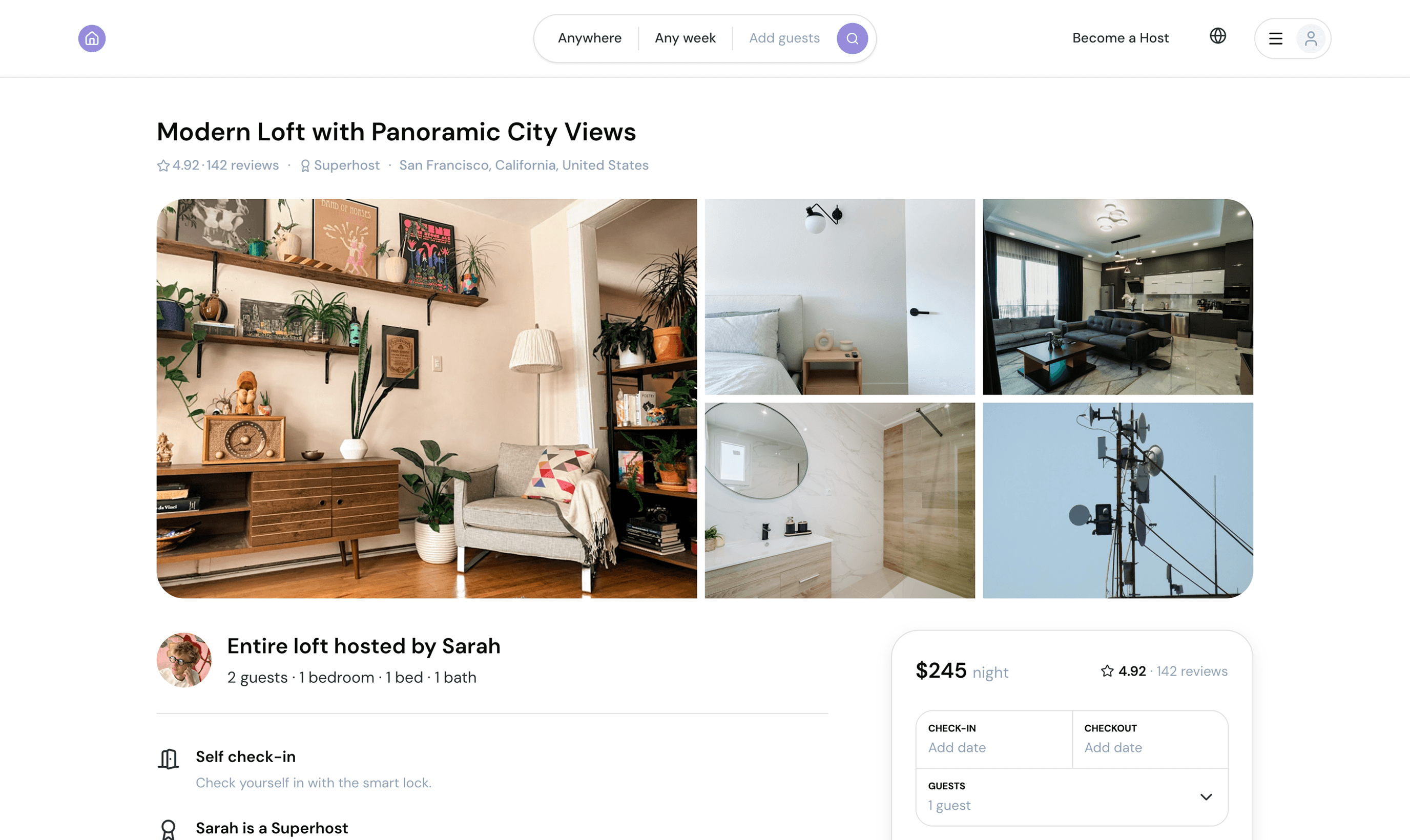
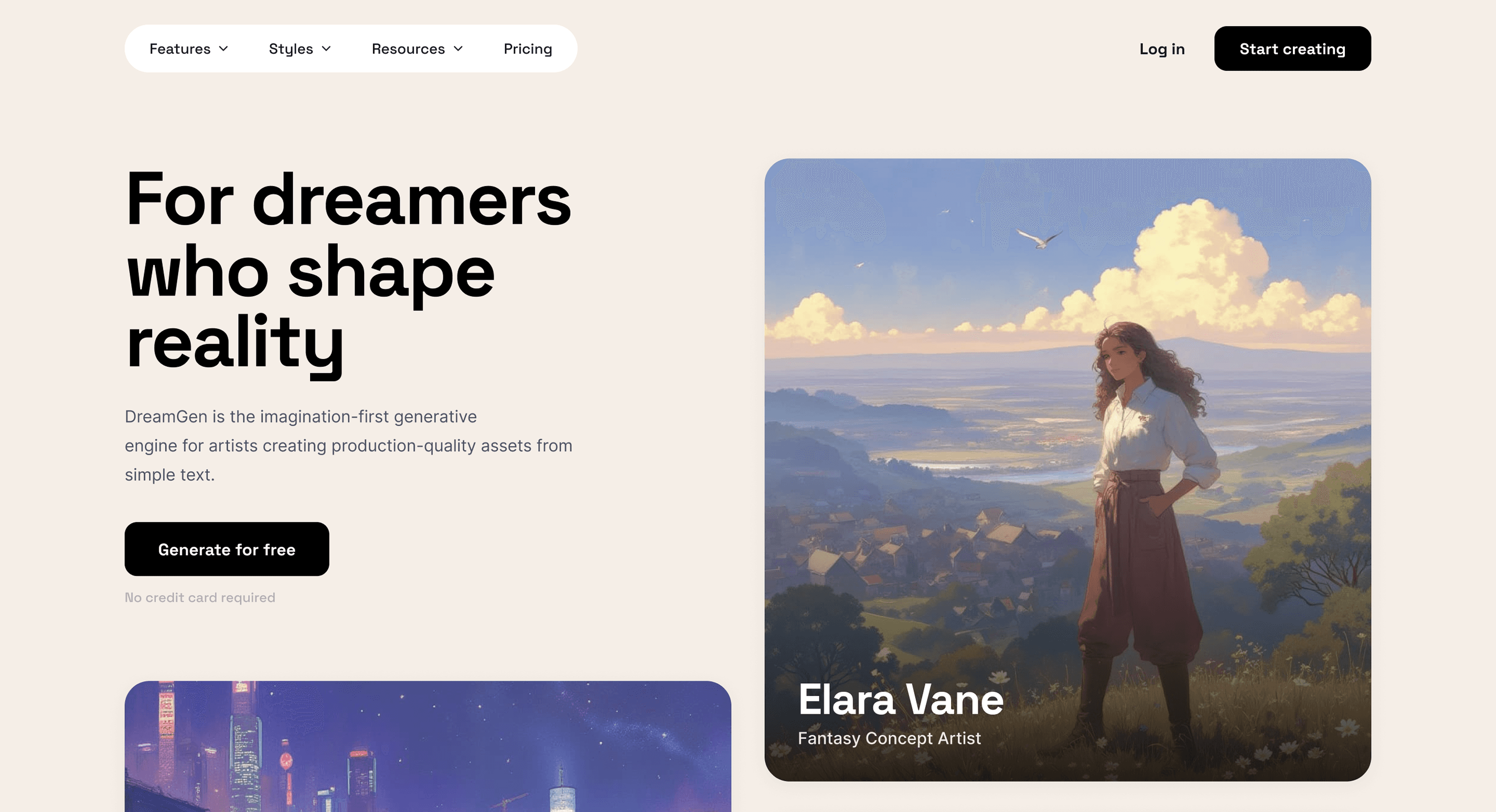
Banani generates contextually relevan images inside the prototypes

Edit with AI before exporting

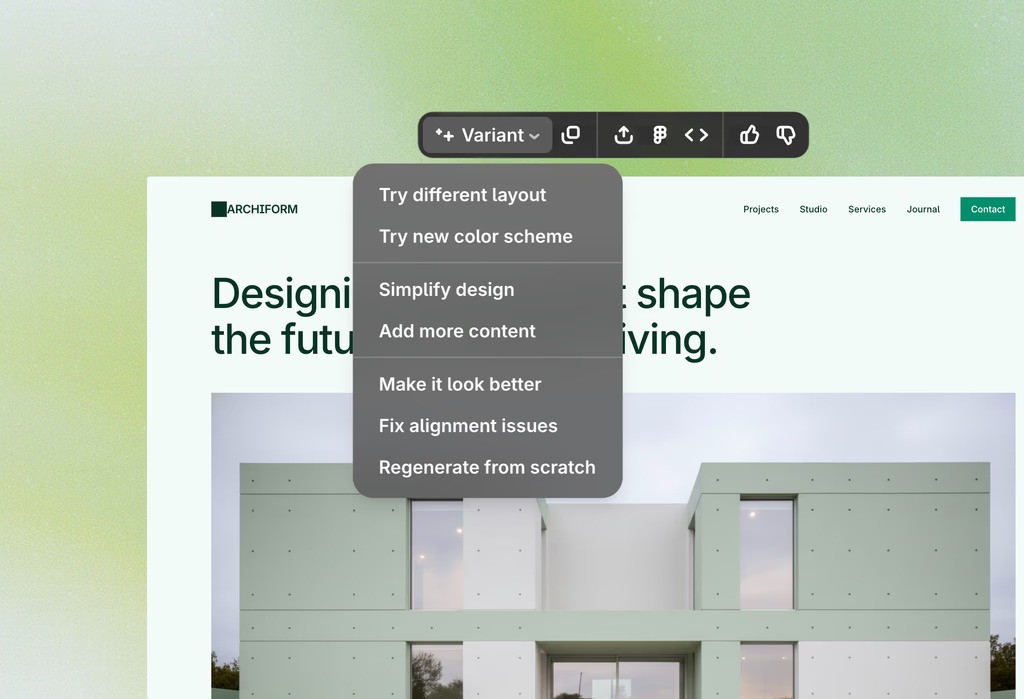
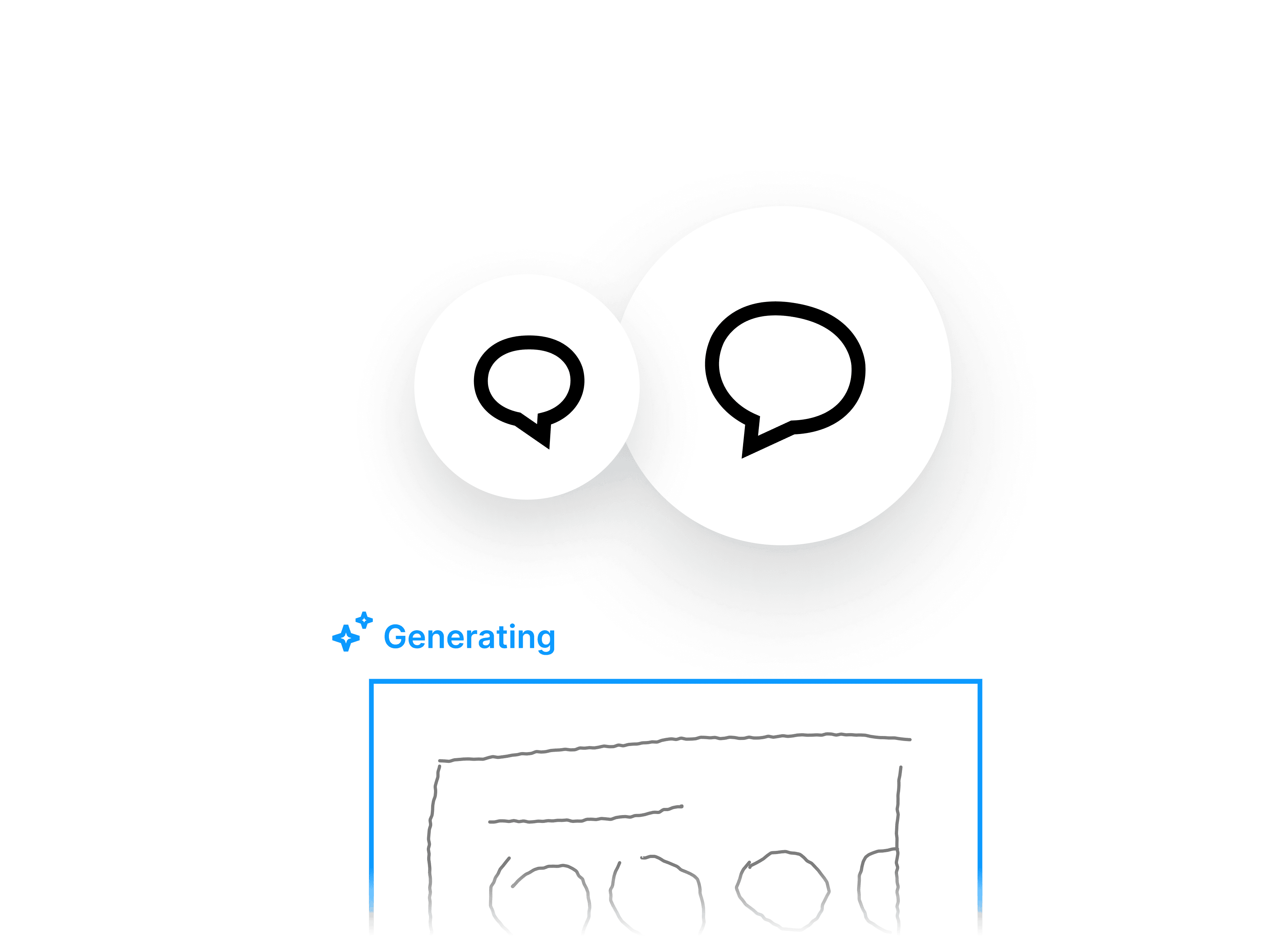
Refine components with AI chat and transform mobile UI into desktop (& vice-versa), even converting to Figma.

Refine components with AI chat and transform mobile UI into desktop (& vice-versa), even converting to Figma.

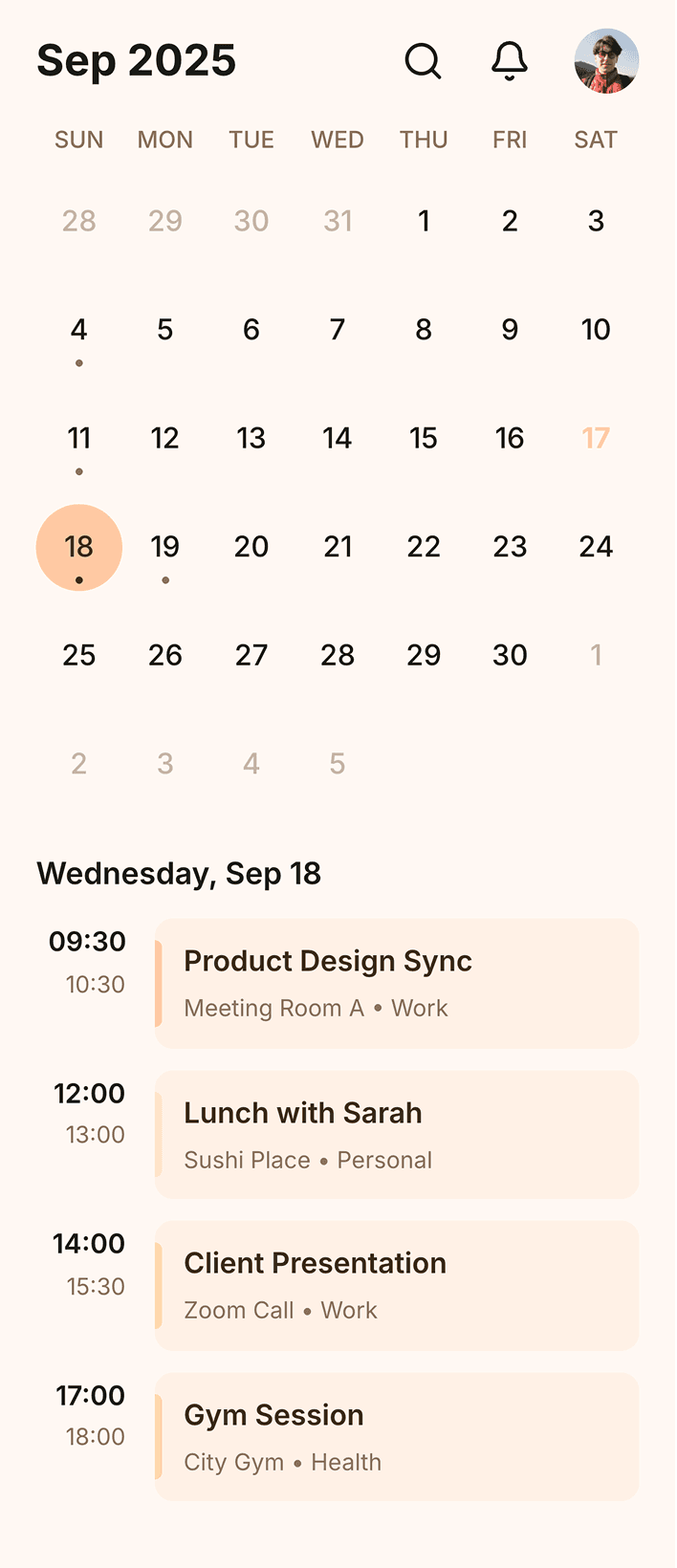
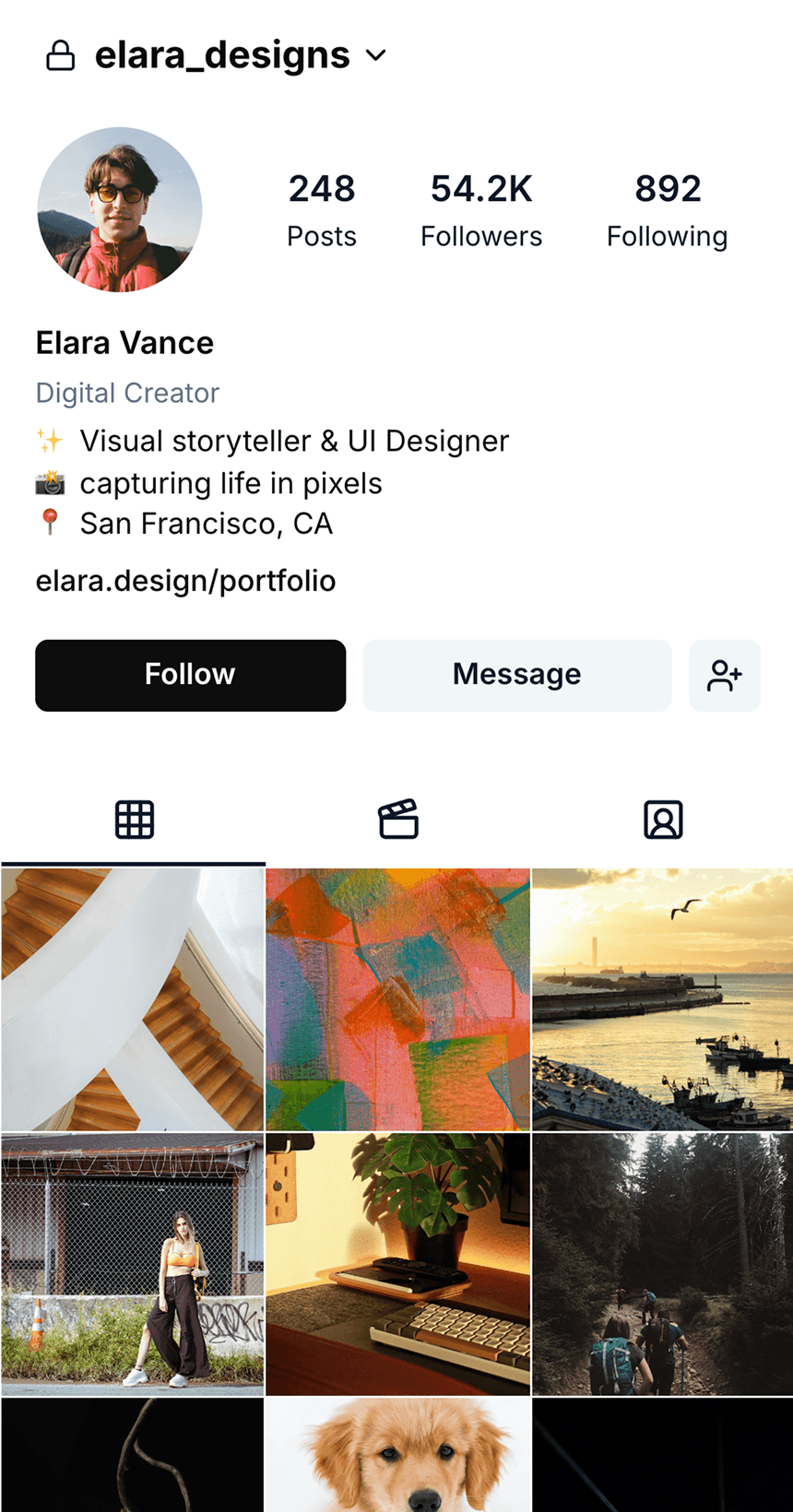
Quick actions features of banani

Clean code & MCP

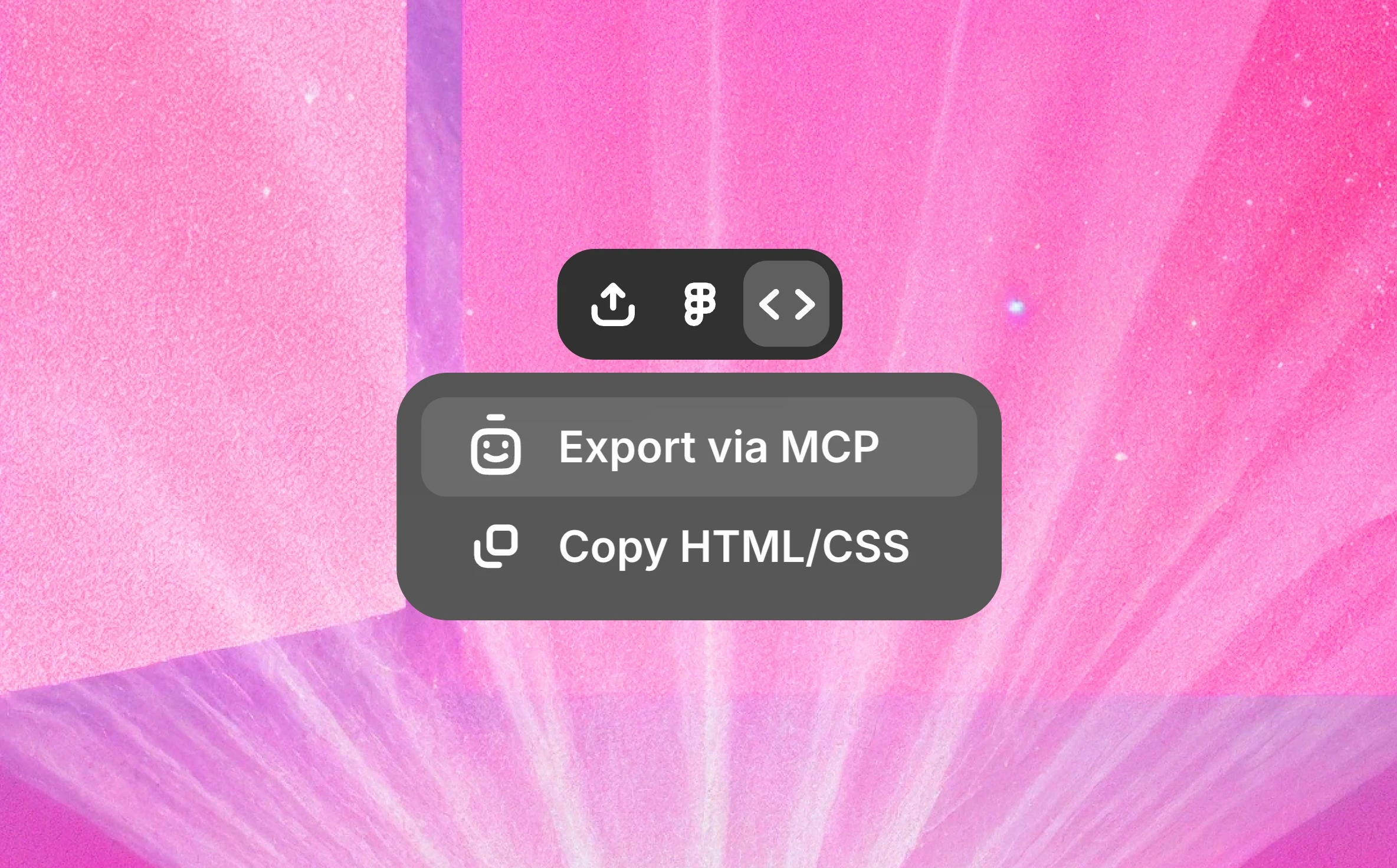
Copy clean HTML/CSS of the UI design screenshot in Figma, or export via MCP, without Figma Dev Mode.

Copy clean HTML/CSS of the UI design screenshot in Figma, or export via MCP, without Figma Dev Mode.

How to convert image to Figma design

1

Upload an image

In any supported format, .png, .jpg, .gif, .hiec, and more.

In any supported format, .png, .jpg, .gif, .hiec, and more.

2

Generate a copy

Ask to duplicate the image, and an editable version will appear. 

Ask to duplicate the image, and an editable version will appear. 

3

Export to Figma

Copy-paste the regenerated image directly to your Figma.

Copy-paste the regenerated image directly to your Figma.

Image to Figma Design and Dev Mode Both
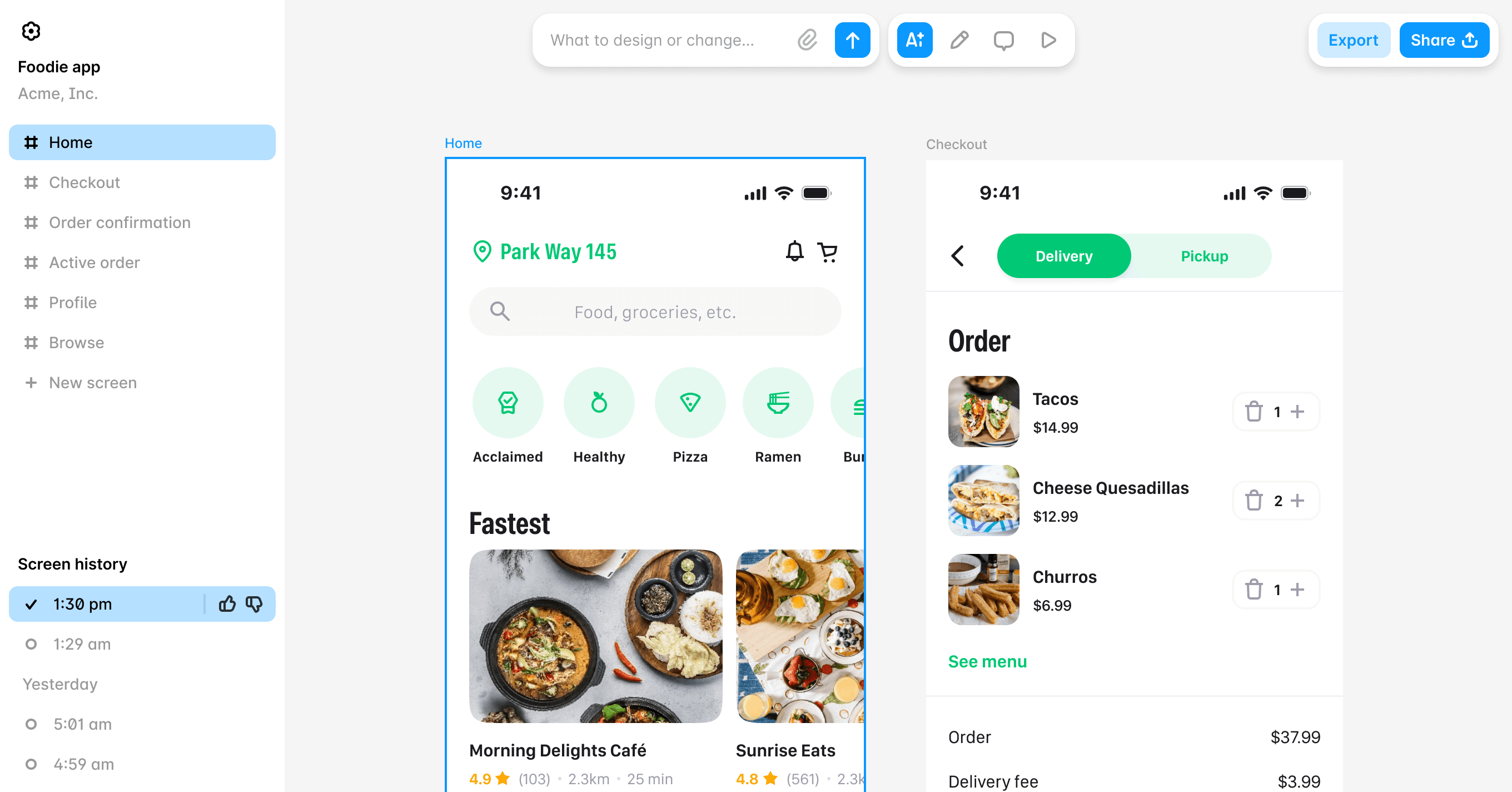
Our image to Figma Design AI doubles up as UI screenshot-to-code converter. A complete design-to-code Figma assistant. 

Our image to Figma Design AI doubles up as UI screenshot-to-code converter. A complete design-to-code Figma assistant. 

One screenshot-to-Figma AI,
for the entire product team

PMs

Explore UI references in Figma without design overhead.

Explore UI references in Figma without design overhead.

Designers

Itirate image inspirations in Figma at speed & accuracy. 

Itirate image inspirations in Figma at speed & accuracy. 

Developers

Export HTML/CSS or React via MCP without switching tool.

Export HTML/CSS or React via MCP without switching tool.

Banani: An Image-to-Figma Convertor

Banani is an AI UI design tool built around Figma environment, powered by Gemini. Enables screenshot/image conversion into Figma file (and export code like Figma dev mode) in seconds!

Banani is an AI UI design tool built around Figma environment, powered by Gemini. Enables screenshot/image conversion into Figma file (and export code like Figma dev mode) in seconds!

Loved by 100k+ users and companies

Product managers, founders, designers, students, indie hackers, and others use our UI design AI.

Product managers, founders, designers, students, indie hackers, and others use our UI design AI.

As a PM, I need to create quick wireframes to communicate ideas visually and effectively. I've tried many tools, but Banani was the simplest and delivered instant value.

I like that I can click on an element, and then the tool generates what the user will see after the click. That is a truly intuitive approach.

Alex

It's incredible how easy it is to use, how it speeds up the design process and offers remarkable adaptability.

Nena


Great wireframes and I like the interactive responses that the AI generated. Kick ass product!

Lynn

It is better to start using it today. Guys are doing a really mind-blowing product.

Pavel

Probably the best UI generation I tried on the market.

Jayda

I love the minimal design. It is not overwhelming compared to other tools.

Jake

I really like the quality of your AI design copilot!

Kate

Get started now

Bring your web or app design to Figma in seconds using generative AI of Banani.

FAQ: Banani Image to Figma Converter

Which AI code editor offers the best sketch-to-figma export?

Banani combines sketch-to-Figma conversion with AI-powered code export in one workflow. Upload sketches, image, or screenshots and instantly generate editable Figma designs, then export clean HTML/CSS. Can even convert layouts into React components using MCP integrations with tools like Cursor and Claude Code.

Banani combines sketch-to-Figma conversion with AI-powered code export in one workflow. Upload sketches, image, or screenshots and instantly generate editable Figma designs, then export clean HTML/CSS. Can even convert layouts into React components using MCP integrations with tools like Cursor and Claude Code.

How to make a screenshot editable?

To make a screenshot usage, you can use a Figma plugin that converts screenshot to editable Figam design. Or, if you wish to do it online, use Banani’s screenshot-to-Figma AI converter.

To make a screenshot usage, you can use a Figma plugin that converts screenshot to editable Figam design. Or, if you wish to do it online, use Banani’s screenshot-to-Figma AI converter.

How to upload image to figma for editing?

If its a regular image of a person or location, you can simply copy-paste or drag-n-drop into Figma. 


But if you mean to upload an image of UI to Figma for editing, then upload it into Banani first. The AI converts the screenshot into an editable Figma-ready layout with preserved hierarchy and styling. You can then export or paste the generated design directly into Figma for further editing.

If its a regular image of a person or location, you can simply copy-paste or drag-n-drop into Figma. 


But if you mean to upload an image of UI to Figma for editing, then upload it into Banani first. The AI converts the screenshot into an editable Figma-ready layout with preserved hierarchy and styling. You can then export or paste the generated design directly into Figma for further editing.

Is Banani Screenshot to Figma converter a Figma plugin?

No. Banani works as a standalone AI design tool, so you do not need to install a Figma plugin. 

No. Banani works as a standalone AI design tool, so you do not need to install a Figma plugin. 

Is Banani Image to Figma converter free?

Yes. Banani offers a free screenshot-to-Figma workflow with no credit card required. However, it is limited to 3 Figma conversion per day in free tier; unlimited in Banani paid plans. And this limitation may also depend upon your Figma subscription

Yes. Banani offers a free screenshot-to-Figma workflow with no credit card required. However, it is limited to 3 Figma conversion per day in free tier; unlimited in Banani paid plans. And this limitation may also depend upon your Figma subscription

Can I convert Lovable UI to Figma design?

Yes. Take a screenshot of your Lovable-generated UI and upload it to Banani. The AI converts the interface into an editable Figma components with structured layers, reusable elements, and preserved visual hierarchy for rapid iteration.

Yes. Take a screenshot of your Lovable-generated UI and upload it to Banani. The AI converts the interface into an editable Figma components with structured layers, reusable elements, and preserved visual hierarchy for rapid iteration.

Is Banani UI screenshot code cleaner than Figma Dev Mode?

Yes, Banani’s image to code is generally considered cleaner than that of by Figma Dev Mode; and also free. In fact, even cleaner than Figma Make because Banani focuses on production-friendly HTML/CSS. 

Yes, Banani’s image to code is generally considered cleaner than that of by Figma Dev Mode; and also free. In fact, even cleaner than Figma Make because Banani focuses on production-friendly HTML/CSS. 

Do I need Figma paid plan to convert image into editable Figma design?
Not necessarily. Using Banani AI image-to-Figma software, you can generate editable Figma design without a Figma paid subscription. However, having one, can increase your conversion limits.

Not necessarily. Using Banani AI image-to-Figma software, you can generate editable Figma design without a Figma paid subscription. However, having one, can increase your conversion limits.

Need UI inspiration?

Browse and edit the UI screensshots of the best-designed apps – and covert them into Figma for editing.

Browse and edit the UI screensshots of the best-designed apps – and covert them into Figma for editing.