

Figma Dev Mode is the industry-standard design handoff layer. Navigating its demand and drawbacks, Figma has been doubling down on it with Figma Make, Figma Agent, MCP server, Code Layers, Figma Weave and more.
But AI-native design-to-code tools like Banani aren't waiting. They are built from scratch for speed, simplicity, and solo builders, sliding through the friction points of Dev Mode: getting clean, usable code out of a design without leaving the canvas.
I put both head-on — same app, same conditions — to find the winner.
Figma Dev Mode Features & Faults
Released in 2023 and evolving with the AI-layering of Figma, Dev Mode has an impressive feature set:
CSS inspection per element to see spacing, typography, colors, etc.
Annotations for designer-authored notes visible only in Dev Mode
Platform-specific code as CSS, SwiftUI, Jetpack Compose, XML
MCP server to pipe design context directly into AI coding agents
In theory, everything a developer needs. In practice, the output is only as good as the design discipline behind it. Non-technical PMs and founders get CSS fragments they can't use, plugins that tangle them, and a multi-step MCP workflow they didn't sign up for.
Basically, Dev Mode was built for structured teams with dedicated designers. If that's not you, you're working around it, not with it.
Test: Figma Dev vs Design-to-Code AI
To set up my test, I created a multi-screen app UI for an imaginary interior design app, called Interry, using both Figma and Banani AI. Both were given the same prompts and UI assets to work with, but (understandably) their output is slightly different.
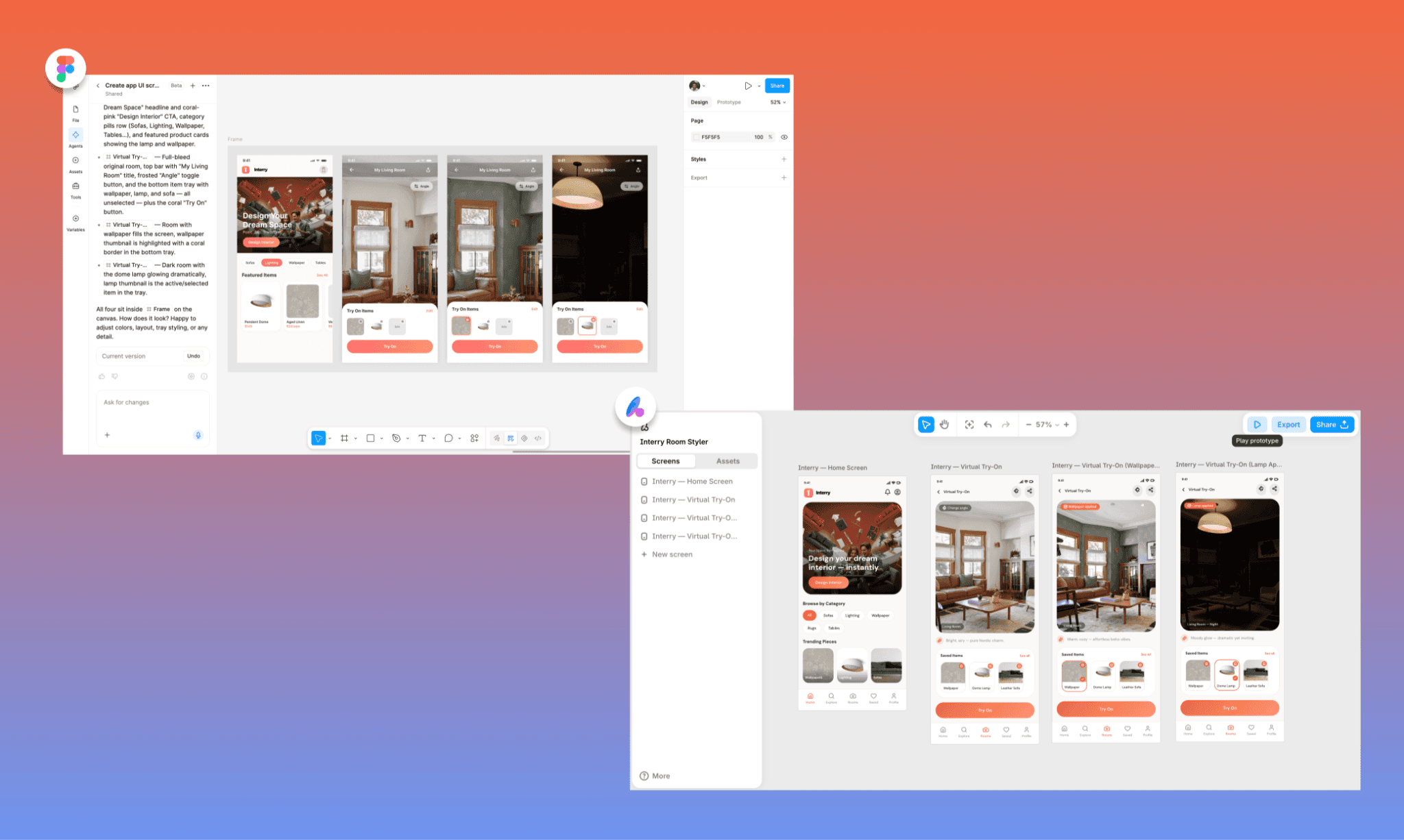
Interry by Figma Agent | Interry by Banani AI
*Note: In this case, am giving Figma an edge already because instead of a human, who could have mistakes in layering, this one is designed by Figma Agent.
Now let's assess the design-to-code features and fineness of the two across various flanks.
Interry was Designed during my Figma Weave Testing >
Test 1: Inspecting the component for code
During the design hand-off to the development team, the latter needs to be able to inspect the design token of each component so the frontend can be coded.
Figma Dev Mode
Once you switch to the Dev Mode in your Figma design canvas, you can select any item, or frame, and see its layout and style CSS on the right panel.
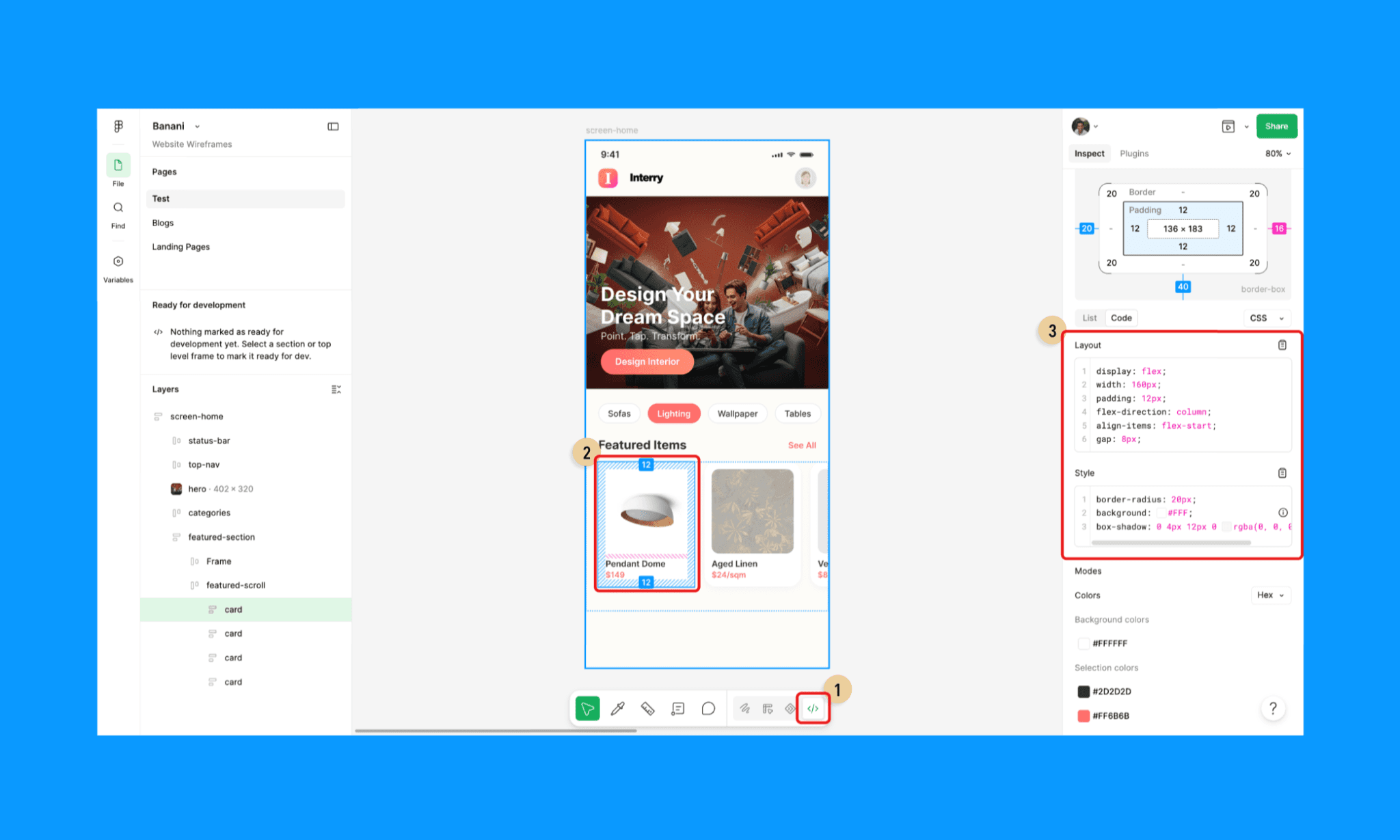
This has been the classic use case of Figma Dev Mode since its release. You can change the code language to iOS (SwiftUI & UIKit) or Android (Compose & XML).
Banani AI
While generating the screen, in the same canvas, Banani also generated assets side by side. By scrolling this Asset side, you can see all the design tokens used across the multi-screen UI in a go; no need to switch sections.
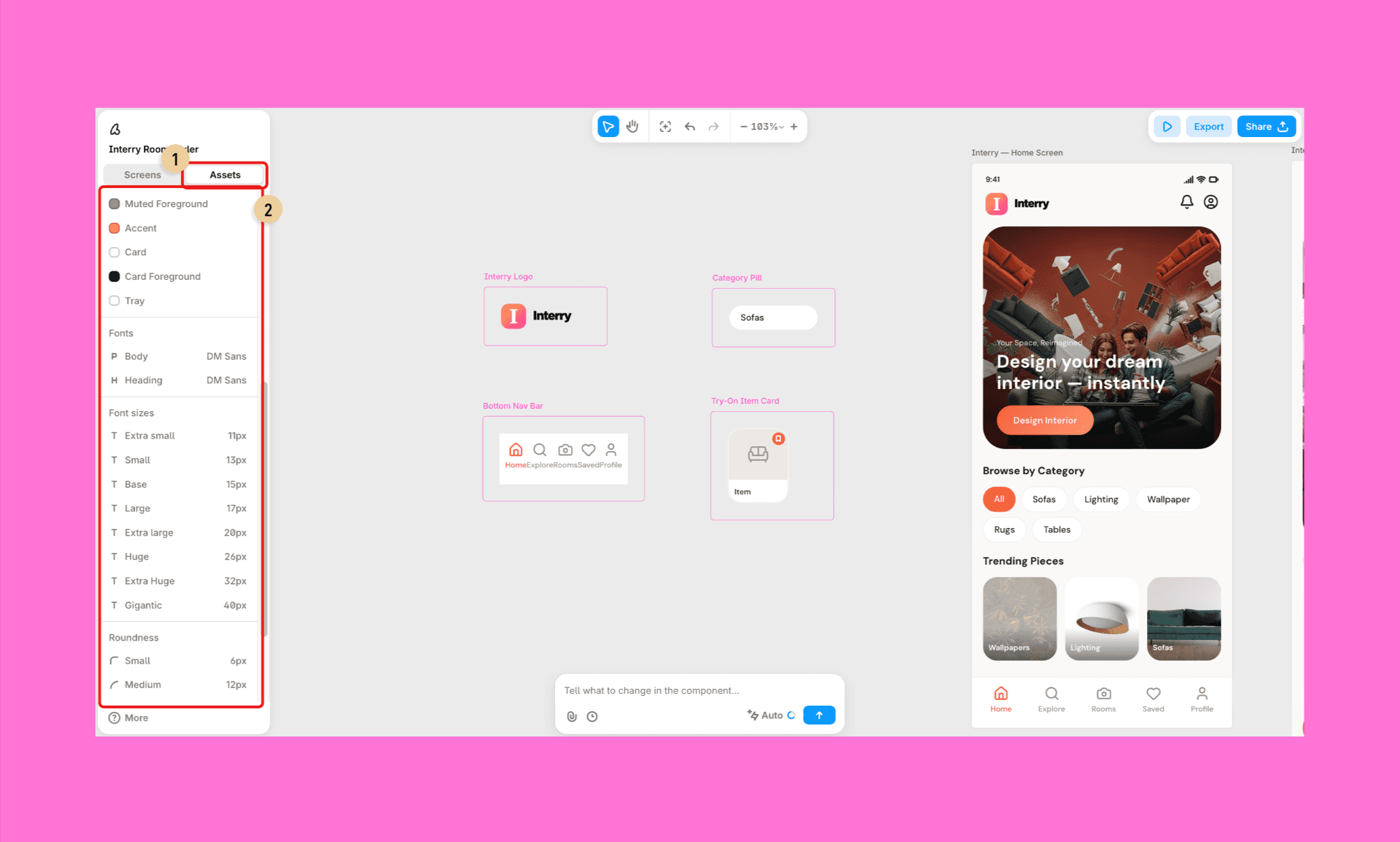
Not the same as per-element CSS inspection, but a decent proxy of a Design.MD file. A single source of truth a developer can reference while writing their stylesheet. Fewer variables, reusable styles, cleaner CSS.
Try Design System Generator Free >
Test 2: Code generation & quality
Coding the front-end by inspecting each element is slow and cumbersome. In 2026, with design tools powered by AI, both technical and non-technical product builders have come to expect direct frontend code generation at speed and accuracy.
Figma Dev Mode
Dev Mode does not generate the full front-end code of a screen in HTML/CSS (or other languages) by itself. But you can export the designs to Figma Make and ask it to replicate the design, and from there download the code file, viz. React + TypeScript project, with Tailwind CSS, Vite config, and each screen as its own component.
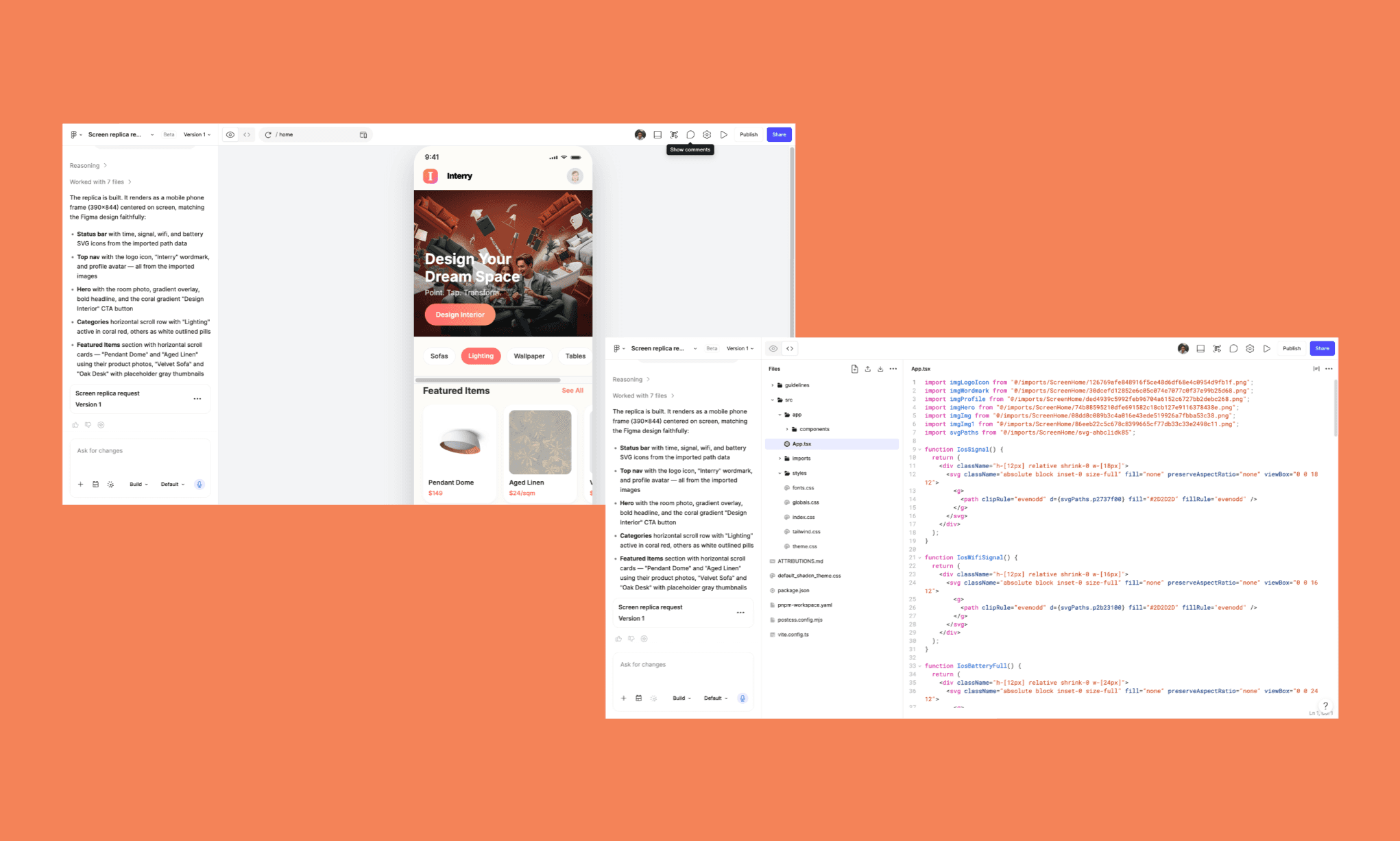
However, the process takes minutes and costs considerable AI credits. And if you’re adding a Frame, then you can only do one frame at a time. For instance, to generate the code for the homescreen of Interry in Figma, it took ~3 minutes and 34 credits.
Banani AI
You can get the HTML/CSS of a screen in a single click in Banani. Just hover over your desired screen, click the code icon (‘<>’), in the drop-down select ‘Copy HTML/CSS’, and voila! You have the code instantly in your clipboard, which you can paste anywhere. The code itself is semantic, clean, and an exact replica in the smallest possible size.
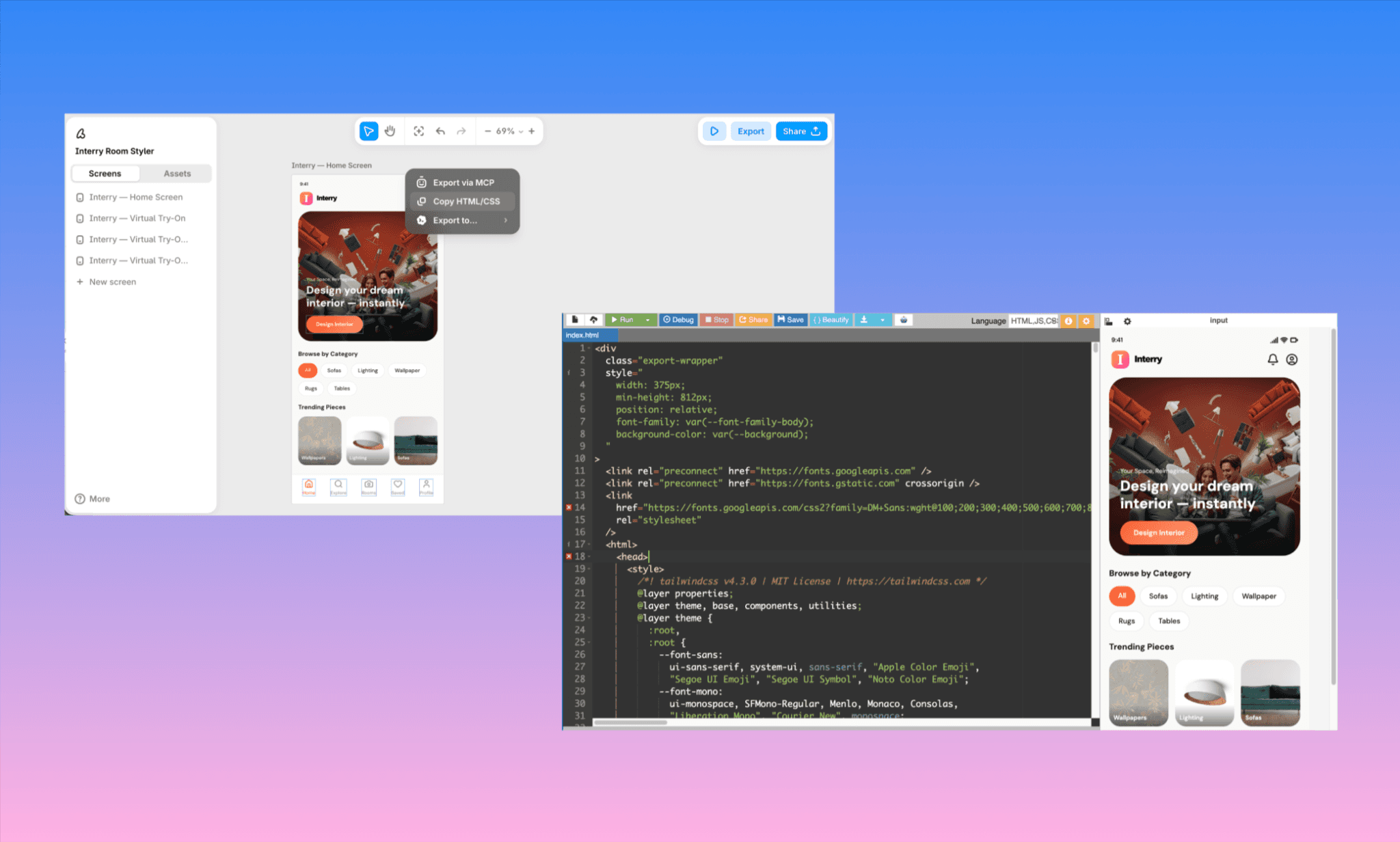
*Note: The second screenshot is from a HTML compiler and the preview is live.
You’d agree, vibe coders and non-technical PMs/founders prefer a simple HTML/CSS code file for front-end (the kind generated by Banani AI), instead of a sophisticated multi-folder file (one from Figma’s workflow). And to convert the latter to HTML/CSS, you have to export it to an AI coding Agent via MCP which is even more time taking and costly. Let's look at that next.
Try Screenshot/Image-to-Code AI Free >
Test 3: MCP to AI coding agent
MCP solves the different-team-different-handoff workflow to a large extent. So having a smooth MCP for design-to-code (and vice versa) is not only amazing but also essential.
Figma Dev Mode MCP
To access Figma MCP in Dev Mode, just select a screen (or any element), and on the right side, you’ll see a section called MCP above the code. Here, you get the prompt to paste in the AI coding agent directly, and a list of Agentic coding tools, including Claude Code, Codex, and Cursor, to connect in the terminal.
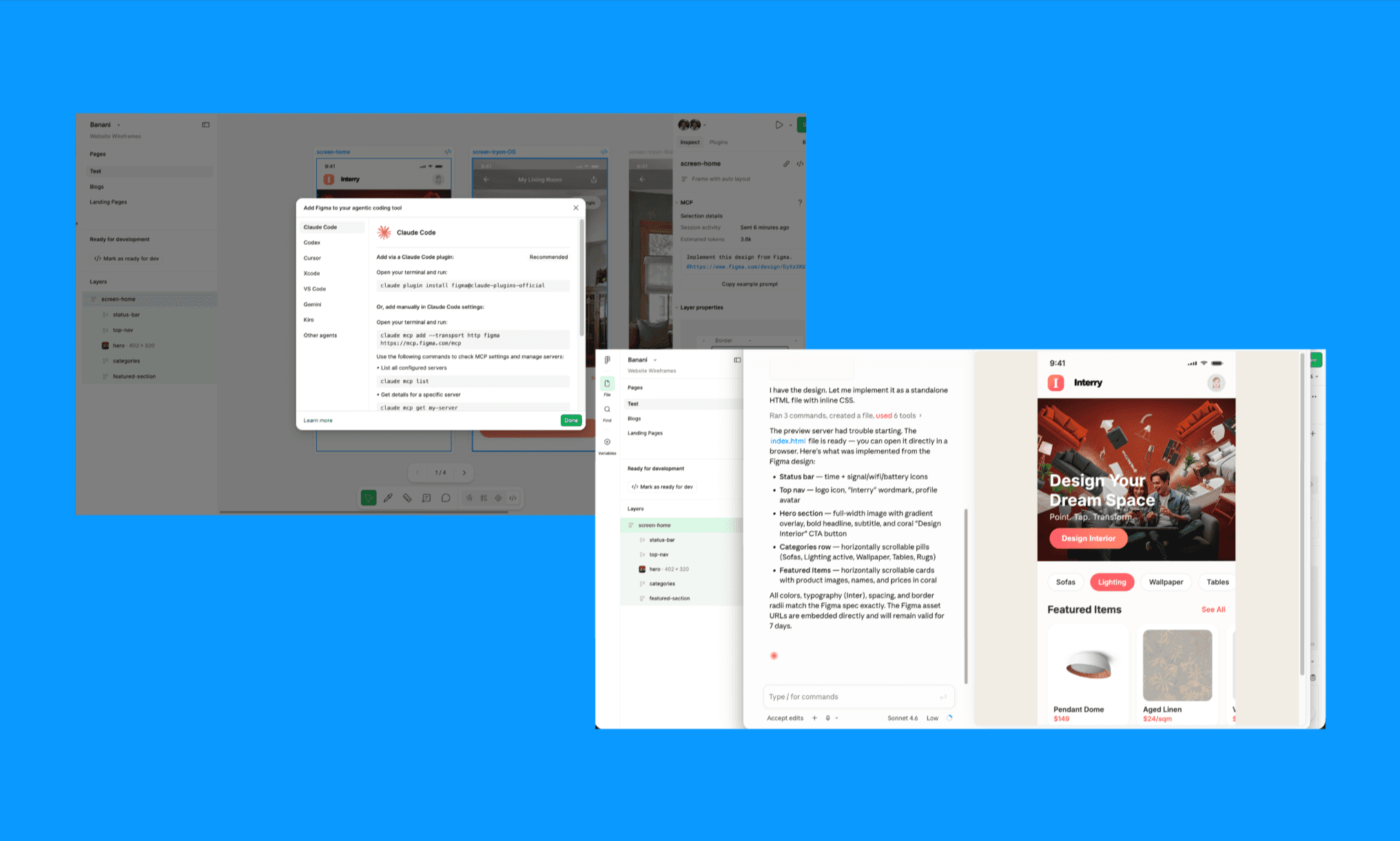
I tested out Figma MCP x Claude Code to generate an HTML/CSS file for my homescreen – both via the Claude desktop app and the terminal. In the Claude Desktop app, Figma is one of the pre-loaded MCP connections. I created a folder in my device, then pasted the prompt given by Figma, and within 5 minutes, I got the exact screen of my Interry homepage in plain HTML/CSS. On the other hand, when taking the terminal route, it took me 15 minutes from setup to connecting the frame, and then getting Claude to generate the code folders. (Most of it was spent on terminal setup and plugin configuration.)
In both cases, the resulting code is semantic, clean, and impressively faithful to the original design by Figma Agent. Immensely useful for developers to use it as frontend scaffolding.
Banani AI MCP
Now, I attempt the exact same thing for the homescreen with Banani AI, in both ways i.e., Claude COde desktop app and via the terminal.
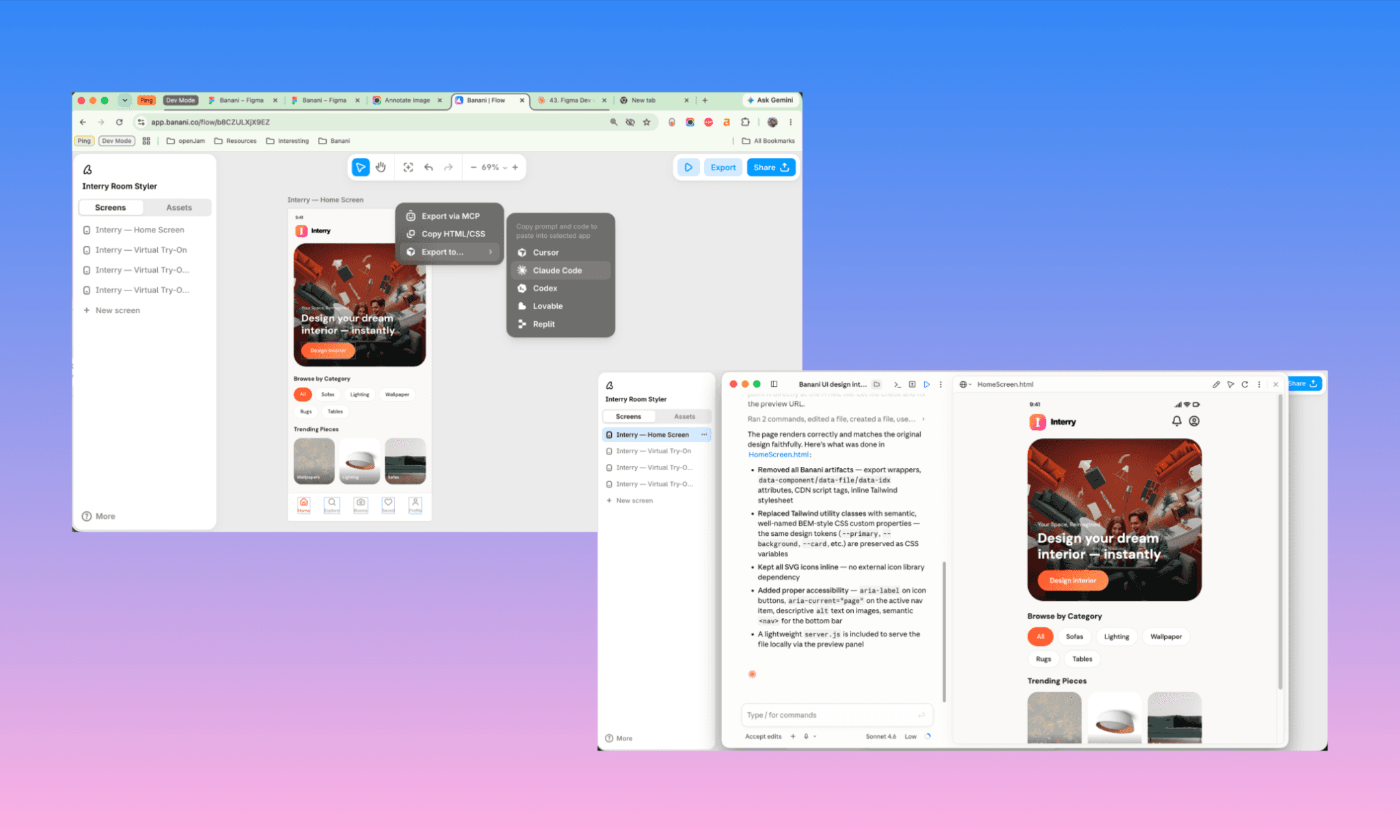
The option to connect Banani MCP directly to Claude Code is under the export to dropdown; and it was able to do so in ~5 minutes. The terminal connection of Claude Code and Banani MCP also took around ~15 minutes. Everything from setup, authorization, code generation, and preview. Here, too, the output is a 100% replica of my Interry home screen design by Banani AI.
So, irrespective of design complexity, both Figma MCP and Banani MCP work as expected with AI coding agents app and terminal. Even pressed to be critical, I see them both neck-to-neck in this regard.
Top Design-to-Code AIs of 2026 >
Test 4: Price & accessibility
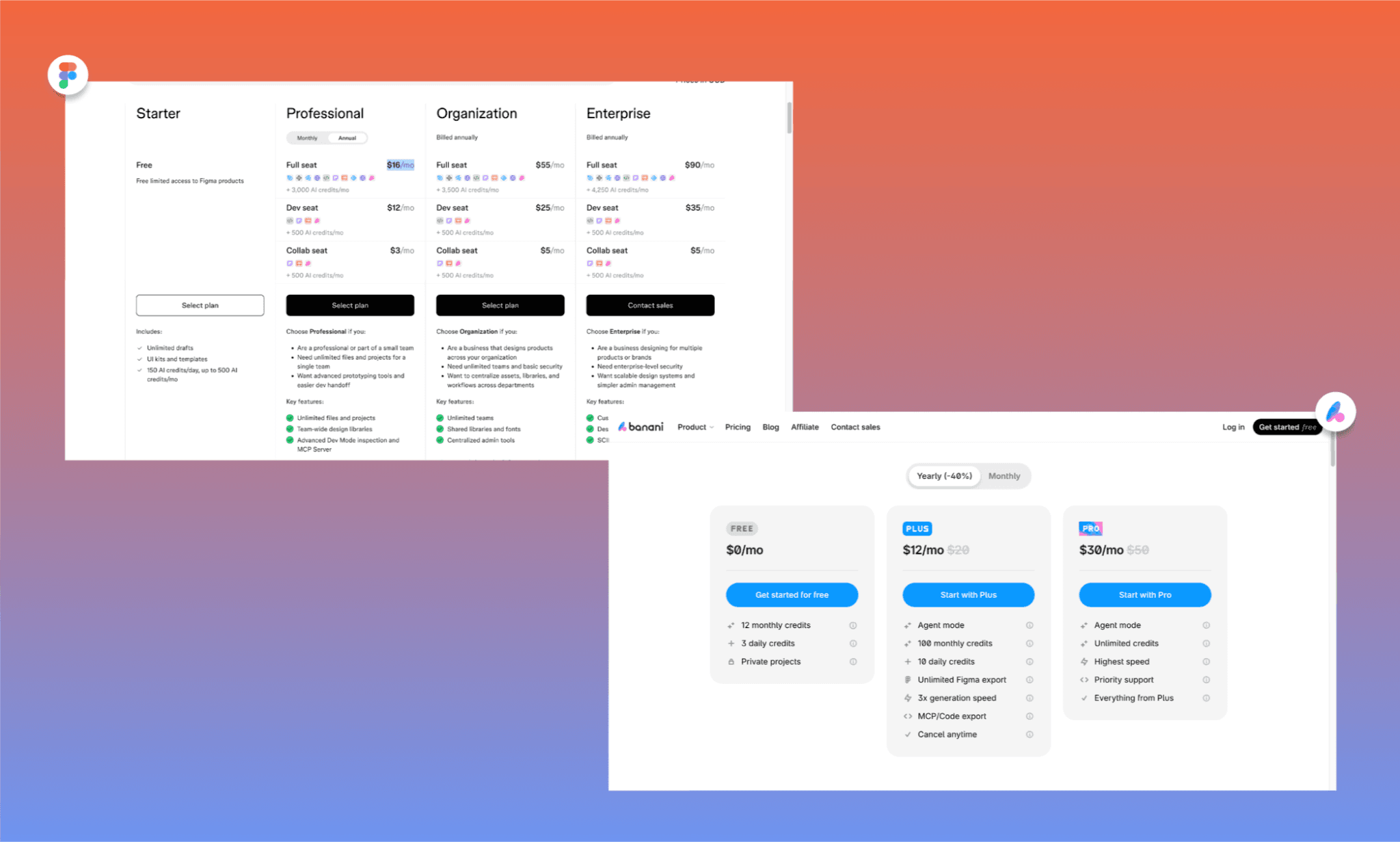
Last but not least, is the cost comparison of Figma Dev and Banani AI: not just dollars, but also time, and learning curve.
Free plan | Starter (no Dev Mode) | Free forever |
Entry paid | Dev Seat $12/mo (Professional) | Plus $12/mo |
Full access | Full Seat $16/mo (Professional) | Supported in Plus ($12/mo) |
HTML/CSS export | ✗ | ✓ Free (via Copy HTML/CSS) |
MCP export | ✓ (Professional+) | ✓ (Plus & above) |
AI credits included | 500 AI credits/mo (Dev Seat) | 400 credits/mo (Plus) |
Design + code in one tool | ✗ (separate Figma plan needed) | ✓ |
Learning curve | Moderate (multiple Figma AIs) | Low (All in a single canvas) |
Best for | Dev teams with design systems | Solo builders & small teams |
*Note: Typically, Figma AI uses ~30 credits for one screen, while Banani does the same for ~3. So, the latter is 10x more economical.
In Figma's own CFO's words, Figma pricing is prioritized for bundles over seats. So, the real entry cost for a team using Figma Dev is $28/mo minimum (Dev Seat + Full Seat for the designer). Figma Dev assumes a structured team with designers, developers, and a design system in place. Banani assumes you might be all three at once.
Try Banani Design-to-Code AI Free >
When to Choose Dev Mode or Banani
As evident from my head-on comparison of Figma Dev Mode and Banani AI, both tools work well within their intended context of design-to-code. In general, I can suggest choosing Dev Mode if you have a design system and developers who know what to do with CSS fragments. And go with Banani if you're building fast, building lean, or building alone.
However, to help you self-assess which one is right for you, answer the following questions for yourself:
Do your designers use Auto Layout and components religiously?
If yes, Dev Mode works. If your Figma files are a layer-naming mess (and, frankly, most are) Banani sidesteps this entirely.
How many developers are on your team?
Dev Mode is for frontend devs who speak CSS fluently. If your "developer" is a PM, a vibe coder, or a solo founder, Banani gets them further, faster.
Are you already paying for Figma Professional?
So, Dev Mode is already in your toolkit — go for it. Adding Banani can still make sense if the handoff is breaking down somewhere.
Do you need design and code in one workflow?
Figma separates them by seat type. Banani collapses both into one canvas, and is free to start.
Famous Dev Mode Alternatives

For most of its existence, Figma had never had a strong built-in design-to-code story. Dev Mode still only gives CSS fragments, not frontend code. However, Figma’s vast plugin ecosystem filled that gap for years. In fact, a handful of standalone tools exist solely for this workflow. Here are the popular Figma Dev Mode alternatives and/or plugins, and how they stack up.
Tool/Plugin | Key Features | Price | Best For |
Zeplin | Design inspection, annotations, component sync | From $6/mo | Dev handoff for larger teams |
Figma-to-React/HTML, prototyping, code export | Free tier; Pro from ~$31/mo | Devs who need React output | |
Multi-framework export (React, Vue, Flutter) | Limited Free tier available | Teams needing framework-specific code | |
Visual editor + HTML/CSS export, CMS integrations | Free tier; paid from ~$11/mo | Website builders, low-code teams | |
Figma import, live publishing, no raw code export | Free tier; paid from $5/mo | Designers who want to publish, not hand off |
How Banani Beats Popular Figma-to-Code AIs >
Verdict: Should Dismiss Dev Mode?
Not entirely, but you should know what you're signing up for. Dev Mode is powerful in the right hands: structured teams, disciplined designers, dedicated developers. Outside that context, it's friction dressed as a feature. Its alternative design-to-code AI, Banani, wins on code quality, speed, price, and accessibility. Plus, it’s a standalone AI UI design tool with deep Figma integrations, so you don't have to choose between ecosystems.
If you're building lean, Banani is the better starting point. Dev Mode will still be there when your team grows into it.
FAQs on Dev Mode Alternatives
What is Figma Dev Mode?
Figma Dev Mode is a developer-focused view inside Figma that surfaces CSS properties, design tokens, and component specs for handoff.
How to activate Dev Mode?
Open any Figma Design file and press Shift+D, or toggle to ‘Dev Mode’ from the toolbar at the bottom. The canvas goes read-only, and the right panel switches to inspect the view. It only works for paid users with a Dev seat.
Why do I need Figma Dev Mode?
If you're a developer implementing a Figma design, Dev Mode surfaces the CSS values, spacing, and component details without bothering the designer. It's most useful when the design file is well-structured.
Is Figma Dev Mode no longer free?
Correct. Dev Mode was free in beta (2023) but became a paid feature in early 2024. It's now available on Professional plans and above, starting at $12/mo for a Dev Seat.
Can I get Figma Dev Mode for free?
Not directly. The free Starter plan doesn't include Dev Mode. However, students and educators may access it via Figma's education program.
What is the best plugin for Figma Dev Mode?
Anima and Locofy are the most popular plugins for Figma design to code generation. For MCP-based handoff, the official Figma MCP server is the most reliable.
Read the comparison between the Top 5 Figma-to-code plugins.
Which is the best alternative to Figma Dev Mode?
Banani AI, hands down. It skips the inspection workflow entirely. Design with AI, export clean HTML/CSS in one click, and connect to Claude Code (or any AI coding agent) via MCP. And it is free to start, unlike Figma Dev Mode.


