

What is Figma Make?
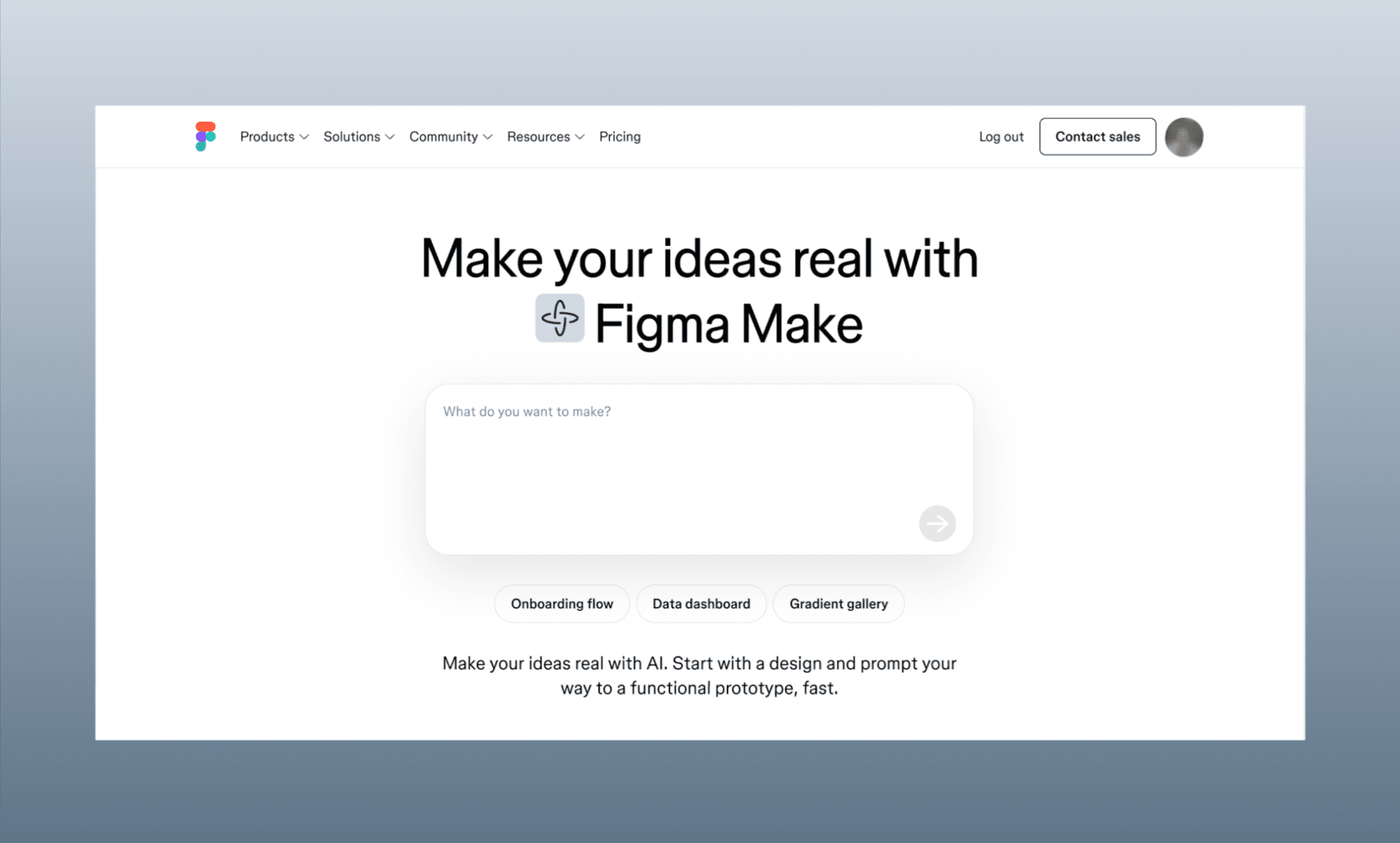
Figma Make is Figma's AI-powered prompt-to-app tool[1]. You describe an idea as text, and/or attach a Figma frame or image, and it generates a functional, interactive prototype – in minutes. No design skill, nor coding required.
Figma Make lives inside Figma's ecosystem and outputs real app code you can publish or hand off.
Try Prompt-to-Prototype Free >
Steps to Build an App with Figma Make
To demo how to use Figma Make, I’ll build a kid’s coding tutor app from scratch in line with Duolingo interface; and also use other Figma AI features like Figma Agent to speed up like a Pro.
Note: My Figma Make AI tutorial is with Figma Pro[2]. But even if you’re using its limited version in Figma AI Freemium plan, the steps will be the same.
Open and Set up Figma Make
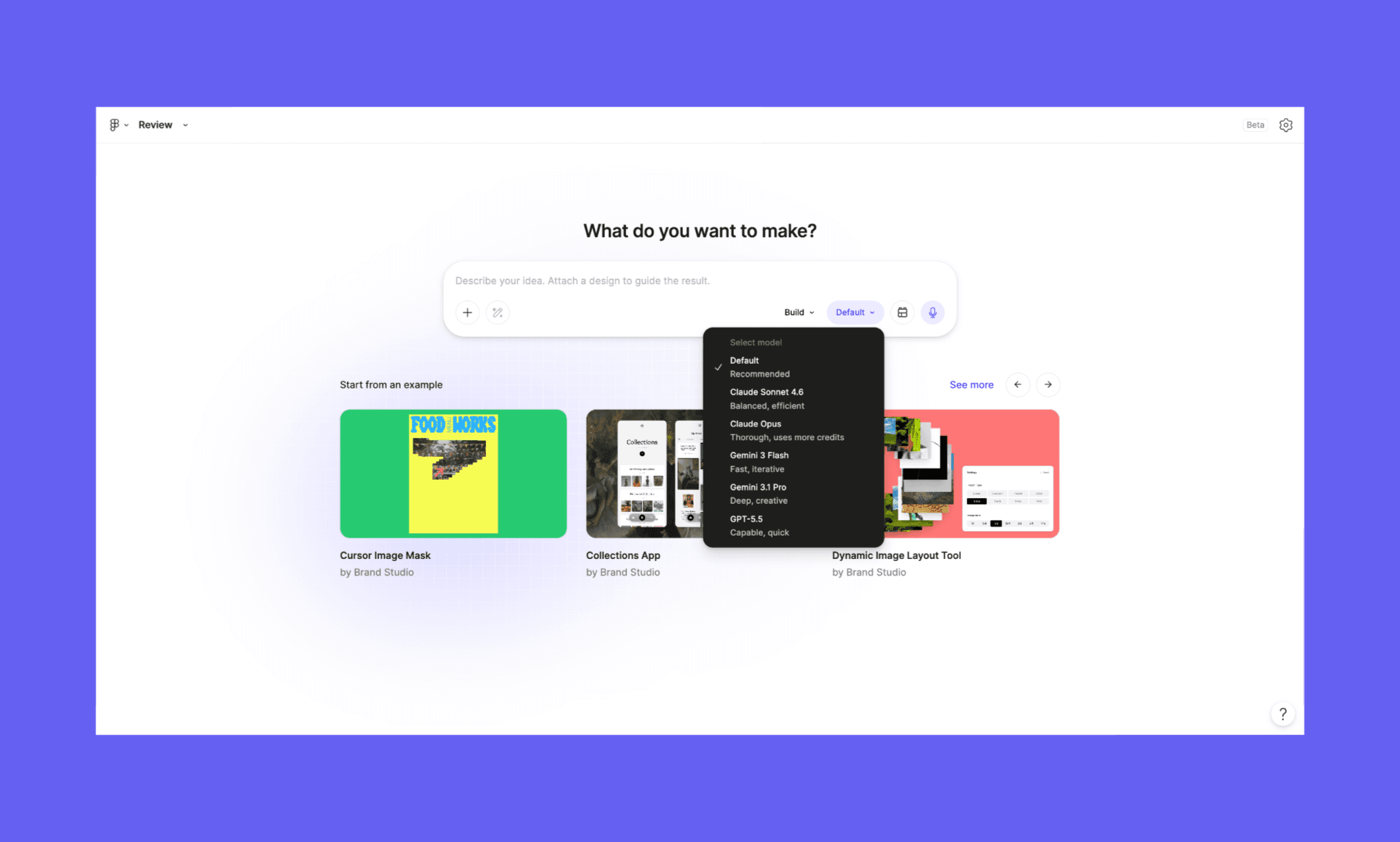
Once you open the Figma dashboard, you should see the Figma Make banner right on top as an interactive prompt input-bar. Start from there or from ‘www.figma.com/make’; I prefer the latter.
Here, you describe your idea of the app in plain english. And can add some UI references like an image, a Design MD file, a PRD, or even a link of a Figma design frame. What’s more interesting is that you can choose which AI model should power your Figma Make app: Gemini, GPT, or Claude. I am going with a design-first model, Gemini 3.1 PRO.
How to Web Design with Gemini 3.1 PRO >
Enter text prompt and/or upload references
In the prompt you can talk about a single screen or a full flow. Can let AI decide the styling or give it textual or visual references. My suggestion for serious vibe coding is to be as detailed as possible.
Am going to start with a prompt for QnA level for my app (am calling Coddly) and also uploading a few Duolingo level screens for references:
"Build a kids' coding tutor app called Coddly. Start with a home/unit-map screen showing a learning path with locked and unlocked levels. Then a lesson screen with 2 question types: (1) select the correct image (out of 4) for a programming language description, (2) write a small line of code by tapping word chips. End with a level-complete celebration screen showing XP earned.
Use a playful, gamified UI inspired by the attached Duolingo UI. But make the color purple and yellow palette, rounded cards, mascot character, progress bar at top, bottom tab navigation."
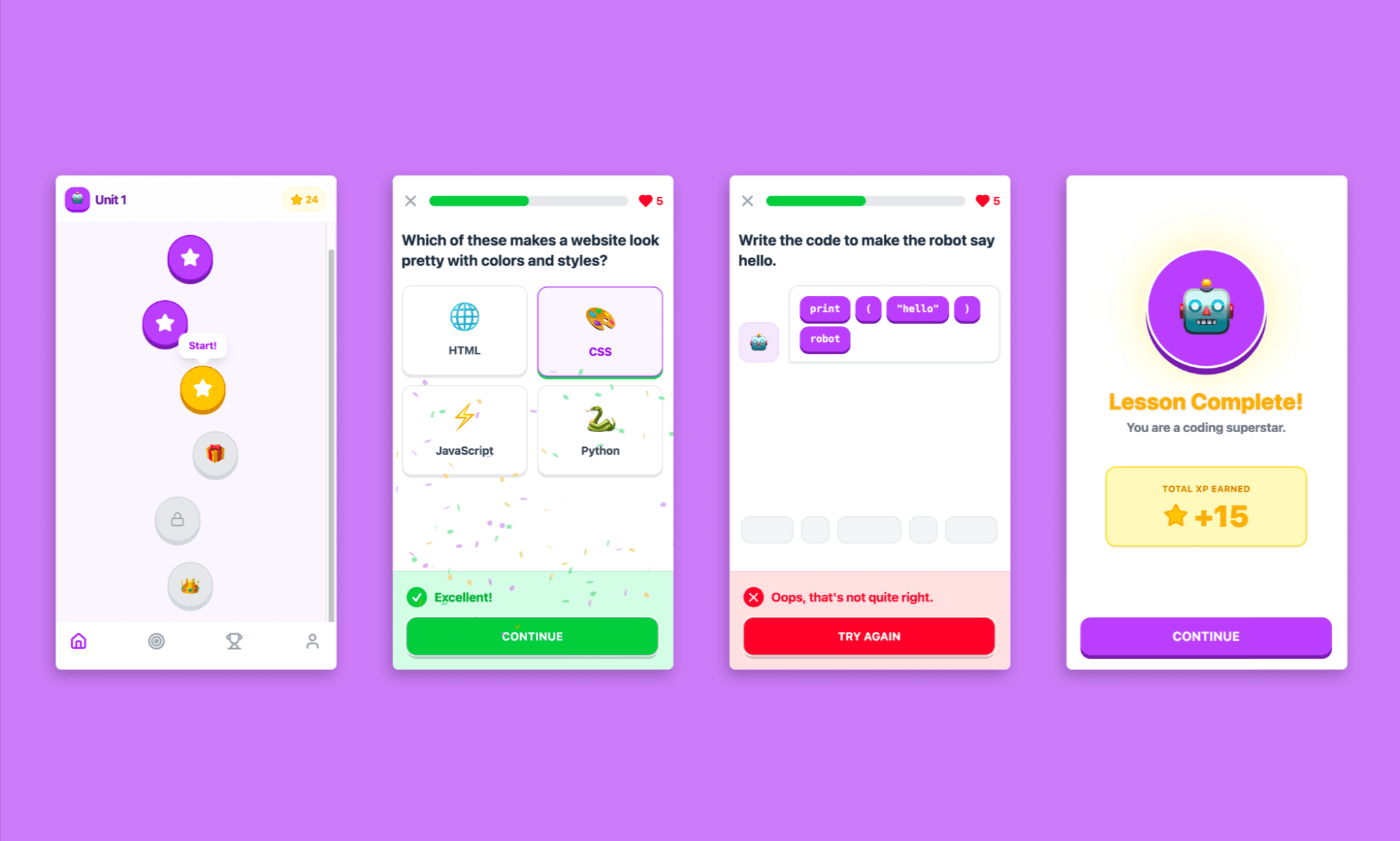
As it processes your request, you can see its reasoning live, it works in the background as long as the tab is open and pings you once it’s done. I did not even have to give much details for filling the QnA screen, but it filled-in quite well within the context.
To process my prompt, it took ~4 minutes, and 54 AI credits. And the output is an interactive app of 4 screens with the flow, and style is pretty much as I imagined.
Manual and AI editing of a screen
Now, I want there to be a proper mascot designed, the ‘Unit 1’ to say ‘Coddly’, and both to be there on the header in all screens. This is where, Figma Make’s two-way editing feature come in handy:
i) Manual point & edit
I choose the Manual Edit option under the chatbar. Simply clicked the (text) element I wished to edit, and typed what I wanted.
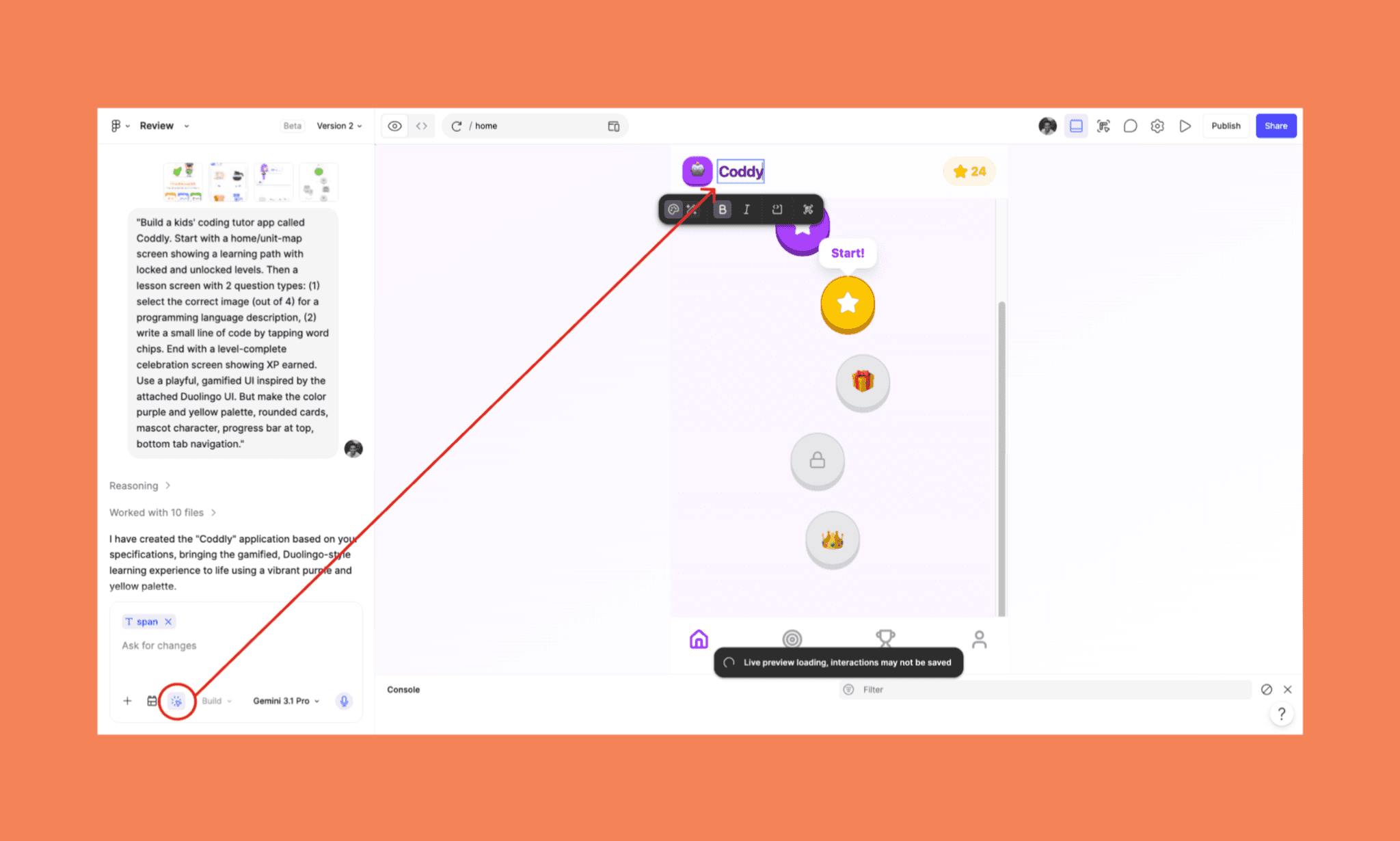
Manual edits in Figma Make costs no credit. And are convenient for one-off changes in a screen.
ii) Edit by asking AI
To make edits that are more complex or require application acquires screen, the faster way is to simply ask for it in the chatbot:
“Replace the current logo in the opening screen and the end screen with the mascot image attached in the prompt. Also, make all screen headers the same as that of the homescreen.”
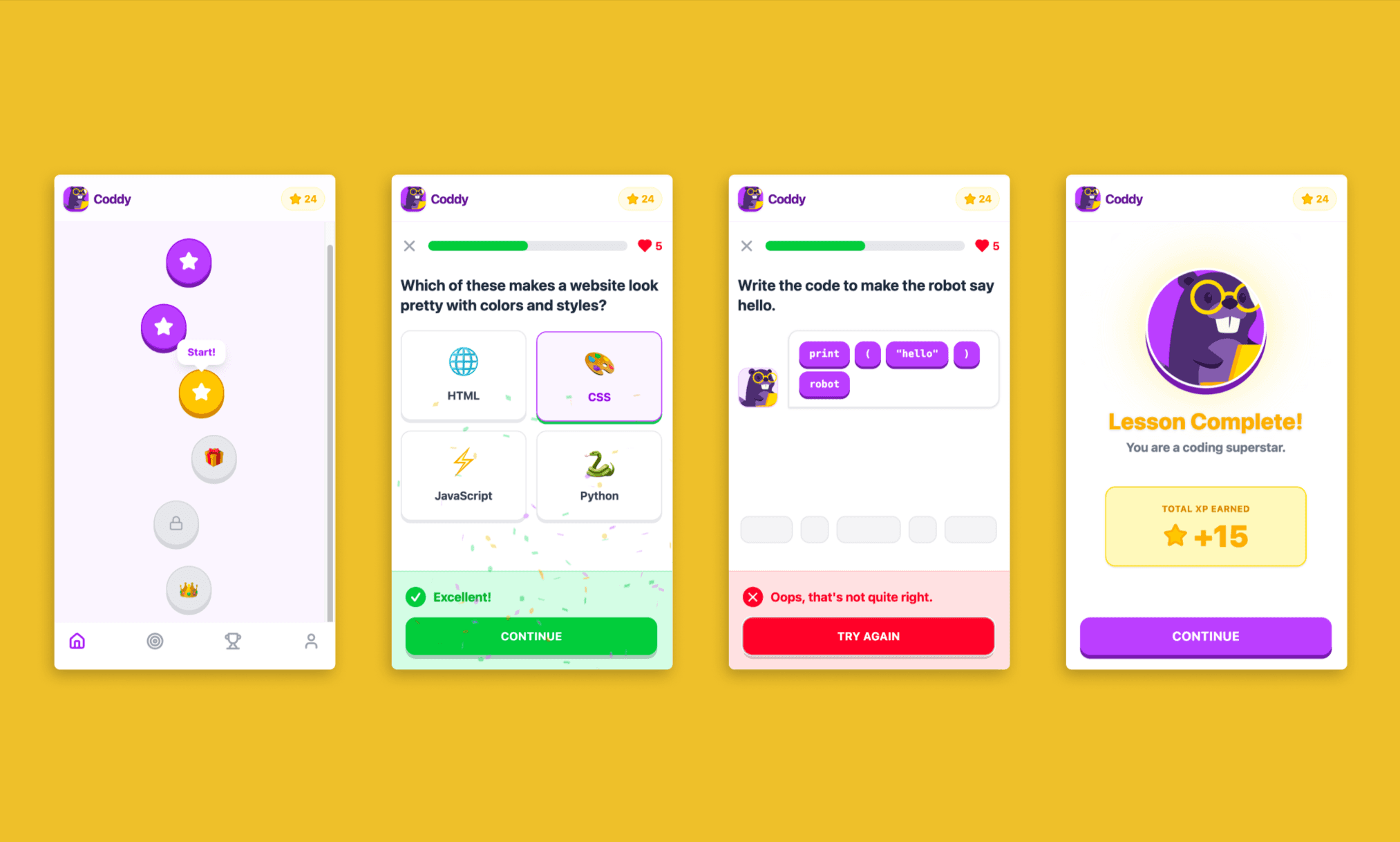
*Note: I designed the mascot using the text-to-vector tool by Figma Weave.
And in 4 minutes and 90 credits, my mascot was in place across all the 4 screens as required.
How to Generate Unique UI with Lovable >
Add a new screen with a prompt
Now that we’re happy with the current screens, let's add a new one, say, for ‘Streak Log’. We can simply ask the Figma App Maker for it in plain language and it shall follow the same logic and styling as the existing ones; this time without giving the Duolingo screen reference.
“Add a screen for ‘Streak Log and Challenges’ in line with the existing app. It should be accessible through the aim icon in the navbar.”
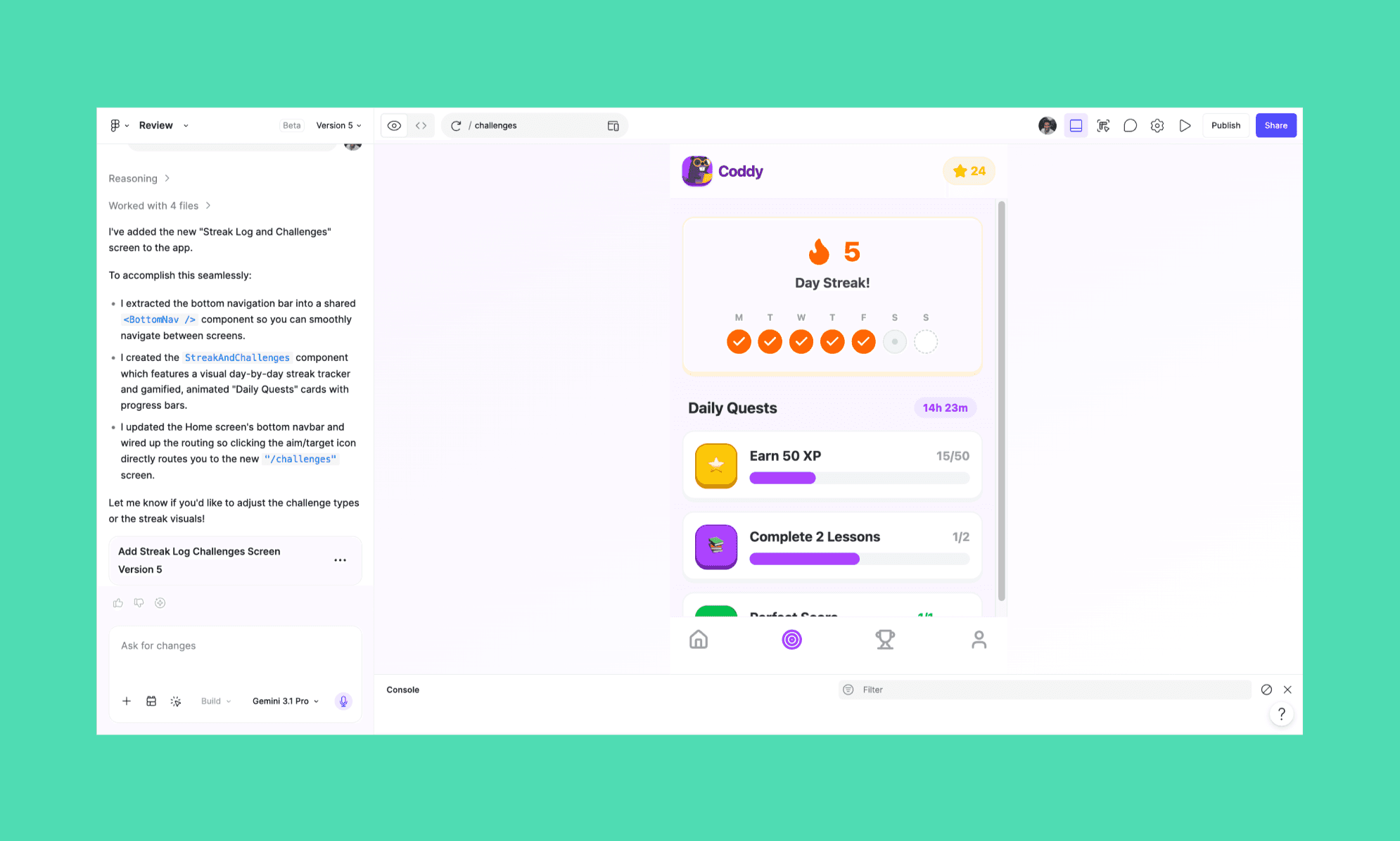
It was done in 2 mins, cost 56 credits and is pretty spot on.
You can imagine how much time vibe coding in Figma Make saves in generating scaffolding, screen UIs and connecting them compared to manual screen building.
I Tested Top Vibe Coding Tools of 2026 >
Test interactions in preview mode
Lastly, before you add backend, APIs, deploy and all to complete the app, you should check out the interactivity of the app in Figma Make preview. For this, simply click on the play icon on the top-right corner, a new window with the preview shall open.
From my preview, I am pleased with the app interactions — it’s gotten the flow right, buttons are working fine, the true/false states of the QnA are correct, and the micro-animations are fun. The preview, of course, does not cost you any credit.
And you can share the view link with anyone. Or, make it available as a live hosted app from the ‘Publish’ option on the Figma Make header.
Preview my Coddy App by Figma Make >
Exporting Figma Make App to Code
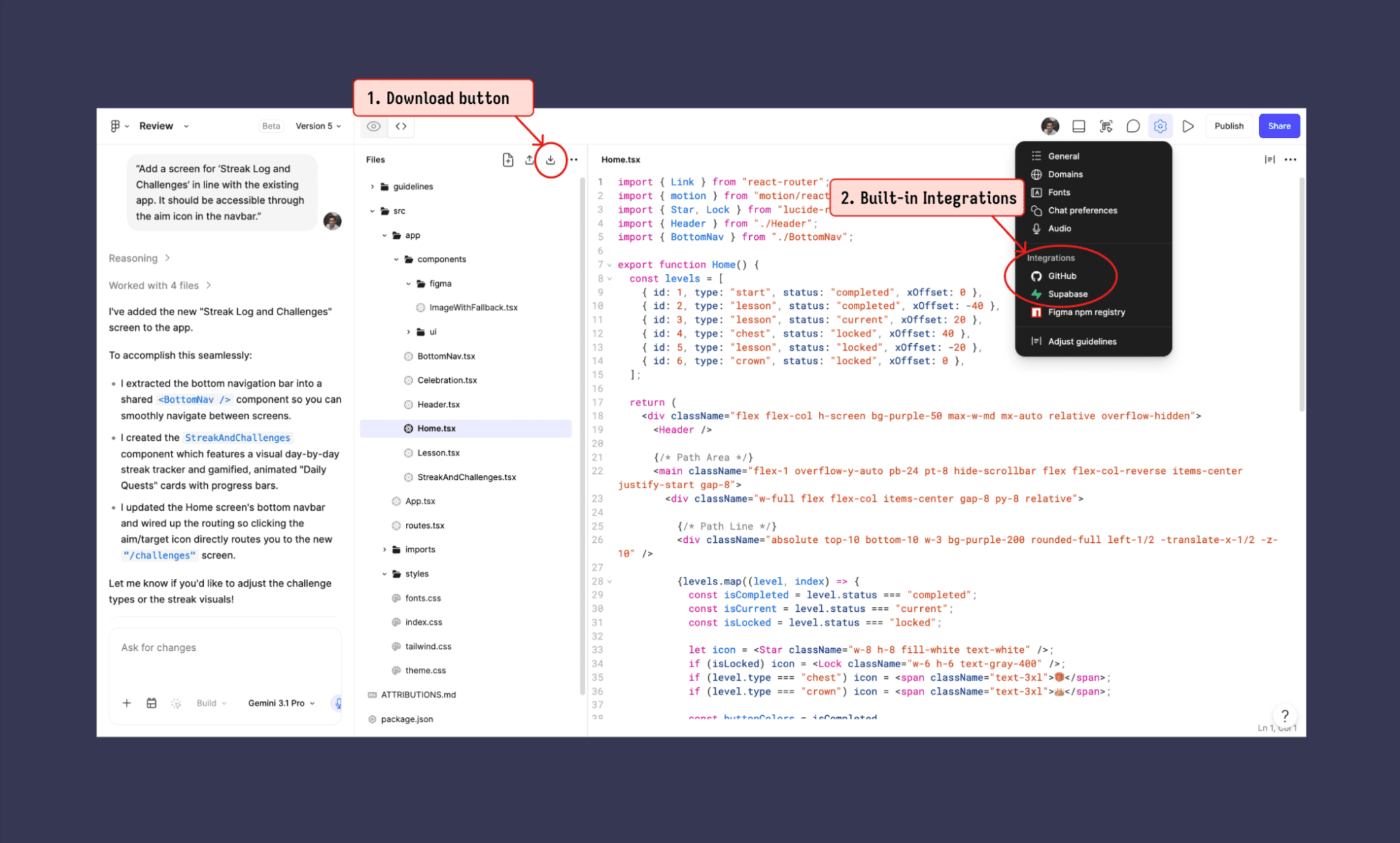
With Coddly's 5-screen app built and interactions tested, the natural next step is handing it off for production. Figma Make gives you two paths for this.
One, simply switch to the code view, and hit the download icon; you instantly get a zip of all code files. What's inside is a proper React + TypeScript project, with Tailwind CSS, Vite config, and each screen as its own component (Home.tsx, Lesson.tsx, Celebration.tsx, StreakAndChallenges.tsx). Plus, shared elements like BottomNav and Header are extracted automatically. Images are bundled, routes are wired. Drop it into VS Code and it runs.
The second path is Figma Make's built-in IDE integration with GitHub and Supabase, so you can push to a repo and wire up a real backend without leaving the browser.
There's also a Figma MCP server, which lets AI coding agents like Claude Code or Cursor read your Figma file context directly, making prompt-to-code handoffs in Figma significantly more precise.
Additionally, if you need to pull in product context while building, Figma Make's Connectors support Notion, Slack, Monday.com, Marvin, and Sprig.
Free Figma-to-Code AIs Compared >
My Tips for Using Figma Make
Figma Make app builder AI is fast and impressively capable as the entirety of Figma AI toolkit. However, credits burn quickly, prompt misinterpretation, and generic outputs are common. Taking them as an inevitable parcel of any AI app builder, I’ve found a few tips and tricks to make the most of Figma Make:
Be specific in your first prompt: Make does its best work upfront. Describe screen count, flow logic, UI style, color palette, and interactions from the start. The more context in prompt 1, the less you're paying to fix it later.
And, if you’re not sure and wish to brainstorm, use their ‘Plan’ mode instead of ‘Build’ mode during setup itself.
Use manual edits for small fixes: Point-and-click editing costs zero credits. Reserve AI prompts for structural changes like new screens, layout shifts, and routing logic. Don't burn credits on a simple label change.
Ask AI for one thing at a time: Stacking multiple changes in a single prompt leads to partial execution or even misunderstanding the request. So, one clear instruction per turn keeps Make focused and reversible.
Access the code tab for quick fixes: Small issues like wrong color or bad padding are faster to fix directly in the code tab than re-prompting the AI.
Vibe design before you vibe code: The design output of Figma Make tends to be generic. To bypass it with elegance, speed, and affordability, I recommend that before vibe coding, vibe design with Banani AI.
Below is how Banani would design the same app screens, with the same prompts.
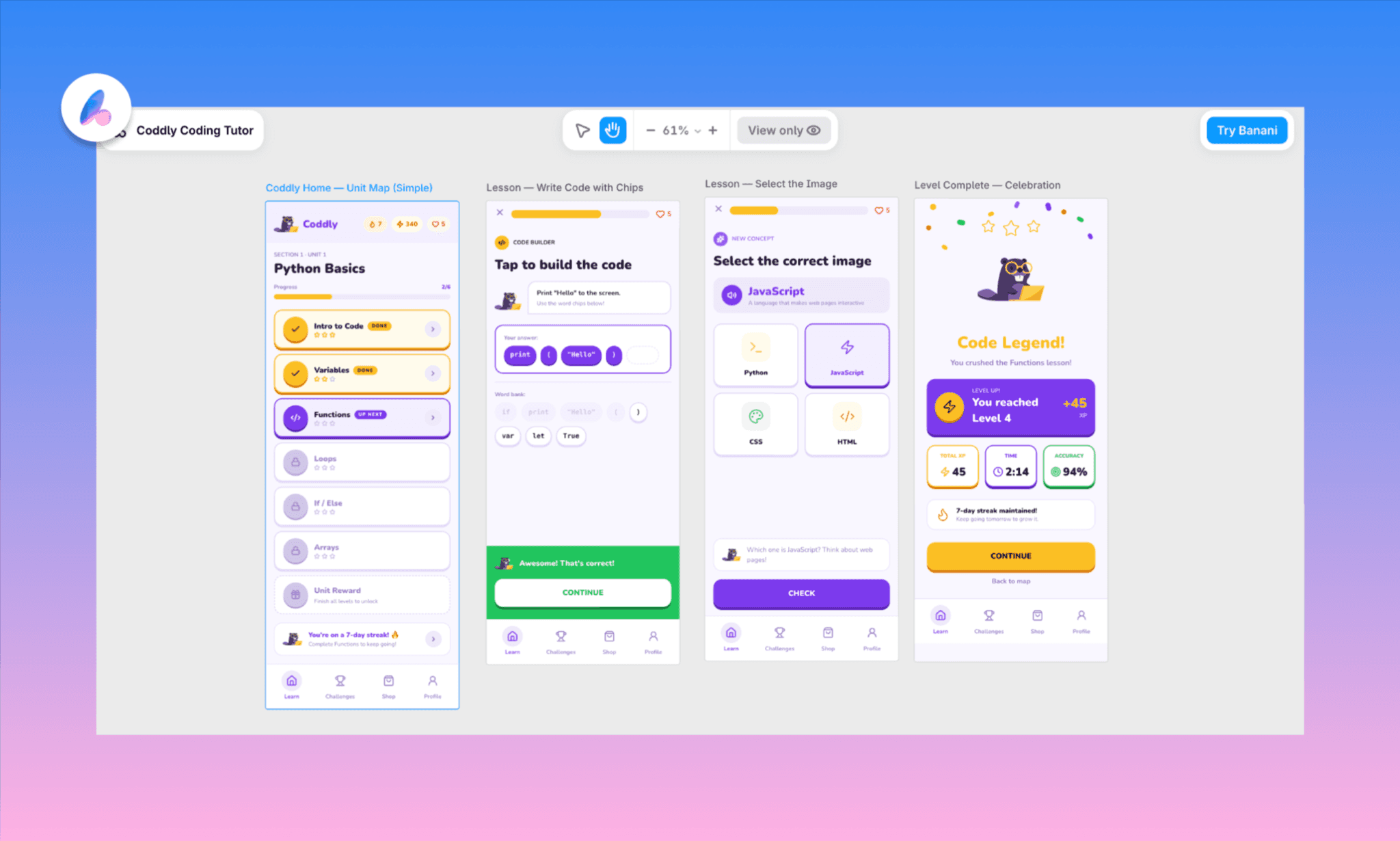
View & Edit Banani’s Idea of Coddy App UI >
Using Figma Make with Figma AIs
Figma Make is one of the AI tools in the Figma AI ecosystem in 2026. It can be paired with other AIs for end-to-end product development workflow. To build an app, you can start with Figma Weave to generate UI assets, then assemble them using Figma Agent in the design canvas. Once happy with the vibe design output, import the frames into Figma Make for coding and wiring the backend. And once built, Figma Sites can publish your app as a live website in one step.
That said, this Figma AI stack is still in beta, and credits add up fast. If you need a purpose-built design-to-code AI with deep Figma integration, try Banani AI.
FAQs on Figma Make AI
What AI model does Figma Make use of?
Figma Make supports multiple models: Claude Sonnet 4.6 & Opus, Gemini 3 Flash & 3.1 Pro, and GPT-5.5. You can pick the model before generating.
What coding language does Figma Mak use?
Figma Make generates React and TypeScript, styled with Tailwind CSS. Its code output is a standard Vite-based project with component files, routes, and styles included.
How does Figma AI generate code from design components?
Figma Make reads your prompt and any visual references you attach and uses the selected AI model to generate component-level code that matches the described layout, interactions, and styling.
What's the difference between Figma Make and Figma Sites?
Figma Make generates functional, coded web apps from prompts; meant for building interactive prototypes with real code underneath. Figma Sites, on the other hand, publishes Figma designs as live, responsive websites.
Which is the best alternative to Figma Make for app design?
For full-stack vibe coding, Lovable and Bolt.new are strong options. However, for UI-first prototyping, Banani AI is the best alternative to Figma Make.
References
[1] https://www.figma.com/make
[2] https://help.figma.com/hc/en-us/articles/31304412302231-Explore-Figma-Make


