
Key Features | Text-to-UI, screenshot-to-wireframe, diagram AI, prototyping, real-time collaboration |
Ratings | G2: 4.4/5 | Product Hunt: 4.3/5 |
Pros | Intuitive canvas, accurate screenshot conversion, free prototyping |
Cons | AI editing regenerates instead of edits, diagram logic unreliable, multi-step UX friction |
Free Trial | Free forever: 300 AI credits/month (600 in first month), 2 boards, no credit card |
Paid Plans | Pro $11/month · Business $29/month (both billed annually) |
Alternatives |
What is Visily AI?
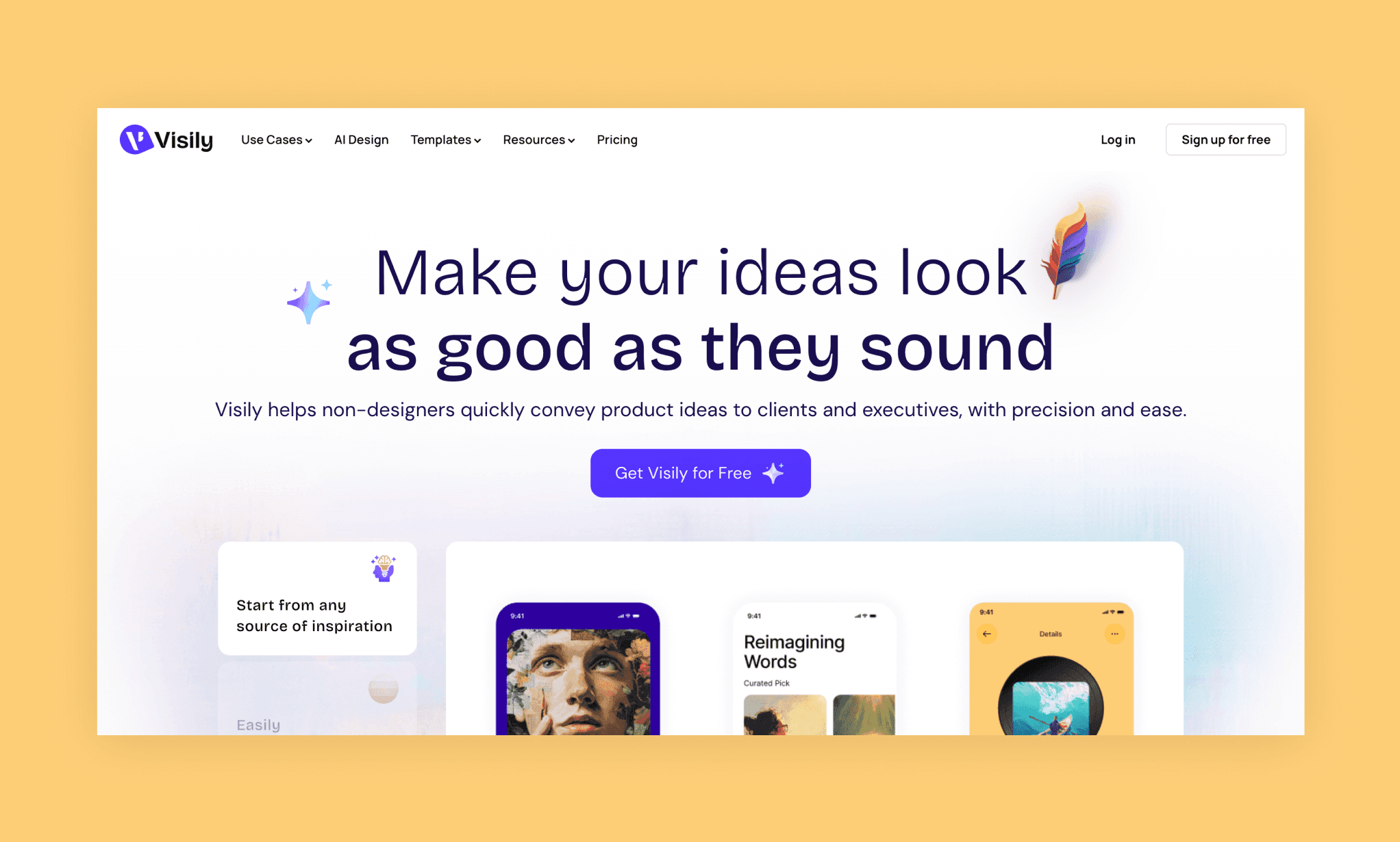
Visily[1] is an AI-powered UI design tool built for non-designers who need to go from idea to wireframe without touching Figma. It covers text-to-UI, screenshot-to-design, diagramming, prototyping, and real-time collaboration in one canvas.
Visily AI was founded by Buu Nguyen in 2021; and its CEO has been Jordan Woods since 2023[2].
Feature Testing the Free Visily AI
Step | Rating | Liked | Disliked |
4/5 | No credit card, clean starting point options | Extra choice screen before dashboard | |
3/5 | Clarifying question (mobile vs desktop), logical bottom navbar | Color logic off, icons not as prompted, no direct-to-editor flow | |
2/5 | Click-to-edit is intuitive, no credits for manual edits | AI re-generated instead of edited, screen selection ignored | |
5/5 | Auto-links are logical, easy to add custom flows, no credits | N/A | |
2/5 | Low credit cost (10), clarifying questions, intuitive editing | Broken decision node, mode-switching friction, redundant preview | |
4/5 | 100% replica accuracy, fast, browser extension works niftily | 30 credits for one screenshot |
Step 1: Sign up free & choose your starting point
Much like most AI design tools, Visily sign-up is straightforward and is free to start; requires no credit card. You’re asked a couple of personalization questions, but then, even before the dashboard, you have to make a choice from where to start:
i) AI-powered Wireframes or Diagrams
ii) Wireframe Templates
iii) Diagram Templates (which seem to be flowcharts)
Along with the option to ‘Start from Scratch’
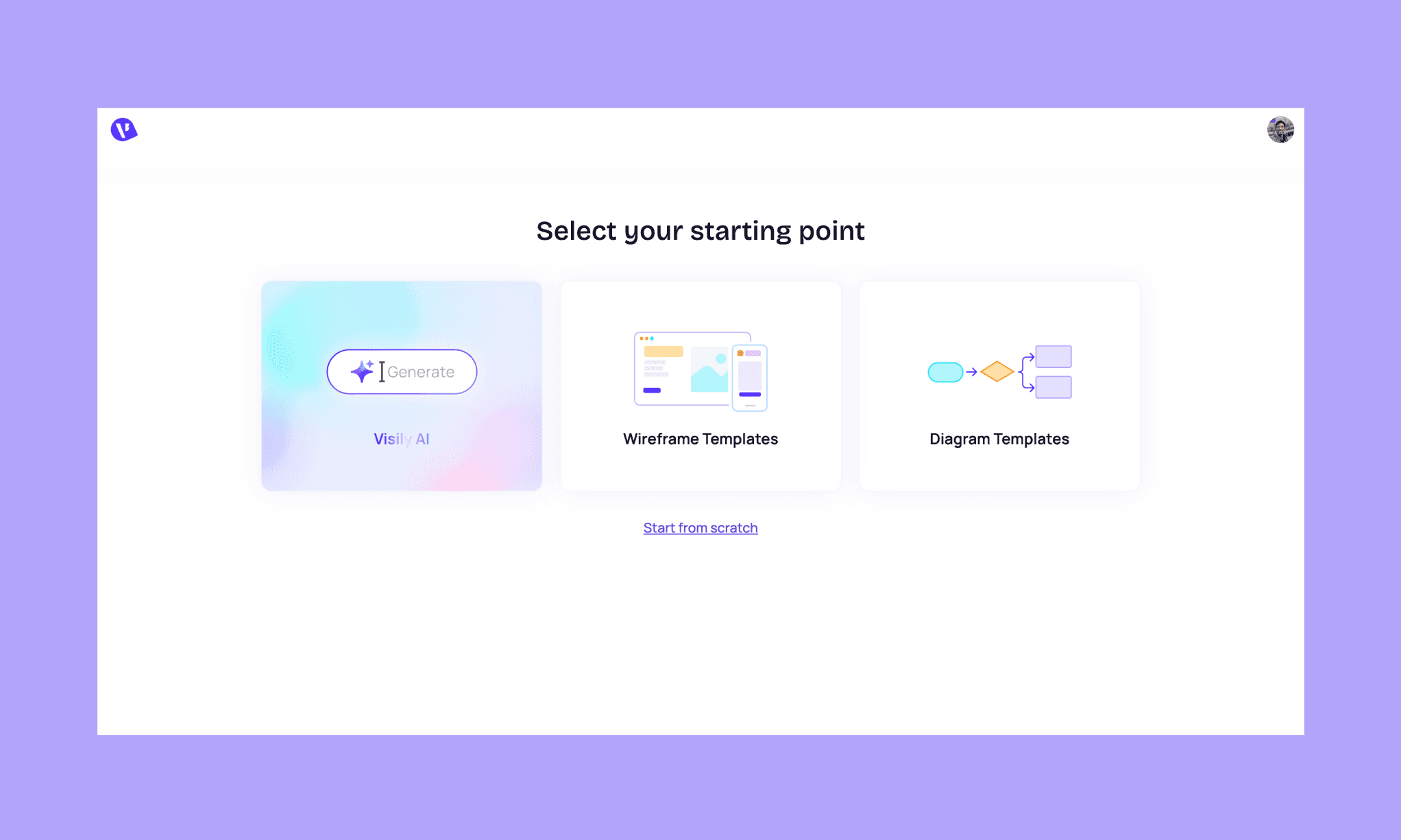
I wanted to test Visily’s AI UI Generator, so went with the first option.
Step 2: Prompt-to-UI with Visily AI
An interesting feature of its prompt box is that on typing backslash ‘\’, it shows you some sample prompts to generate UI/wireframe for mobile, web app, image, etc. Yet, I went along with something of my own. A minimal notes app mobile UI (like Things 3):
“Design a minimalist note-taking app called Notty with 3D glass iconography, teal and orange as the primary colors, and a geometric sans-serif typeface. Generate two screens:
> Screen 1 — a home/dashboard with a clean sidebar listing Today, Upcoming, and Anytime sections alongside a task list in the main area.
> Screen 2 — a note detail/edit view showing title, notes field, due date, and tags.”
As the prompt was being processed, it asked me a clarifying question (Whether to generate mobile or desktop screens?), which I really liked.
At first, it showed just the two screens generated – no chat interface or editing board either. There I had the option to change the color palette a bit. To open its editing board, I had to click ‘Open Board’. Now this, I felt, was redundant because a smoother flow would have been to simply take from the prompt box to the editor where the process, and output is shown; the way AI UI designers like Banani AI do.
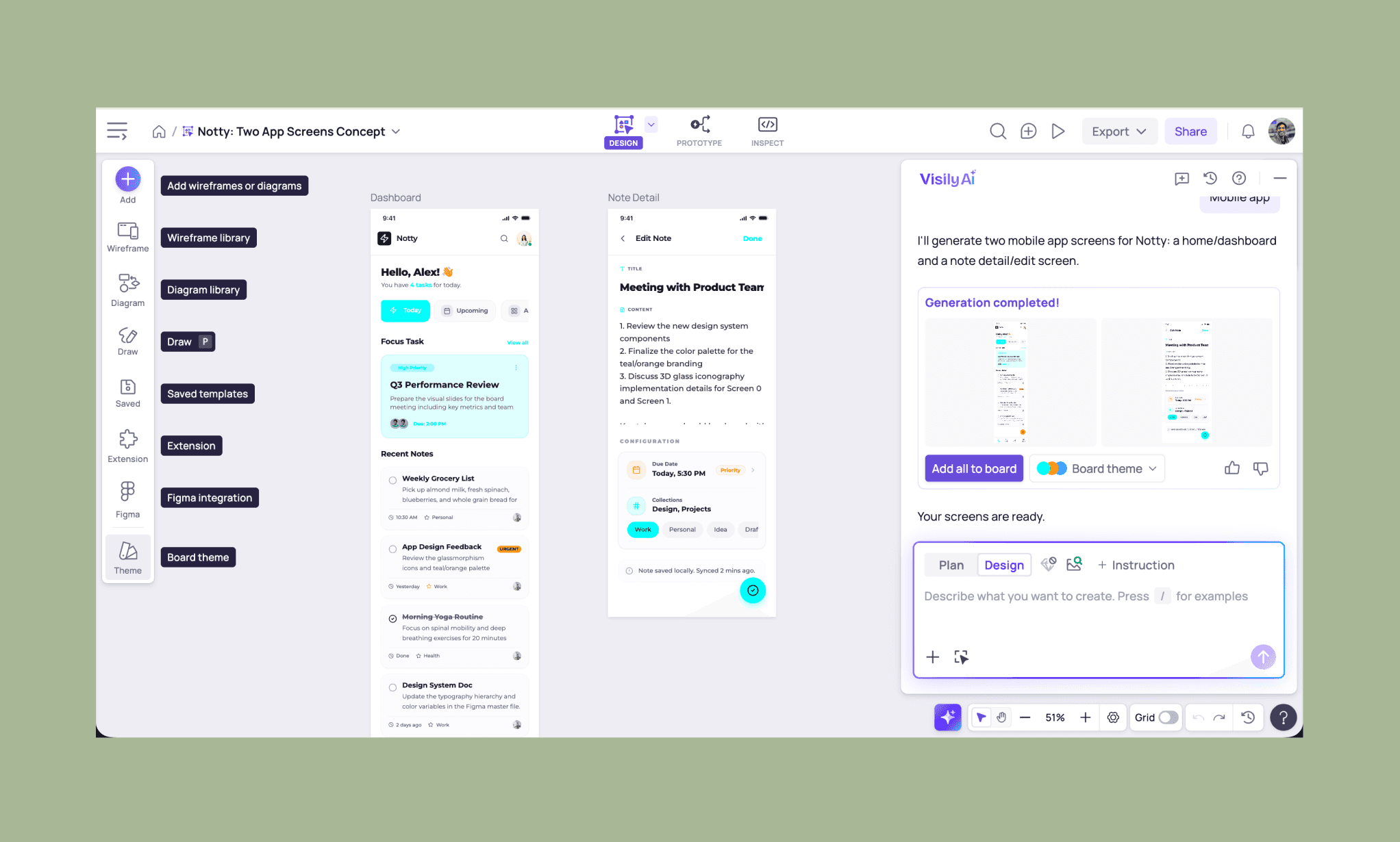
As for the output, I have mixed feelings. It did generate both screens with my specified UX elements. And the homescreen even has an additional bottom navbar with quite logical icons for a notes app. However, some UI elements miss the mark.
- Tags like ‘High Priority’ are colored teal in such a way that they don’t highlight from the background teal.
- Given teal is the primary color, the add button, an important action, should have been teal but is instead a warning-like orange.
- The icons are not 3D-glass style.
It took ~3 minutes and 60 credits to generate both screens.
Step 3: Manual editing & AI editing in Visily
One explicit feature that's also quite handy is Visily’s click-to-edit feature. You hover over any element of the UI and can see that it can be selected & dragged, and click once to edit. And, of course, any manual edits do not cost any credit in Visily.
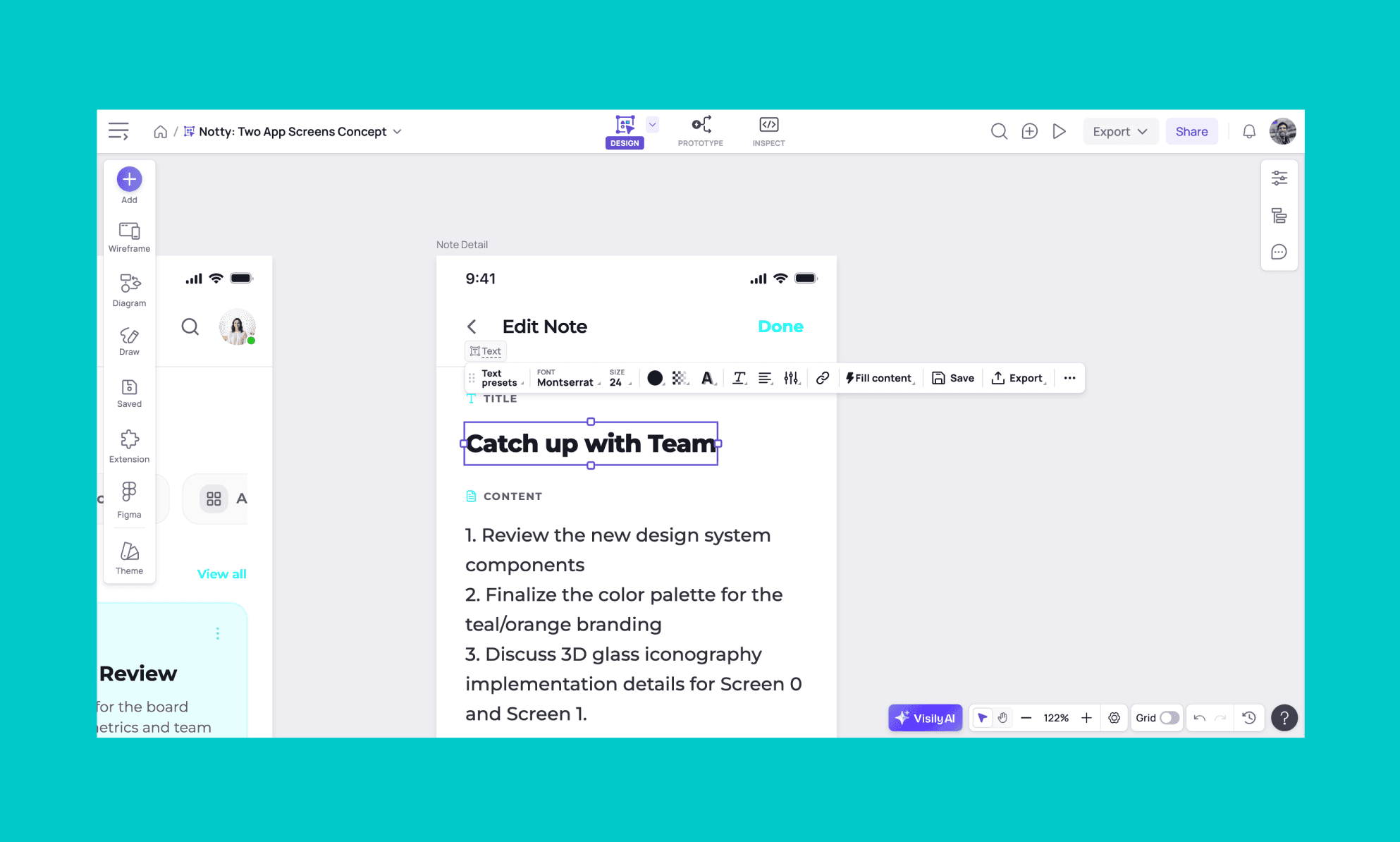
To put the AI editing feature to test, I selected the first screen and prompted:
“Change the 'High Priority' button/text color to be better visible.”
Which is intentional in terms of direction when you are vibe designing.
In its response, it said: “I'll update the 'High Priority' button/text color on both mobile screens to improve visibility.” and started generating 2 screens.
Which had me confused. Because then my selection of Screen 1 was meaningless. And, the existing second screen does not even have this button or text.
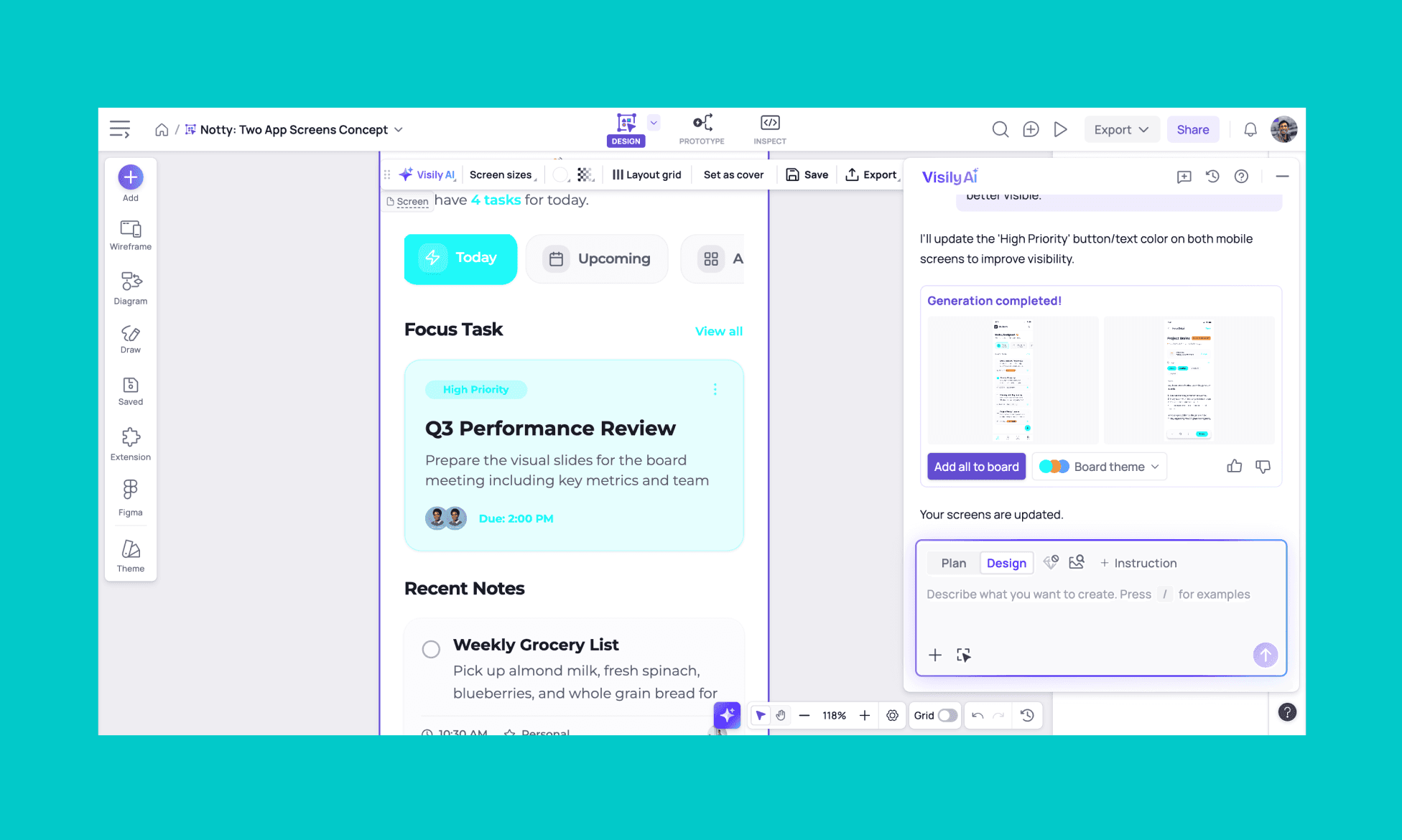
I was expecting it to make the changes in my screen on the board, but what I received was 2 new screens in the chatbox. Which, to view for reviewing, I had to click to enlarge.
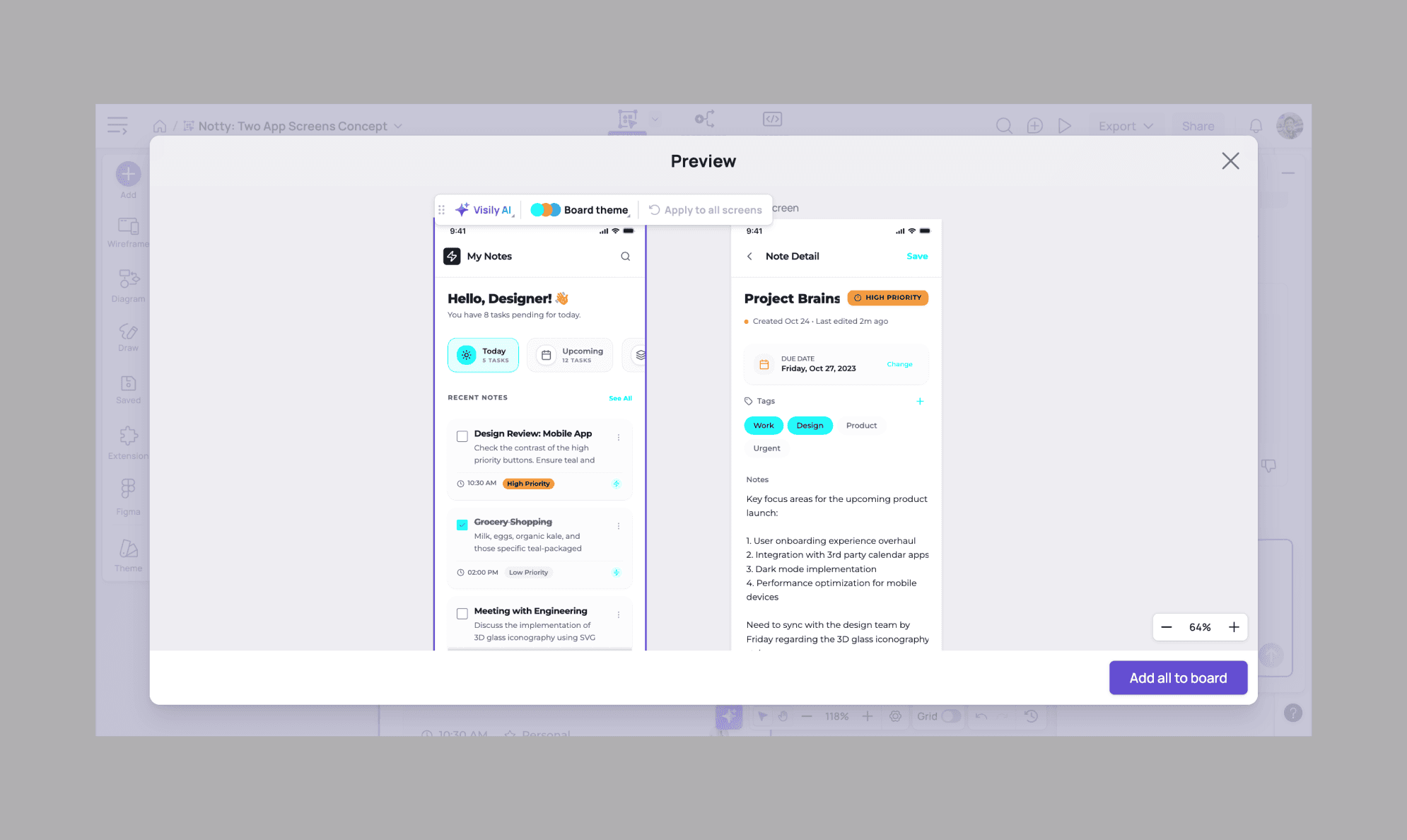
And looking at the screens, I realize that basically, my entire 2 screens were regenerated from my original prompt + the editing request. Unfortunately, it’s quite crowded and not what I would call minimalist. But, interestingly, this time they got the ‘add note icon’ in teal without asking.
It took ~2 minutes, 60 more credits – while failing to edit my screens with AI.
(I went ahead and added these new screens to my board. And deleted the original two.)
Step 4: AI prototyping with Visily
You can access Visily AI prototype generator, right from the top of the board. Clicking on it shows you arrows linking parts of your screens with each other. And the links are intelligently connected to make logical user flows. Plus, making any new connection is simple. Simply select an element/component on a screen – an arrow will appear — direct that arrow to the part of another/same screen as you wish. It’s intuitive & impressive!
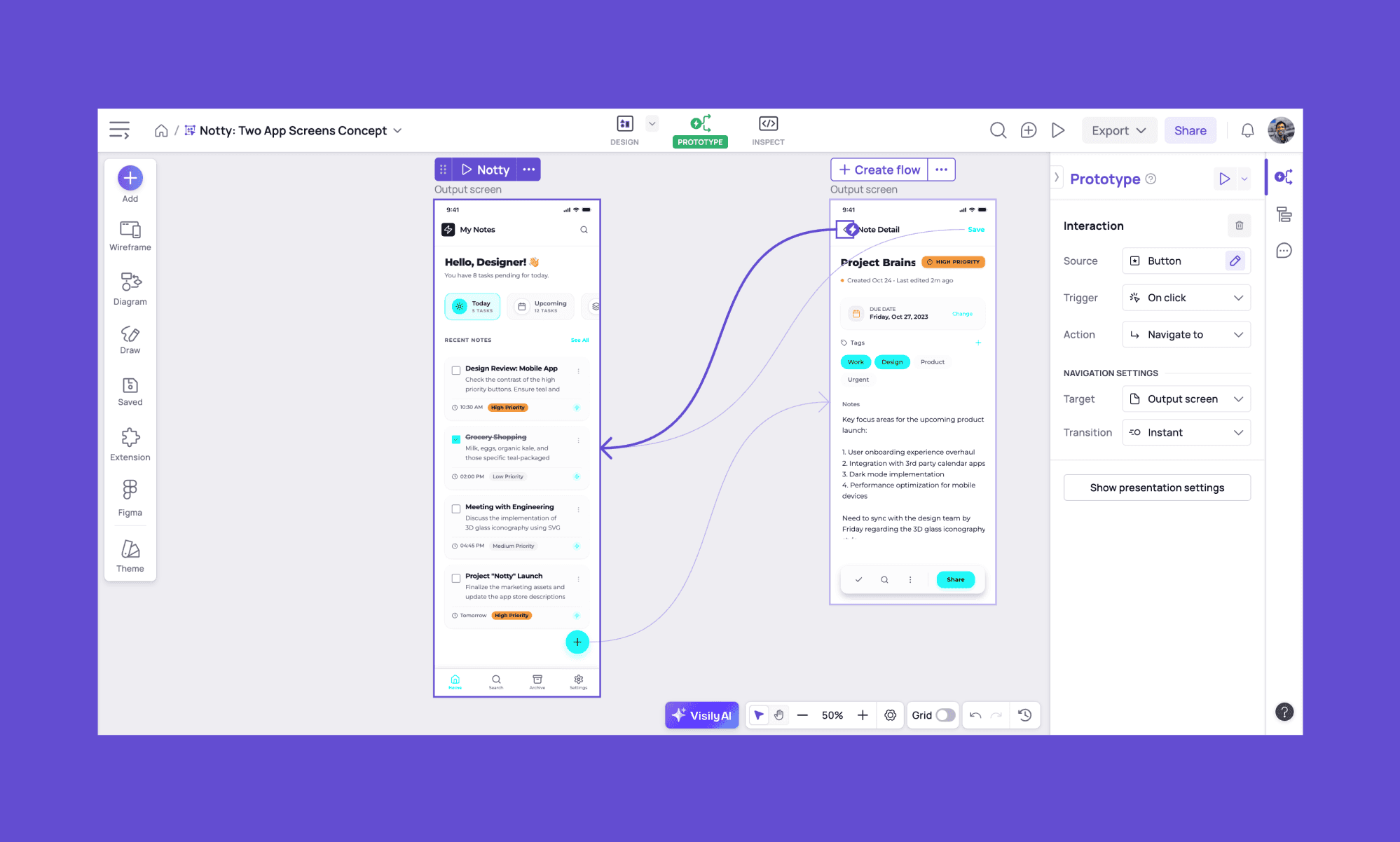
*Note: The light colored arrows were automatically done by Visily AI. The darker one was by me.
To test the interaction, click on the ‘Play’ button on top of the screen, and you’re led to a new tab where clicking the elements/components takes you to the linked page.
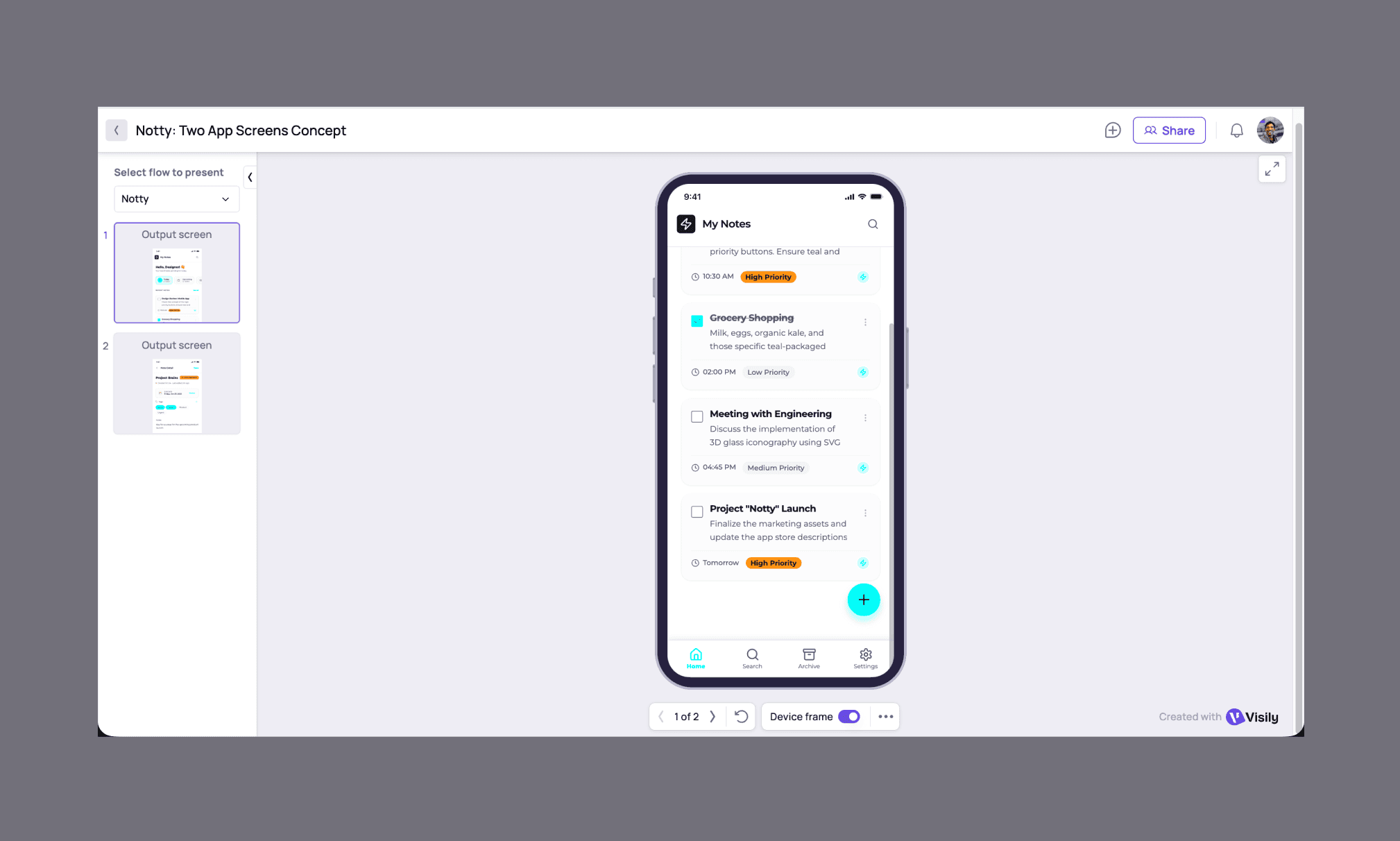
Prototyping does not cost any credit in Visily AI.
Step 5: Diagram generation with Visily AI
Diagramming in Visily is one of the most talked-about features. Mind you, at first glance, it may look like a flowchart maker but, in use cases, it’s different. It’s meant as a brainstorming ally like Miro AI. And if you’re on a board already, like I was, it helps collaborate to refine the existing design.
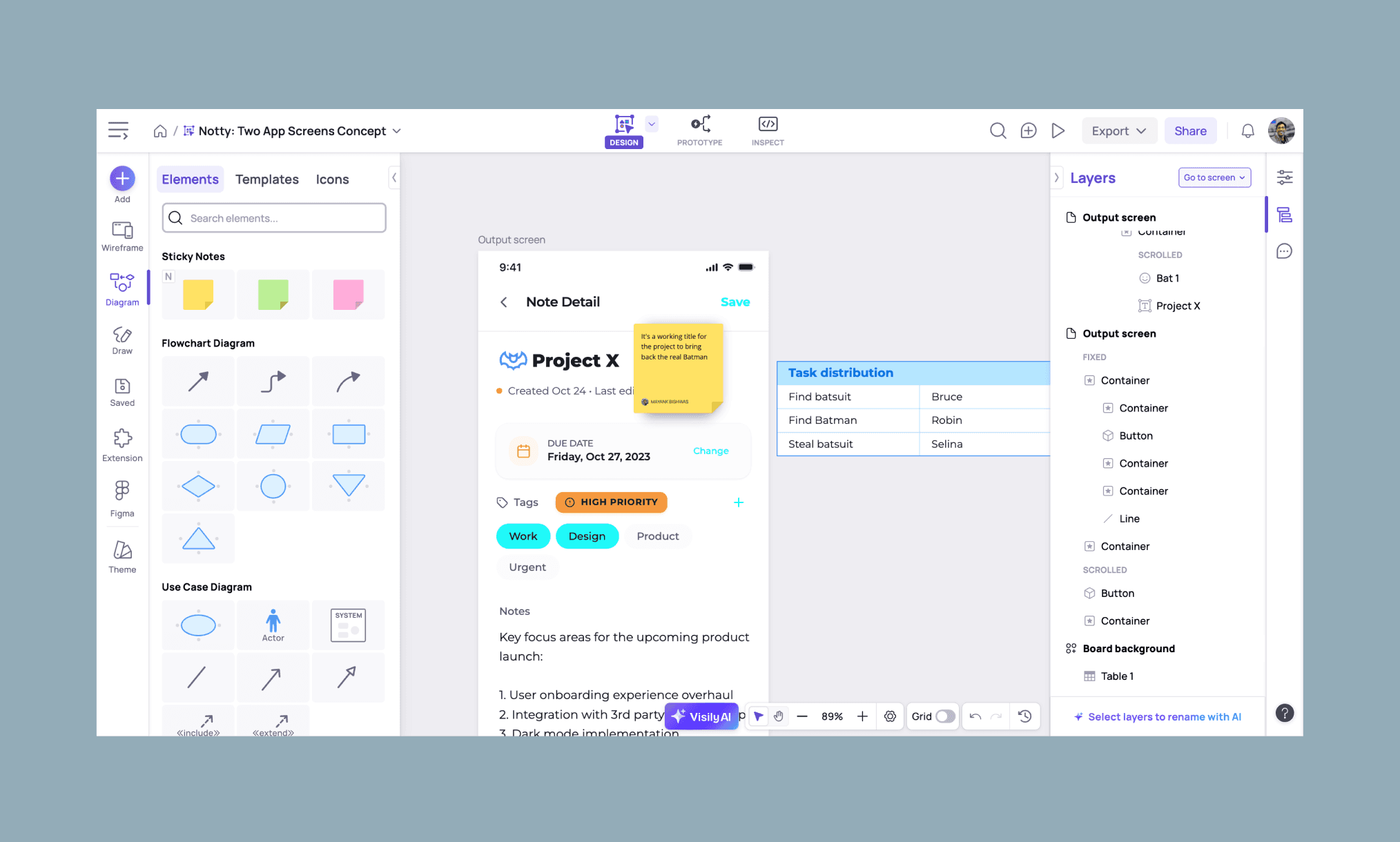
Like using the manual diagram features of Visily AI, I could add extra icons, sticky notes, tables, etc. There are also templates for flowcharts, roadmaps, mindmaps, and more.
Of course, it counts as manual editing and no credit is consumed.
And to test the AI Diagram Generator of Visily, I decided to open a new board, and prompted for the same Notes app:
"Create a user journey diagram for Notty, a minimalist note-taking app. Stages include: landing page, sign-up screen, onboarding (choose note style), home dashboard, create first note, set a reminder, and receive first achievement badge. Use a vertical layout with icons for each step."
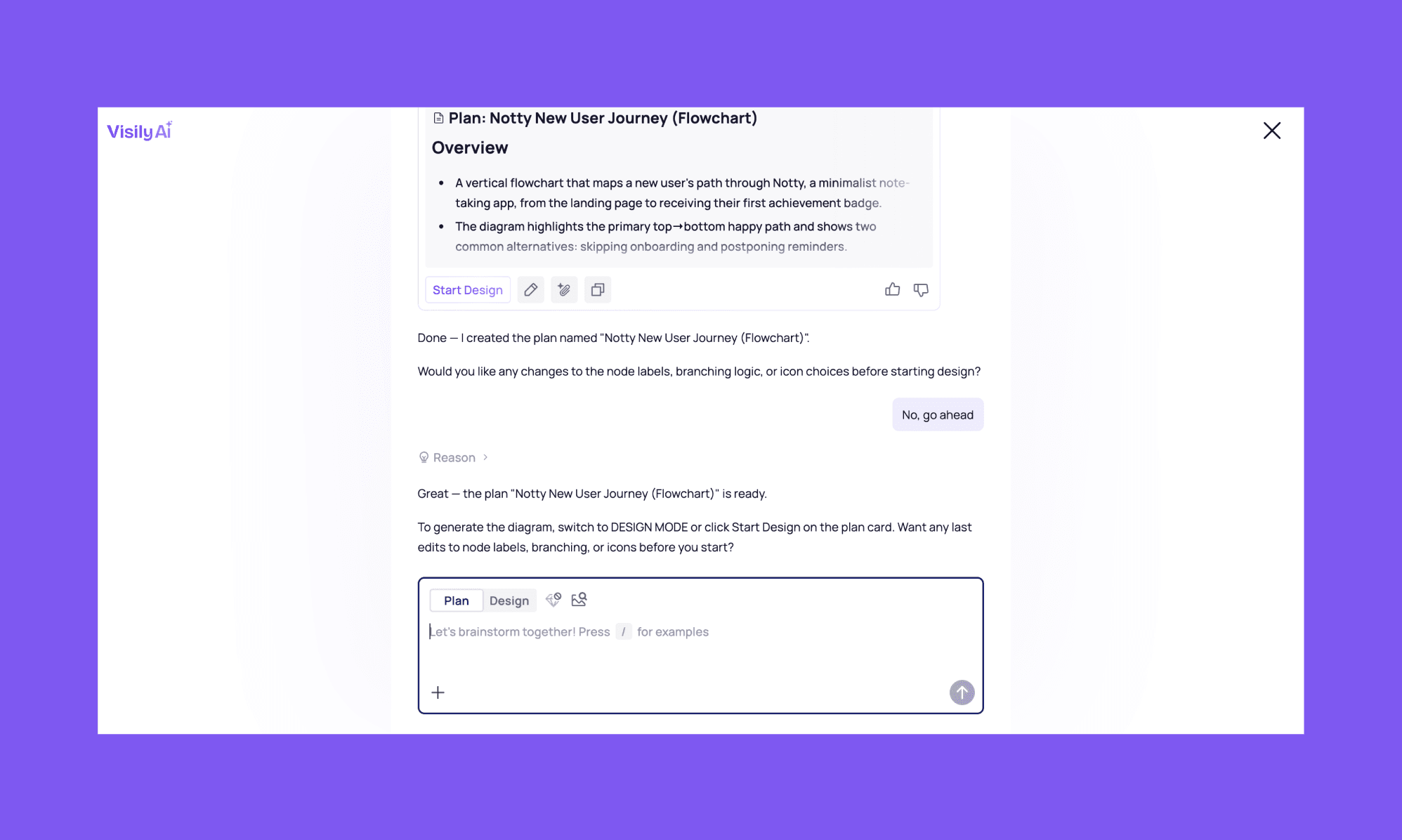
I, again, liked that it asked me clarifying questions and I could see/read its reasoning as it processed my request. However, once the plan was ready, it asked me to click 'Start Design' — a button that doesn't exist!
I switched to the ‘Design Mode’, typed it manually, and got an uneditable preview before finally reaching the board. Three redundant steps.
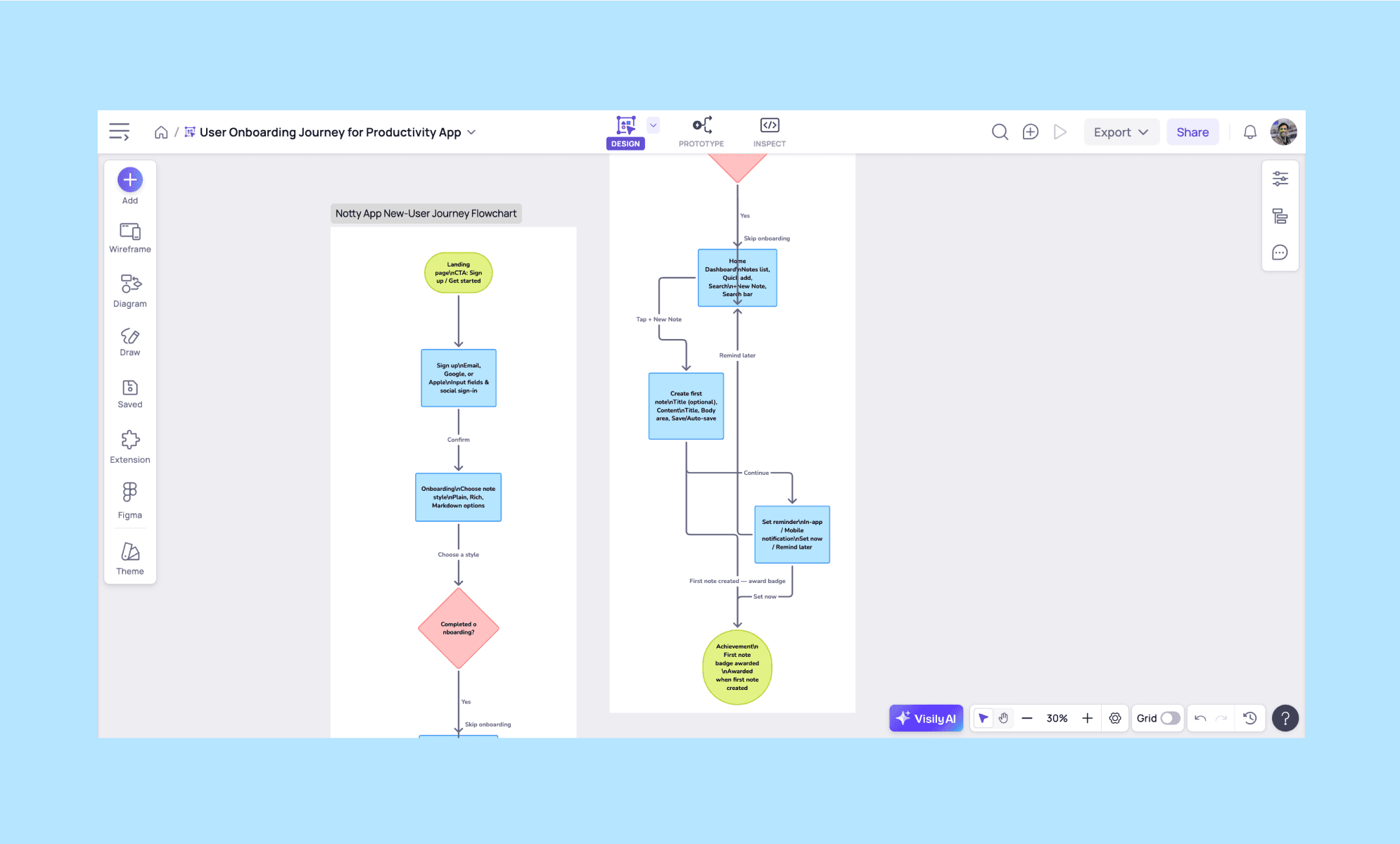
*Note: Only one diagram was created, and rightfully so. I am showing it in two parts, zoomed in, so that the output can be readable.
It took around 5 minutes and 10 credits to draw a diagram in Visily AI.
This time the output got the steps of my flow right, but the shapes and sequence wrong. For instance, consider the red diamond shape i.e. ‘Completed onboarding?’. From here only one node goes viz. Yes. While it should be Yes or No. Also, it should be asked a step earlier, NOT after Sign up.
So, this flowchart looks functional but is not dependable. Needs a lot of editing. The good thing is, just like AI-generated UI, editing this is also intuitive.
Making a flowchart in Miro AI for free >
Step 6: Visily AI screenshot editor extension
Like MagicPath, Visily has a browser extension to capture screenshots and edit them in its design board[3]. It works pretty nifty. You install it, go to a webpage you want to reference, open the extension → take the screenshot → choose the wireframe mode → select a board to edit it, and voila!
You also get a notification of the same in your Visily web app.
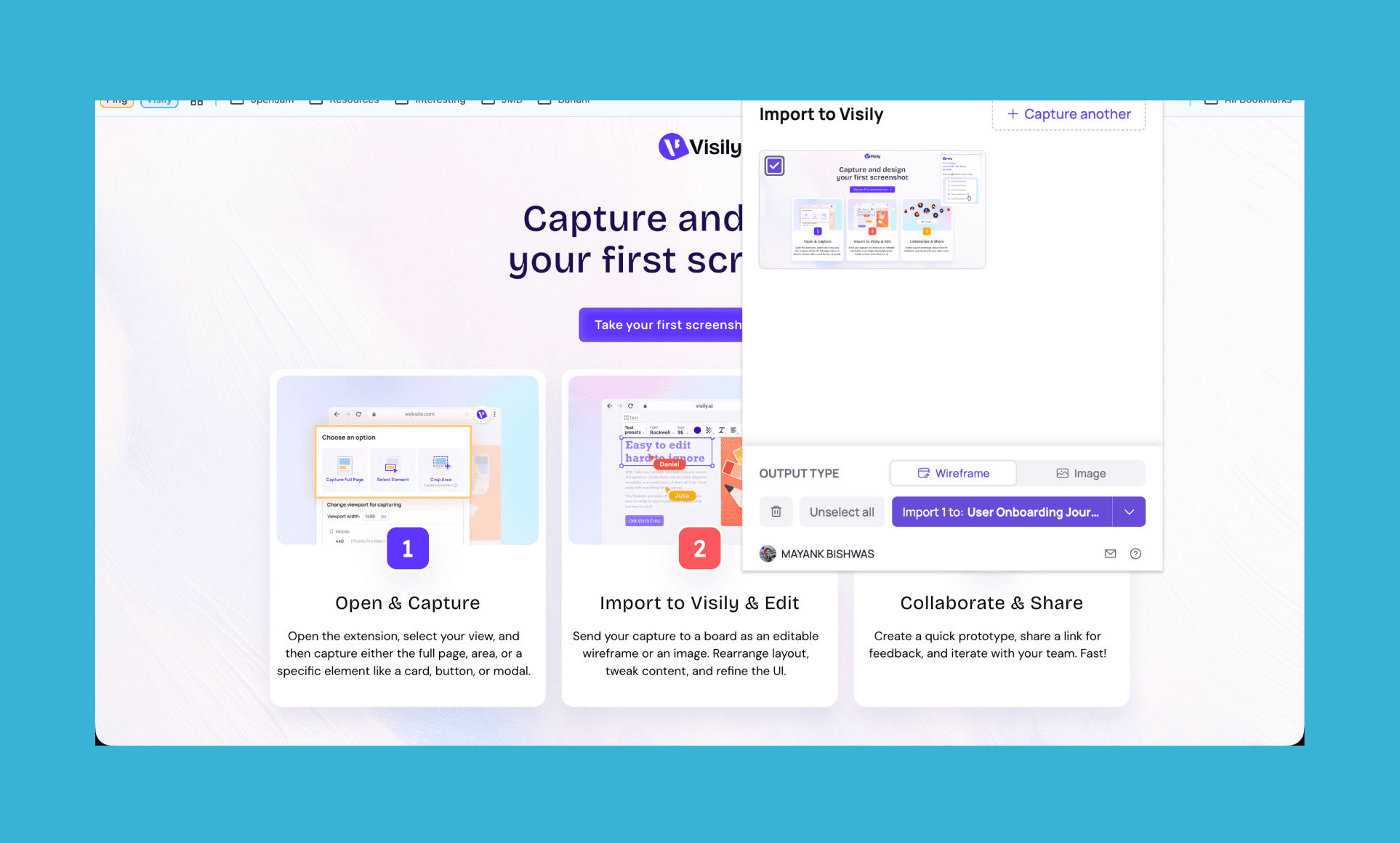
*Note: I have captured the extension onboarding page of Visily itself.
In 2 minutes or so (depending upon the size of your screenshot), you’ll get an editable version of the screenshot which is a 100% replica of the original. Amazing!

It took around ~3 minutes to go from screenshot to wireframe. And 30 credits.
Turn Screenshot into Editable Wireframe >
2026 Updated key features in Visily AI
Design-to-code is now available on Pro and Business plans
Plan Mode to bring structured AI ideation before you start building screens
Import designs from Figma is available on Pro and Business
Design Instructions give you more control over consistency and accuracy
Deep Design mode produces more aesthetically refined UI outputs
Pricing of Visily AI
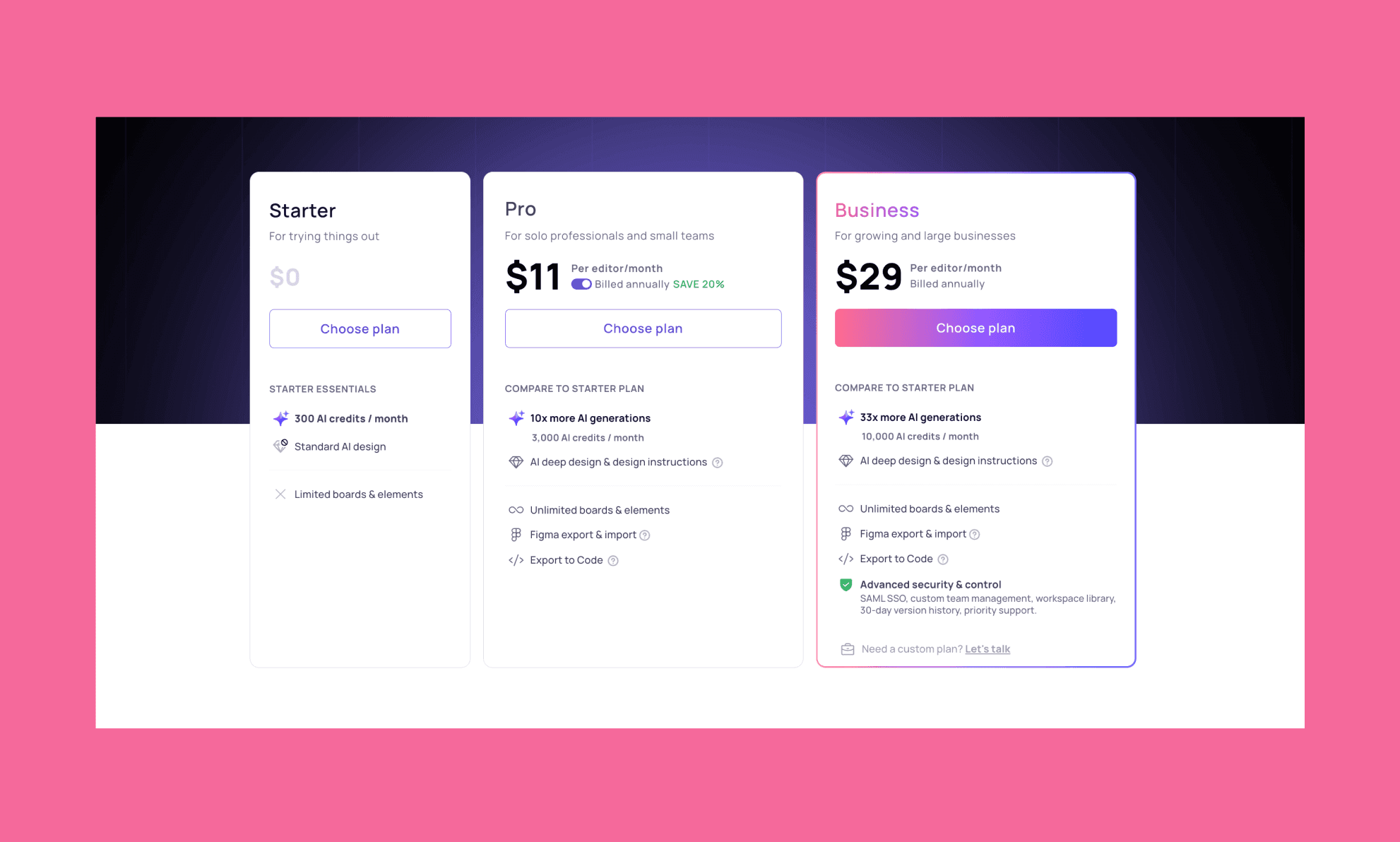
Visily Free Plan
Visily AI has a freemium pricing model like most of its UI/UX AI peers. It generously lets you try its core AI design features at no cost, and no credit card.
300 AI credits/month (600 credits for first month)
Standard AI design
2 editable boards per workspace
Visily Paid Plans
Visily’s paid subscription is rather simpler than most of AI design tool providers. It has two paid plans: Pro & Business. Pro is targeted to solo builders and small teams, while Business is for large teams. And there’s also a custom plan provided on request.
Pro | Business | |
Price | $11/editor/month (billed annually) | $29/editor/month (billed annually) |
Best for | Solo professionals and small teams | Growing and large businesses |
AI credits | 3,000/month | 10,000/month |
AI design | Deep design & design instructions | Deep design & design instructions |
Boards | Unlimited | Unlimited |
Figma | Export & import | Export & import |
Code export | Yes | Yes |
Security & admin | N/A | SAML SSO, team management, workspace library, priority support |
UXPilot Pricing Plan in 2026 >
Pros & Cons of Visily
Pros | Cons |
Solid drag-and-drop canvas for manual edits, free of credit cost | Multi-step friction in the AI flow with redundant previews |
Screenshot-to-wireframe is accurate and fast via browser extension | AI editing regenerates screens instead of making targeted changes |
Prototyping is intuitive, auto-links screens logically, and costs no credits | No auto layout; manual position tweaks often required |
Hi-fi/low-fi switch preserves all elements while adapting style | Diagram AI gets the steps right but shapes and logic can be wrong |
Real-time collaboration with comments and version history |
Visily Alternatives’ Comparison
Banani vs Visily
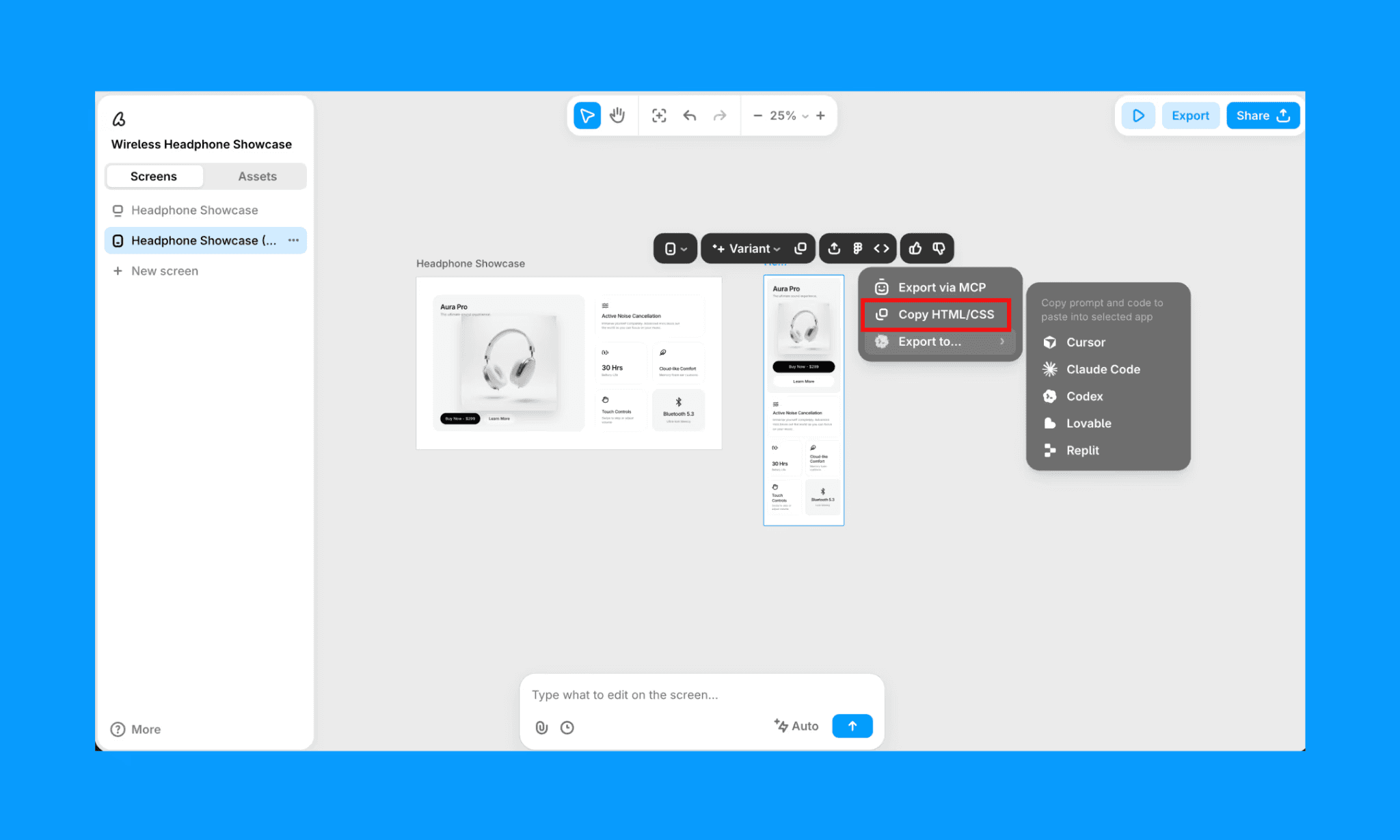
Banani AI excels at AI UI and wireframe quality (powered by Gemini 3.1 Pro) and offers even simpler ease of use for non-designers. Although Visily AI has more advanced manual editing features, Banani is better at Figma export, design system consistency, and design-to-code hand-off with its MCP.
Generate UI with Banani AI, free >
Figma AI vs Visily
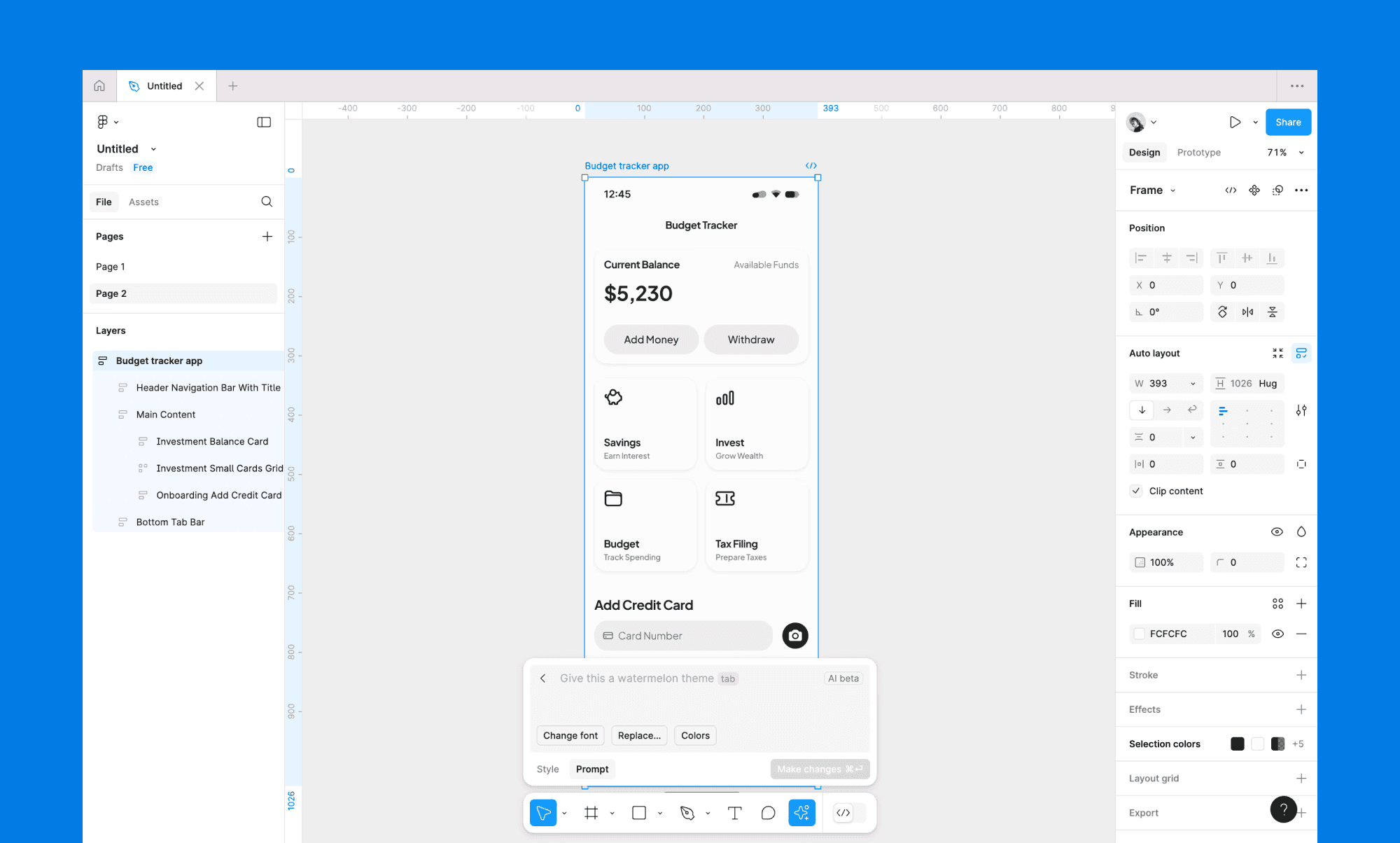
Figma AI is a set of assistive tools inside Figma; not a standalone generator. So, despite its great design features, it delivers best if your team lives inside the Figma environment already and needs AI as a co-pilot. Visily, on the other hand, wins for non-designers starting from scratch.
Uizard vs Visily
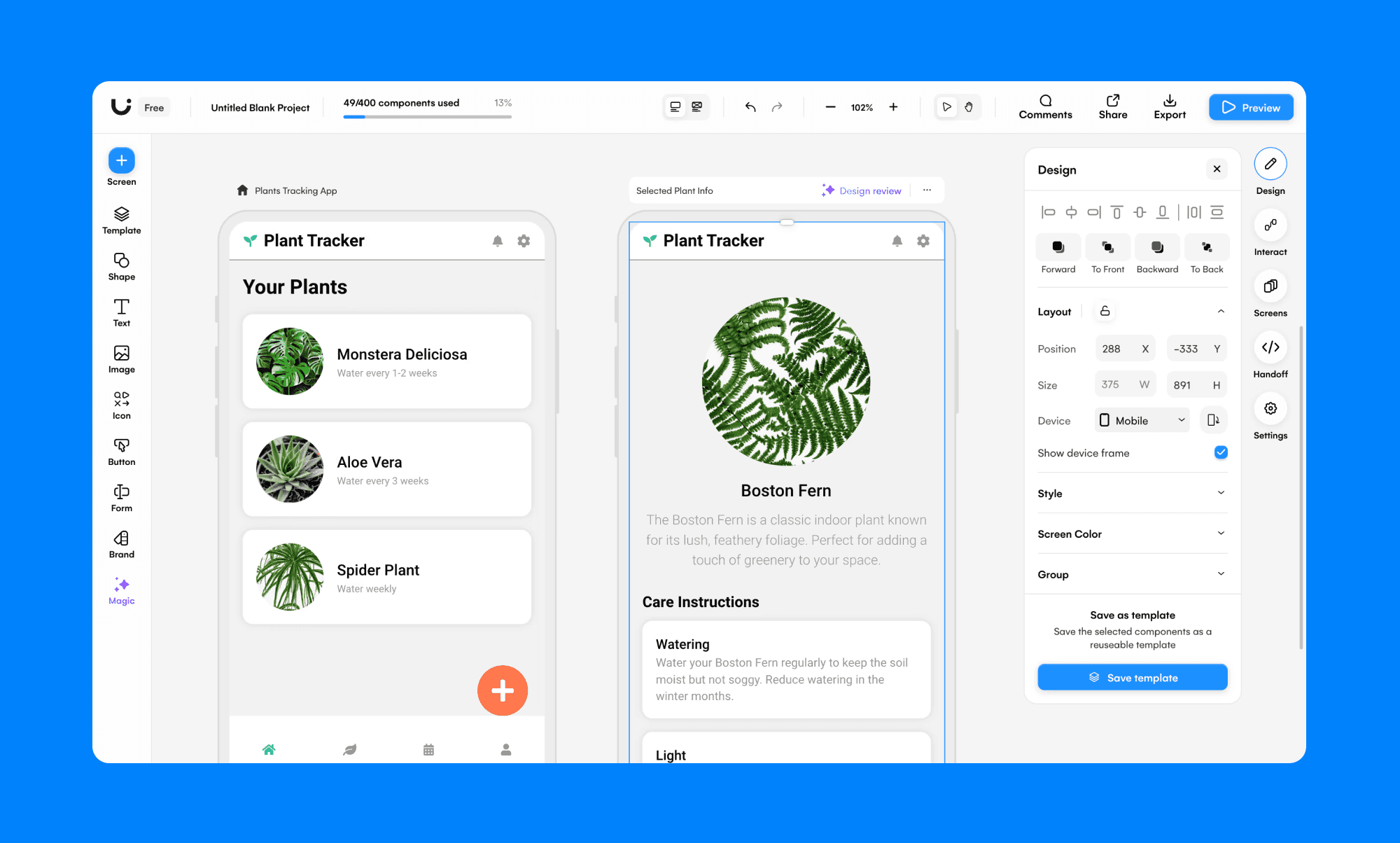
Uizard and Visily both target non-designers with text-to-UI and screenshot conversion. Uizard's AI (Autodesigner) applies design styles from reference images, which Visily doesn't. I find Visily has an edge on diagramming and canvas flexibility, though.
UXPilot vs Visily
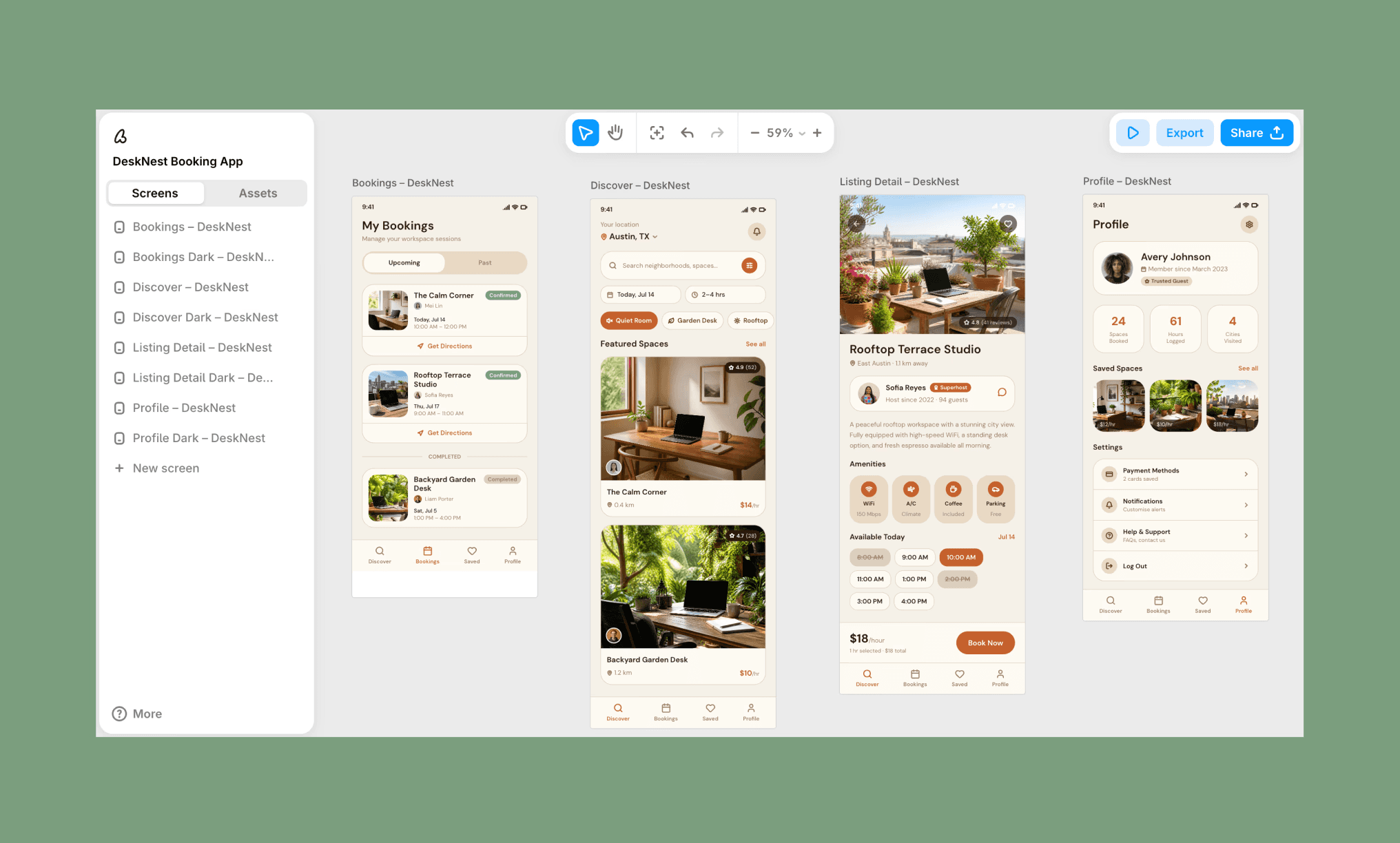
UXPilot offers a mix of UI sensibility with UX logic. Its predictive heatmaps and layout scoring sets it apart in its category. So, if you need design validation alongside generation, UXPilot wins. For an all-in-one ideation and AI design tool, Visily is the better fit.
Top AI UI & Wireframe Generators of 2026 >
Verdict: Is Visily Worth It?
Yes, in my experience, Visily is worth it — especially for a first try. The free tier is generous (600 credits in the first month), onboarding is frictionless, and prototyping is genuinely impressive. AI editing and diagram generation can have mixed quality. The good news is that manual editing is intuitive, and costs no credits.
If you are vibe designing (or need a high-quality UI reference before vibe coding), Banani is the better free start. With its one-shotting capabilities powered by Gemini 3.1 PRO, deep Figma integrations, and clean code export.
FAQs on Visily AI Review (2026)
Is Visily AI free?
Not completely free, but Visily AI offers a freemium plan. You can get started without a credit card, with 300 AI credits/month, 2 editable boards, and core AI features.
How do I use Visily AI?
It’s pretty intuitive like most AI UI/Wireframing tools in 2026. Sign up free, choose your starting point — AI wireframe, template, or blank canvas — type a prompt, and Visily AI generates an editable UI. No design skills needed.
What is the difference between Figma and Visily?
Figma is a professional design tool where AI assists existing workflows. Visily is built for non-designers to generate wireframes and UI from scratch.
Compare Canva AI vs Figma AI for UI >
Which is the cheapest & best alternative to Visily AI?
I say, Banani AI. It's free to start with more generous AI generations ~170 screens/month. Produces higher quality UI output, is Figma-integrated, and exports clean code.
References
[1] https://www.visily.ai/
[2] https://tracxn.com/d/companies/visily
[3] https://chromewebstore.google.com/detail/visily-screenshot-capture


