How to Get Lovable to Generate Unique UI, While Saving Credits

Complete guide on generating app/website UI with Lovable.dev and how to save credits.

移動

タイトル

AIを使用してUIデザインとワイヤーフレームを生成

Lovable UI design can suck or surprise depending on your workflow. Here’s my Lovable website design example and workflow to produce unique UI economically.

Lovable UI design can suck or surprise depending on your workflow. Here’s my Lovable website design example and workflow to produce unique UI economically.

Lovable is the breakout AI app builder of 2026! But even its fans criticize the UI generation ability of Lovable. The generic tailwind purple, gradient title, boxy dashboards, and such make most Lovable app designs look similar. A bane of product development for developers and non-designers. Especially because minor tweaks in the app/website interface add up Lovable credits so much, so fast that it becomes uneconomical. 

So, I, as an AI product designer, set out to test Lovable UI design features to find an ideal workflow to design unique, beautiful UI with Lovable AI; while saving on credits. 

Read my full Lovable Review > 

Lovable Website Examples

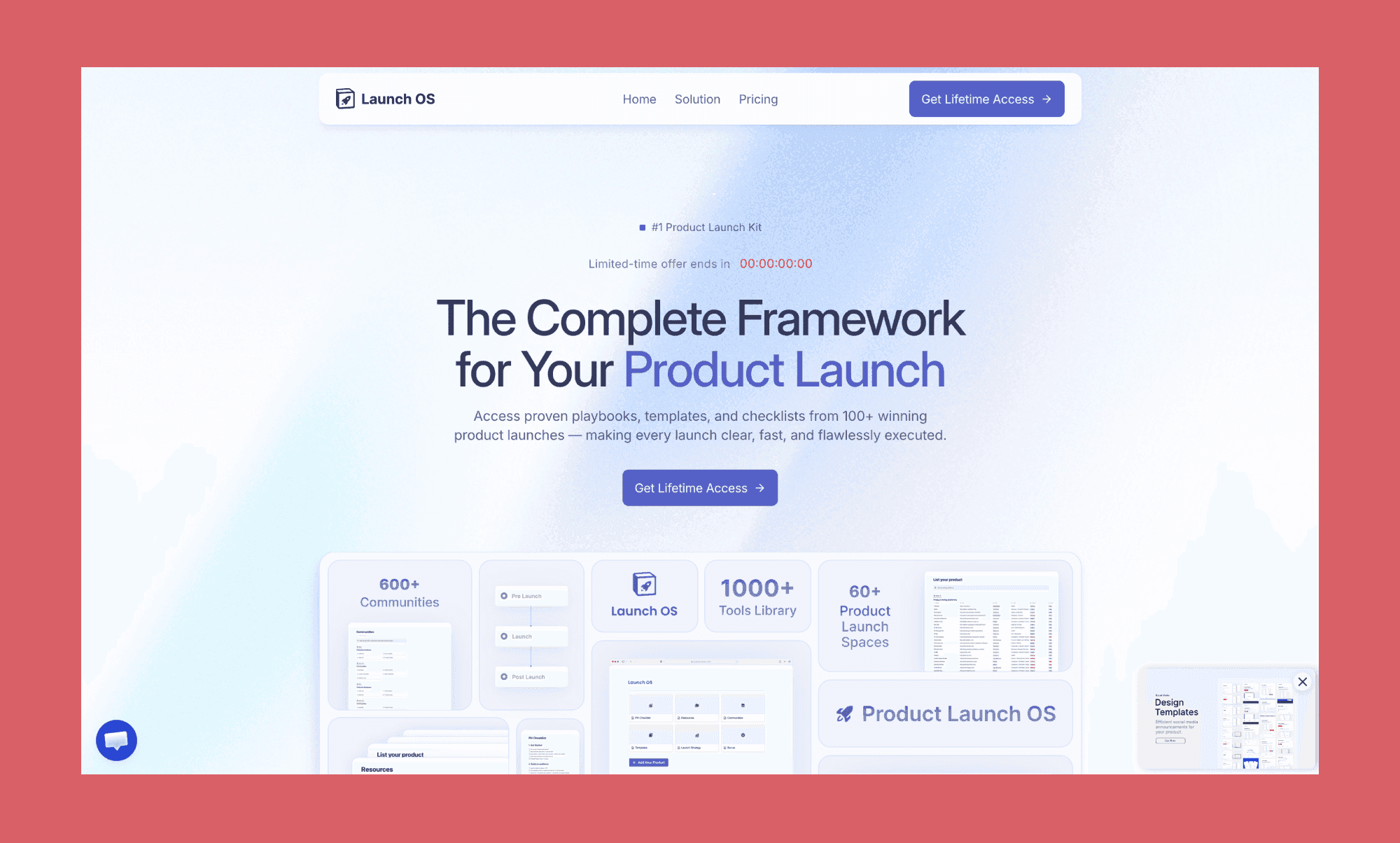
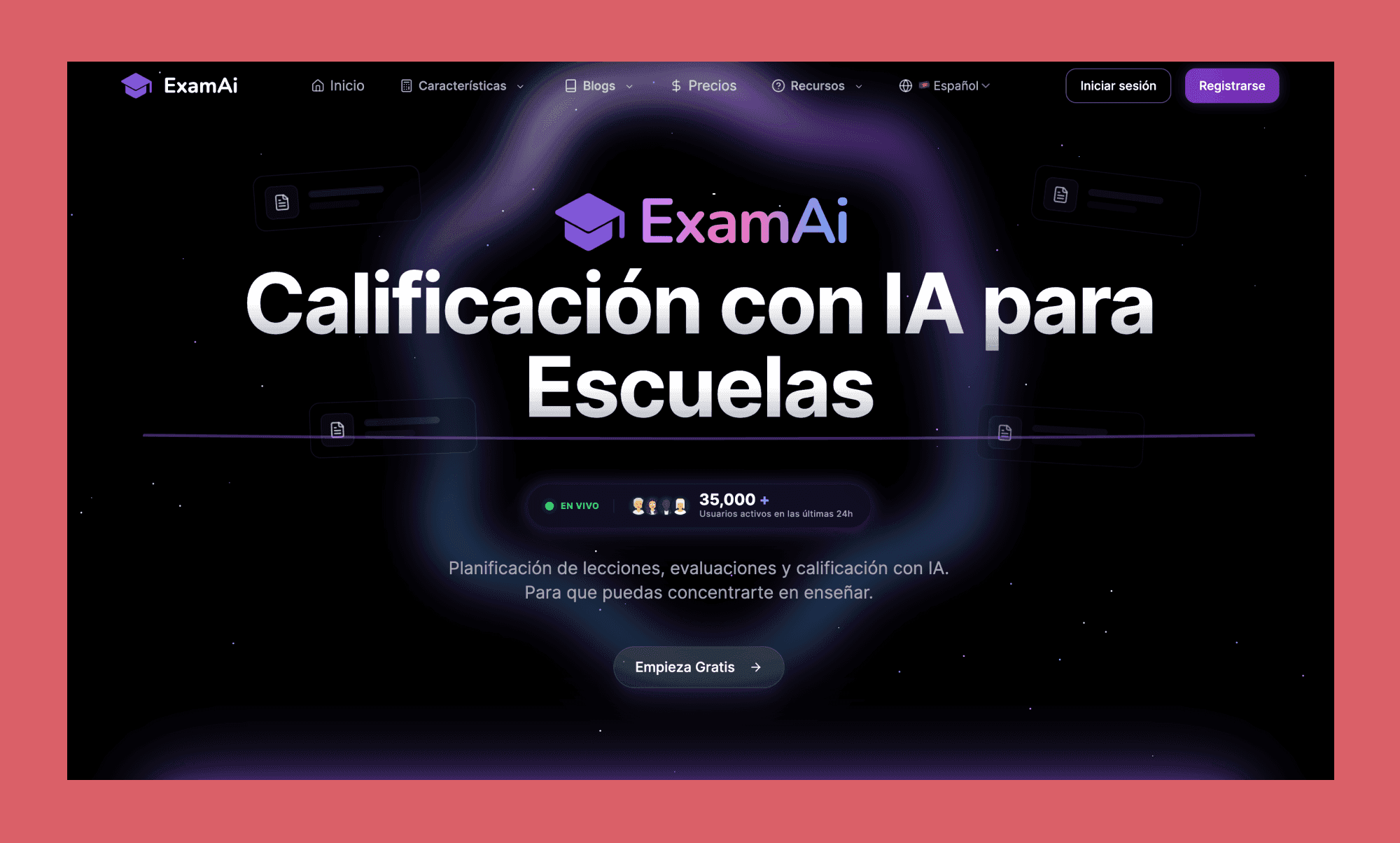
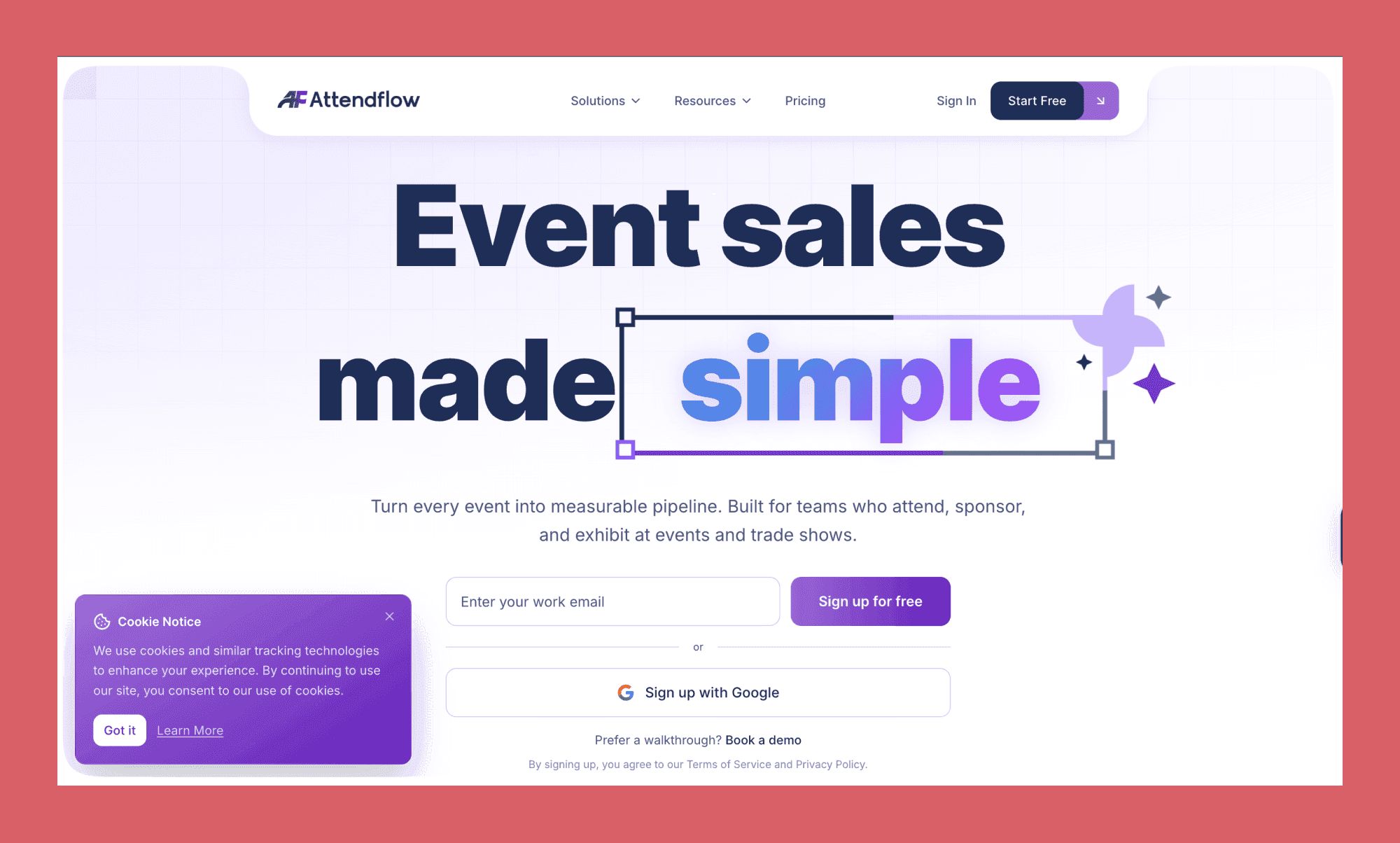
First off, I looked at the most popular Lovable website UI examples in 2026, from their official website itself. While the range of types of apps and websites created is impressive, but the Lovable UI styles are, frankly, not. You can see the persistent pain of purple.

GTM framework website UI built by Lovable

Lovable project example: GTM launcher

Edit this template with AI

AI for exam prep website UI built by Lovable

Lovable project example: AI platform for examp prep

Edit this template with AI

Event sales platform website UI built by Lovable

Lovable project example: Event sales platform

Edit this template with AI

Explore UI screenshots of popular apps >

My Lovable UI Design Experience

Next up, I decided to test the Lovable UI generator by designing a mockup of a fast fashion app with Tinder-like UI. Their onboarding was straightforward; did not even need a credit card to get started with Lovable Free Tier

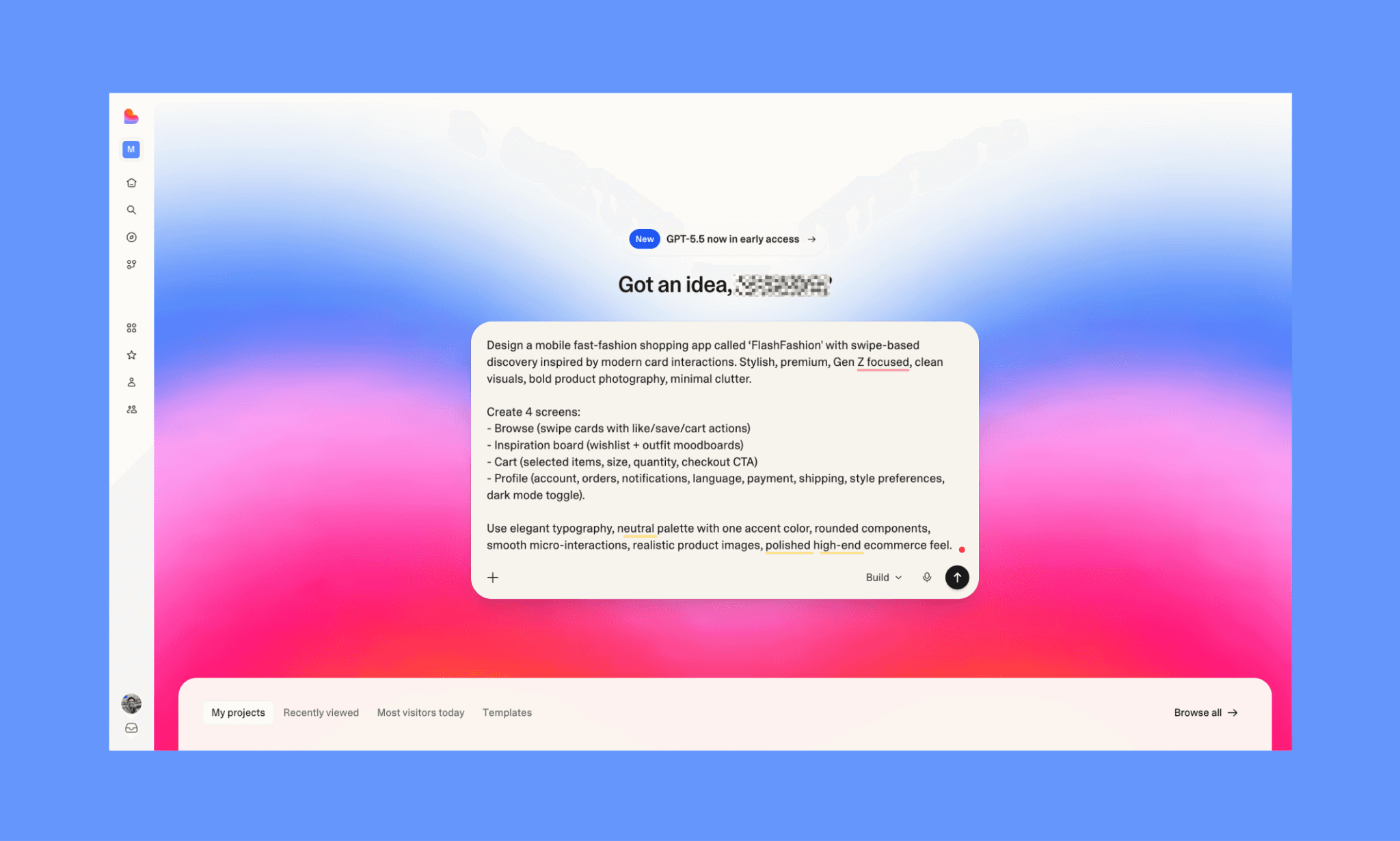
  1. My Lovable UI design prompt

Design a mobile fast-fashion shopping app called ‘FlashFashion' with swipe-based discovery inspired by modern card interactions. Stylish, premium, Gen Z focused, clean visuals, bold product photography, minimal clutter.

Create 4 screens:

- Browse (swipe cards with like/save/cart actions)

- Inspiration board (wishlist + outfit moodboards)

- Cart (selected items, size, quantity, checkout CTA)

- Profile (account, orders, notifications, language, payment, shipping, style preferences, dark mode toggle).

Use elegant typography, neutral palette with one accent color, rounded components, smooth micro-interactions, realistic product images, polished high-end ecommerce feel.

  1. Free UI generation with Lovable (and my thoughts)


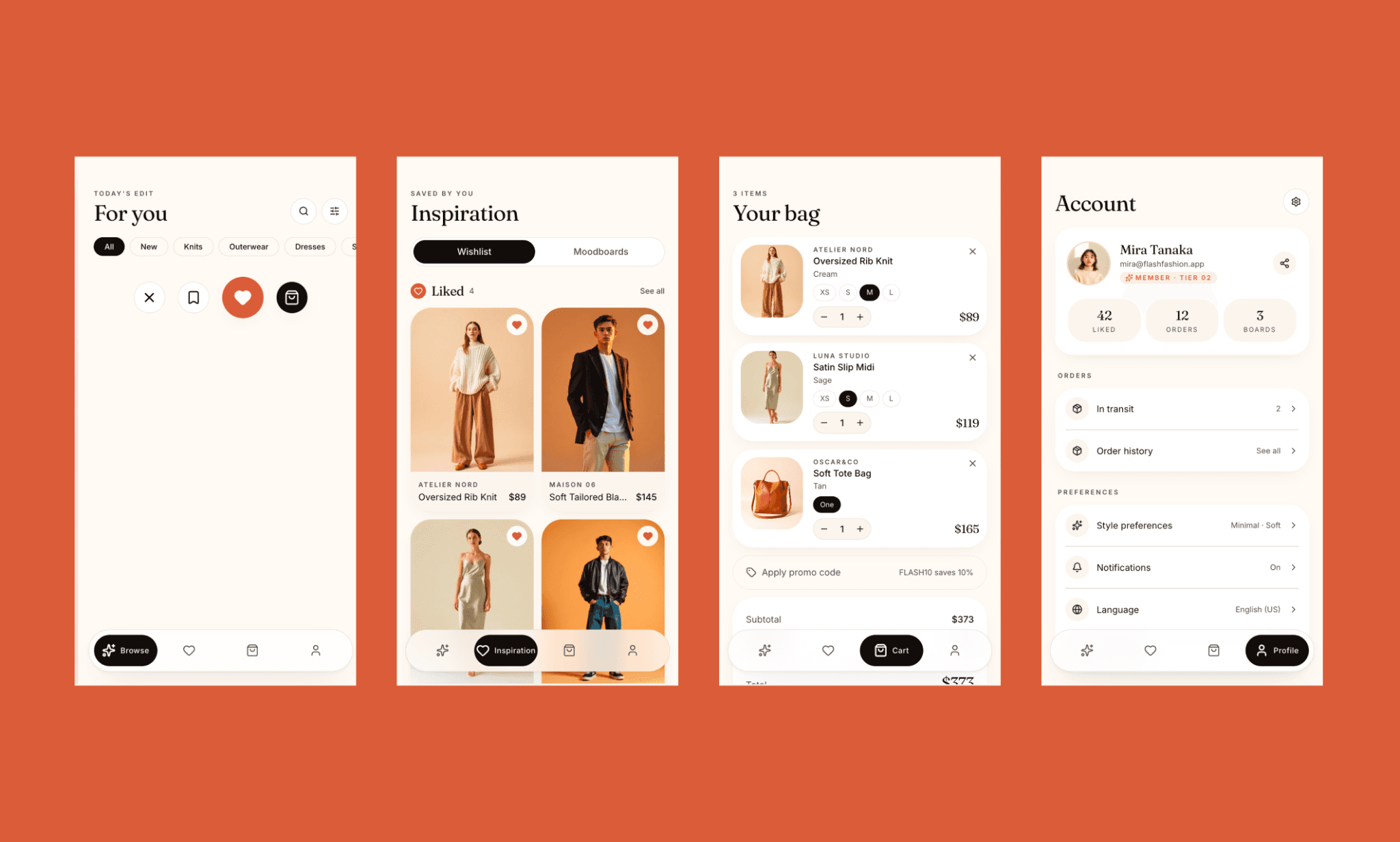
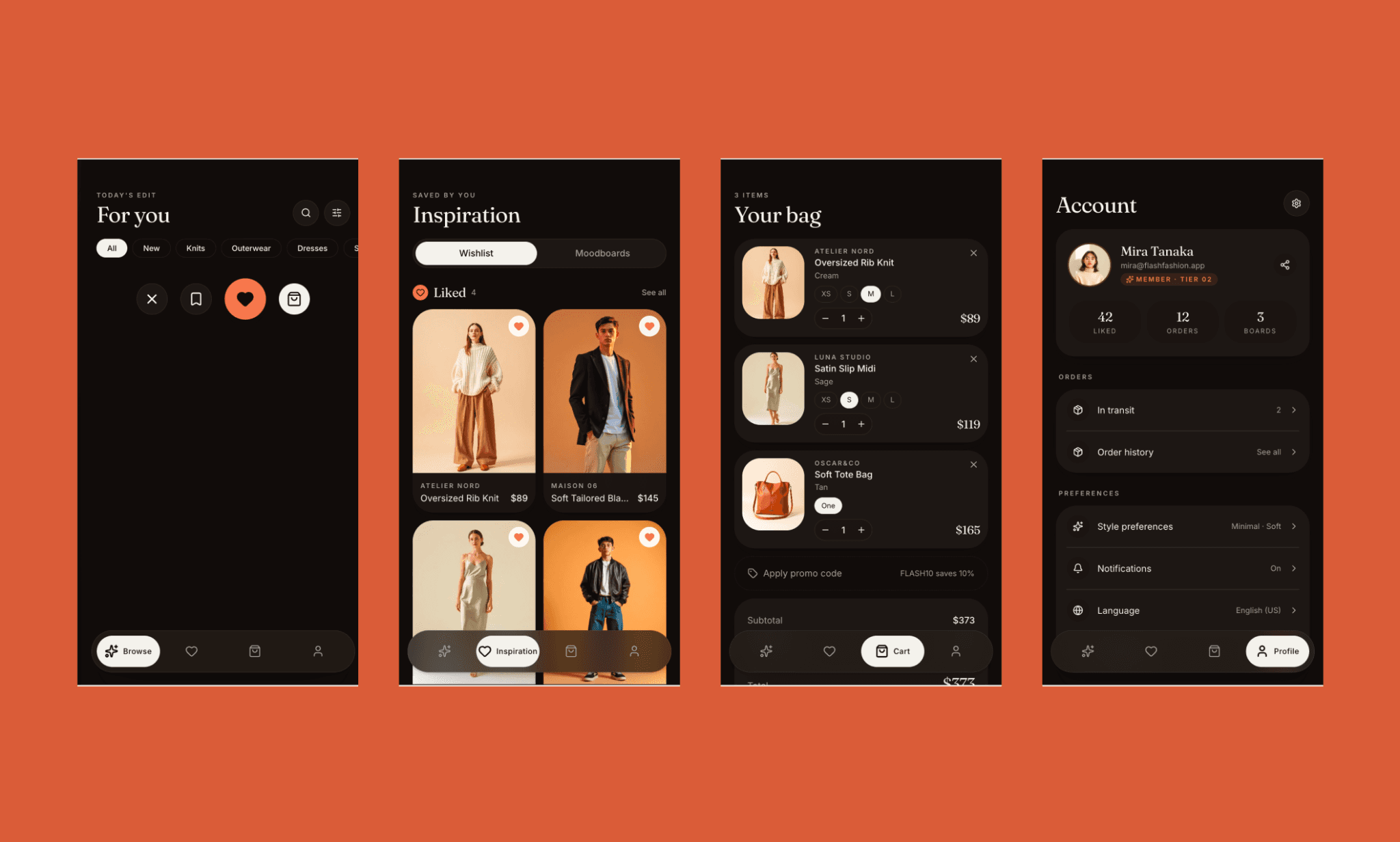
Above are the UI generated by Lovable for my prompt. They consumed 2.9 credits (but only because I had a Lovable special offer; otherwise, they would consume ~5 credits).  Kudos, firstly, for avoiding the generic purple look, despite no specific color instructions (only vibes). The intelligent Light and Dark modes were also a smart touch. 

However, the biggest (and most obvious) flaw of the Lovable UI generator is that the Browse screen is missing the swipe-shopping UI. Since that is my app’s main feature, it’s a noticeable miss. Beyond that, the UI is so clean and polished, it feels too familiar. The Cart and Profile screens are organized and usable, though they lack standout details or a stronger brand personality. The Saved / Inspiration screen works best because it feels practical and visually complete. 

Overall, Lovable delivered solid-looking screens, but not a memorable fast-fashion experience without further edits. (And editing UI in Lovable comes in two modes: Visual Edit and AI Chat Edit. I tried both below).

  1. Editing UI with Lovable’s ‘Visual Edit’

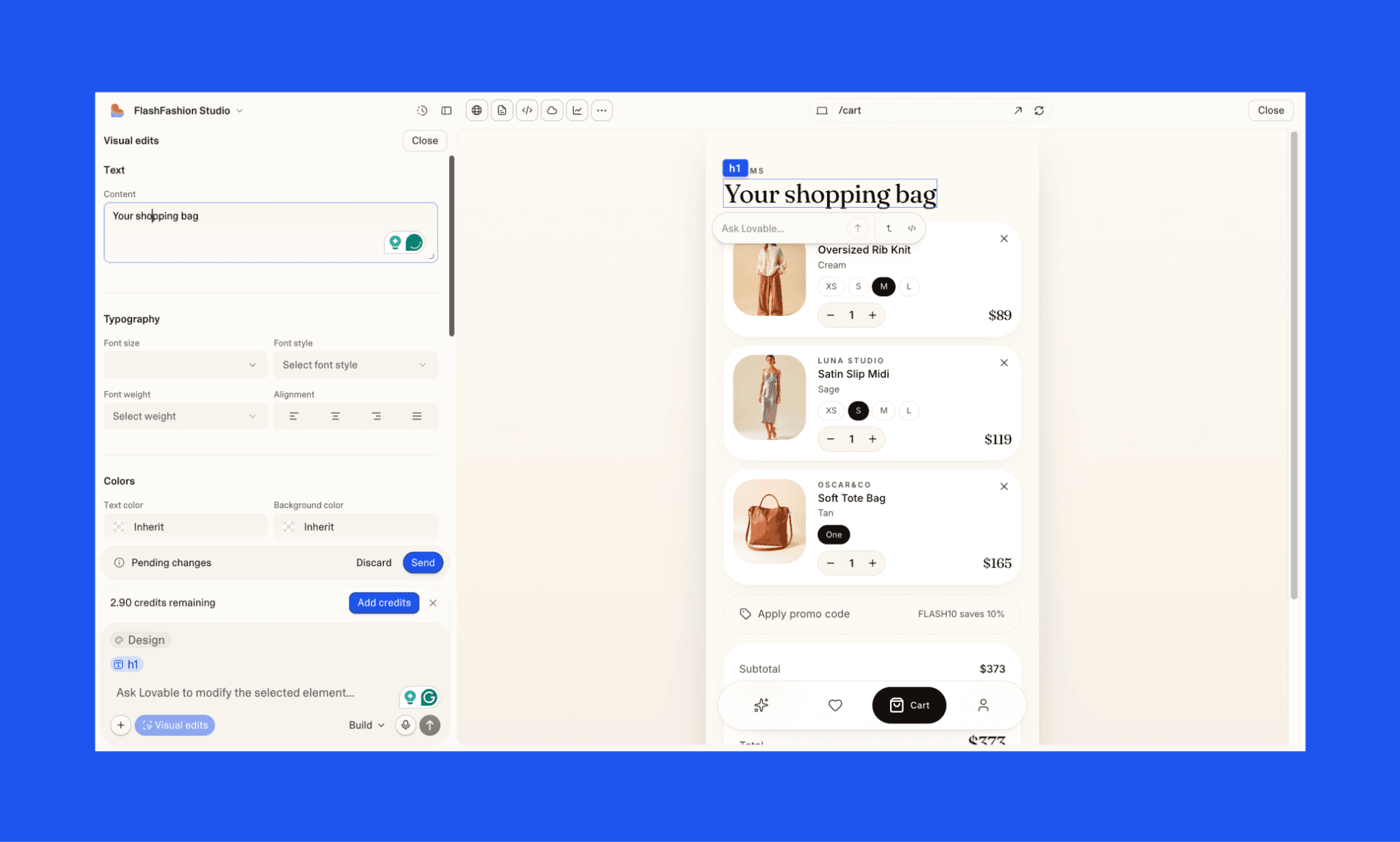
Lovable offers a Visual Edits feature where you can simply click on a component, like a text or button, and make changes by directly editing its CSS properties. 

The options are plenty, but in practice, it’s quite laggy. And sometimes does not even make the changes; while restricting reverting a change. The good thing is that Visual Edits in Lovable does not use credits, but unfortunately, it’s just not that useful either. 

  1. Editing UI with Lovable AI chat

I tried two edits in UI using Lovable AI chatbox.

i. Screen Edit:

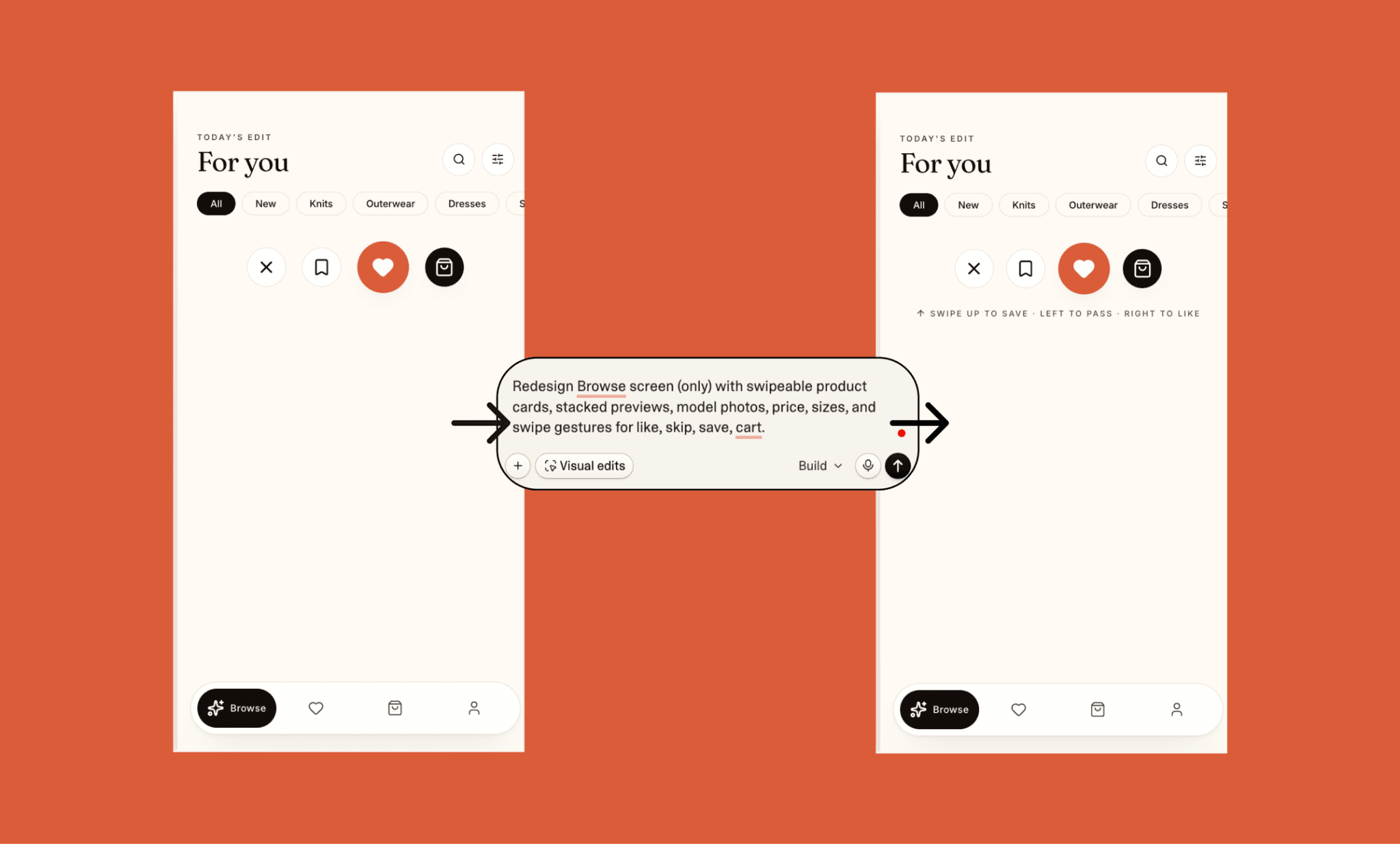
Redesign Browse screen (only) with swipeable product cards, stacked previews, model photos, price, sizes, and swipe gestures for like, skip, save, cart.

I wanted to fill the Browse screen with the missing screen, but despite clear instructions, it did not work. While in the backend, it must have been working because if I liked or disliked randomly, I could see my Inspiration/Moodboard screen getting updated. Anyways, while the UI edit failed, it did eat up my 1.5 Lovable credits. 

ii. Component Edit

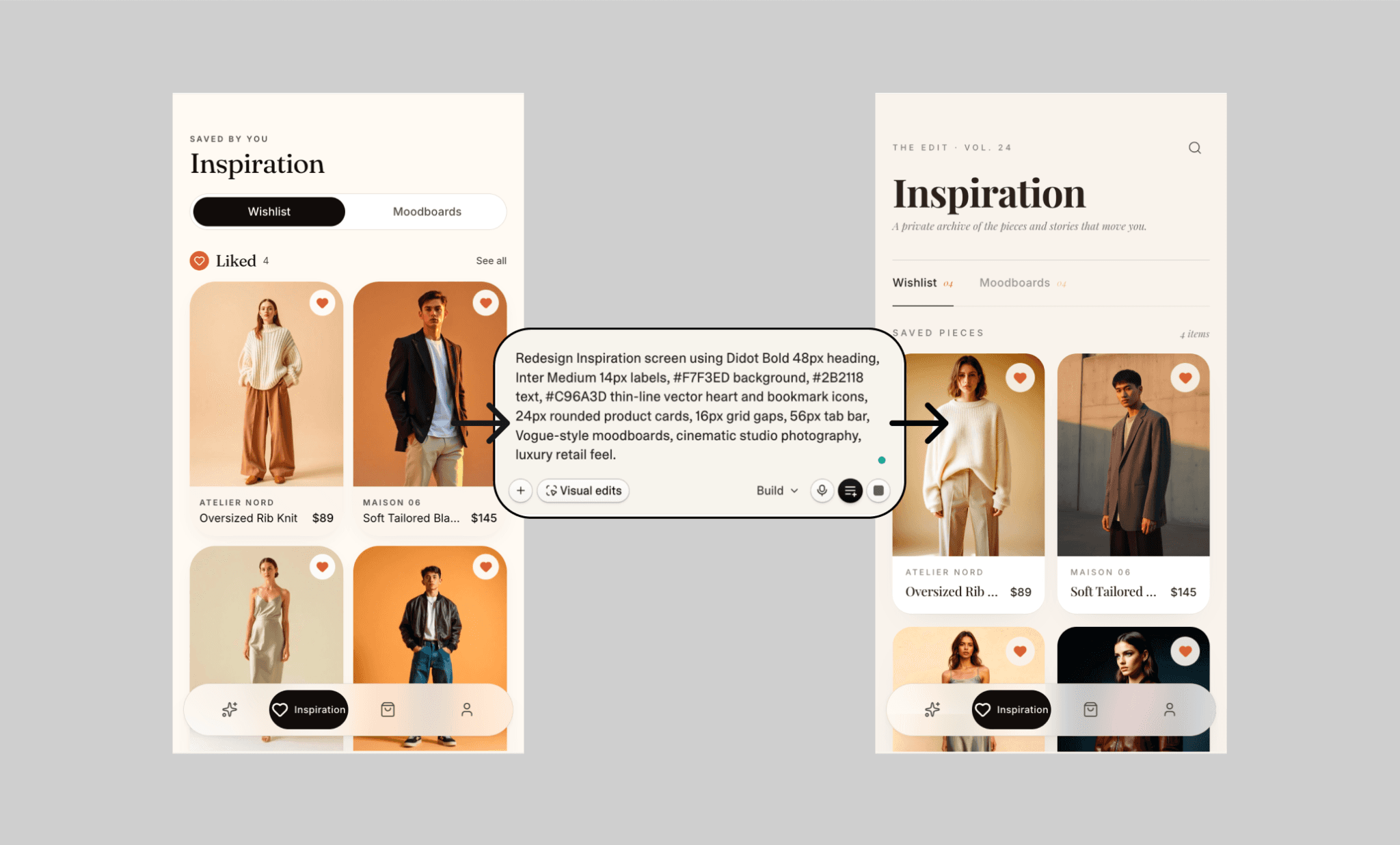
Redesign Inspiration screen using Didot Bold 48px heading, Inter Medium 14px labels, #F7F3ED background, #2B2118 text, #C96A3D thin-line vector heart and bookmark icons, 24px rounded product cards, 16px grid gaps, 56px tab bar, Vogue-style moodboards, cinematic studio photography, luxury retail feel.

This time, it improved branding significantly. The serif typography and editorial labels create a premium fashion identity. However, product cards feel narrower, text is more cramped, icons barely changed, and the bottom nav feels heavy. Better aesthetics, but usability regressed slightly.

Still, compared to other edits in Lovable, this one was implemented quite satisfactorily.

UI Design Ceiling in Lovable.dev

Lovable UI design tends to prioritize speed over product thinking. Based on both my tests and wider user feedback of Lovable as an AI UI generator, it works better to ship an MVP, but not as a finished design tool.

  • Web-like mobile UI: Often generates screens that feel like shrunk websites instead of true native mobile apps.

  • Missed core components: May ignore key interactions, such as swipe gestures, even with clear prompts.

  • Usability tradeoffs: Visual Edit can sometimes reduce clarity with cramped text or tighter layouts.

  • Credit waste: AI chat edits may consume credits even when changes fail or barely improve output.

Check out Top Lovable Alternatives of 2026 > 

How to Get Unique UI with Lovable

I believe, Lovable can generate better UI than most people get from it. If you treat Lovable like a magic box, you get generic outputs. If you give it art direction, references, and clear intent, results improve sharply.

Lovable UI design prompt template

Before prompting, do quick research: collect 2–3 competitor apps' UI screenshots, note layouts you like, define audience, brand vibe, and core interaction patterns. Then prompt with both specifics and freedom. 

Design a [mobile app / website] for [audience] in the [industry] niche.

Style: [minimal / luxury / playful / futuristic].

Use [color palette], [font style], [icon style], [imagery style].

Create screens for [list screens].

Include [core interactions].

Prioritize [speed / conversion / trust / delight].

Avoid generic SaaS layouts.

Hybrid UI design workflow with Lovable

Another economical way of getting the desired UI design with Lovable is: first vibe design, then vibe code. This hack hinges on the idea that, Lovable is primarily an AI app builder, not an AI UI generator. So, start your app design with a dedicated AI UI design tool like Banani. Turn text or image prompts into multiple high-fidelity screens side-by-side. Edit by chatting with UI. And then export the final design (as PNG or Figma) to Lovable for development. 

This allows you to perfect the UI layout and user flow at a significantly lower cost without wasting Lovable’s development credit. 

My tips on How to Save Lovable Credits > 

Is Lovable Good Enough for UI?

I say, yes. Lovable is good for UI generation, but with some realistic expectations. The interfaces it designs are usable, attractive prototypes that can work for internal tools and rapid launches; not for production-grade apps. Where it struggles, though, is in originality, nuanced product thinking. Without strong prompts, outputs can feel generic, and edits may require extra credits. That is where AI UI tools like Banani fit well: use them to refine unique, high-fidelity UI first, then bring that direction into Lovable for faster app building.

FAQs on Lovable for UI Generation

Can Lovable design UI?

Yes, Lovable can generate usable app and website UI from text prompts, including layouts, navigation, dashboards, forms, and landing pages.

Is Lovable better than Figma at UI creation?

When thinking of Lovable vs Figma, know that they solve different problems. Lovable is faster at UI generation for working MVP apps. Figma is stronger for pixel-perfect UI control for production-grade apps. 

How to improve UI on Lovable?

To improve an existing UI on Lovable, be highly specific with your edit prompts: mention layout style, brand tone, spacing, typography, colors, component style, and reference apps. Ask for screens one by one instead of everything at once. 

Can Lovable UI be turned into Figma?

Yes. You can recreate or convert Lovable-generated UI into editable Figma files using AI.  You can also import a Figma design into Lovable as UI inspiration. 

Is designing Lovable UI free?

You can test UI generation for free in Lovable, but frequent generations, edits, or larger projects often require Lovable paid plans or additional credits.

How to save credits on UI generation with Lovable?

The best way to save on Lovable credits when generating or editing UI is vibe design before vibe coding. Use dedicated vibe design tools like Banani to perfect screens cheaply first, then move the finalized UI direction into Lovable for app building and development. This reduces wasted credits and rework significantly.

AIを使用してUIデザインを生成する

あなたのアイデアを美しく使いやすいデザインに変換しましょう。迅速かつ簡単に。