
Canva ist ein wirklich umfassendes Designtool, das PPTs, Vektorgrafiken, Videoschnitt, Animationen, GenAI und mehr abdeckt. So sehr, dass man getrost davon ausgehen kann, dass es auch für das UI-Design genutzt werden kann. (Und das kann es in der Tat.) Doch beim Testen von Canva AI für echtes App-Design zeigte sich die bittere Wahrheit: Es ist für editierbare Templates optimiert, nicht für skalierbare UI-Systeme. Das hat mich dazu veranlasst, diese speziell für UI/UX entwickelten Canva-AI-Alternativen aufzulisten.
Dies ist mein ehrlicher Bericht als AI Product Designer über die Nutzung des Canva-UI-Designtools und die Auswahl von Alternativen für verschiedene UI/UX-Workflows.
tl;dr: Canva-Alternativen für UI/UX
UI/UX-Designer | Warum Canva für UI/UX-Design vorziehen? |
Generiert editierbare UI-Systeme, keine statischen Design-Mockups. | |
Entwickelt für professionelle Teams, Design-Systeme und Kollaboration. | |
KI-generierte Interfaces mit Material-Design-Best-Practices. | |
Erstellt funktionierende MVPs mit sauberem UI für schnellen Design-Handoff. | |
Open-Source-UI-Designplattform ohne wiederkehrende Abo-Gebühren. |
Beste Figma-Make-Alternativen >
Meine Erfahrung mit Canva AI für UI
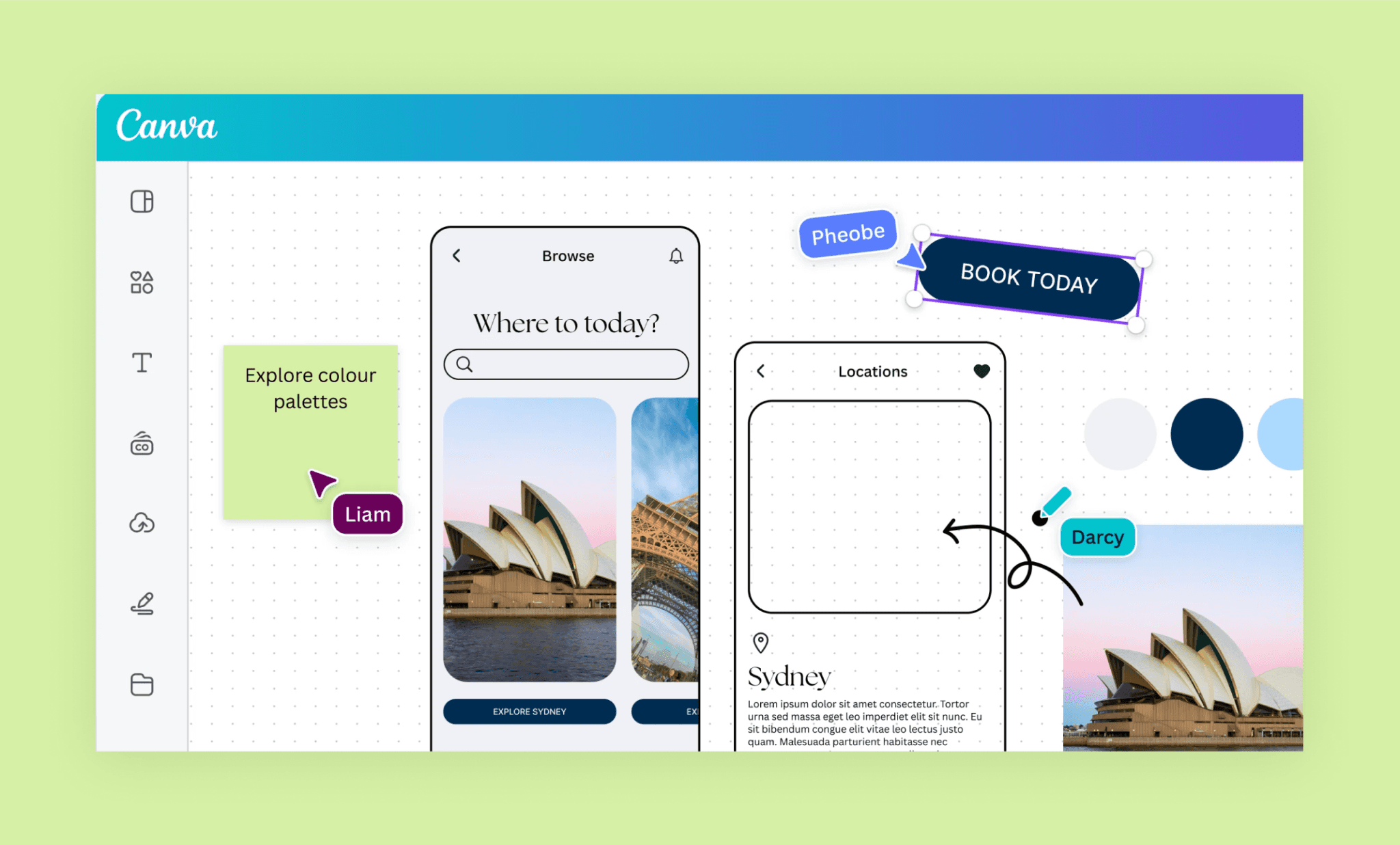
Schritt 1: Registrieren und loslegen
Das ist ziemlich unkompliziert. (Da ich ohnehin registriert war, loggte ich mich mit einem Klick ein.) Und startete kostenlos.
Es gibt zwei Optionen, um an eine App mit Canva heranzugehen:
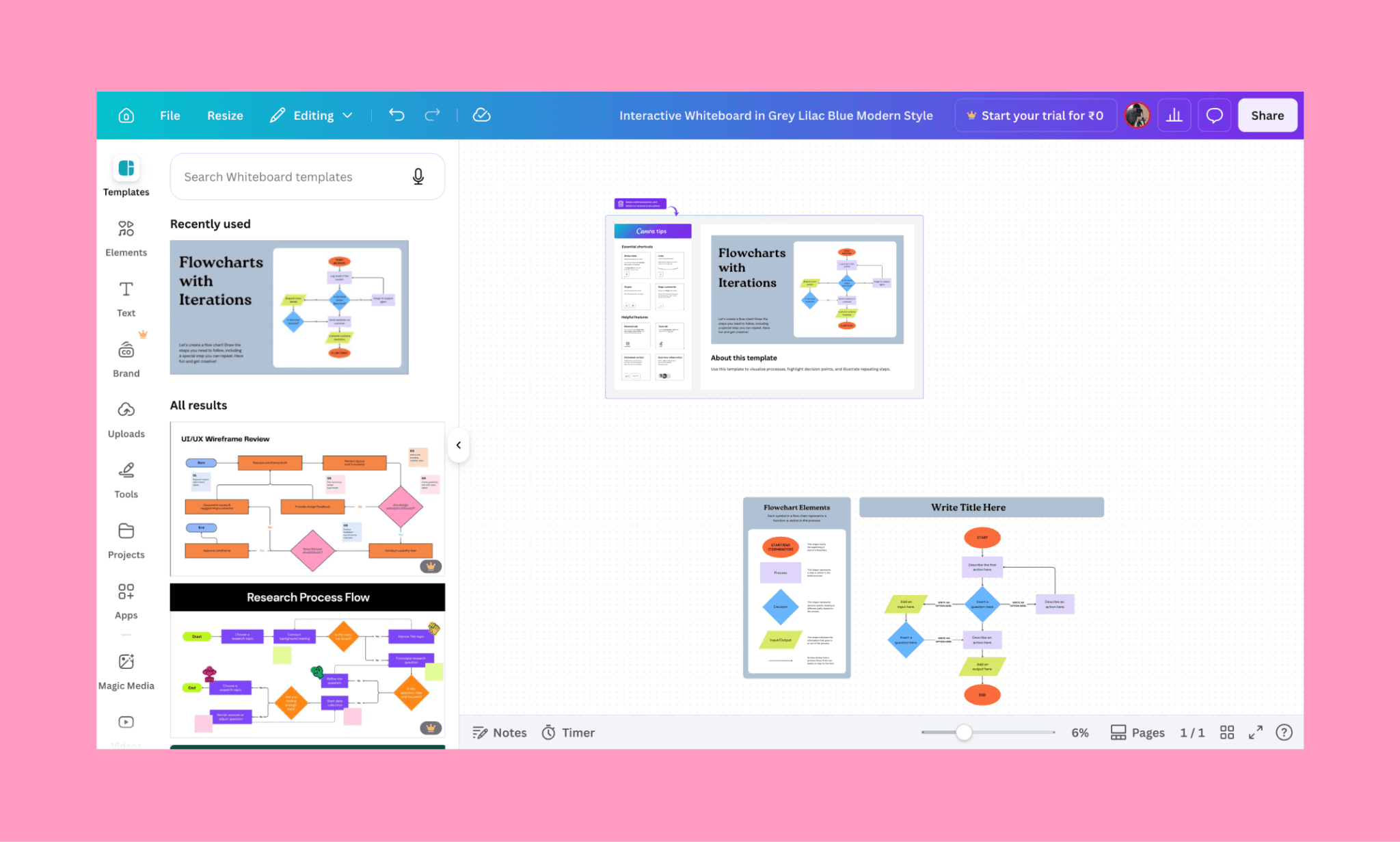
i) Sie bieten ein kostenloses Online-UI-Designtool unter ihrem Whiteboard-Feature an[1]
Wie sich herausstellte, ist das im Grunde ein Flussdiagramm-Designer. Nützlich für UX, aber für UI? Nicht im Geringsten. Ehrlich gesagt eine Enttäuschung.
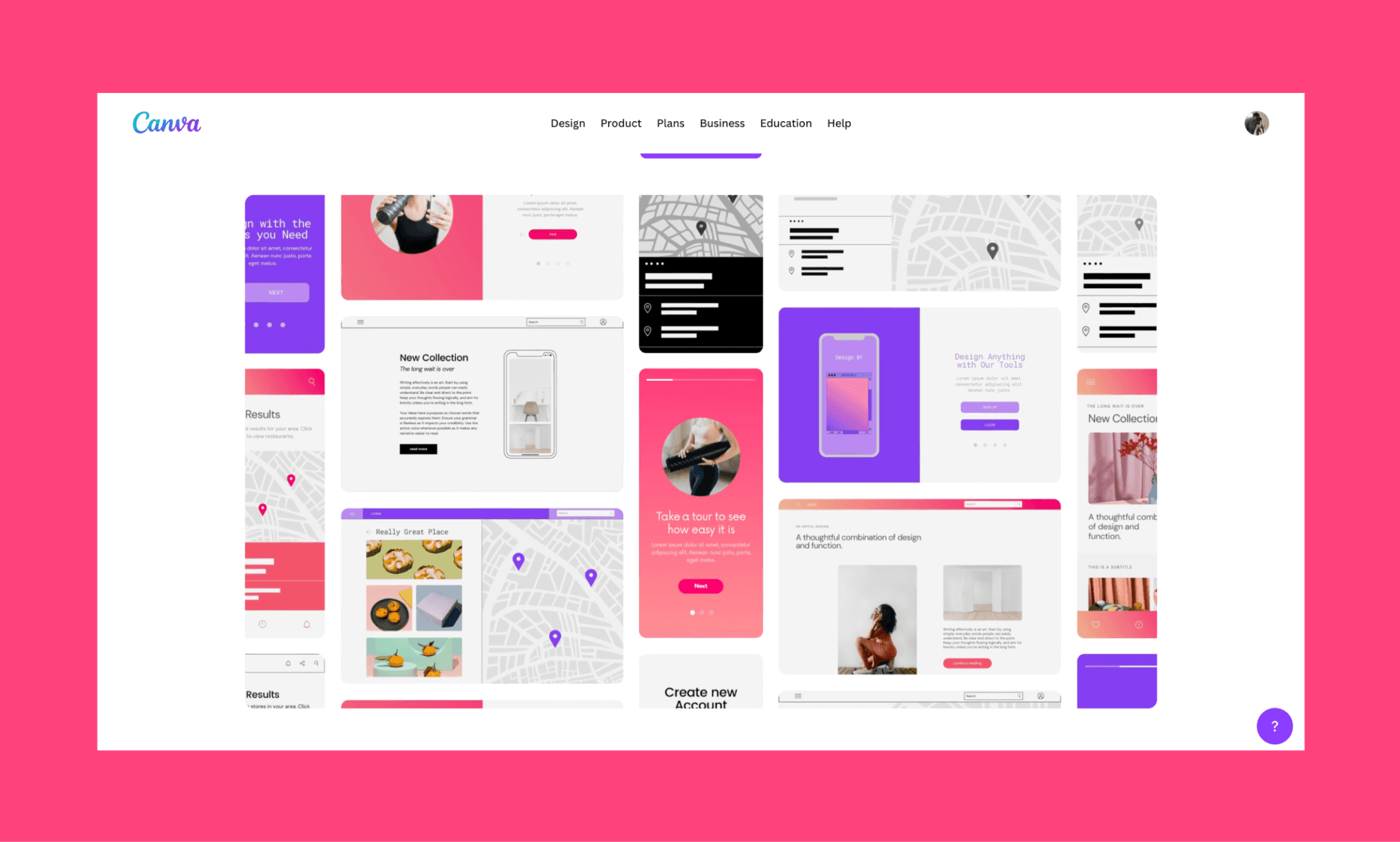
ii) Unter Prototypen gibt es editierbare Templates für Mobile-/Desktop-UIs[2]
Hier findet sich eine große Bibliothek von Prototyping-Vorlagen für verschiedene Bildschirmgrößen im klassischen Canva-Stil. Das sieht schon eher danach aus – und damit habe ich Canva für UI-Designs weitergetestet.
Schritt 2: Template wählen und anpassen
Ich habe mich für ein mobiles App-Template für einen minimalistischen Budget-Tracker entschieden.
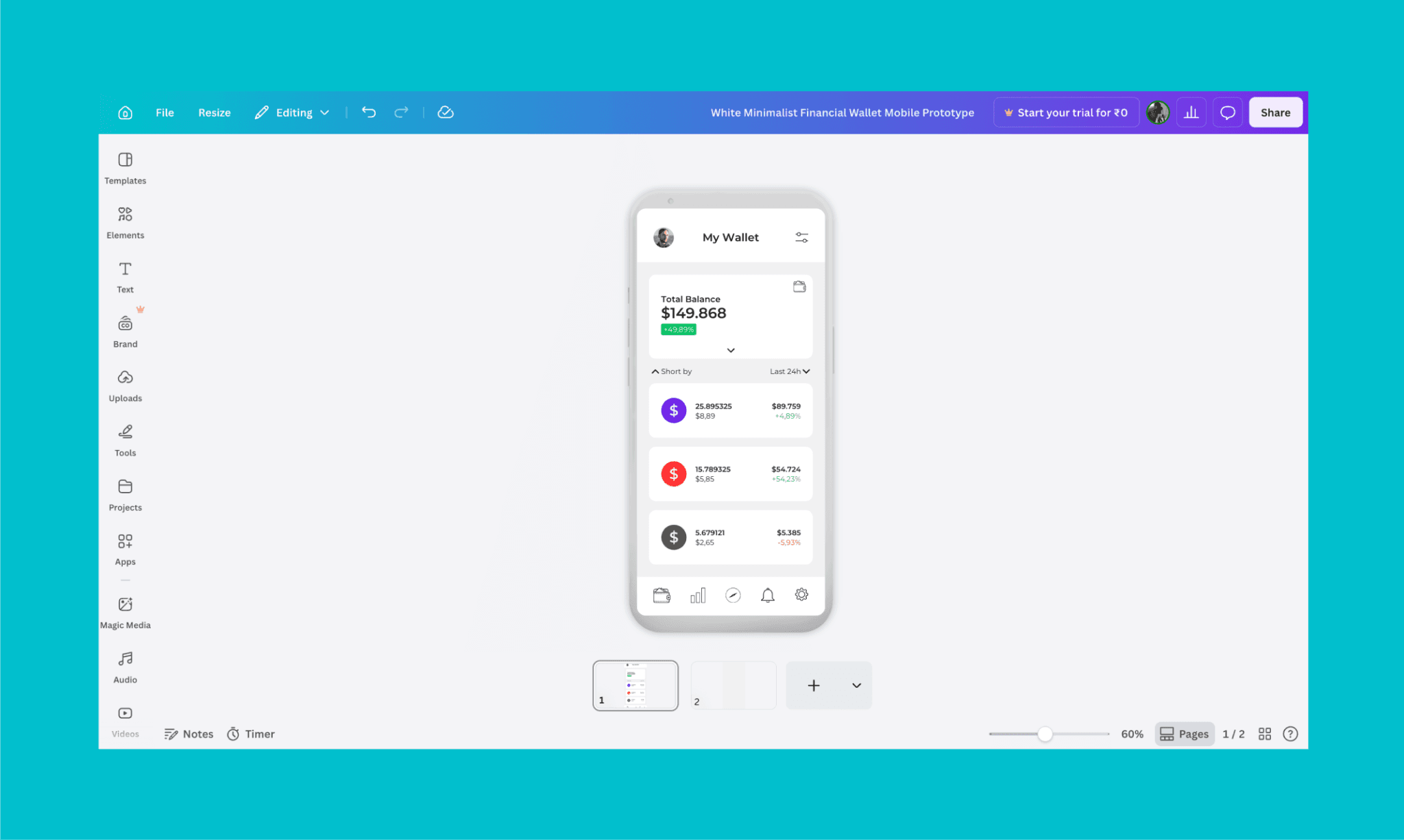
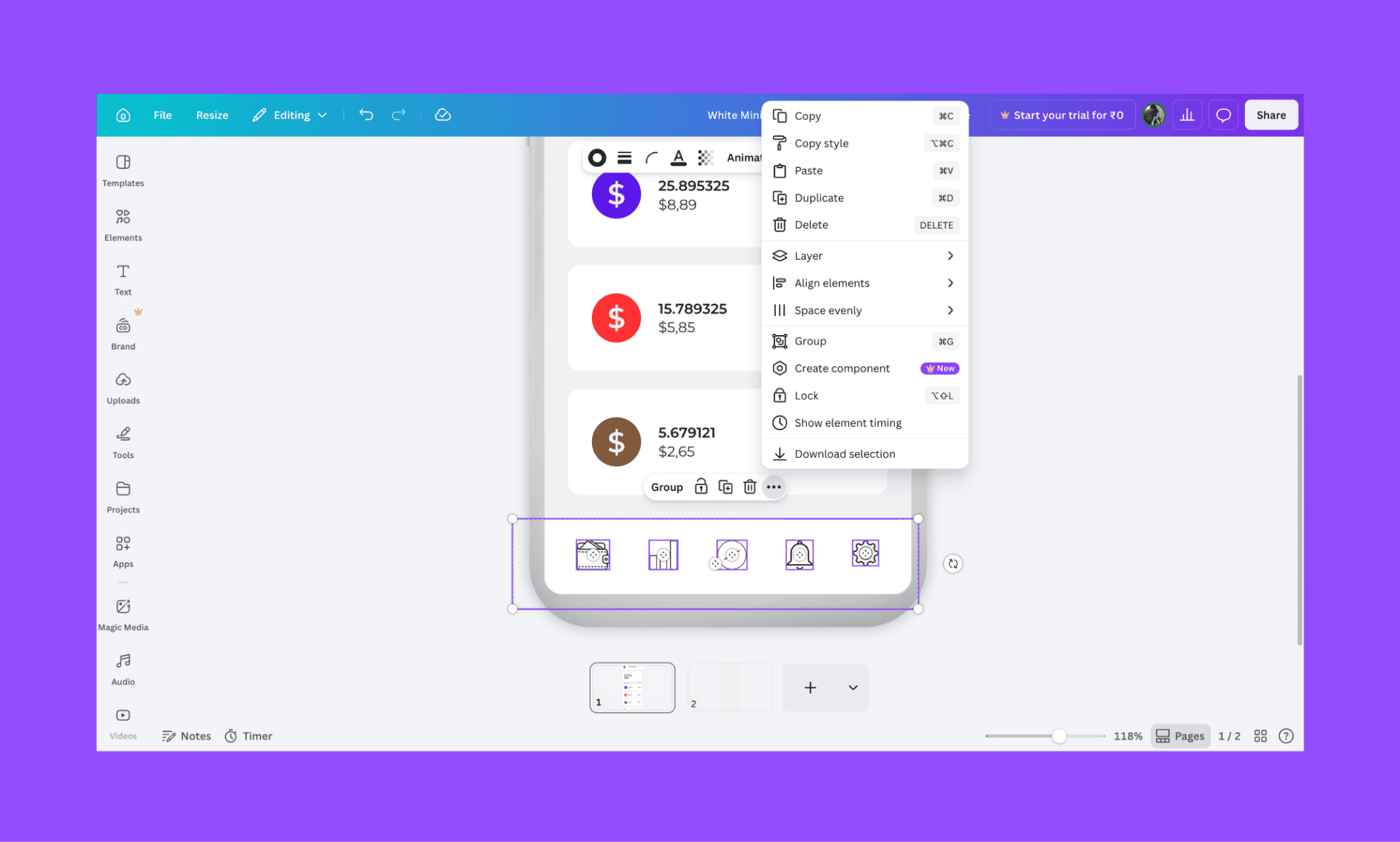
Manuelle Änderungen ließen sich wie auf jedem Canva-Canvas vornehmen. Zudem gab es UI-spezifische Optionen wie „Komponente erstellen“. Damit lässt sich ein Element oder eine Gruppe von Elementen in eine replizierbare Komponente umwandeln.
Schritt 3: Editieren mit Ask Canva AI
Das interessanteste und nützlichste Feature war „Ask Canva“ – ein echtes KI-Feature für UI in Canva.
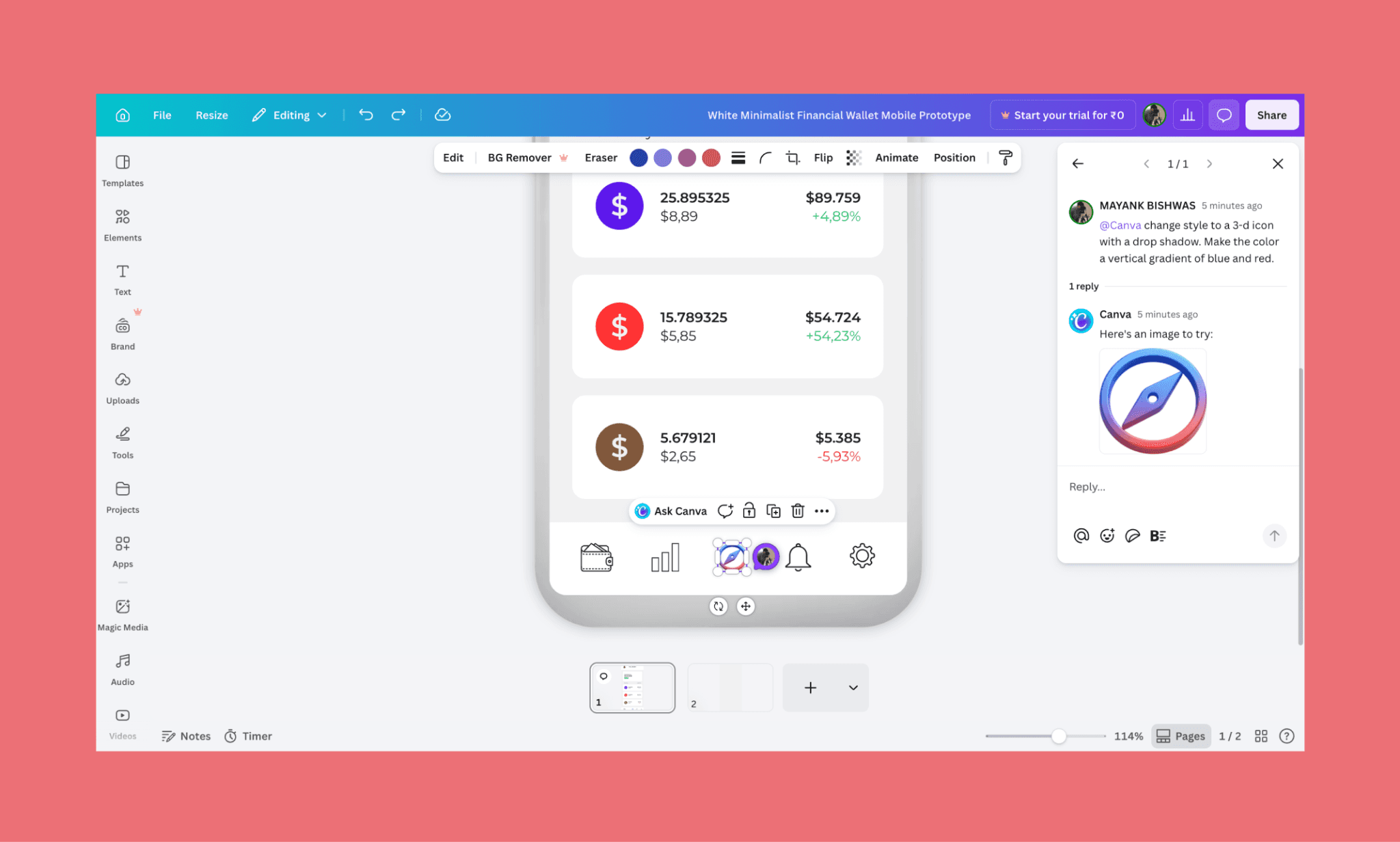
Man wählt ein Element aus und taggt @Canva – wie ein Teammitglied – um auf Englisch Änderungen anzufordern. Es funktionierte recht gut, wenn auch langsam. Meine Anfrage, ein 2D-Icon in 3D zu verwandeln, dauerte ca. 4 Minuten.
Man muss also nicht nur KI-Credits, sondern auch Zeit einplanen. Ehrlich gesagt wäre es schneller gewesen, selbst ein 3D-Icon zu suchen.
Schritt 4: Screens für den App-Flow hinzufügen
Um den Test fortzusetzen, wollte ich einen neuen Screen erstellen. Ich klickte auf das „+“-Symbol unten in der Mitte und hoffte auf Screen-Optionen. Stattdessen bekam ich eine leere Fläche mit einem Smartphone-Umriss. Also griff ich auf „Ask Canva“ zurück und promptete:
„@Canva Generate the add transaction screen in line with the design/color of the first screen.“
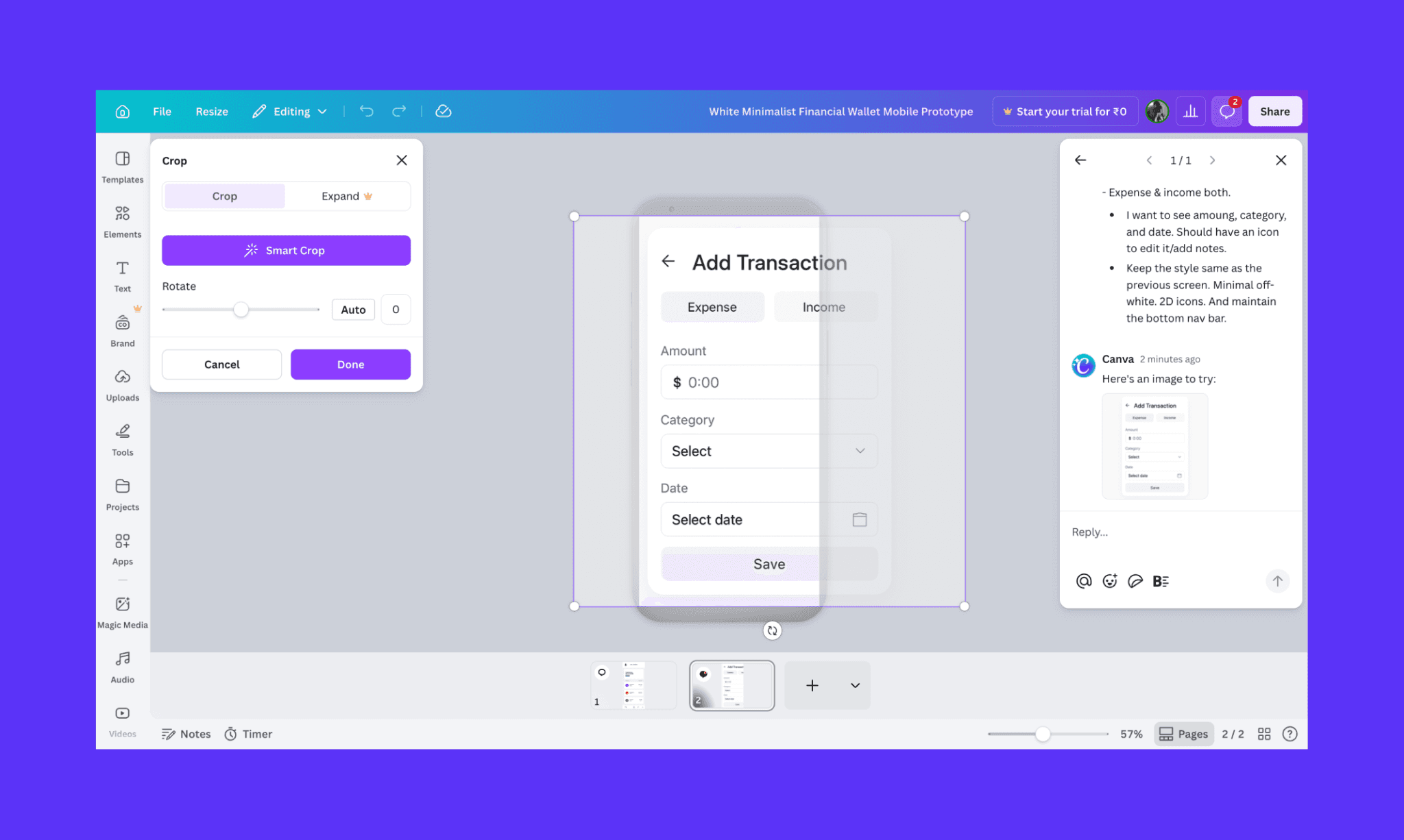
Zu meiner Überraschung stellte mir die KI Rückfragen zu Komponenten und Stil. Ich antwortete kurz: „Keep the style same as the previous screen. Minimal off-white. 2D icons. And maintain the bottom nav bar.“
Das Ergebnis war jedoch ernüchternd: Canva generierte lediglich ein KI-Bild des Screens, das nicht einmal in den Rahmen passte. Und das dauerte stolze 8 Minuten.
Hier habe ich das Experiment beendet. Ich hatte meine Antwort.
Fazit: Wie gut eignet sich Canva für UI/UX-Design?
Für professionelle, vollwertige UI/UX-Projekte ist es nicht verlässlich genug. Ich schätze die Vielseitigkeit, grundlegende UI-Templates wie Mobbin anzubieten, aber als ernsthafter KI-Prototyping-Generator taugt es nicht.
Was Canva gut macht | Wo Canva versagt |
Große Auswahl an Mobile- und Desktop-UI-Templates | Für Vorlagen optimiert, nicht für skalierbare Design-Systeme |
Sehr flache Lernkurve für Nicht-Designer | KI-generierte Screens sind oft nur statische Bilder |
Nützliche KI-Edits via „Ask Canva“ | Langsame KI-Reaktionszeiten im Design-Workflow |
Kann wiederverwendbare Komponenten erstellen | Schwacher Support für Multi-Screen-Produktdesigns |
Zugegeben: Selbst die beliebtesten KI-gestützten UI-Designtools passen nicht für jeden Workflow. Deshalb habe ich bei diesen Canva-Alternativen die Kernfunktionen, Anwendungsfälle und Preise berücksichtigt.
Banani: Die beste Canva-UI-Alternative
Banani ist ein KI-nativer UI-Generator für Startups und Produktteams, die schnell funktionale Prototypen brauchen. Er kann Prompts (Text, Bild oder Figma) in UIs verwandeln – für Mobile und Desktop auf ein und demselben Canvas. Man arbeitet also mit editierbaren Systemen statt starren Vorlagen.
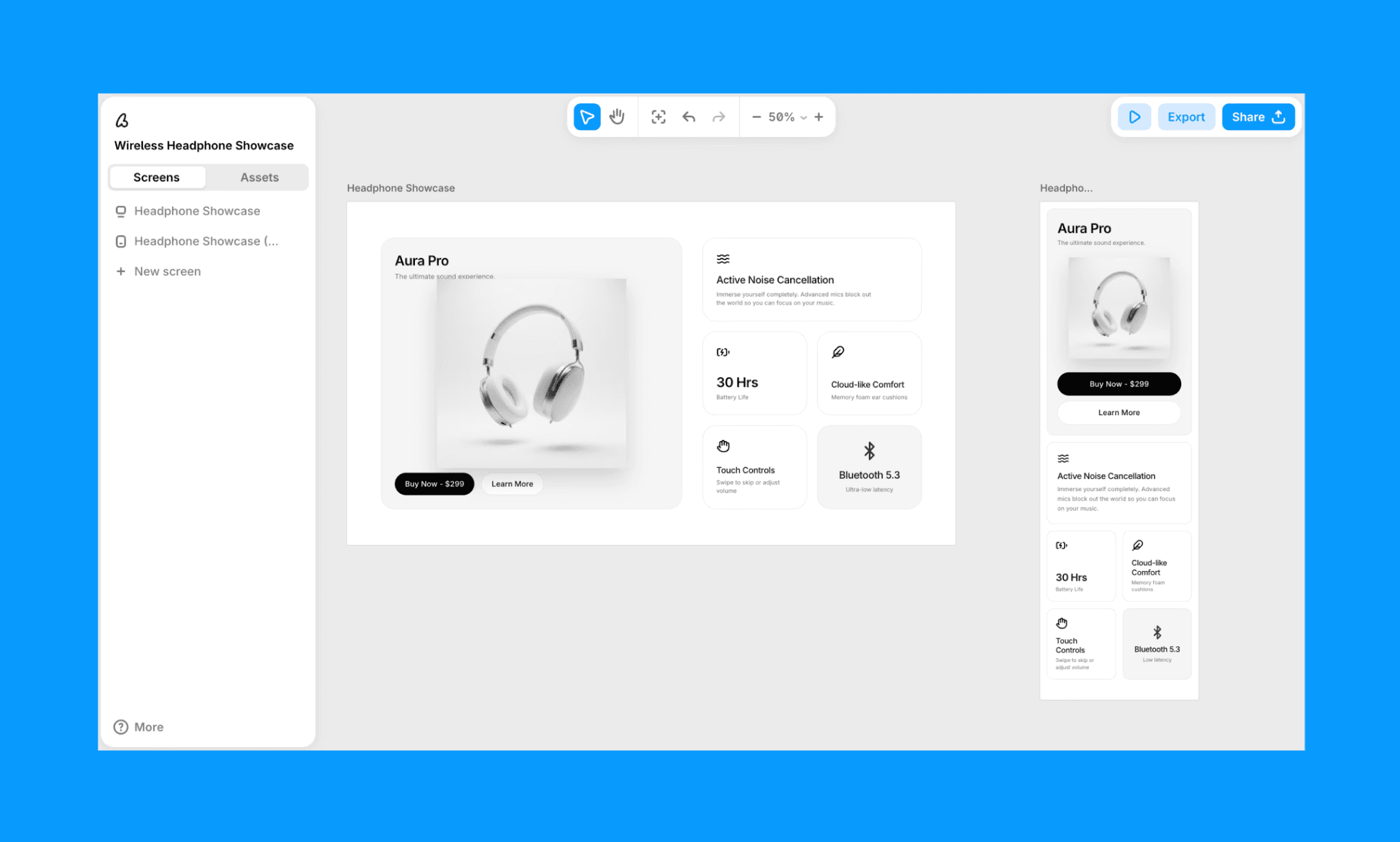
Key-Features von Banani AI
Generiert ganze Screens mit editierbaren Komponenten statt statischer Bilder
Layouts, Komponenten und Screens direkt per Chat-Prompt anpassen
Konsistentes Design-System in jedem Output verankert
UI-Export als Bild, Figma oder Code (inkl. MCP-Support)
Warum Banani AI Canva im UI-Design schlägt
Banani erzeugt funktionale UI-Systeme, keine flachen Mockups. Jede Komponente ist editierbar, wiederverwendbar und perfekt für den Developer-Handoff vorbereitet. Und das um ein Vielfaches schneller.
Preise
Die kostenlose Version von Banani enthält ~170 Screen-Generierungen/Edits pro Monat. Bezahlte Pläne starten ab 12 $/Monat für ~400 Screens.
UI kostenlos mit Banani AI designen >
Figma AI: Das klassische UI-Designtool
Figma ist der Industriestandard für kollaboratives UI/UX-Design. Mit den neuen KI-Features (wie Design-Generierung und Auto-Layout) ist es noch mächtiger für Teams, die skalierbare Design-Systeme aufbauen.
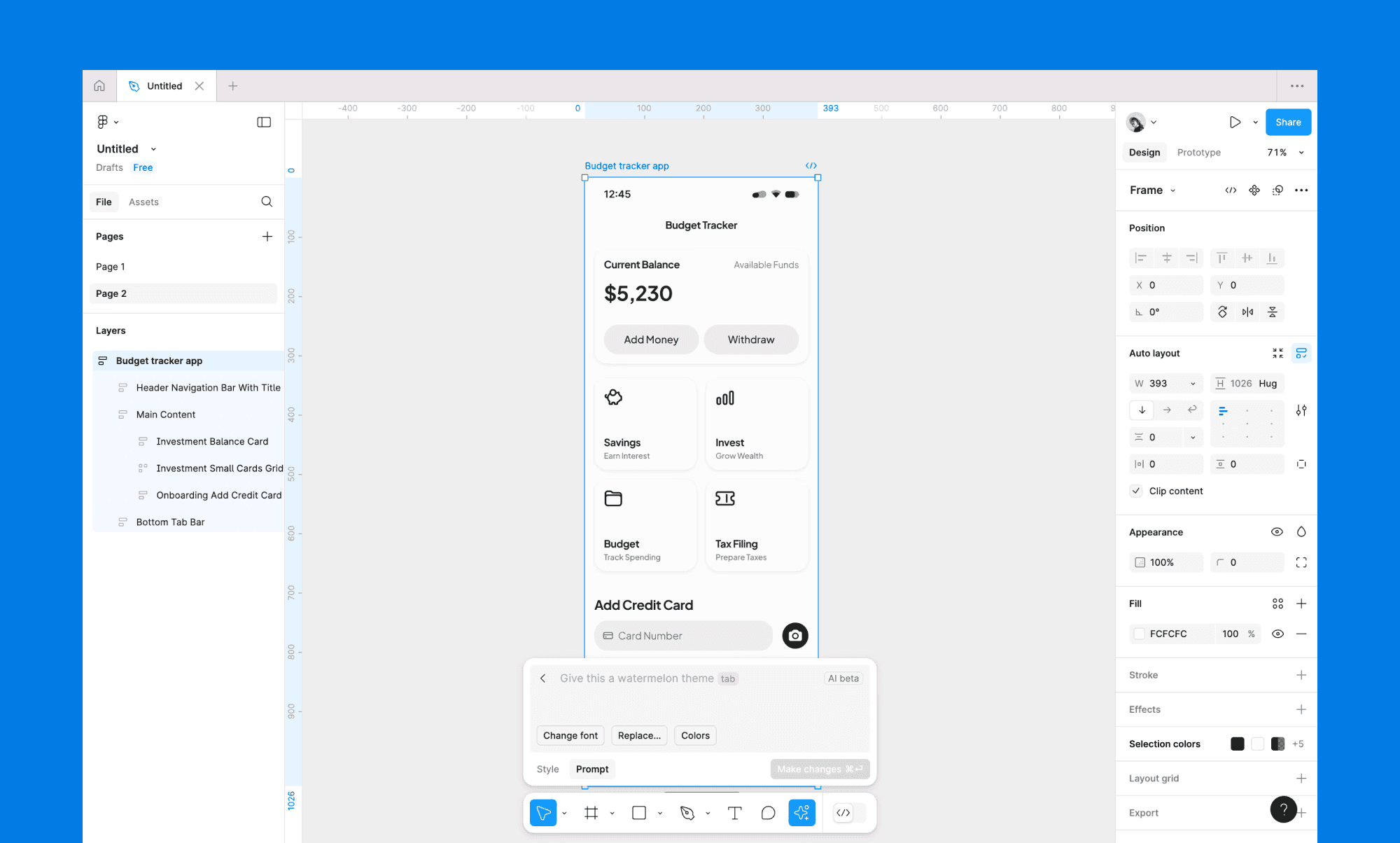
Key-Features von Figma AI
Echtzeit-Kollaboration für das gesamte Team
Komponentenbibliotheken und Design-Tokens für maximale Konsistenz
KI-gestütztes Design mit generativen Füllungen und Auto-Layout
Nahtloser Handoff an Entwickler inklusive Spezifikationen und Assets
Warum Figma AI Canva im UI-Design schlägt
Figma ist für professionelle Design-Workflows konzipiert. Canvas UI-Feature reicht hingegen nur für kleine Solo-Projekte. Wer echte Team-Kollaboration, strikte Design-Systeme und Pixel-Perfektion braucht, wählt Figma.
Preise
Der kostenlose Figma-Tarif beinhaltet 500 Credits/Monat. Bezahlte Pläne liegen bei 12 € bis 75 €/Monat pro Editor.
Text in Figma-Design verwandeln >
Stitch: Kostenlose UI/UX-KI (noch in der Beta)
Stitch (ehemals Galileo AI) ist Googles KI-gestütztes UI-Designtool. Es generiert Full-Screen-Designs aus Text-Prompts und integriert sich nahtlos in Material Design 3 (einem Open-Source Design-System). Perfekt für alle, die auf Googles Designphilosophie setzen.
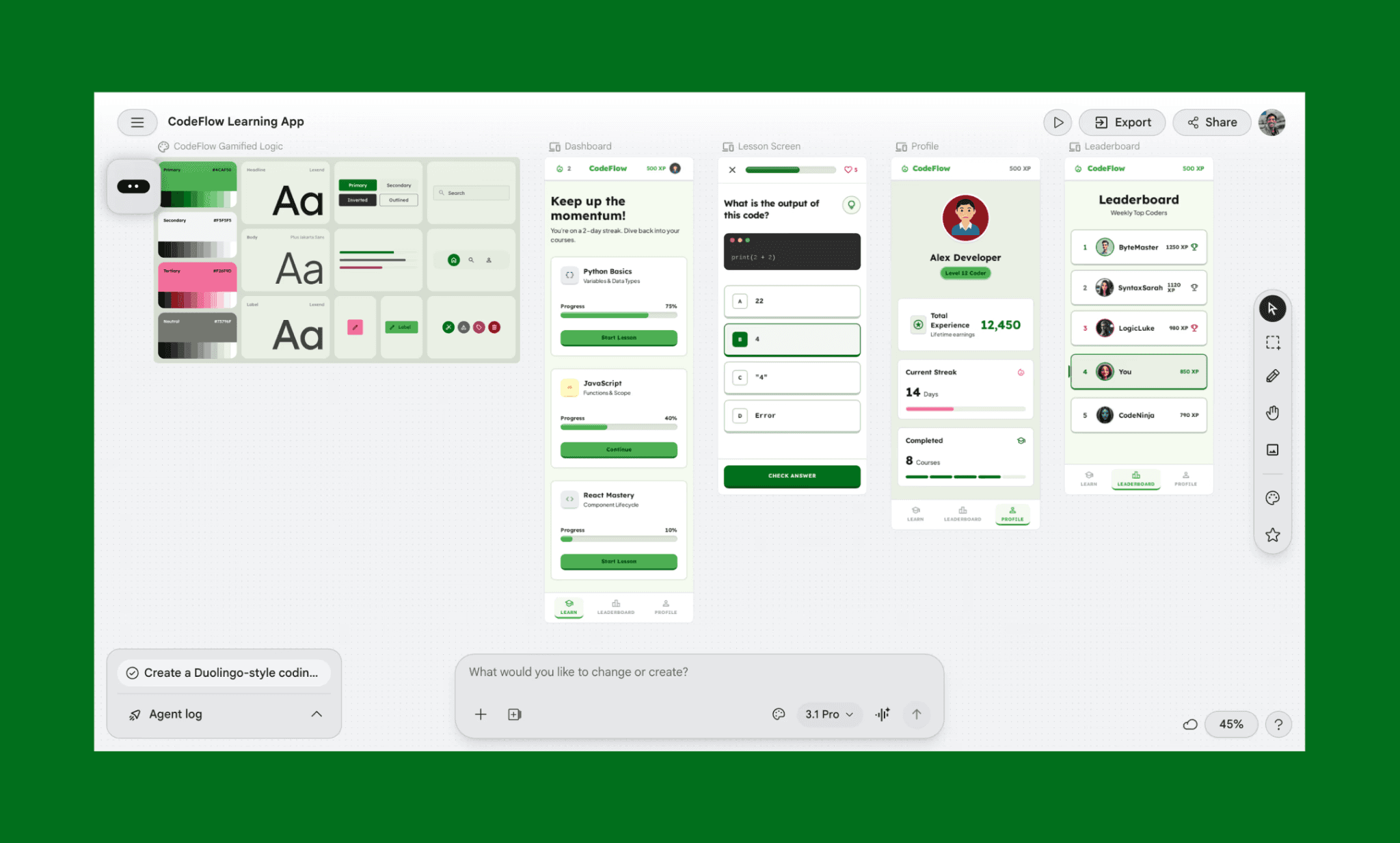
Key-Features von Google Stitch AI
KI generiert Screens aus einfachen Textbeschreibungen
Material Design 3 Komponenten sind standardmäßig integriert
Echtzeit-Kollaboration dank Google Workspace Integration
Export als Code, Figma oder Bild
Warum Stitch AI Canva im UI-Design schlägt
Stitch fokussiert sich komplett auf KI-Native-Generierung, während Canva mit „Ask Canva“ nur limitierte Edits bietet. Outputs folgen automatisch den Best Practices von Material Design.
Preise
In der Beta-Phase ist Google Stitch kostenlos. Es bietet ca. 12.450 Credits pro Monat (Verbrauch je nach Prompt-Komplexität). Aktuell gibt es keine Bezahloptionen.
Google Stitch Alternativen ansehen >
Lovable: UI/UX mit funktionierendem MVP
Lovable ist ein KI-App-Builder, der direkt funktionale Anwendungen aus Prompts baut – nicht nur Designs. Bei diesem Vibe-Coding-Tool ist das UI quasi ein Nebenprodukt. Man erhält einen echten Prototyp, ideal für Gründer, die Ideen sofort validieren wollen.
(Hinweis: Ich bevorzuge es, das UI per Vibe-Design zu entwerfen, bevor ich die App code, um die volle Designkontrolle zu behalten.)
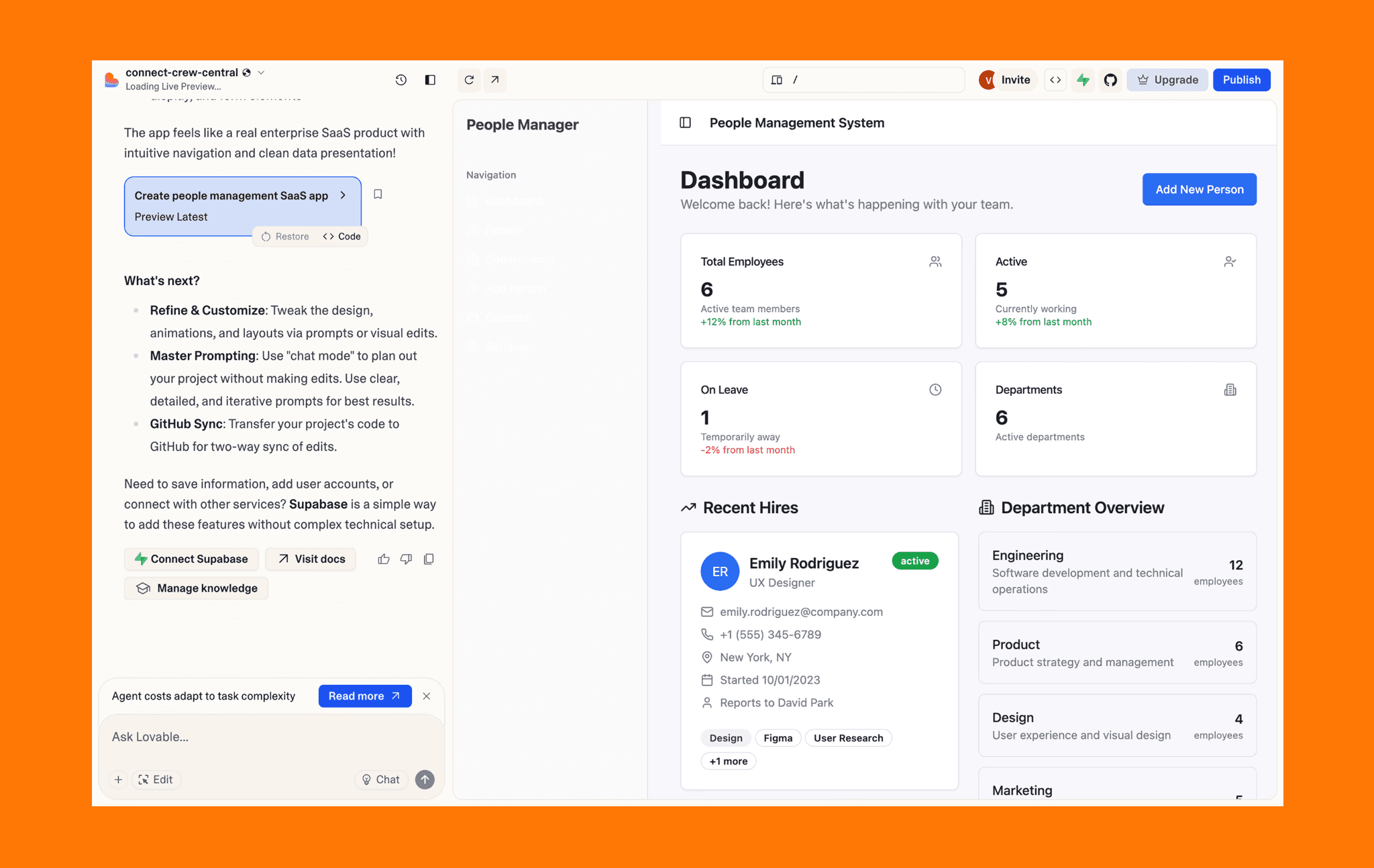
Key-Features von Lovable.dev
Generiert Full-Stack-Apps aus natürlicher Sprache
Funktionierendes MVP mit Backend-Logik, keine bloßen Mockups
UI-Anpassungen direkt über KI-Chat oder manuell in der IDE
Out-of-the-box-Integration von Datenbanken, APIs und Auth
Warum Lovable AI Canva im UI-Design schlägt
Lovable überspringt den Handoff-Prozess komplett. Man erhält ein fertiges Produkt in Stunden statt in wochenlangen Feedbackschleifen zwischen Designern und Developern.
Preise
Der kostenlose Tarif von Lovable bietet 30 Credits/Monat. Bezahlte Pläne starten ab 21 $/Monat für 100 Credits.
Anleitung für einzigartige UIs mit Lovable >
Penpot: Open-Source-UI-Designer
Penpot ist eine kostenlose Open-Source-Alternative zu Canvas UI-Tool. Es ist komplett selbst hostbar und ideal für Teams, die volle Freiheit ohne Vendor-Lock-in oder Abo-Kosten suchen. Zudem bietet es KI-Workflows via MCP an.
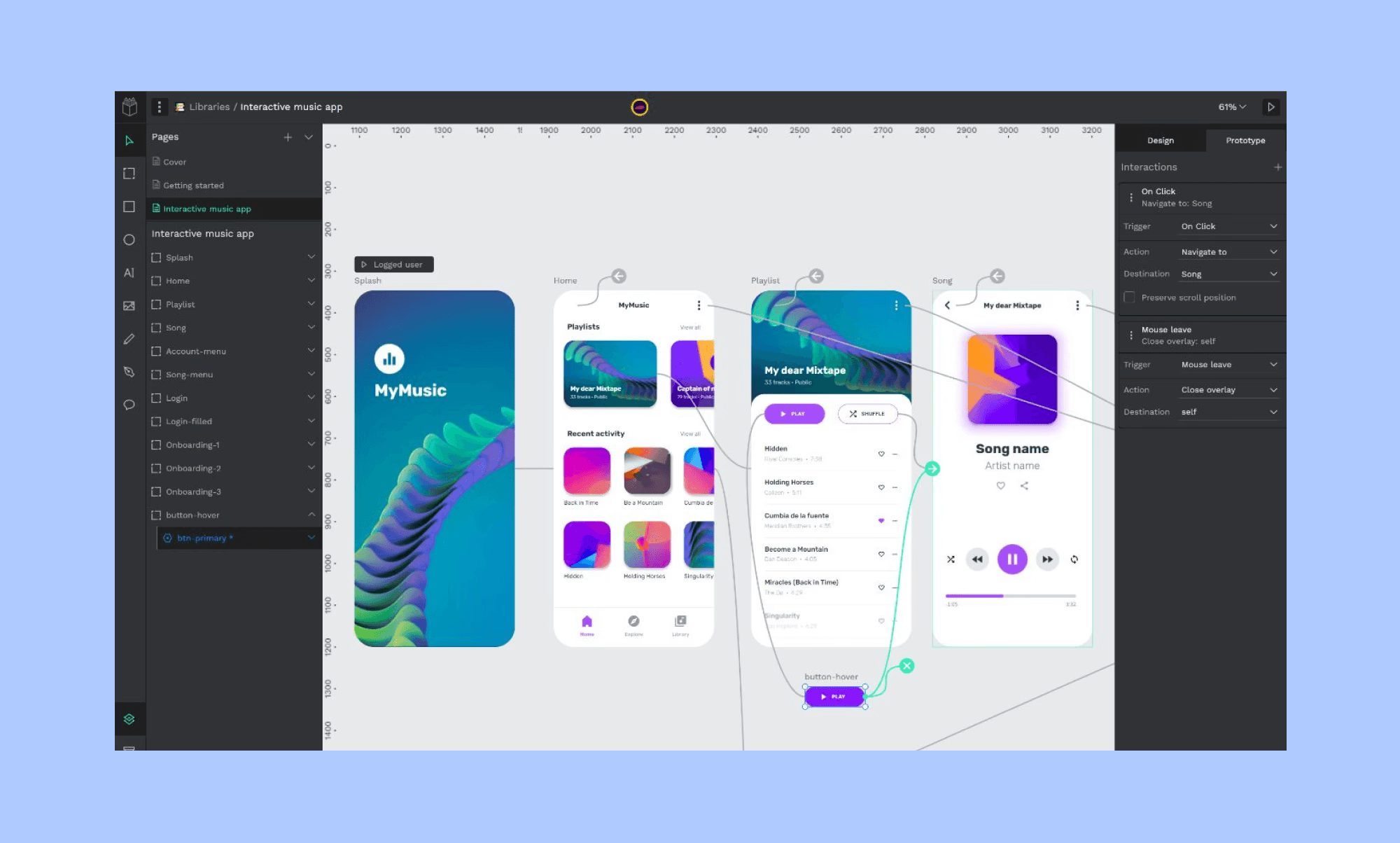
Key-Features von Penpot
Open-Source-Tool komplett ohne Lizenzbeschränkungen
Self-Hosted oder Cloud-Option für maximale Datenkontrolle
Kollaboratives Design in Echtzeit
Entwicklerfreundliches Design-to-Code-UI-Tool
Warum Penpot Canva im UI-Design schlägt
Penpot bietet professionelle Design-Workflows ohne wiederkehrende Kosten. Im Gegensatz zu Canvas Fokus auf Vorlagen ist Penpot für echte Design-Ansprüche gebaut.
Preise
Als Open-Source-Tool ist Penpot für kleine Teams (bis zu 8 Mitglieder) komplett gratis. Für größere Teams und KI-Features (via MCP) starten die Pläne ab 7 $/Nutzer/Monat.
Penpot vs. Figma im Vergleich >
So findest du die beste Canva-UI-Alternative
Statt alle Tools durchzutesten, helfen diese drei Fragen, um die perfekte KI-Alternative für deinen Workflow zu bestimmen:
1. Was ist wichtiger: Speed oder Design-Präzision?
2. Brauchst du ein fertiges MVP oder nur UI-Mockups?
3. Geht es um Team-Kollaboration oder Solo-Design?
Behalte auch das Budget für die Test- und Skalierungsphase im Blick, um das passende KI-Tool zu wählen.
Wer eine App-Idee hat, UI-Richtungen testen will und schnelles Prototyping für Entwickler benötigt: Am besten direkt per Vibe-Design mit Banani AI loslegen.
FAQs zum Canva UI-Designtool
Kann man mit Canva eine App designen?
Ja, aber nicht sehr professionell. Canvas UI-Templates eignen sich für statische Mockups, bieten aber keine echten Design-Systeme, kein Komponenten-Management und keinen brauchbaren Entwickler-Handoff.
Was ist besser für UI/UX: Canva oder Adobe?
Adobe XD war speziell für UI/UX konzipiert; Canva ist ein Allrounder. Da XD praktisch eingestellt wurde, fährt man für UI/UX mit Figma oder Banani AI deutlich besser.
Ist Canva AI so gut wie ChatGPT für UI?
Canva AI liefert fertige UI-Templates und einfache Edits via „Ask Canva“. ChatGPT kann zwar direkt keine UI-Screens generieren, ist aber unschlagbar für Ideenfindung und UX-Copywriting.
Gibt es eine kostenlose Alternative zu Canva AI für UI?
Penpot ist eine geniale Open-Source-Alternative. Falls du ein KI-natives Designtool suchst, ist Banani mit seinem großzügigen kostenlosen Tarif (~170 Screens/Monat) die beste Wahl.
Ressourcen
[1] https://www.canva.com/online-whiteboard/ui-design-tool/
[2] https://www.canva.com/prototypes/templates/mobile/


