
Features | Reasoning-based generation, near-perfect text rendering, multi-image consistency, flexible aspect ratios |
Access | ChatGPT, OpenAI API, 3rd-party platforms (Flora AI, Freepik, Figma Weave) |
Rating | My Experience: 3.8/5 |
Pros | Best-in-class prompt fidelity; near-perfect text rendering; strong multi-step editing |
Cons | Slow generation (~1:30 min on avg.); clunky in-ChatGPT edit flow |
Pricing | Free (limited) via ChatGPT; API from $8/$30 per 1M tokens (input/output) |
Alternatives | Nano Banana, Midjourney, Krea AI, Flux 2, Reve, Ideogram |
Summary of Freepik (now Magnific) Images >
What is GPT Image 2?
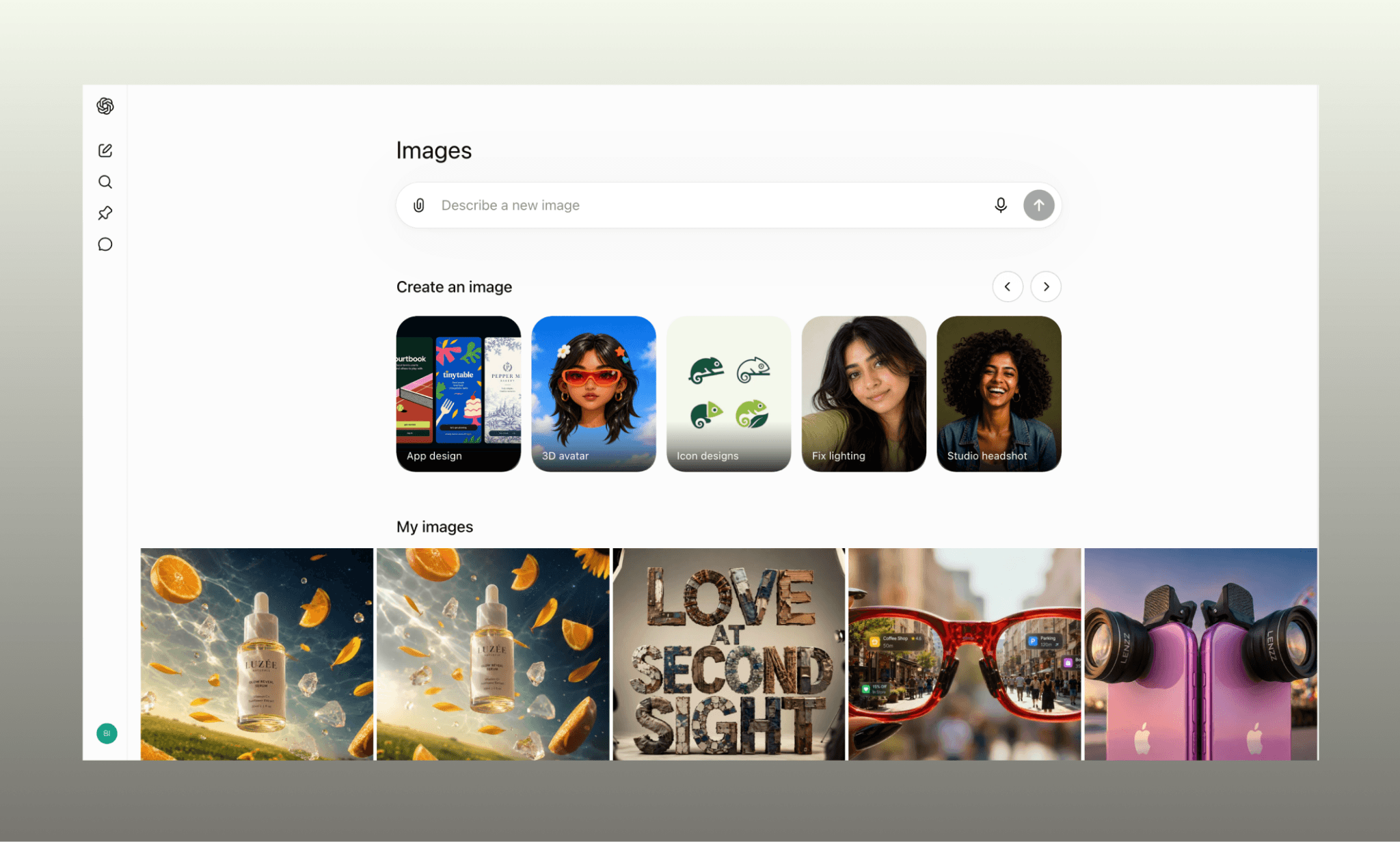
GPT Image 2 (or ChatGPT Images 2.0) is OpenAI's marquee image generation model released in April 2026[1]. Its headlining feature is that it's the first OpenAI image model to reason before generation: it can plan layout, pull references from the web, and self-check its own output before returning a result.
Where to access GPT Image 2?
There has been some confusion around where to use GPT Image 2 in ChatGPT. Understandably so because the default image section viz. chatgpt.com/images does not show the model name. But rest assured it’s what’s being used as OpenAI’s native image model.
In addition to directly using prompting ChatGPT for an image via GPT Image 2, you can access it in two other ways:
API: Developers can use gpt-image-2 in the API and in Codex[2]. It's exposed through both an Image API for one-shot generation or single edits, and a Responses API for conversational, multi-step image workflows.
3rd-party GenAI platforms: GPT Image 2 is an image model, not a standalone app, so you’ll find it integrated across dedicated design tools like Flora AI, Freepik AI, and Figma Weave.
How to Use Midjourney for Free >
Using GPT Image 2 for UI Assets
We’ll now see the step-wise process of using GPT Image 2 – directly inside ChatGPT – by generating UI assets for an imaginary virtual try-on app, Samplng. As I’ll be including prompts to run in GPT Image 2, you can run them on your end and compare my output with yours too for hands-on learning.
Generate a hero image in one-shot
Starting out with a hero image and a rather complex one to assess GPT Image 2’s design intelligence. Simply open ChatGPT, and write the prompt.
“Create an image where in the foreground, there's a black young woman looking back over her shoulder at the camera with a playful wink and smile, clearly excited. She's holding her phone and swiping on the screen, and as she swipes, a stream of clothing items and accessories bursts out from the phone screen, flying through the air with motion and energy, receding back into the depth of the frame. In the background, within that depth, show the same woman three more times, now huddled together with her other versions, laughing, each wearing a different outfit: one dressed for the gym, one dressed for the office, and one dressed for a night out/party. Use a portrait aspect ratio suited for a mobile app hero banner. Bright, energetic color palette with a sense of motion and depth throughout the scene.”
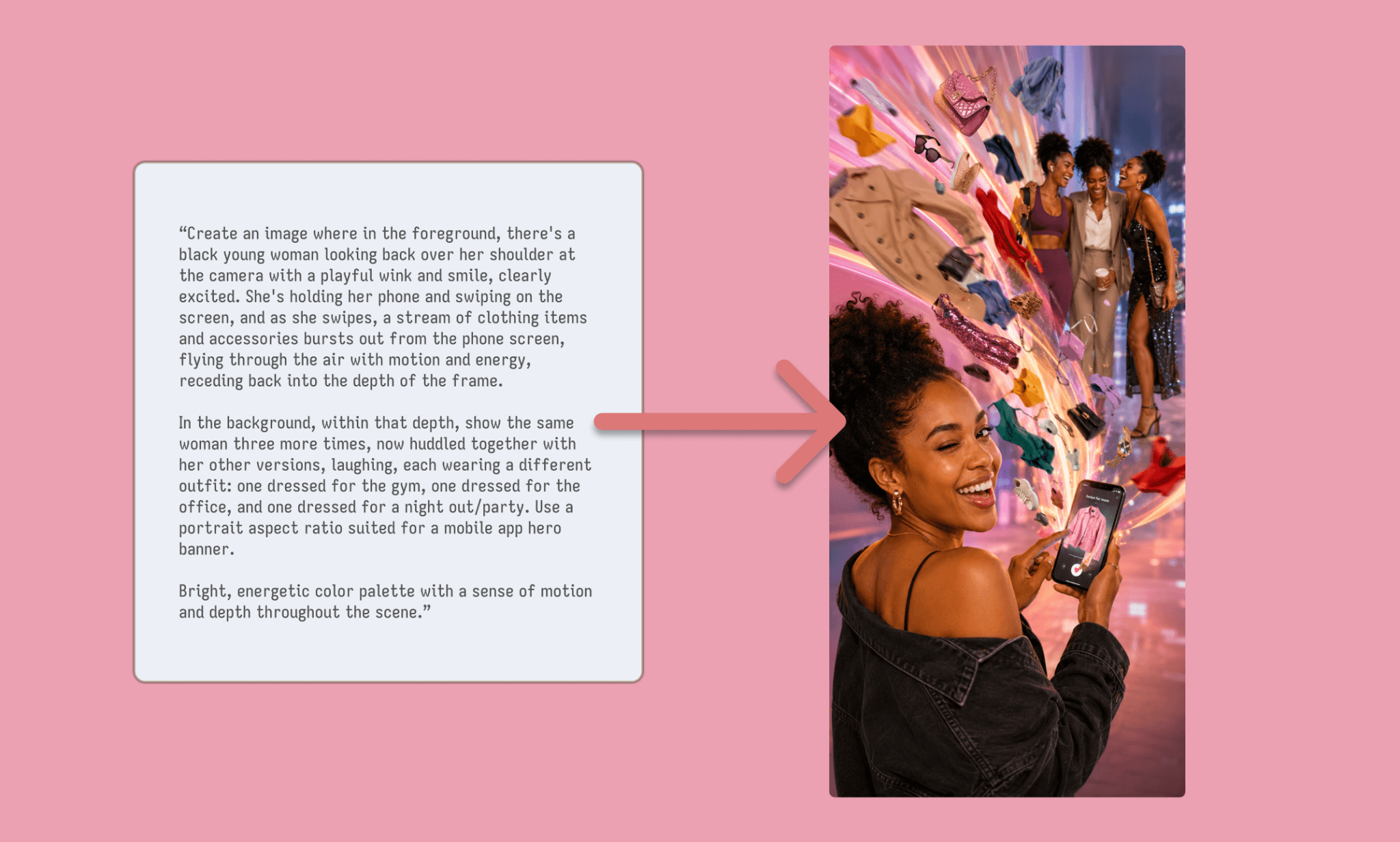
Time: ~1:30 mins
The one-shot output of GPT Image 2 is genuinely good. It has all the elements, characters, and their arrangement as prompted. And the creative liberty it took to show motion, albeit too much, is also commendable.
One-shot Ability of Kling 3.0 for Images >
Edit the hero image with ChatGPT
To perfect the (hero) image at hand, click to expand the image, and it’ll open a window with a chat box asking to ‘Describe edits’. But it does not work directly. Instead, download the image you wish to edit, upload it again, and then describe the changes. Must say quite cumbersome and that’s why it makes sense to run GPT Image 2 inside 3rd party GenAI like Flora AI.
I wanted there to be more negative space at the center of the image because when assembling these with an AI UI Generator, I would be placing some copy & button there.
This time, my prompt to GPT Image 2 will not be a paragraph, but bullets describing each edit I want:
“Edit this image with these changes:
1. Move the foreground woman slightly lower in the frame, and move the three background women slightly higher. Have the background women looking toward the foreground woman and the incoming clothes, as if reaching out to catch them, laughing together.
2. Remove the pink and yellow color streak/light trail effects entirely.
3. The direction of the floating clothes/accessories should be: from the phone, towards the girls in the background.
4. Reduce the number of clothing items and accessories in flight — keep only a few pieces, arranged in a loose arc from the phone screen toward the background women, so the motion feels light and elegant rather than busy.
5. Create open, faint, lightly-colored negative space in the center of the image, between the foreground and background figures, so that text can be placed there later and remain clearly readable.
Keep the woman's likeness, outfit, pose, and overall lighting and color palette consistent with the original image.”
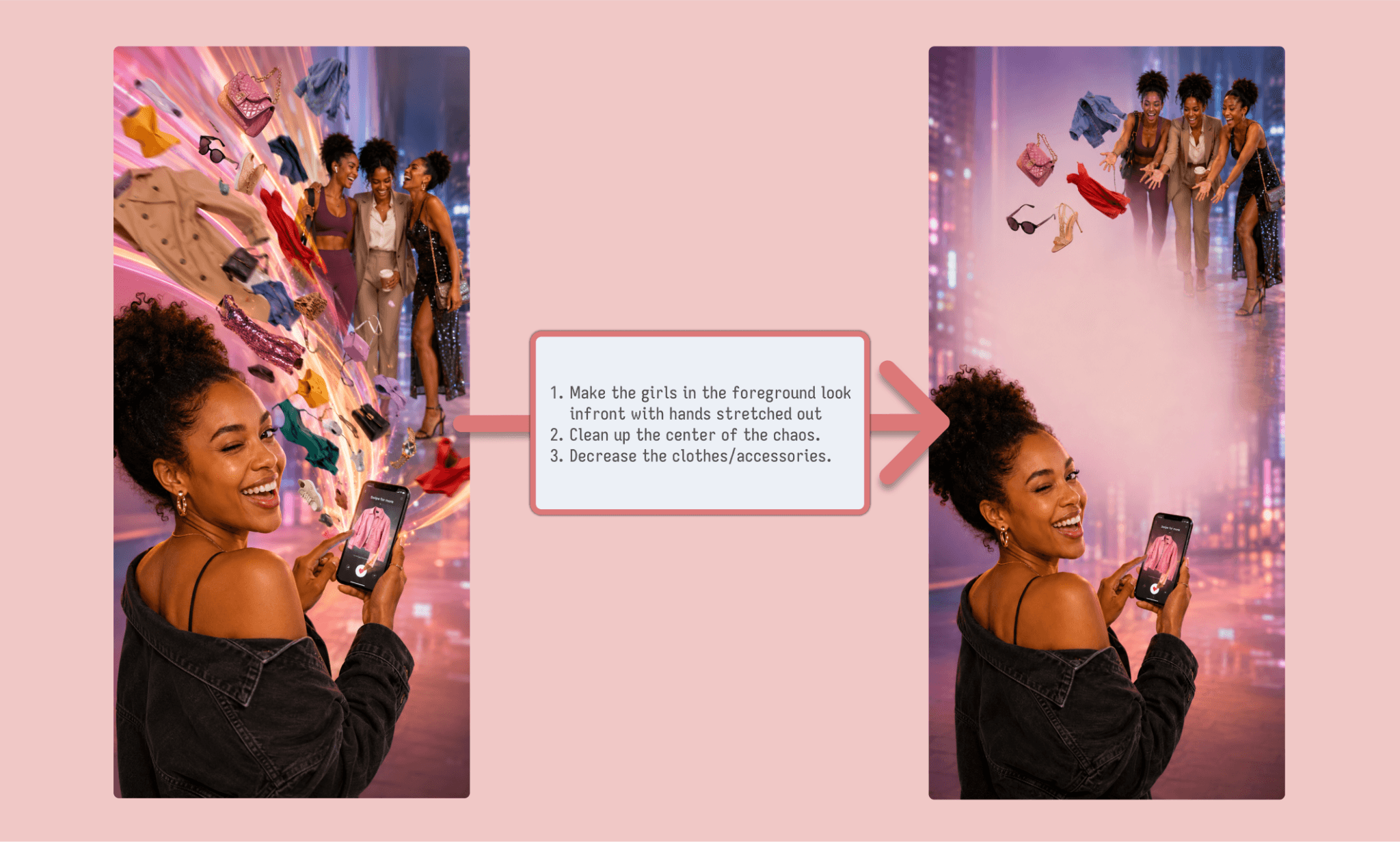
Time: ~1:30 mins
The edited image is pretty close to what I imagined. The prompt fidelity of GPT Image 2 for editing is one of the best I’ve seen; better than Midjourney image editing. It made all the 5 changes as asked, preserving the original layout and character.
How Good is Reve at Editing Image >
Create multiple screens with one character
For a virtual try-on app, character and product consistency across screens matters more than any single hero image. So this section tests a different capability: how well GPT Image 2 holds a reference subject steady while swapping in different inputs around her.
I'll upload one model photo as the constant, then run three separate generations, each pairing her with a different second reference.
i) Model + attire
“Using the woman from the first reference image, dress her in the complete outfit shown in the second reference image: the white crewneck sweatshirt, the grey jeans, and the white sneakers. Keep her face, pose, and background exactly as in the first image.”
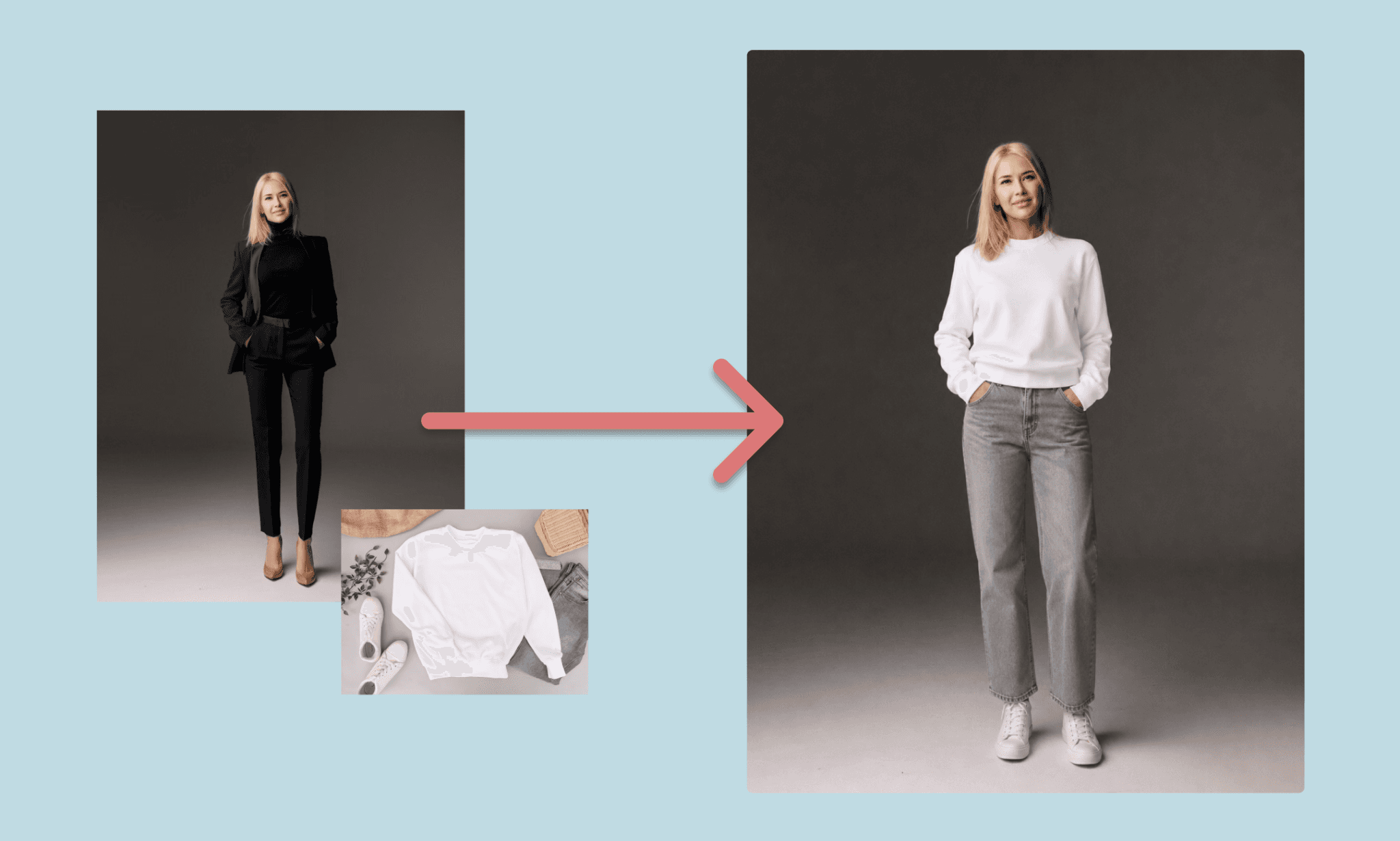
Time: ~2 mins
ii) Model + purse
This time, continuing on the same chat, I tested GPT Image 2 design intelligence by asking to decide on the model’s pose to best present the purse.
“To the woman from the last image, give her the purse attached -- styled naturally with her outfit. Choose the pose and framing that best showcases the purse's embossing. Keep the background the same.”
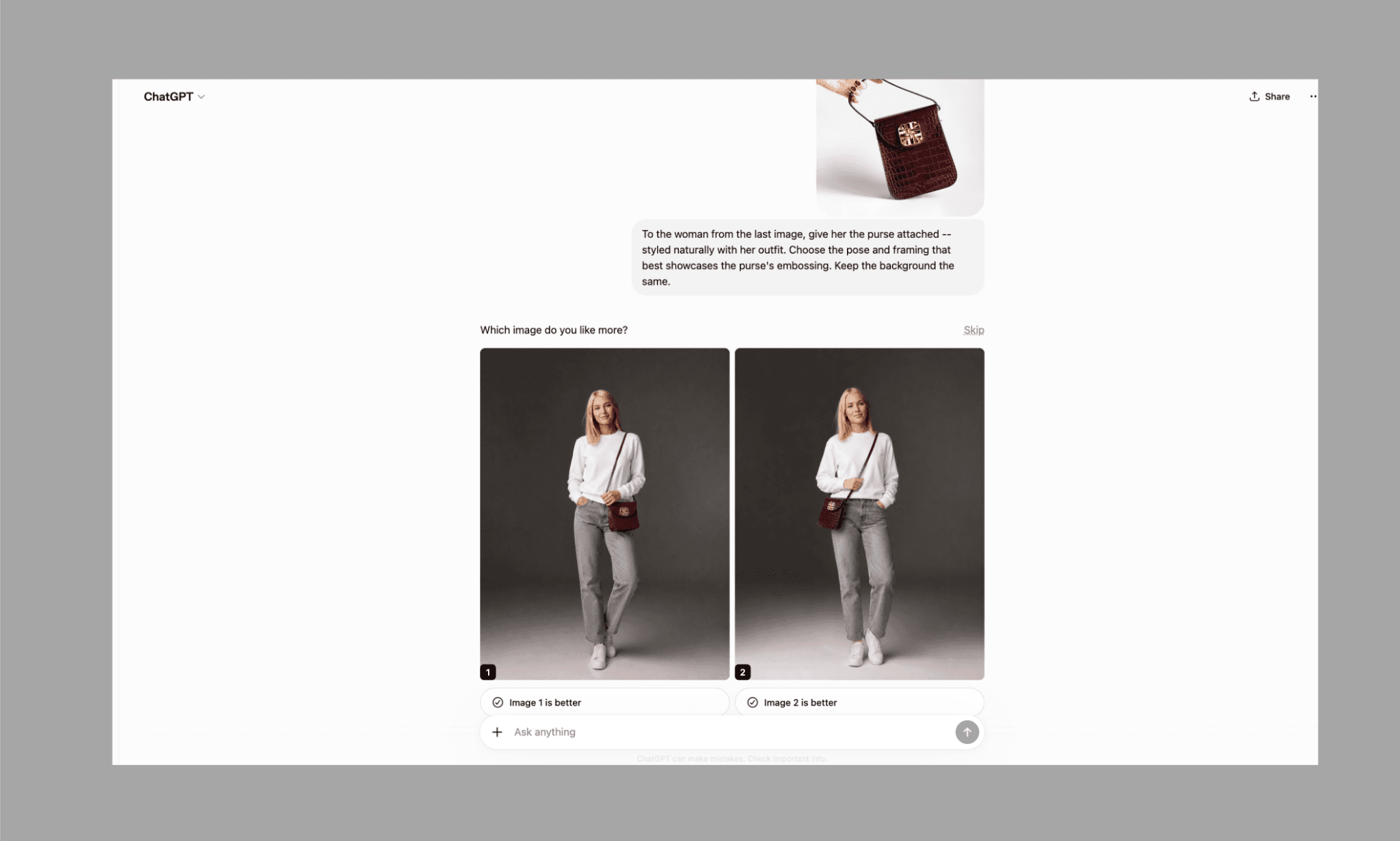
Time: ~2 mins
This time I received 2 options (without asking). Both are subtle as asked. However, this time, I noticed the model’s face changing from the original. Guess, the farther we’re going from the original – without uploading the reference – the more the drift.
Nevertheless, I prefer image 1 and shall proceed with that.
ii) Model + background
In the final test, I changed the location altogether to test the lighting, angle, and text rendering skills of GPT Image 2.
“Using the woman from the first reference image, place her in front of the Eiffel Tower from the second reference image, on a sunny day with natural sunlight and soft shadows. Add a light breeze effect to her hair and clothing, so both look slightly windswept and in motion. Add a text on her white sweatshirt to read "I ❤ Paris" rendered in a brownish tone that complements the burgundy purse. Style it as a candid, snapshot-style photo, low-angle (to match the background) looking away from the camera.”
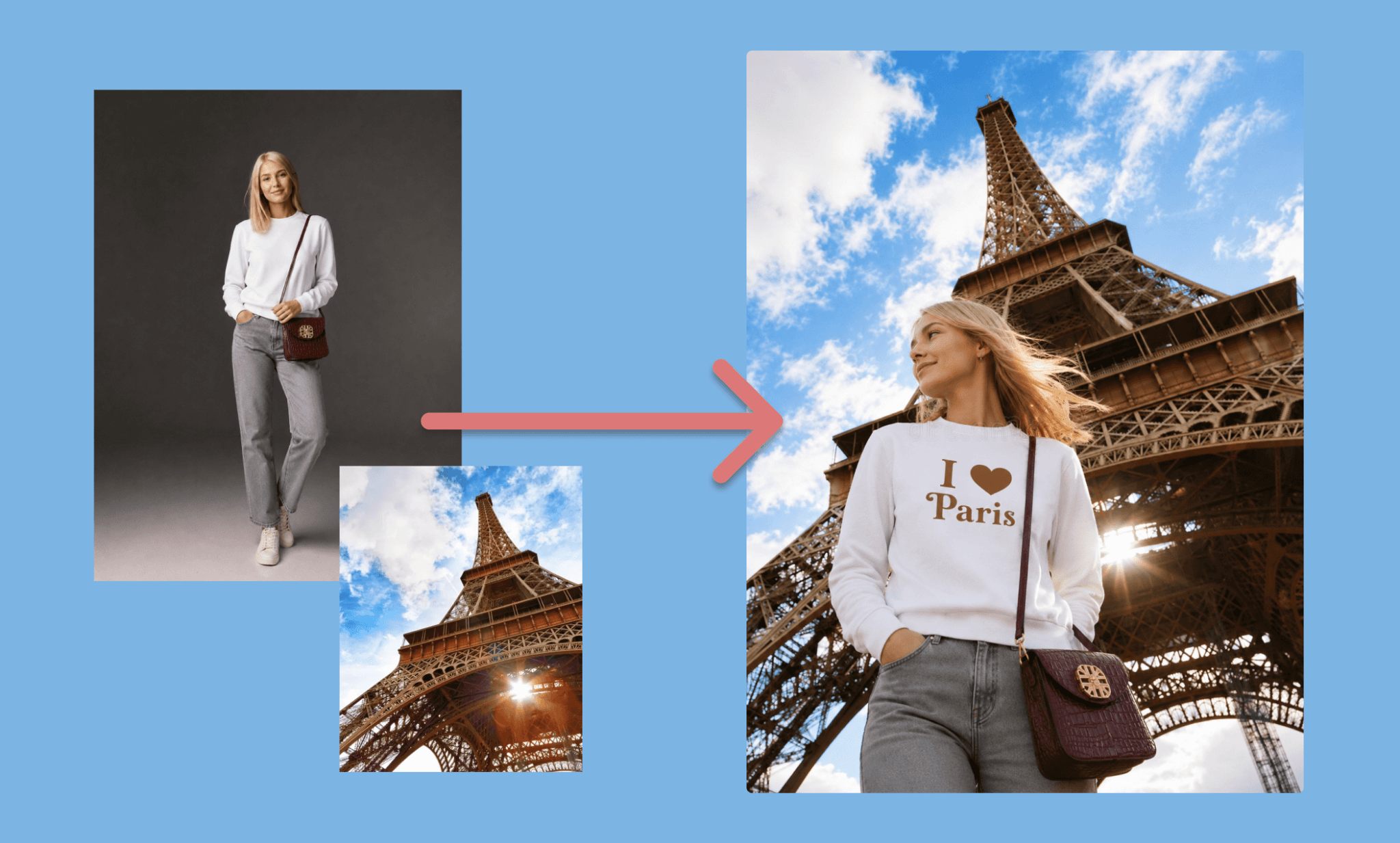
Time: ~1:30 mins
Incredible. The pose, the lighting, the text – GPT Image 2 nailed everything right! The crease of the T-shirt towards the bottom reflecting the sunlight filtering through the Eiffel Tower, to me, is the best thing I’ve seen this image model do so far.
Ideogram’s Text Rendering in Image is Unrivaled >
Get UI assets for responsive design
Product teams typically design any app/website keeping responsive design in mind. So to test the ability of switching the aspect ratio of an image, I asked GPT Image 2 to create a horizontal version for the hero image.
“Recompose this image into a 16:9 horizontal aspect ratio. Move the foreground woman with her phone to the left side of the frame, and move the three background women to the right side of the frame. Adjust the flying clothes and accessories so they arc through the center, moving from the phone on the left toward the women on the right, following a curved horizontal path rather than the original vertical one. Keep the center of the frame as open, faint negative space, so text can be placed there later. Preserve the likeness, outfits, and lighting of all the women, and keep the same color palette and mood as the original image.”
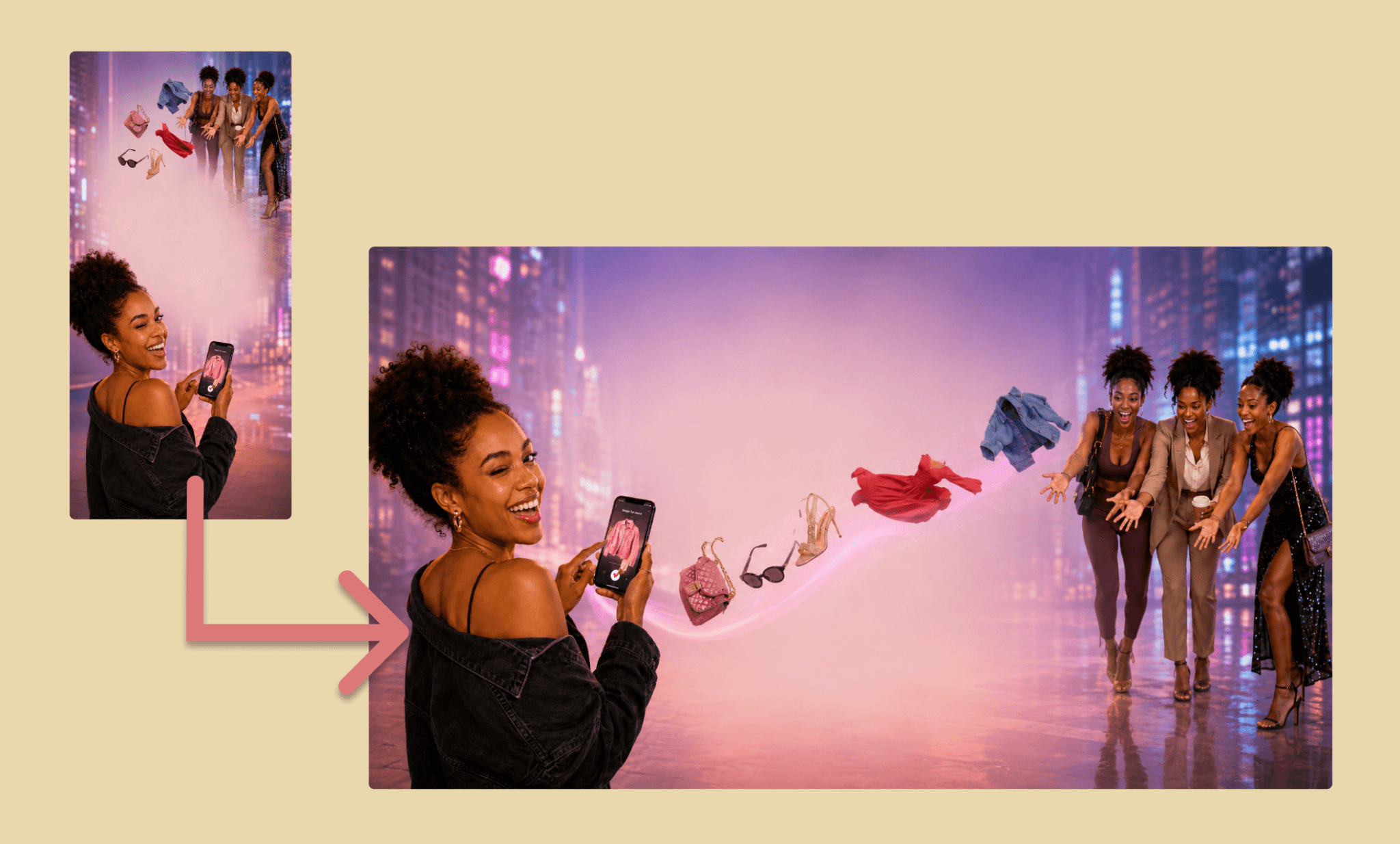
Time: ~1:30 mins
There you go. GPT Image 2 did this to perfection. I also liked how the background and shadows were treated to align with the new aspect ratio.
Virtual Try-on UI Assets by Krea AI >
Scoring GPT Image 2 Output
Now, having created all the UI assets for the virtual try-on app Samplng, I rate the performance of GPT Image 2 across various criteria below. Before that, I’d like to mention my key observation that whatever using GPT Image 2 inside ChatGPT lacks in convenience of workflow, it more than makes up for it in image quality and intelligence.
Criteria | Score | Notes |
Prompt Fidelity | 4.5/5 | Nailed complex one-shot and bulleted edits; added slightly too much motion. |
Character Consistency | 3.5/5 | Solid within a thread, but face drifted further from reference over turns. |
Text Rendering | 5/5 | "I ❤ Paris" text was crisp, placed correctly, tonally matched. |
Editing & Iteration | 4/5 | Precise on bulleted edits and aspect-ratio recompose; native re-upload flow is clunky. |
Generation Speed | 3/5 | Averaged ~1:30–2 min per image; notably slower than most image GenAI tools |
Workflow Convenience (in ChatGPT) | 2.5/5 | Clunky in-app editing, but output quality compensates for the friction. |
Overall rating of GPT Image 2 is 3.8/5 as per my experience.
Now, that we have all the UI assets it makes sense to assemble them into the UI itself. As there are AIs like GPT Image 2 for the former, for the latter there are the likes of Banani AI. Where you input the images, describe the idea and get your multi-screen layout in minutes.
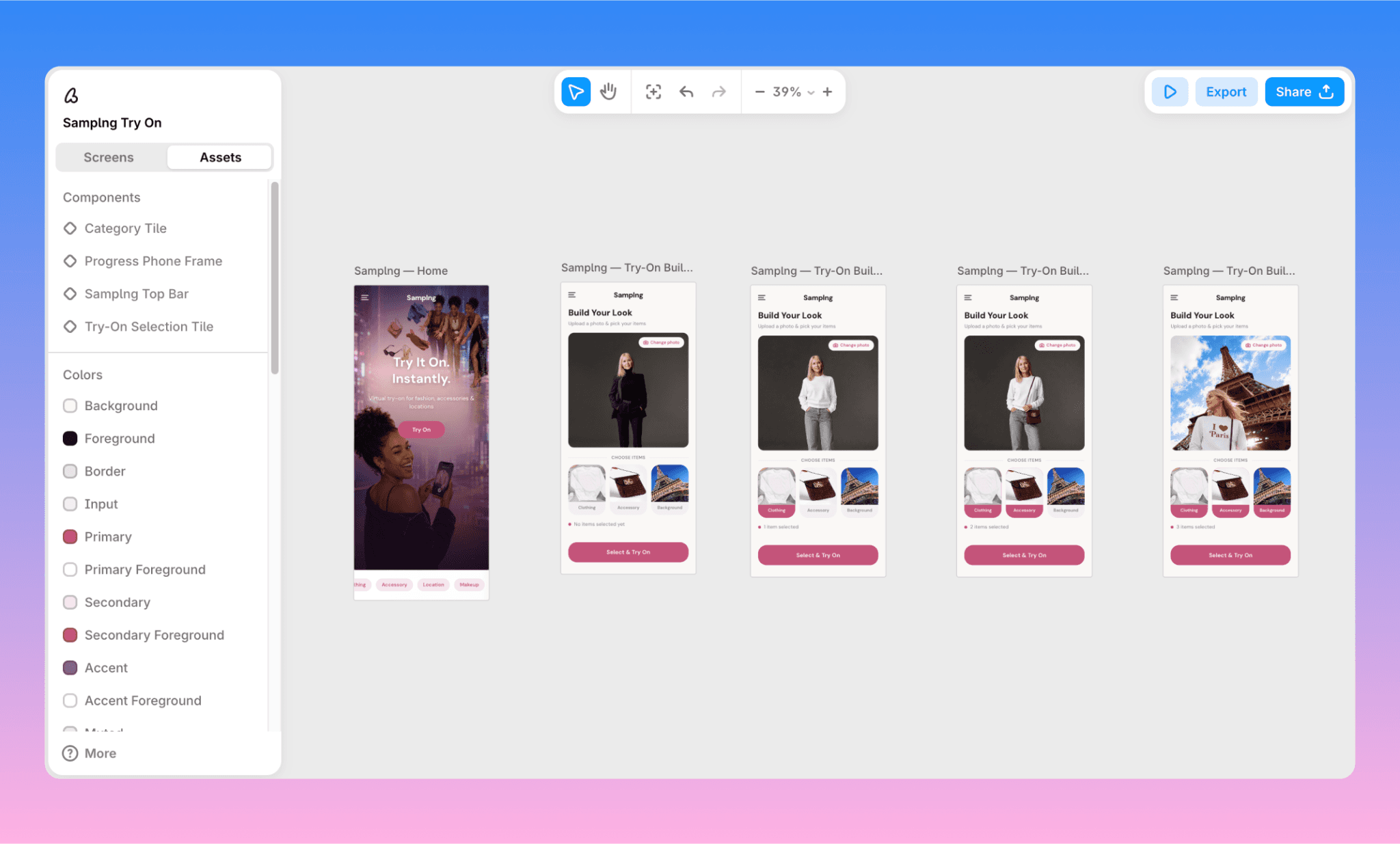
Try Banani AI UI Generator Free >
GPT Image 2 vs Nano Banana 2
Nana Banana 2 is touted as one of the top substitutes of GPT Image 2. To test how close they come to each other, I ran the prompt of the hero image (the very first one) in Nano Banana inside Gemini.
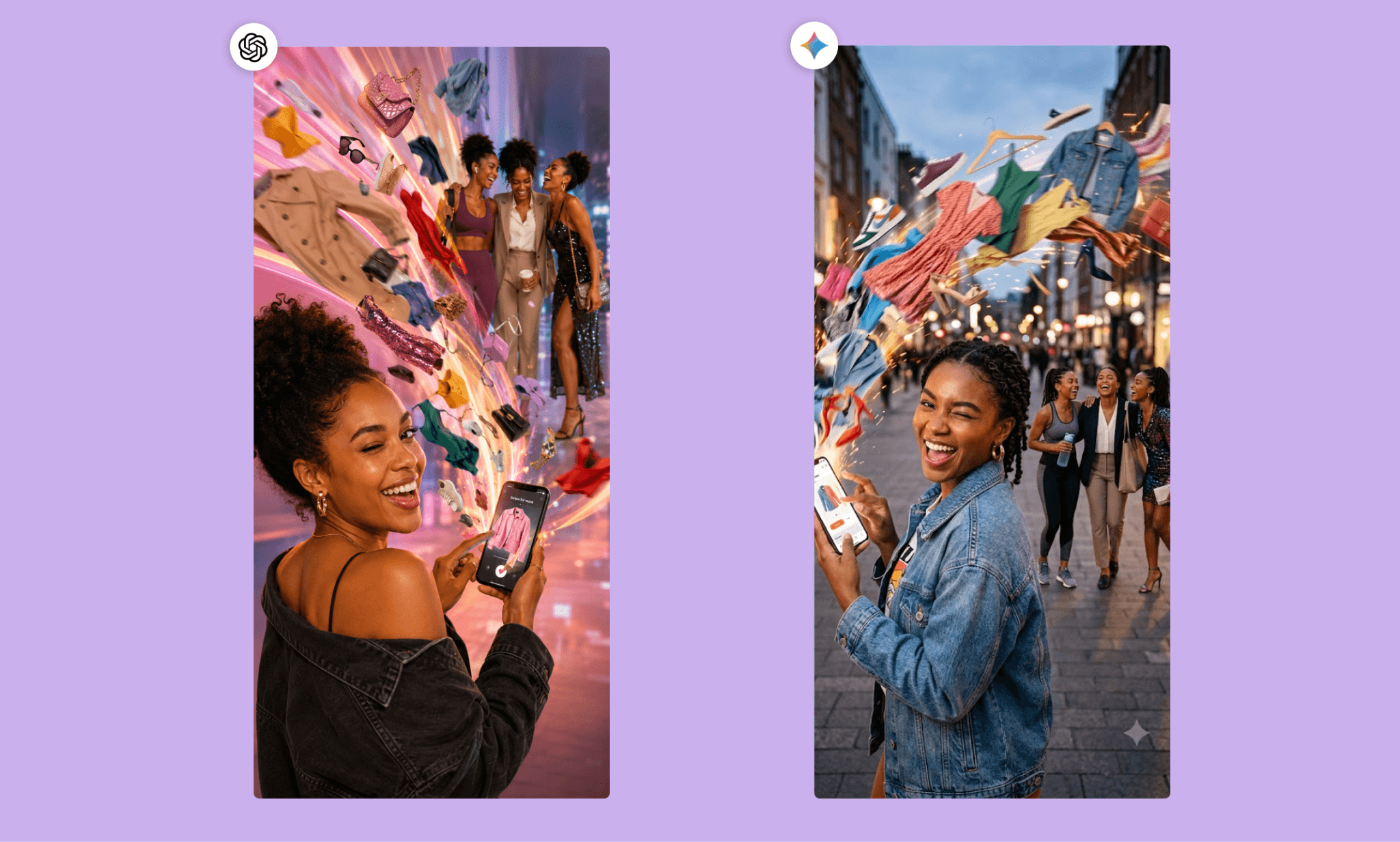
Firstly, I noticed that the speed of Nano Banana (inside Gemini app) is around 5x faster (at ~20 sec) than that of GPT Image 2 (inside ChatGPT, it had taken ~1:30 mins) for the same prompt. The prompt adherence of Nano Banana is equally good, and so the image quality. In terms of creativity, I felt GPT Image 2 has an edge as it added some extra elements, but Nano Banana had a cleaner output.
Of course, comparing more images, in different scenarios would be a better test in short, with my limited testing I can say that either can be used by product teams. If speed is essential, choose Nano Banana, if design intelligence is important, go with GPT Image 2.
Nano Banana 2 vs Nano Banana PRO with Examples >
Other Alternatives to GPT Image 2
Tool | Image Sample | Key Feature |
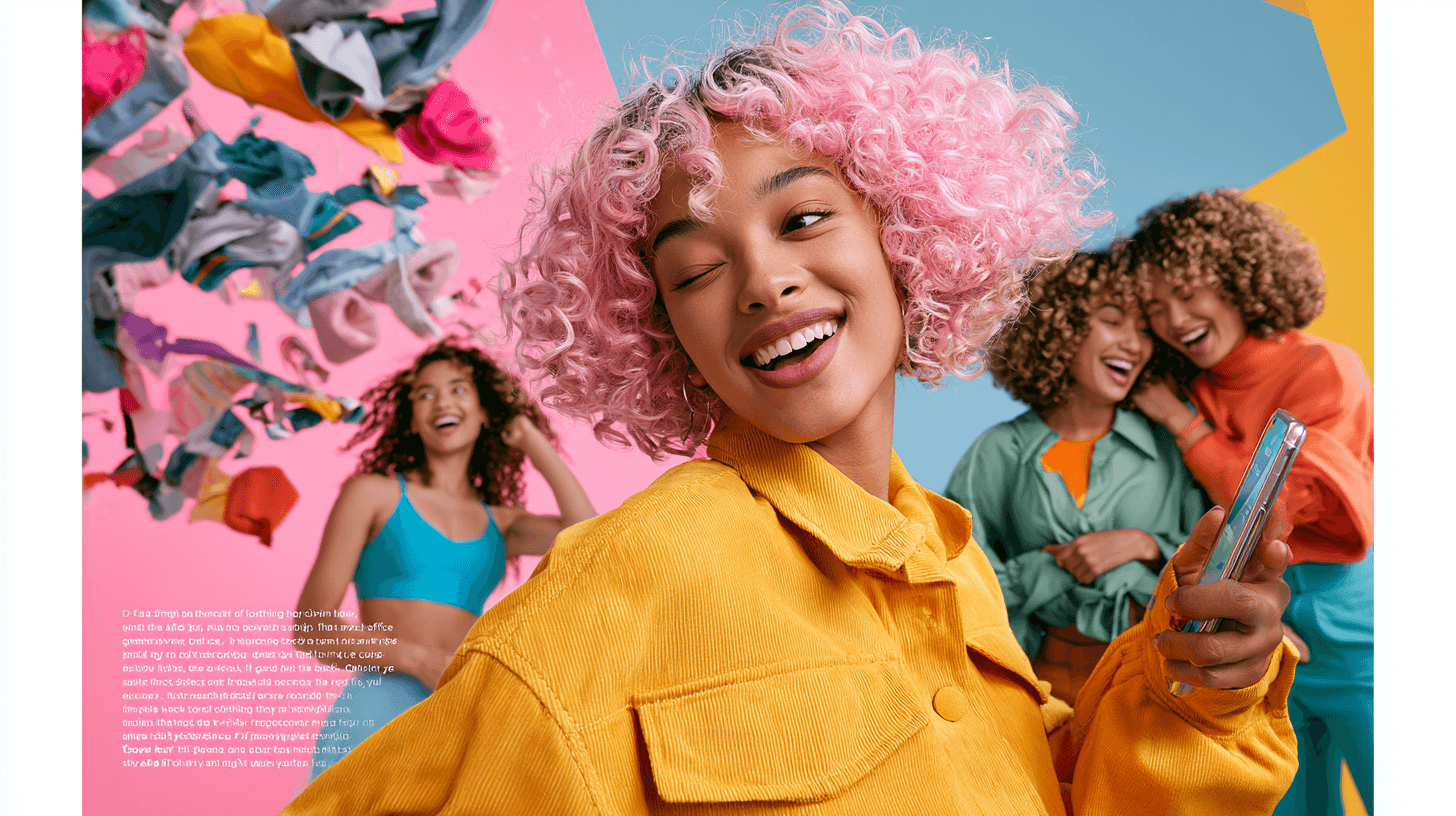 | Unmatched aesthetic range, Style/Omni Reference for consistency | |
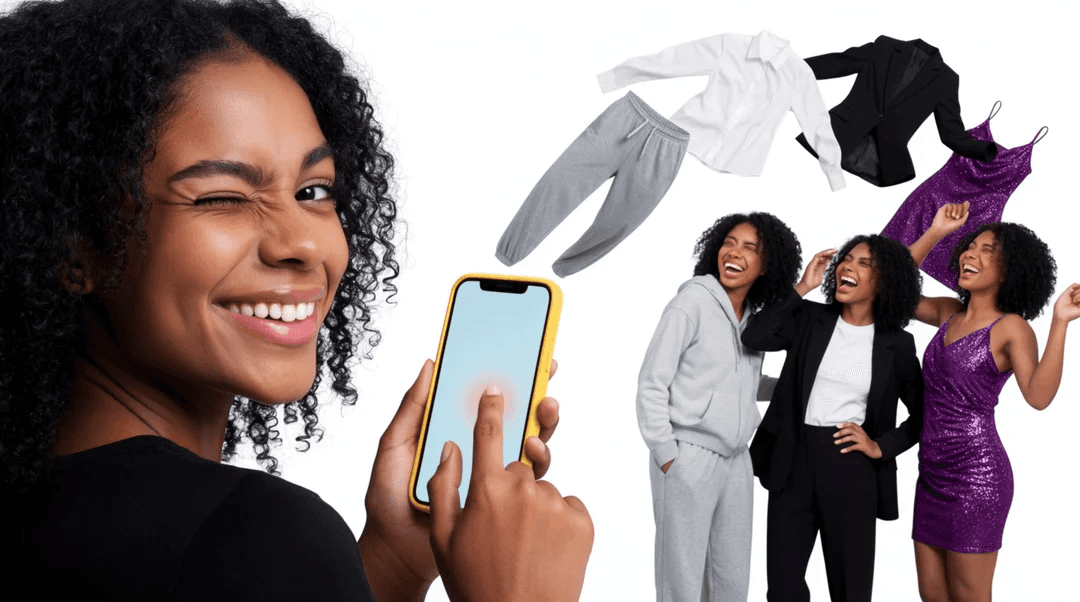 | 64+ models, real-time rendering, upscaling to 22K | |
Flux 2 | 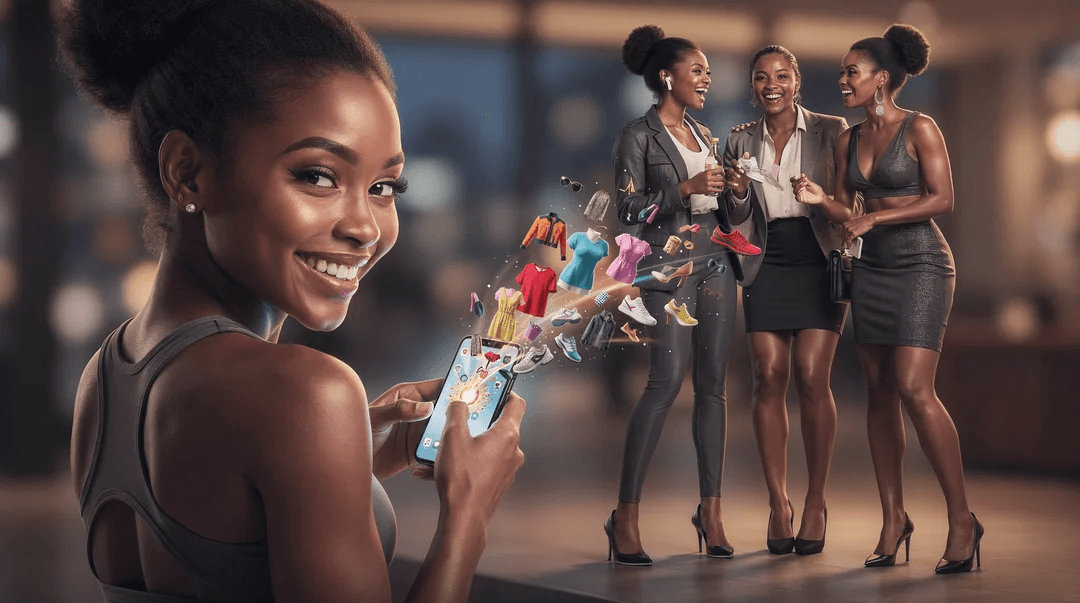 | Multi-reference control (up to 10 images), photorealistic 4MP output |
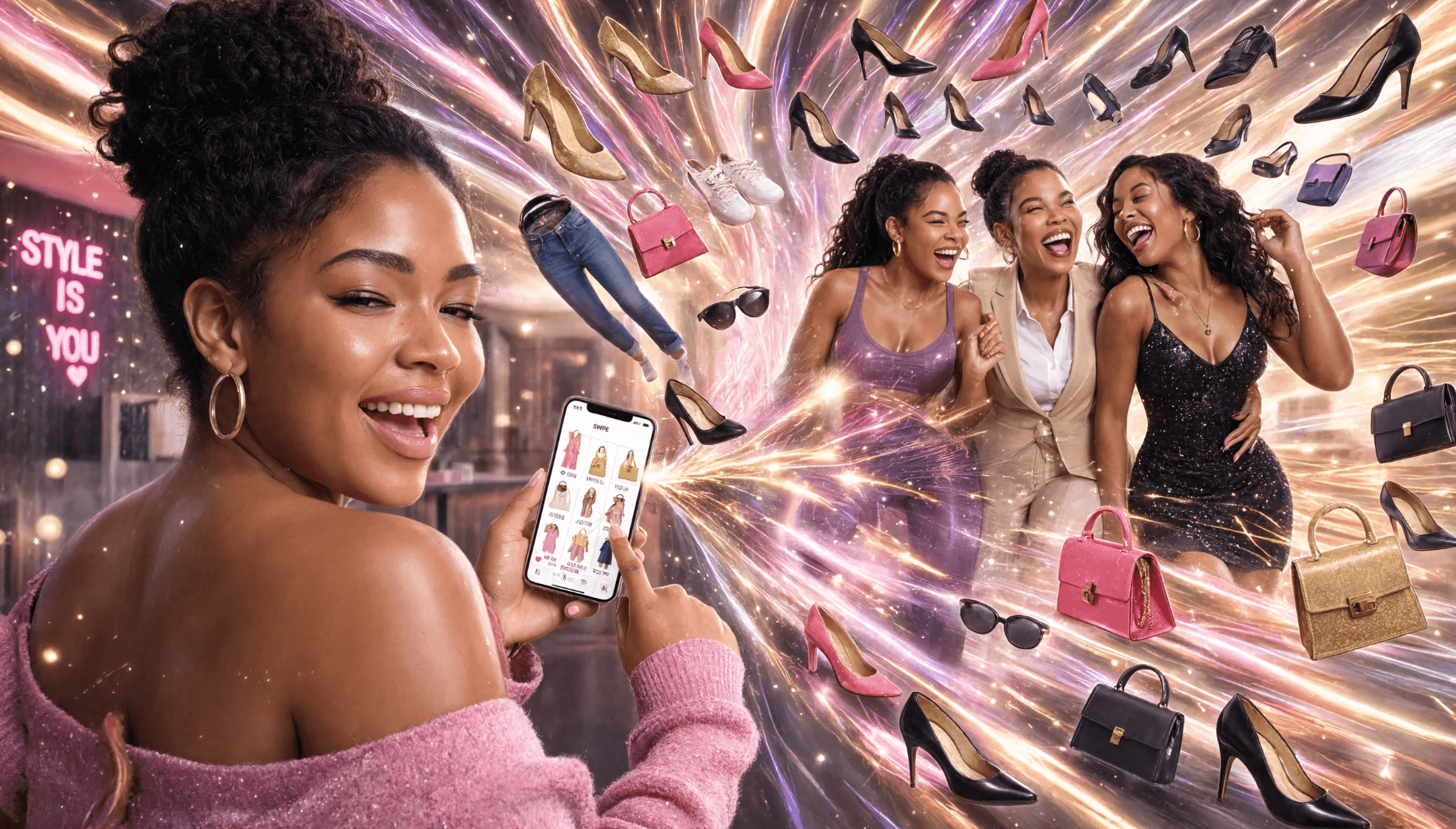 | Layout-first editing, native 4K, near-perfect text rendering | |
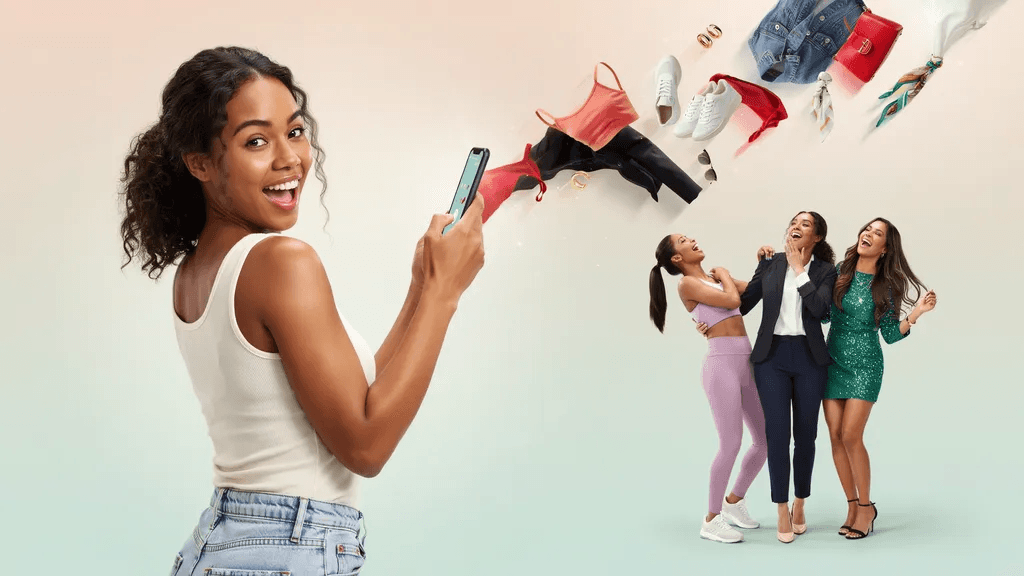 | Unrivaled in-image text accuracy, strong typography-first design |
Midjourney Free Alternatives for UI Assets >
Pricing of GPT Image 2
Cost inside ChatGPT
GPT Image 2 isn't billed separately inside ChatGPT. It's included in your existing ChatGPT plan. Free-tier users get limited access.
Plus, Pro, and Business plans include higher generation limits.
API Cost
Developers using GPT Image 2 pay per token, not per image. Image input costs $8.00 per 1M tokens, cached image input $2.00, and image output $30.00 per 1M tokens. Text input for prompts runs $5.00 per 1M tokens, with cached text input at $1.25.
Cost with 3rd-Party GenAI Platforms
Third-party tools that integrate GPT Image 2 (Flora AI, Freepik AI, Figma Weave, and similar) set their own pricing, usually as part of a broader credit or subscription system rather than OpenAI's raw per-token rate
Comparing Cost of Image Generator >
Is GPT Image 2 good for product teams?
Yes. Per my review of GPT Image 2, I can say it is genuinely good for product teams, provided you can work around its pace.
Its reasoning-first approach delivers near-perfect text rendering, faithful multi-step edits, and strong design instincts on complex prompts. But there are some tradeoffs: slow generation (~1:30 min per image), a clunky native editing flow, and character drift over multiple turns. Still, when quality matters more than speed, it's hard to beat.
Once ready with the assets, you can upload them into Banani AI to turn them into mobile/desktop UI screens in minutes. That’s editable with AI chat, exportable to Figma, and ready for handoff via MCP. And even if you miss some images, it can create those as well.
FAQs on GPT Image AI
Can I use GPT Image 2 for free?
Yes, ChatGPT's free tier includes limited access to GPT Image 2. For higher limits and Thinking mode, you'll need a paid plan.
What can ChatGPT image 2 do?
ChatGPT Image 2 generates and edits images from text or image prompts. It is known for its reasoning-based layout planning, near-perfect text rendering, flexible aspect ratios, and character consistency.
Can ChatGPT create UI layout?
Not natively as a design tool. ChatGPT via GPT Image 2 can generate UI-style visuals and mockup imagery, but it doesn't output editable, structured UI layouts the way dedicated AI UI generators do.
How to assemble GPT Image outputs into a UI?
Banani is the best AI to assemble individual UI assets (heroes, tiles, product shots) by GPT Image 2. Just upload the images in its prompt box, describe your app/website, and it’ll create an editable UI in its canvas in minutes.
References
[1] https://openai.com/index/introducing-chatgpt-images-2-0/
[2] https://developers.openai.com/api/docs/models/gpt-image-2


