
Features | KI-Bildgenerierung, Image Enhancer, Cloth Changer, LoRA-Feintuning |
Vorteile | Blitzschnelle Generierung, komplexe Prompts werden hervorragend verarbeitet |
Nachteile | Bildbearbeitung ist oberflächlich, das Upscaling unvorhersehbar |
Preise | Kostenlos (100 Einheiten/Tag). Kostenpflichtig ab 9 $/Monat |
Alternativen | Leonardo AI, Higgsfield, MidJourney, Freepik AI (Magnific), Flora AI |
Was ist Krea AI?
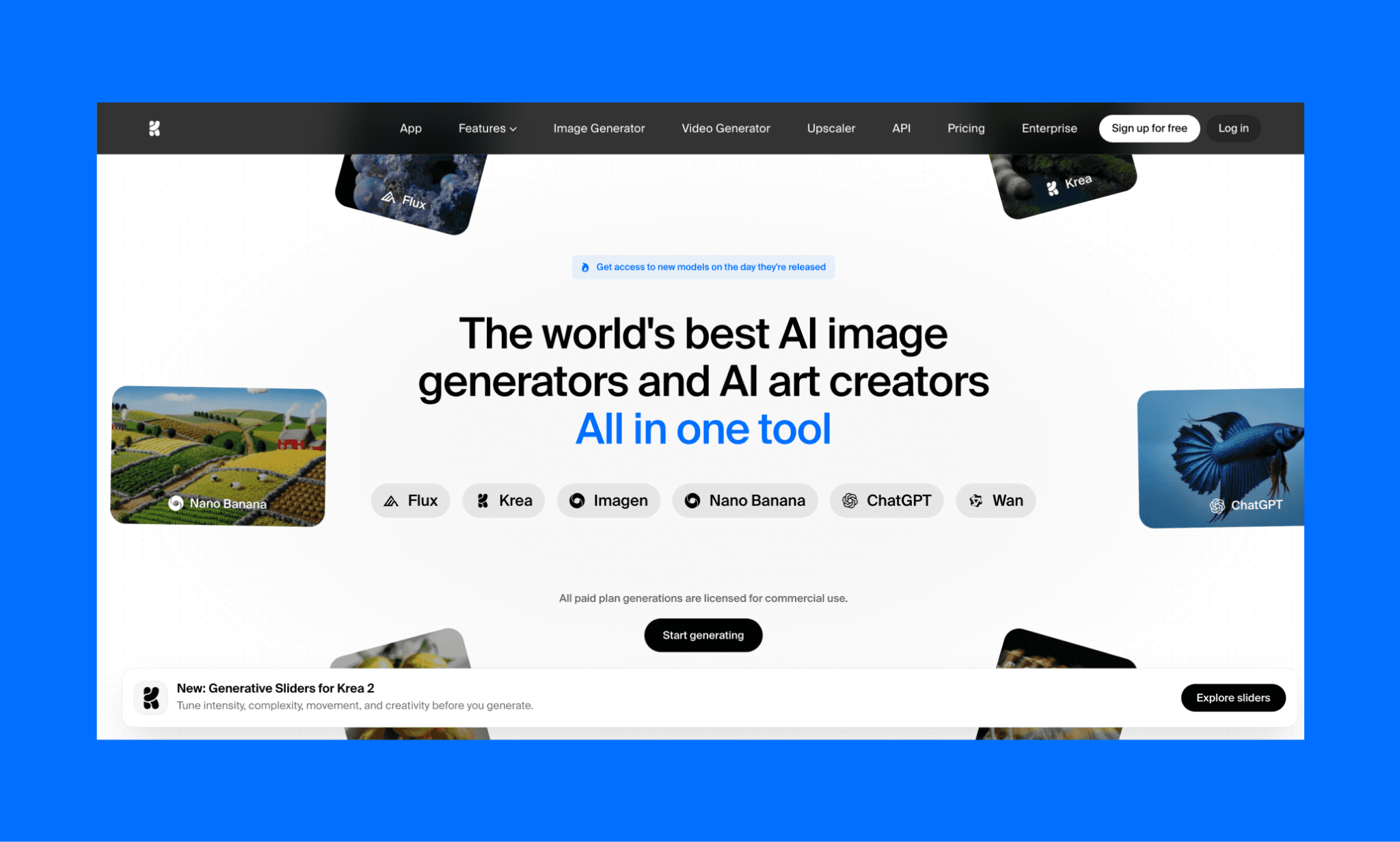
Krea AI[1] ist eine browserbasiertes Design-Suite für Bilder, Videos und 3D-Assets. In einer einzigen Oberfläche zum Generieren und Bearbeiten erhältst du Zugriff auf über 64 Modelle – darunter Kreas eigenes Krea 2 sowie beliebte Modelle wie Flux, Nano Banana, Kling, Runway und Luma (die du auch bei Freepik, Flora und anderen Anbietern findest).
Der CEO und Mitgründer von Krea AI ist Víctor Perez[2].
Mein Test der Krea AI Bildgenerierung
Um zu testen, wie gut sich der Krea AI Bildgenerator und Editor für Produkt-Teams eignet, plane ich, visuelle Assets für eine Mode-App namens PutOn zu erstellen. Hier können Nutzer ihre Lieblingskleidung speichern, ein Ganzkörperfoto hochladen und direkt sehen, wie sie darin aussehen. Praktisch ein Krea AI Clothes Changer.
Mein Test des Flora AI Bildgenerators >
Home: Starte mit einem Bild oder Moodboard
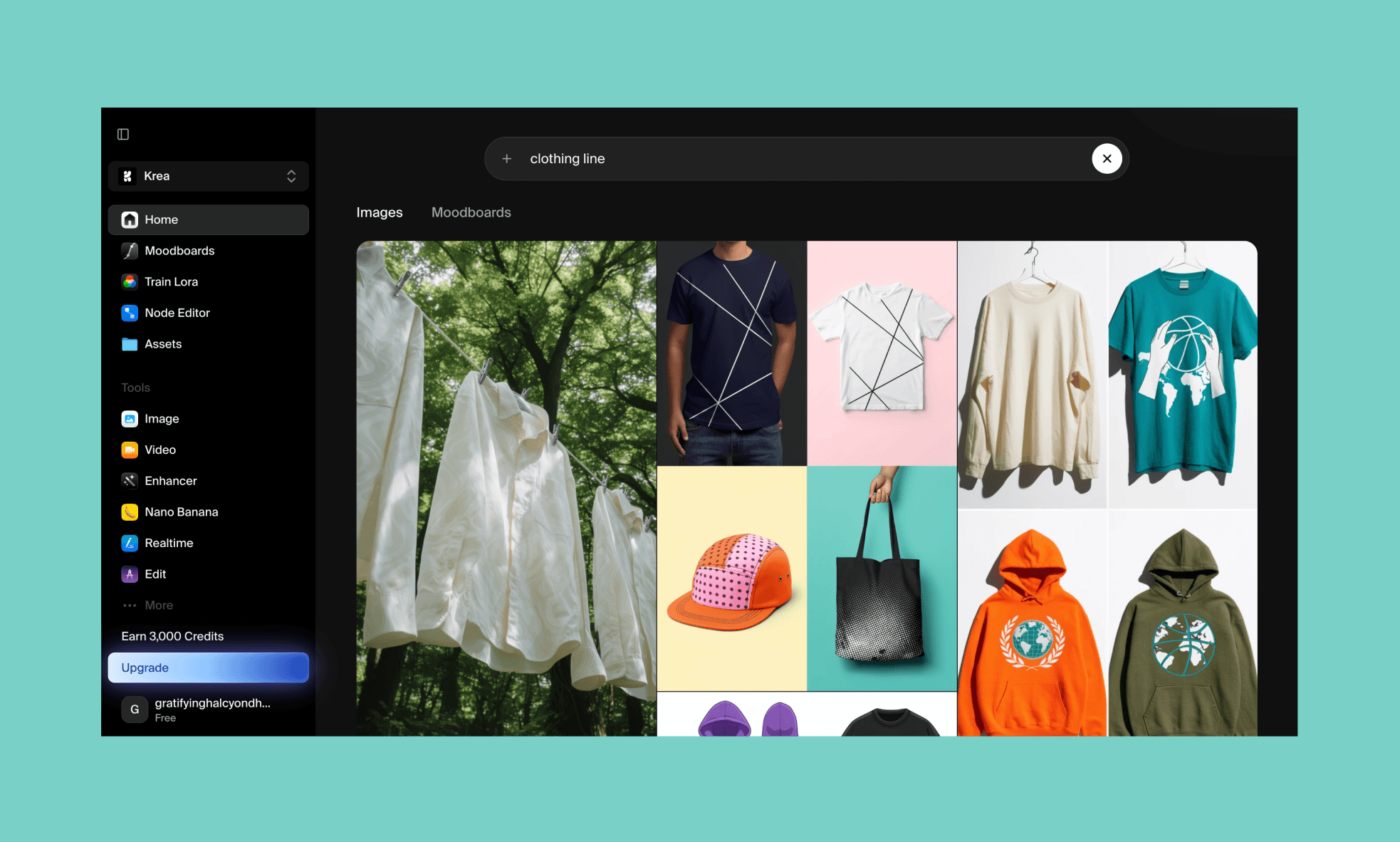
Direkt nach dem Login bei Krea AI siehst du bereits vorhandene Bilder und Moodboards, die du als Referenz für deine eigenen Kreationen nutzen kannst. Per Scrollen oder Suche wählst du ein Bild aus, siehst den Prompt und kannst es direkt über „Regenerate“ neu berechnen lassen.
Zudem extrem nützlich: Kreas Moodboard. Es dient als Bildreferenz, um einen Styleguide zu erstellen (ähnlich wie ein Style-Reference-Node in Flora AI) – genial für konsistente Bilder.
Ein Hero-Image mit Krea AI erstellen
Krea bietet unzählige Features, doch ich hatte ein klares Ziel für mein App-UI-Konzept. Also startete ich mit dem Design eines markanten Hero-Images:
“Schwarze junge Frau ganz links, mit dem Rücken zur Kamera, das Gesicht mit einem spielerischen Augenzwinkern zugewandt, die linke Hand hält ein Smartphone, die rechte Hand wirft Kleidung in die Luft – Kleider, Jeans, Blazer, Badeanzug, Partykleid fliegen in der Bildmitte. Dieselbe Frau ist rechts 5 Mal geklont, versammelt in dynamischen Posen – Sportbekleidung, lässiges Denim, formeller Blazer, Badeanzug, Pailletten-Partykleid. Identische Gesichter bei allen. Subtiler Mandarin-Farbton, flippiger limettengrün-gelber strukturierter Hintergrund, helles Studiolicht”
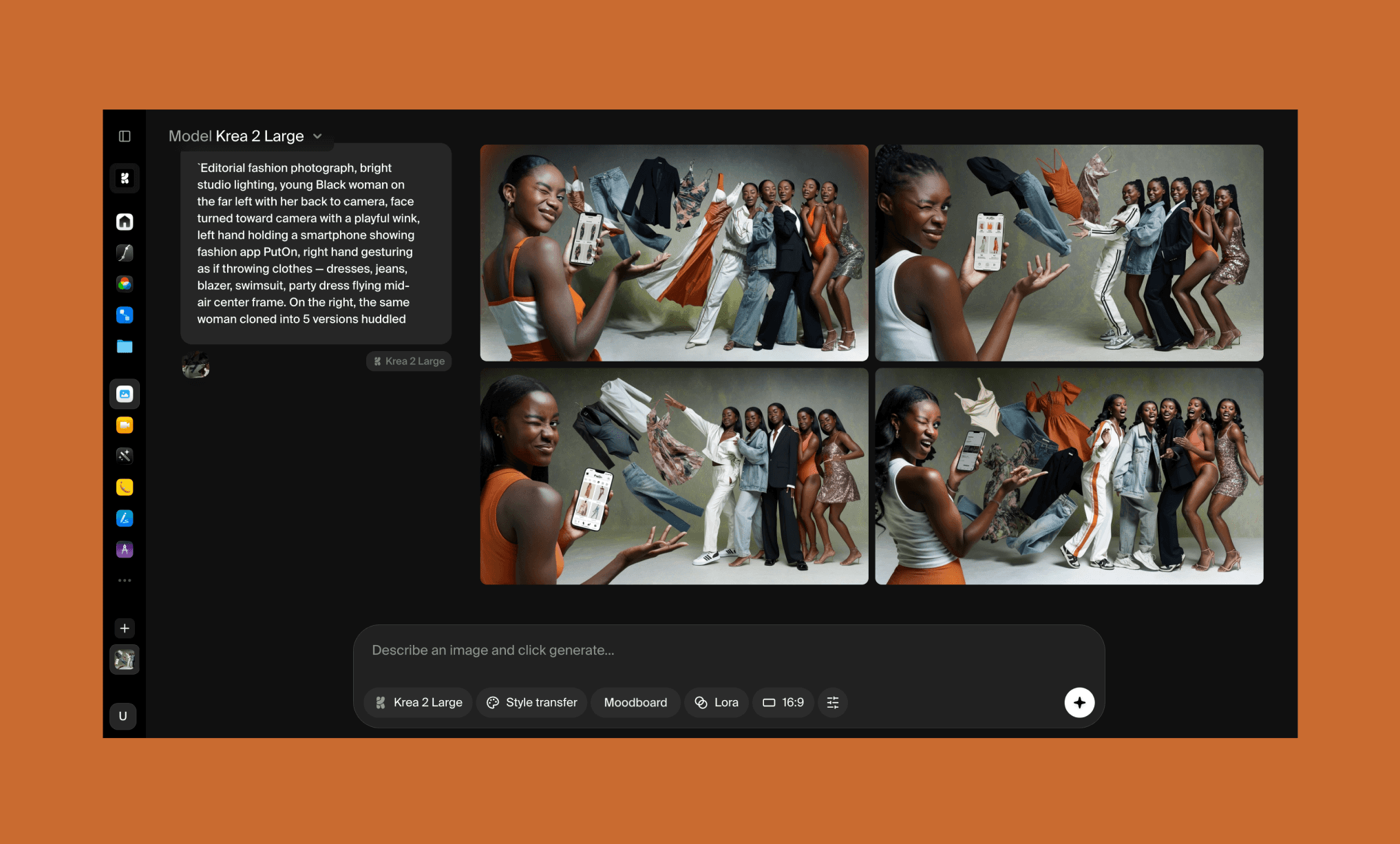
Als Modell kam Krea 2 Large zum Einsatz. Der Vorgang verbrauchte ca. 60 Credits (15 pro Bild) und dauerte rund 1 Minute.
Mein Prompt war sehr komplex – umso erfreulicher war es, dass alle vier Bilder das Briefing erfassten und hochauflösend waren. Allerdings wurde das Model auf keinem der Bilder korrekt geklont.
Also ging ich zum nächsten Schritt über, um das mit dem Krea AI Image Editor zu korrigieren.
Kreas AI Image Editing Features im Einsatz
Aus den 4 generierten Bildern wählte ich das erste aus, um es im Krea Image Editor zu bearbeiten. Das Tool bietet viele Optionen, vom Zuschnitt bis zum Kamerawinkel. Ich fokussierte mich auf prompt-basierte Änderungen mit folgenden Punkten:
“1. Passe alle Gesichter der Models an die Frau links an, die das Telefon hält
2. Zeige ihre rechte Hand, wie sie auf dem Bildschirm nach oben wischt – als würde sie Kleidung herausziehen
3. Fliegende Kleidung soll so aussehen, als käme sie aus dem Telefon und fliegt zu den Models auf der rechten Seite
4. Jedes Model soll etwas in Mandarin tragen – ein Detail, ein Accessoire oder ein ganzes Kleidungsstück
5. Entferne das Mandarin-Leuchten aus den oberen Ecken
6. Mache den Hintergrund zu einem hellen elfenbeinfarbenen, strukturierten Verlauf, heller und cleaner”
Dieses Mal wählte ich Flux 2 Klein (wurde auto-suggeriert, und ich fand Flux beim Testen des Flora AI Bildgenerators bereits stark). Die Bearbeitung dauerte ca. 30 Sekunden. In puncto Speed ist Krea unschlagbar. Das Ergebnis des Krea AI Edits hingegen braucht ein sehr gnädiges Urteil.
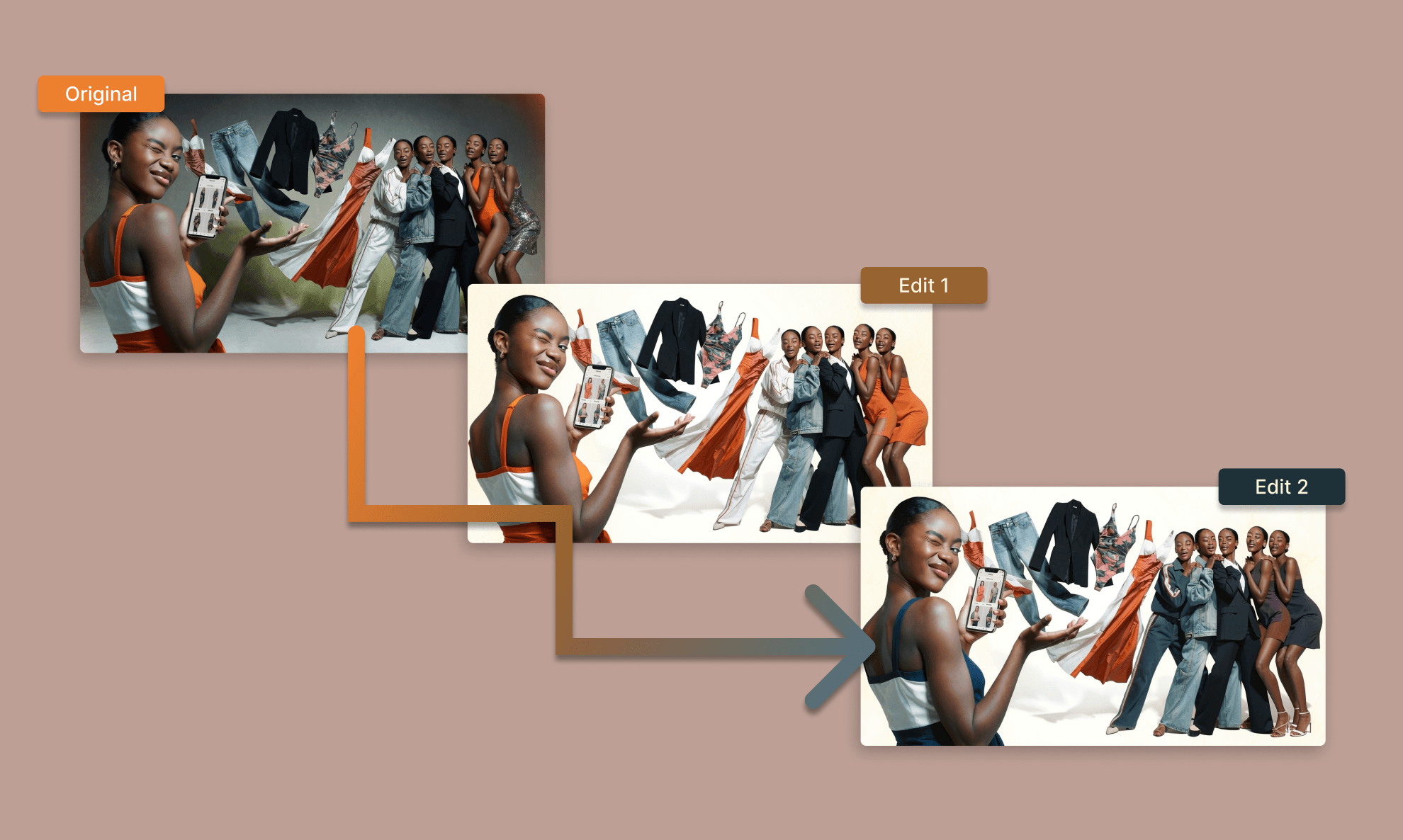
Edit 1: Gemessen an meinen Vorgaben war das Ergebnis durchwachsen. Von 6 Änderungen wurden nur die zwei einfachsten Hintergrund-Farbkorrekturen umgesetzt. Wirklich beeindruckend ist das nicht. Schlimmer noch: Die Kleidung der letzten beiden Models wurde fehlerhaft verändert.
Edit 2: Ich versuchte, nur die Kleidung dieser zwei Models rückgängig zu machen mit dem Prompt:
“Mache die Kleidung der letzten beiden Models genau so, wie sie im Originalbild war.”
Das bearbeitete Bild änderte die Kleidung jedoch willkürlich von Mandarin zu Graublau. Enttäuschend und besorgniserregend – ab diesem Punkt entschied ich mich, Krea AI nur noch für sehr einfache Farbanpassungen zu nutzen.
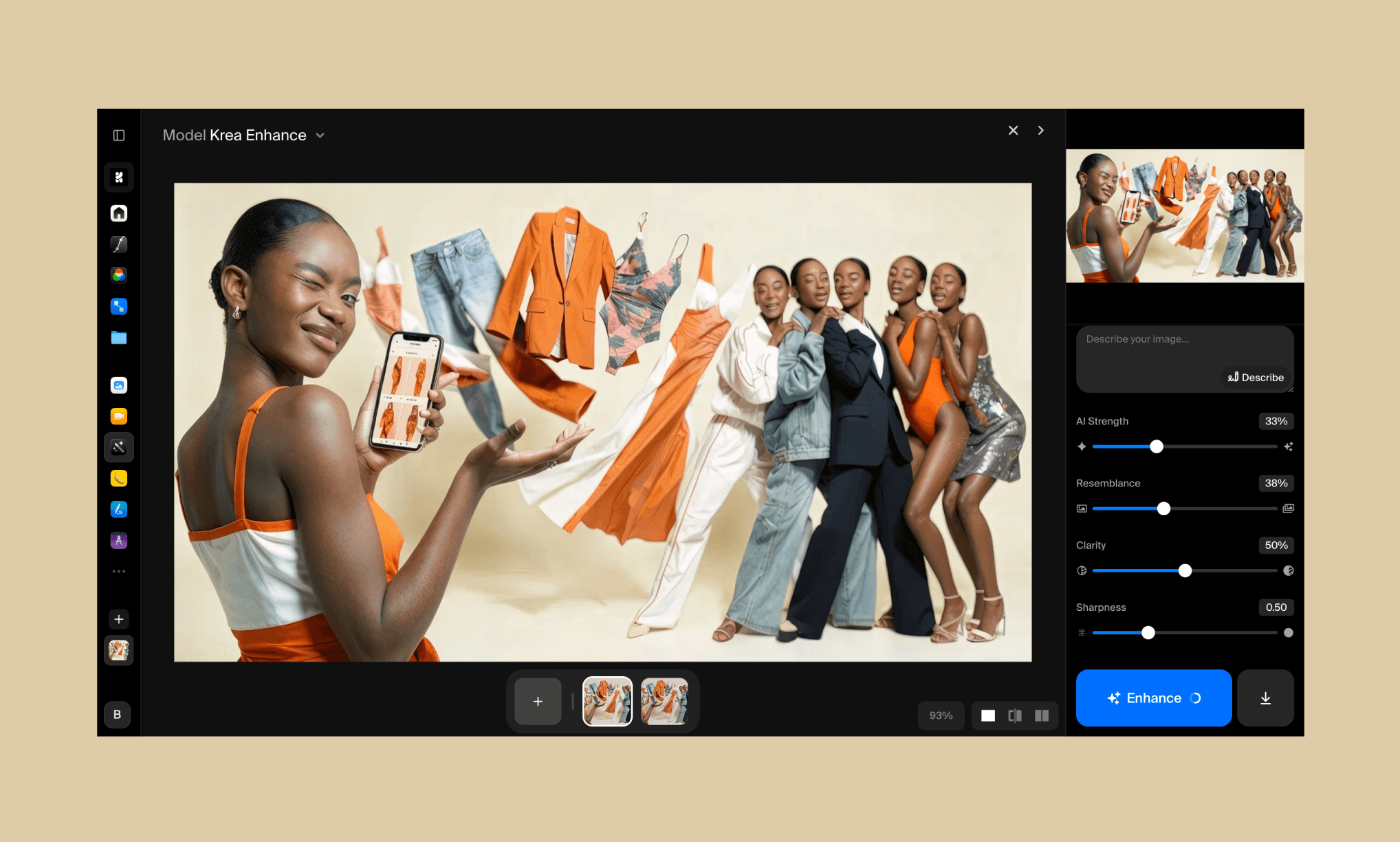
Mein Fazit zum Krea AI Editing Tool: Das einzig wirklich Gute ist, dass es nur 1 Credit pro Bearbeitung kostet.
Kreas AI Image Enhancer im Test
Mit einer gewissen Skepsis schickte ich mein neuestes Bild in den Krea Image Enhancer (Upscaler). Es gibt dafür einen direkten Button „Send to Enhance“ – sehr praktisch gelöst.
Im Enhancer-Tool kannst du sowohl Prompts nutzen als auch Parameter (Ähnlichkeit, Klarheit, Schärfe etc.) einstellen. Es braucht etwas Einarbeitung, um die richtige Balance zu finden. Ich habe zwei Wege getestet:
i) Mit Prompt “Mache die Models auf der rechten Seite und die fliegende Kleidung klarer.” und höherer Gewichtung der AI-Stärke.
Ergebnis: Das Bild wurde stark verändert, inklusive der Models und ihrer Kleidung.
ii) Ohne Prompt, dafür mit reduzierter AI-Stärke zugunsten von Ähnlichkeit und Schärfe.
Ergebnis: Sehr nah am Original, deutlich schärfer, allerdings traten dadurch auch die Bildfehler in den Gesichtern deutlicher hervor.
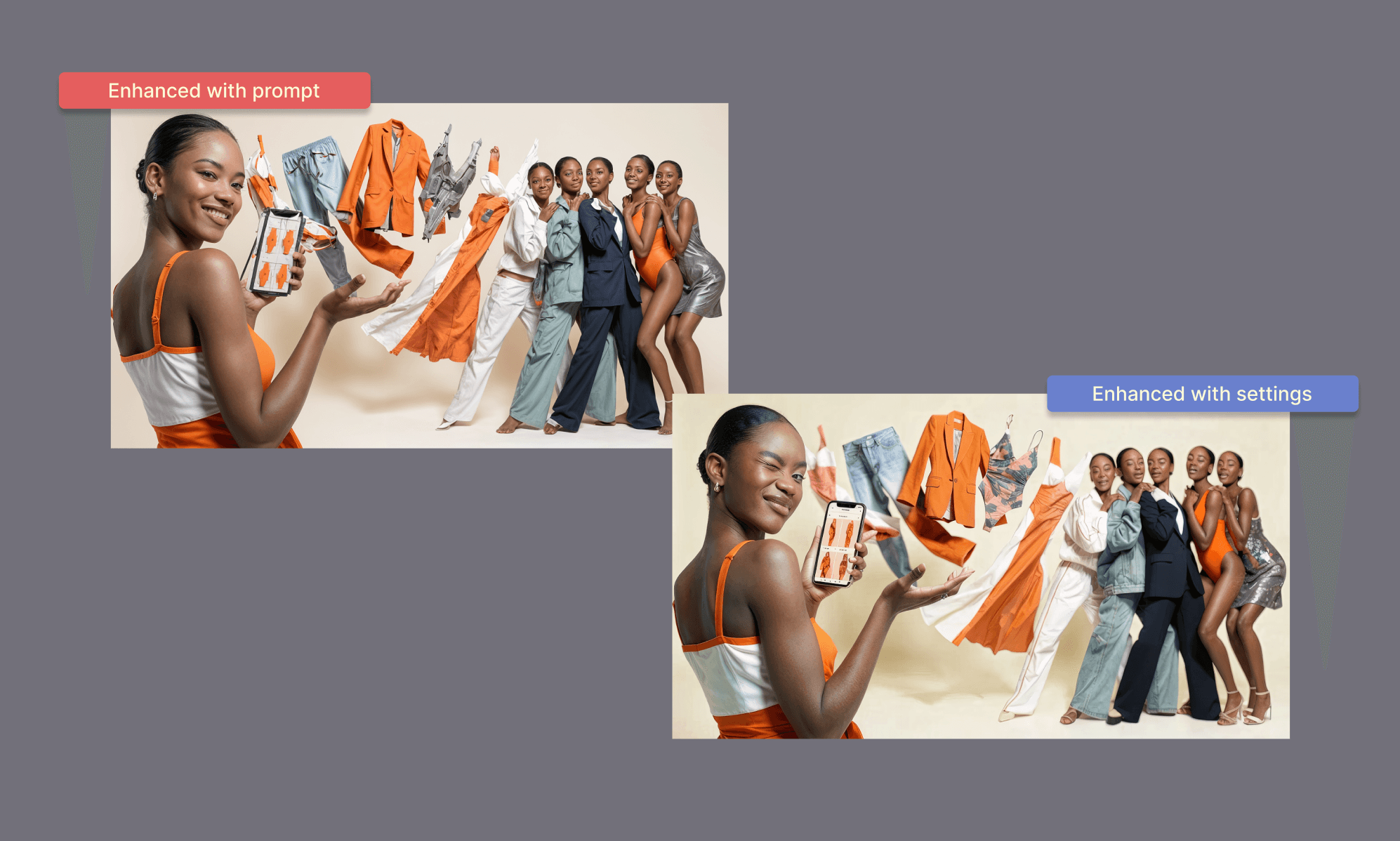
Der Krea AI Image Enhancer benötigte ca. 30 Sekunden und 15 Credits pro Versuch.
Perfekte Ergebnisse sind sicher möglich, erfordern aber viel Herumprobieren mit den Reglern. Da das den Rahmen dieses Guides sprengt, machte ich mit den restlichen App-Assets weiter.
Simulation mit dem Krea AI Clothes Changer
Für das virtuelle Anprobieren in meiner App holte ich mir ein Modell-Foto sowie einige Kleidungsstücke und lud sie in Kreas AI Cloth Changer App hoch.
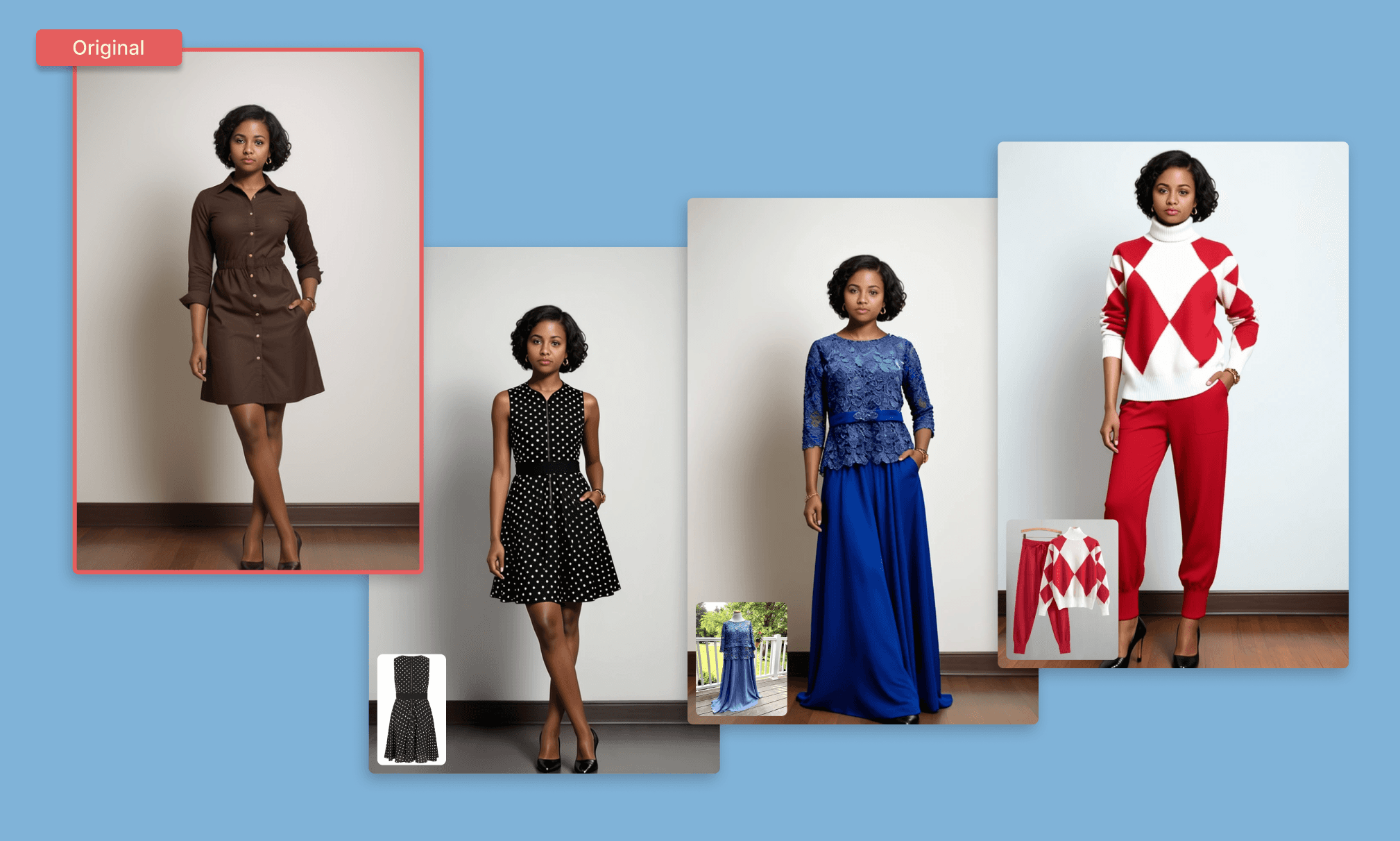
Das Ergebnis war äußerst zufriedenstellend: Die Kleidung wurde gewechselt, während die Körpermerkmale des Models perfekt erhalten blieben. Krea passte sogar die Pose leicht an, damit die Kleidung natürlicher wirkt.
Damit hatte ich genug Assets zusammen. Ich importierte alles in Banani AI, einen KI-UI-Generator, und gab folgendes ein:
“Designe eine Gen-Z-Mode-App namens PutOn mit den hochgeladenen Bildern als Referenz. Warmer Elfenbeinhintergrund, Akzente in Mandarin und Schwarz, verspielte, abgerundete Sans-Serif-Typografie, frische Energie.
Screen 1 - Homepage: PutOn-Logo oben links, Hero-Image aus dem Upload, Mandarin-farbener CTA-Button, horizontaler Scrollbereich für Kleidungskarten.
Screen 2 - Try-On-Setup: Hochgeladenes Modellbild in der Mitte, drei favorisierte Kleidungs-Thumbnails rechts.
Screen 3 - Try-On-Ergebnis 1: Modell trägt das erste Kleidungsstück aus der Referenz.
Screen 4 - Try-On-Ergebnis 2: Modell trägt das zweite Kleidungsstück aus der Referenz.
Durchgehend warmer Elfenbeinton, abgerundete Ecken, Bottom-Navigation auf allen Screens.”
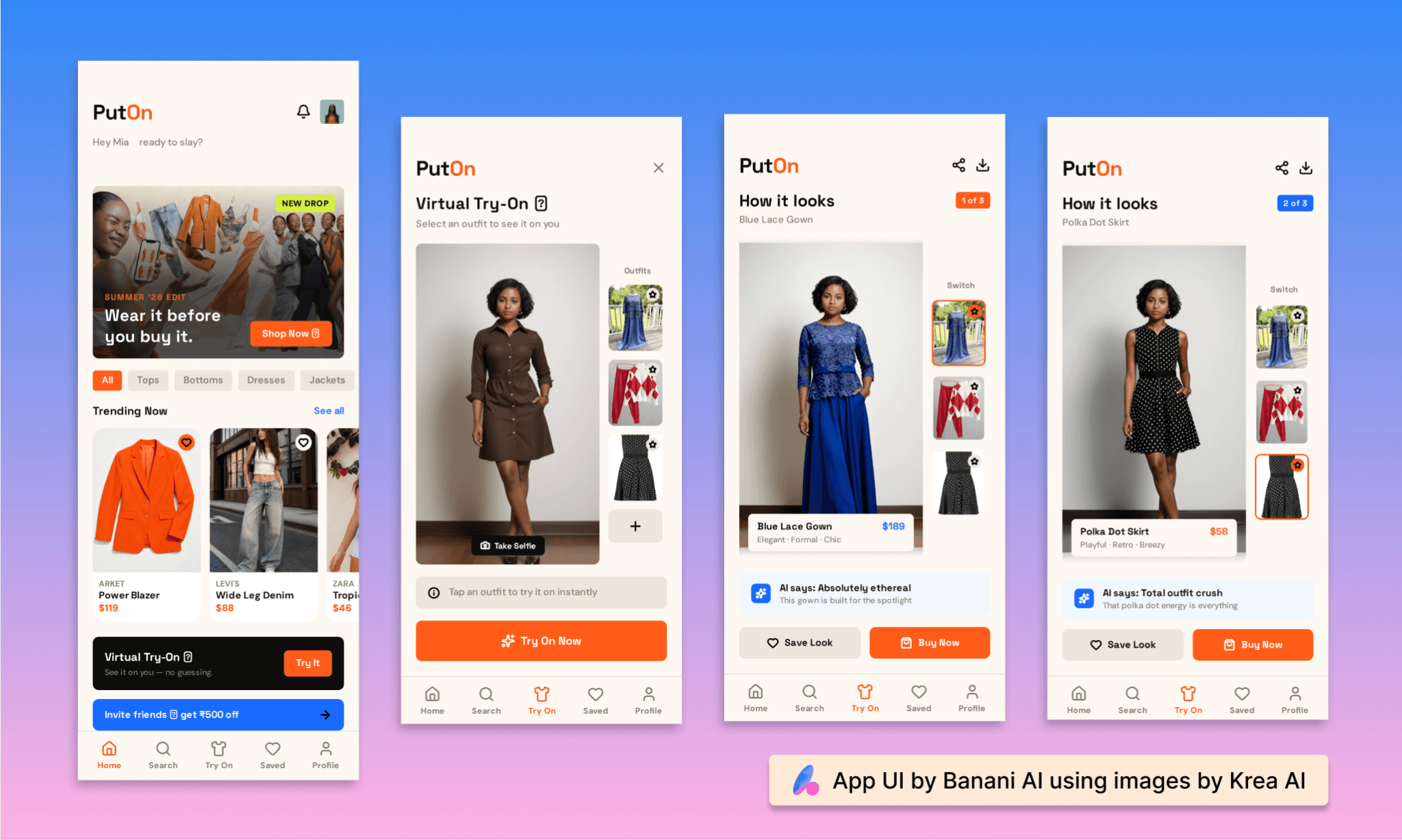
Du kannst dir das PutOn App-UI in Banani ansehen und es kostenlos mit KI remixen >
Banani erstellte die erste Version der 4 UI-Screens in nur rund 3 Minuten. Genial: Die App hat die Kleidungsstücke aus dem Hero-Image direkt für die „Trending New“-Sektion übernommen. Nach minimalem Feinschliff war das UI einsatzbereit.
Zusammenfassung: Krea AI Bildmodelle & Tools
Modell | Credits/ Generierung | Speed | Bildqualität | Anmerkungen |
Krea 2 Large | ~15 Credits | Wenige Sekunden | Hochauflösend, detailreich | 4 Bilder = ca. 77 Credits insgesamt |
Krea 2 Turbo | ~2 Credits | ~15 Sekunden | Trifft Prompt gut, aber unscharfe Gesichter, fehlerhafte Finger | Schneller, günstiger, weniger präzise |
Krea 2 Medium | ~5 Credits | Langsam | Schärferes Ergebnis, hebt Bildfehler hervor | Wird für das Upscaling genutzt |
Flux (über Krea) | ~5 Credits | Schnell | Schwache Ergebnisse direkt in Krea | Funktioniert bei anderen Plattformen besser |
Flux 2 Klein | ~2 Credits (1 Credit/Edit) | ~30 Sekunden | Schwach bei komplexen Edits, setzt nur einfache Farbänderungen um | Automatisch für die Bearbeitung vorgeschlagen |
Krea Enhance | ~15 Credits | ~30 Sekunden | Inkonsistent. Falsche Regler verzerren das Bild. | Erfordert Fingerspitzengefühl bei den Einstellungen |
*Hinweis: Während meiner Tests habe ich diverse weitere Funktionen und Modelle von Krea AI ausprobiert, die hier tabellarisch erfasst, aber nicht im Detail beschrieben sind.
Mein Vergleich der Freepik AI Bildmodelle >
Vor- & Nachteile von Krea AI Bildern
Vorteile | Nachteile |
Extrem schnelle Bildgenerierung mit Krea 2 Turbo (4 Bilder in ca. 15 Sek.). | Credits-Kosten sind intransparent und erst nach dem Task sichtbar. |
Moodboards erleichtern die Stilrichtung, indem sie Referenzen in Guides verwandeln. | Flux performt in Krea schlechter als bei direkten Mitbewerbern. |
Komplexe Prompts mit mehreren Charakteren und Outfits werden gut gemeistert. | Identisches Klonen von Gesichtern scheitert fast immer bildübergreifend. |
Die meisten Edits kosten nur 1 Credit – die günstigste Aktion auf der Plattform. | Bildbearbeitung ist schwach; Prompts werden oft ignoriert. |
Clothes Changer hält die Identität hoch und passt Posen natürlich an. | Das Upscaling ist unberechenbar und stark von den Settings abhängig. |
Vor- & Nachteile des Flora AI Bildgenerators >
Krea AI: Tarife & Preise
Credits/Compute in Krea AI
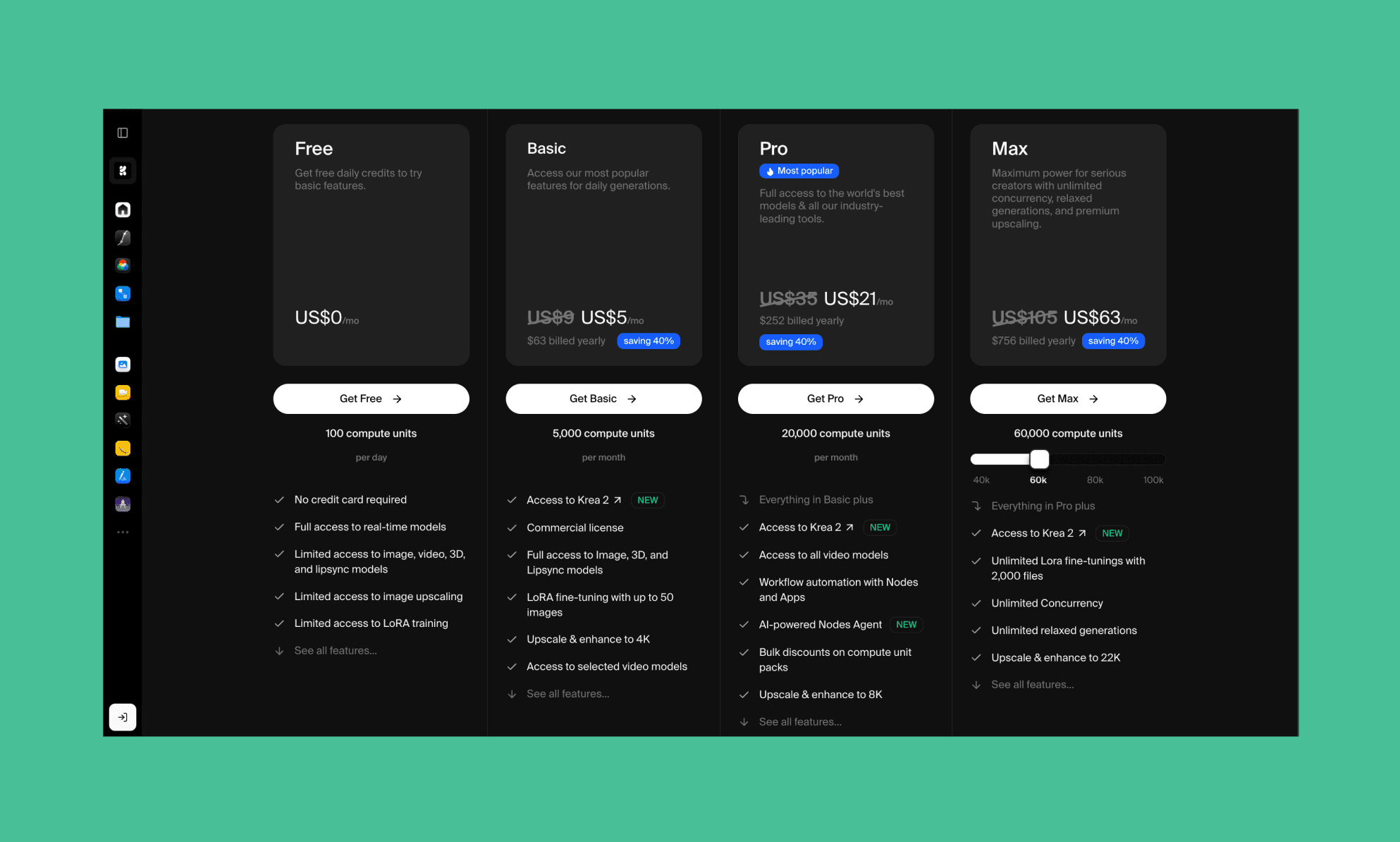
Während die meisten KI-Generatoren im Jahr 2026 auf Credits setzen, nutzt Krea sogenannte Compute Units. Das ist die plattforminterne Währung für Rechenleistung, ähnlich wie bei klassischen SaaS-Krediten.
Du bekommst vorab eine ungefähre Schätzung der Kosten pro Generierungsmodell. Die genauen Kosten für Edits und Enhancements erfährst du jedoch erst nach der Ausführung.
Gibt es versteckte Kosten bei Lovable? >
Der Krea AI Free Plan
Krea AI bietet ein Freemium-Modell für die Bildgenerierung an. Du erhältst 100 Compute Units täglich ohne Kreditkarte – perfekt zum Testen des Real-Time-Canvas, aber schnell aufgebraucht bei komplexen Projekten.
Voller Zugriff auf Real-Time-Canvas-Modelle
Kein Zugriff auf Video-, 3D- und Lipsync-Tools
Upscaling nur bis maximal 2K
Eingeschränktes LoRA-Training
Keine kommerzielle Nutzungslizenz
Krea AI Paid Plans
Tarif | Preis (monatlich) | Compute Units | Wichtigste Features | Ideal für |
Basic | 9 $/Monat | 5.000/Monat | Krea 2, alle Video- & 3D-Modelle, LoRA-Training, Upscale bis 4K, kommerzielle Lizenz | Freelancer, gelegentliche Nutzung |
Pro | 35 $/Monat | 20.000/Monat | Alle großen Video-Modelle (Veo 3.1, Kling, Runway), Node-Workflows, Upscale bis 8K | Aktive Designer, tägliche Nutzung |
Max | 105 $/Monat | 60.000/Monat | Unbegrenztes LoRA-Feintuning, unbegrenztes Rendern im Relax-Modus, Upscale bis 22K | Professionelle Studios, hoher Durchsatz |
Business | 200 $/Monat | 80.000/Monat | Bis zu 50 Arbeitsplätze, private Node-Apps, LoRA-Training bis 20.000 Bilder, benutzerdefinierte Rollen | Wachsende Teams |
Enterprise | Individuell | Individuell | SLA-Support, Audit-Logs, API-Zugriff, Ausgabenlimits pro Teammitglied | Große Unternehmen |
Hinweis: Bei jährlicher Zahlung sparst du 40 %
Preise der einzelnen Tools in Figma >
Alternativen zu Krea AI
Leonardo AI vs Krea AI
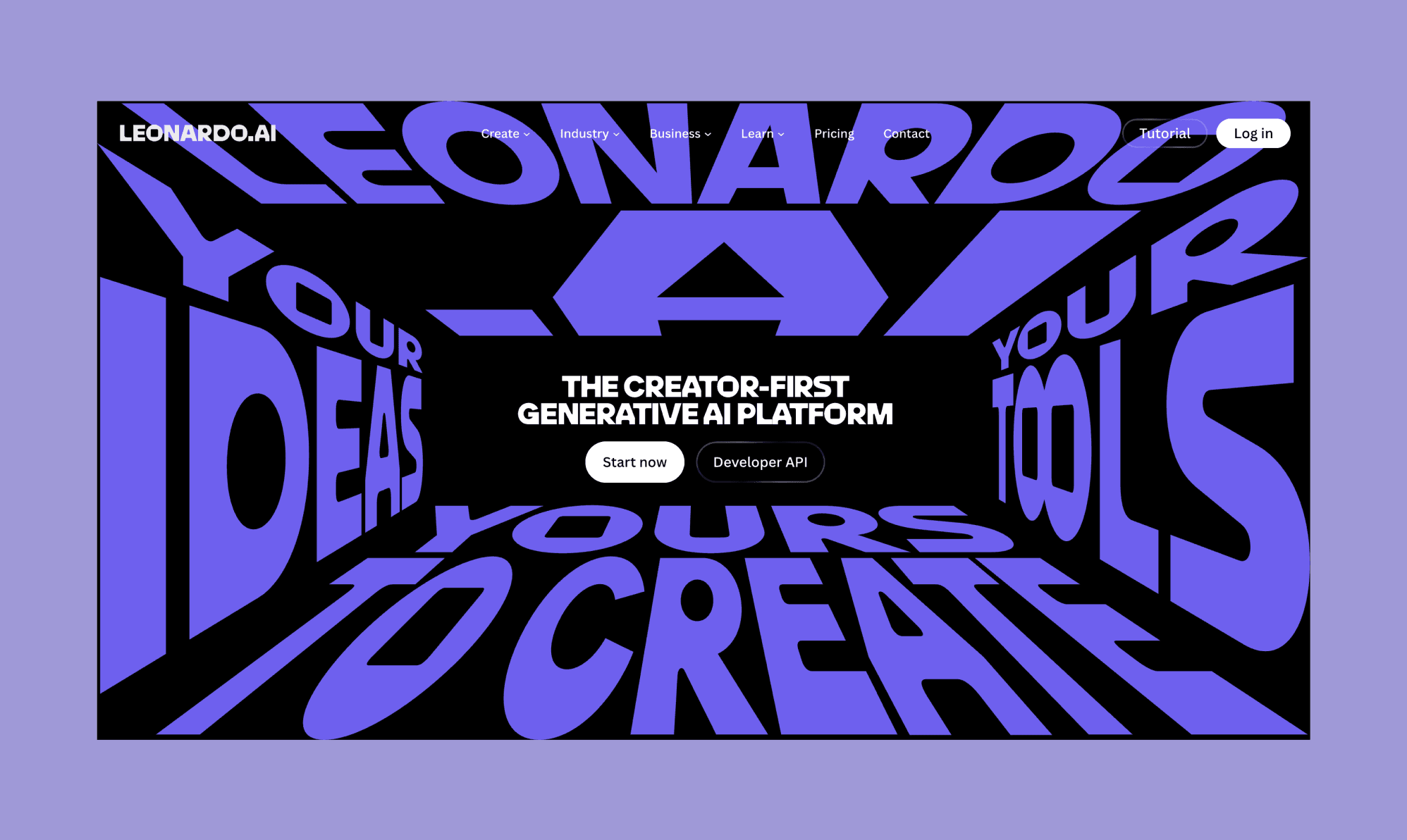
Leonardo AI ist eine browserbasierte Plattform für Gamedesigner, Concept Artists und Kreative. Sie bietet feingetunte Modelle, Canvas-Editing und eine riesige Asset-Community.
Warum wählen: Besseres Character-Design und ein etablierteres Ökosystem für Feintuning, das speziell auf Gaming-Art ausgelegt ist.
Higgsfield vs Krea AI
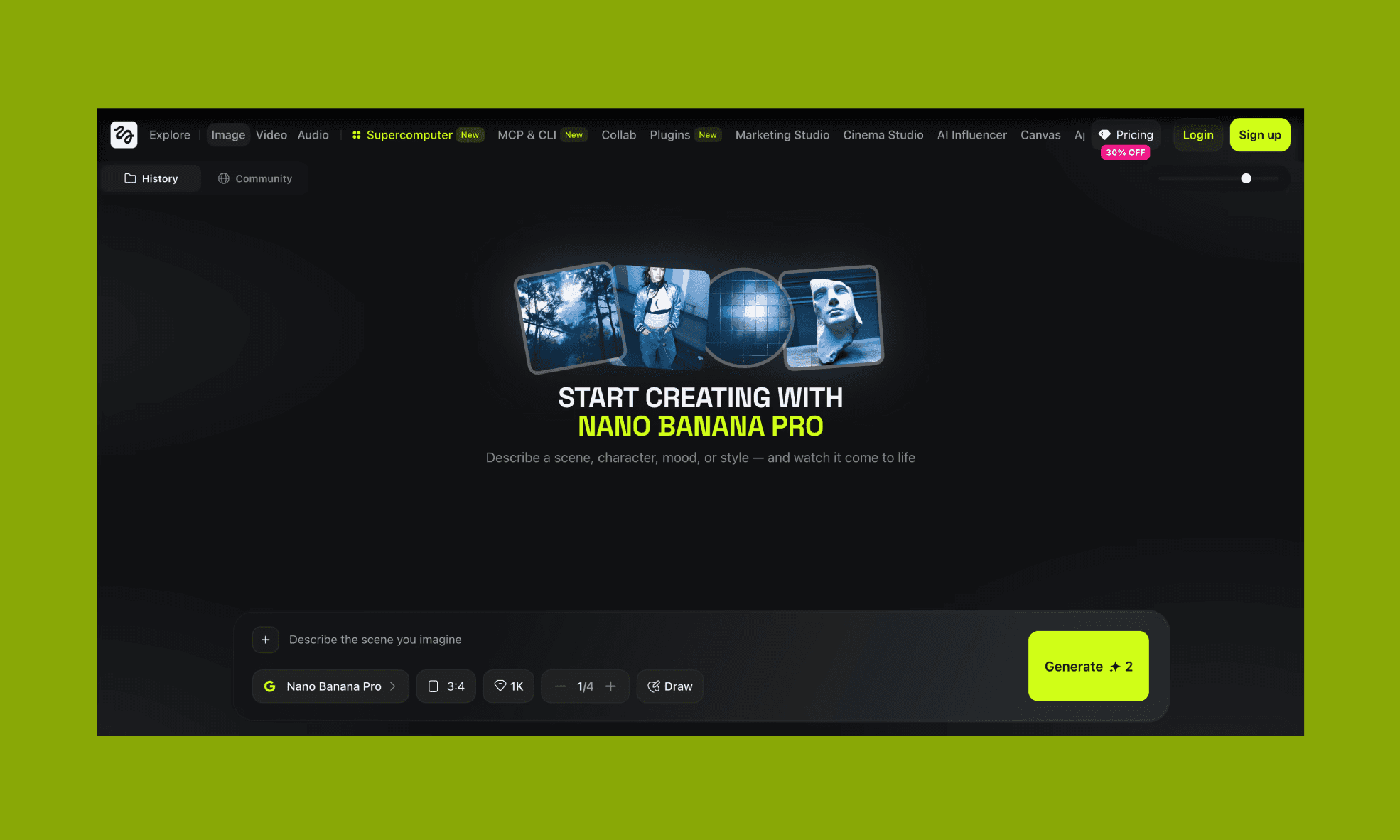
Higgsfield ist eine Video-fokussierte KI-Plattform mit Tools für konsistente Charaktere, Motion-Transfer und einem eigenen Plug-in für DaVinci Resolve.
Warum wählen: Perfekt für native Video-Creators mit tiefgehender Motion-Control. Kreas Videofunktion basiert komplett auf Drittanbieter-Modellen.
MidJourney vs Krea AI
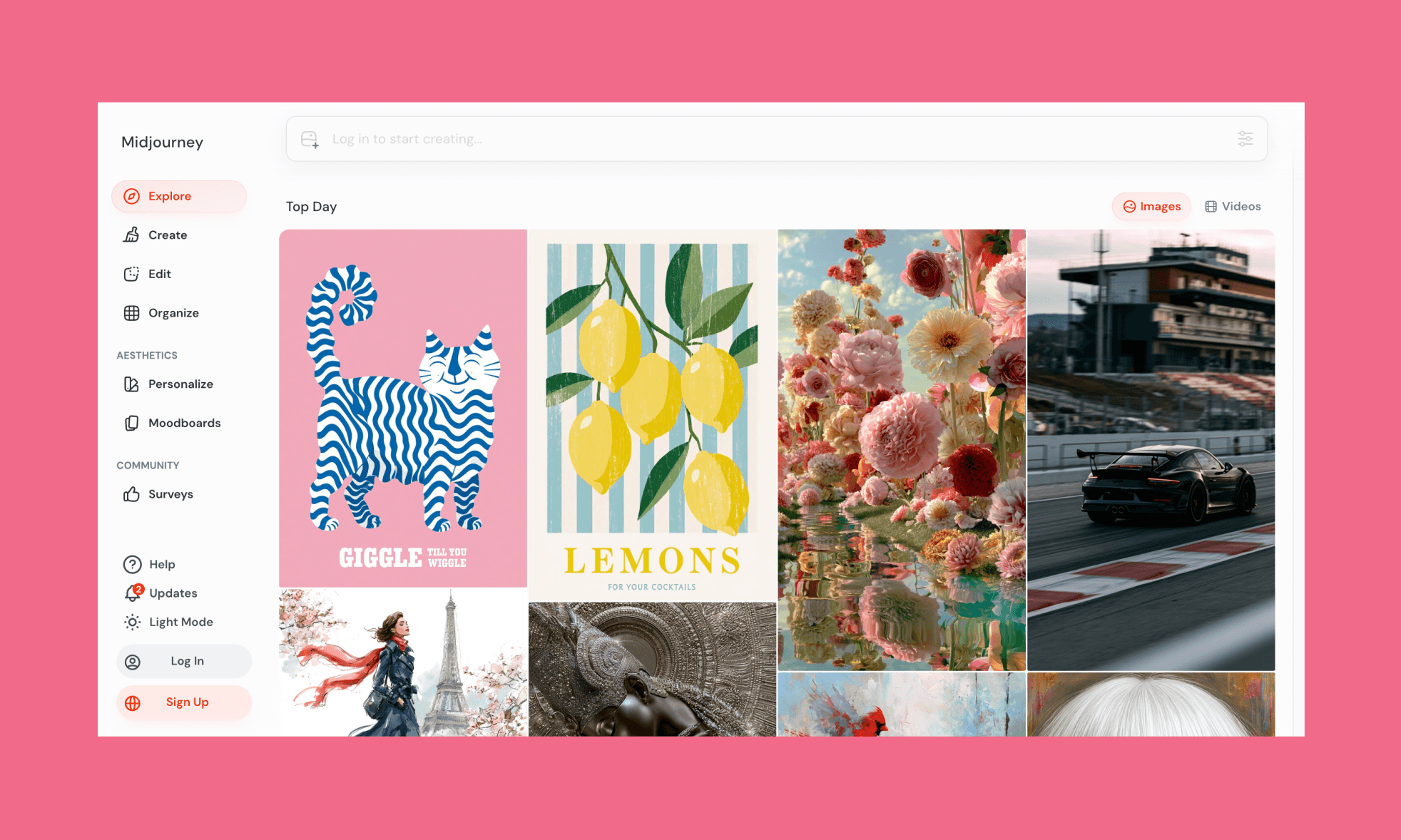
Midjourney ist der Platzhirsch für extrem ästhetische Bildgenerierungen, mittlerweile über eine Web-Oberseite und Discord nutzbar.
Warum wählen: Bietet eine unschlagbare Bildqualität für Editorial- und Art-Designs, verlangt dafür aber einen festen Abo-Preis ohne Free-Option.
Zuerst kostenlos, jetzt teuer: Zieht MidJourney die Preise an? >
Freepik AI (Magnific) vs Krea AI
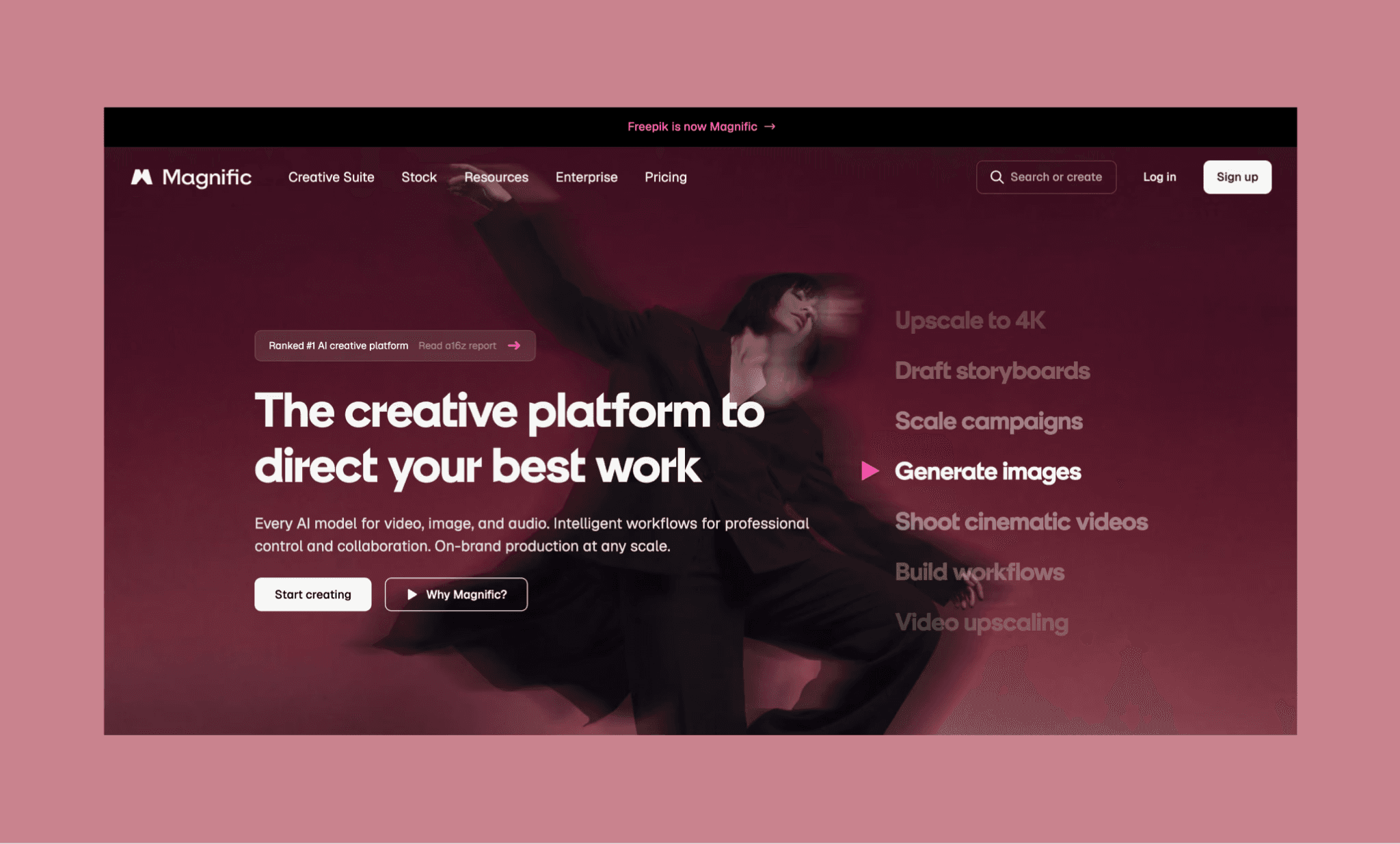
Freepik (inklusive des integrierten Magnific AI) hat sich von der Stock-Bibliothek zum vollwertigen GenAI-Hub entwickelt: Mit über 41 Modellen wie Flux und Kling.
Warum wählen: Die Kombination aus riesiger Stock-Bibliothek und High-End-KI-Editoren ist unschlagbar praktisch für Marketing- und Produkt-Teams.
Die besten Alternativen zu Freepik AI >
Flora AI vs Krea AI
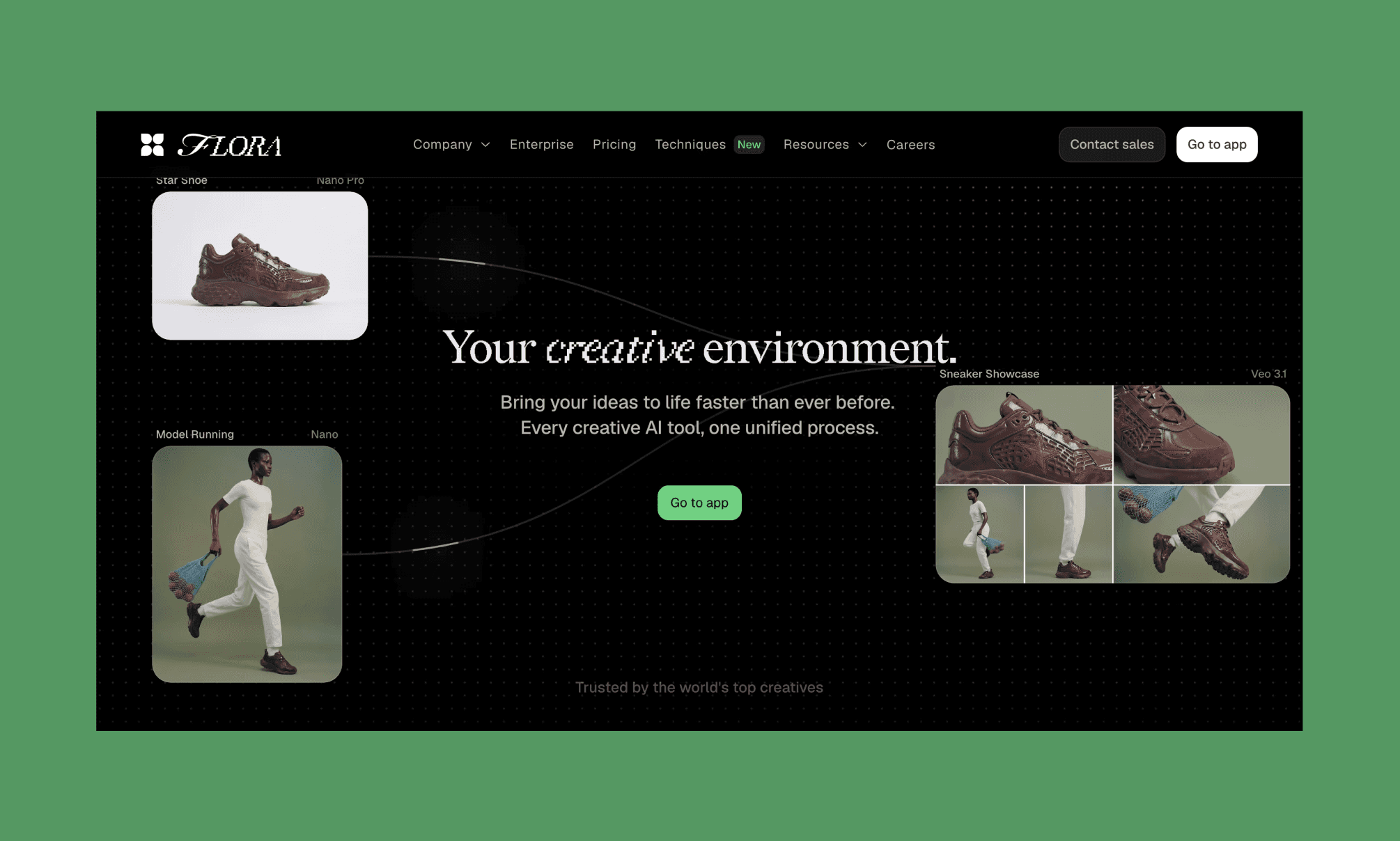
Flora AI ist eine node-basierte Design-Suite auf einem unendlichen Canvas, gesteuert durch den KI-Agenten „Fauna“ für komplexe Ketten-Workflows.
Warum wählen: Die Node-Logik ermöglicht extrem mächtige, mehrstufige Pipelines. Krea ist dafür im Einstieg deutlich einfacher.
So nutzt du den Flora AI Image Generator >
Fazit: Ist Krea AI gut für App-UIs?
Ja, aber es erfordert Geduld. Krea ist schnell und zugänglich. Die Bearbeitung ist jedoch oft oberflächlich, das Upscaling unberechenbar und die Kosten im Vorfeld schwer kalkulierbar.
Für reine App-UIs mit Bildern ist Banani die bessere Wahl – schneller und günstiger. Hier erstellst du ganze UI-Strecken direkt mit den passenden visual Assets. Dank Figma-Export und Code-Anbindung (MCP) das perfekte Tool für moderne Produkt-Teams.
FAQs zu Krea AI
Ist krea.ai sicher und vertrauenswürdig?
Ja. Krea AI wird von Branchengrößen wie a16z und Google Gradient unterstützt, hat über 30 Millionen Nutzer weltweit und bietet für Business-Accounts vertraglich zugesicherten Datenschutz (kein Modelltraining mit deinen Daten).
Ist Krea AI kostenlos?
Nicht unbegrenzt, aber der Einstieg ist gratis. Kreas Free-Tier liefert dir täglich 100 Compute Units – ganz ohne Kreditkarte.
Ist Krea AI besser als Midjourney?
Das kommt auf den Usecase an. Krea punktet mit Vielseitigkeit (Videos, 3D, Real-Time-Canvas und Enhancer unter einem Dach). Midjourney gewinnt beim reinen Realismus und der Ästhetik.
Da MidJourney keinen kostenlosen Tarif bietet, ist Krea für viele Einsteiger die erste Wahl.
Was ist die beste Krea-Alternative für App-UI-Designs?
Banani AI ist die stärkste Alternative, wenn du UI-Layouts inklusive passender Grafiken erstellen willst. Es integriert Bilder, Logos und Icons direkt in dein UI-Briefing.
Referenzen
[1] https://www.krea.ai
[2] https://www.linkedin.com/company/krea-ai


