

Funcionalidades clave | Lienzo infinito basado en nodos, biblioteca de workflows preconstruidos, Weave Tools en Figma |
Pros | Calidad de imagen impresionante, coste de créditos visible por adelantado, generación en paralelo |
Contras | Curva de aprendizaje pronunciada, acierto/error en la selección de modelos, mala generación de branding |
Precios | Gratis (150 créditos/mes). Planes de pago desde $19–$48/usuario/mes |
Alternativas |
¿Qué es Figma Weave AI?
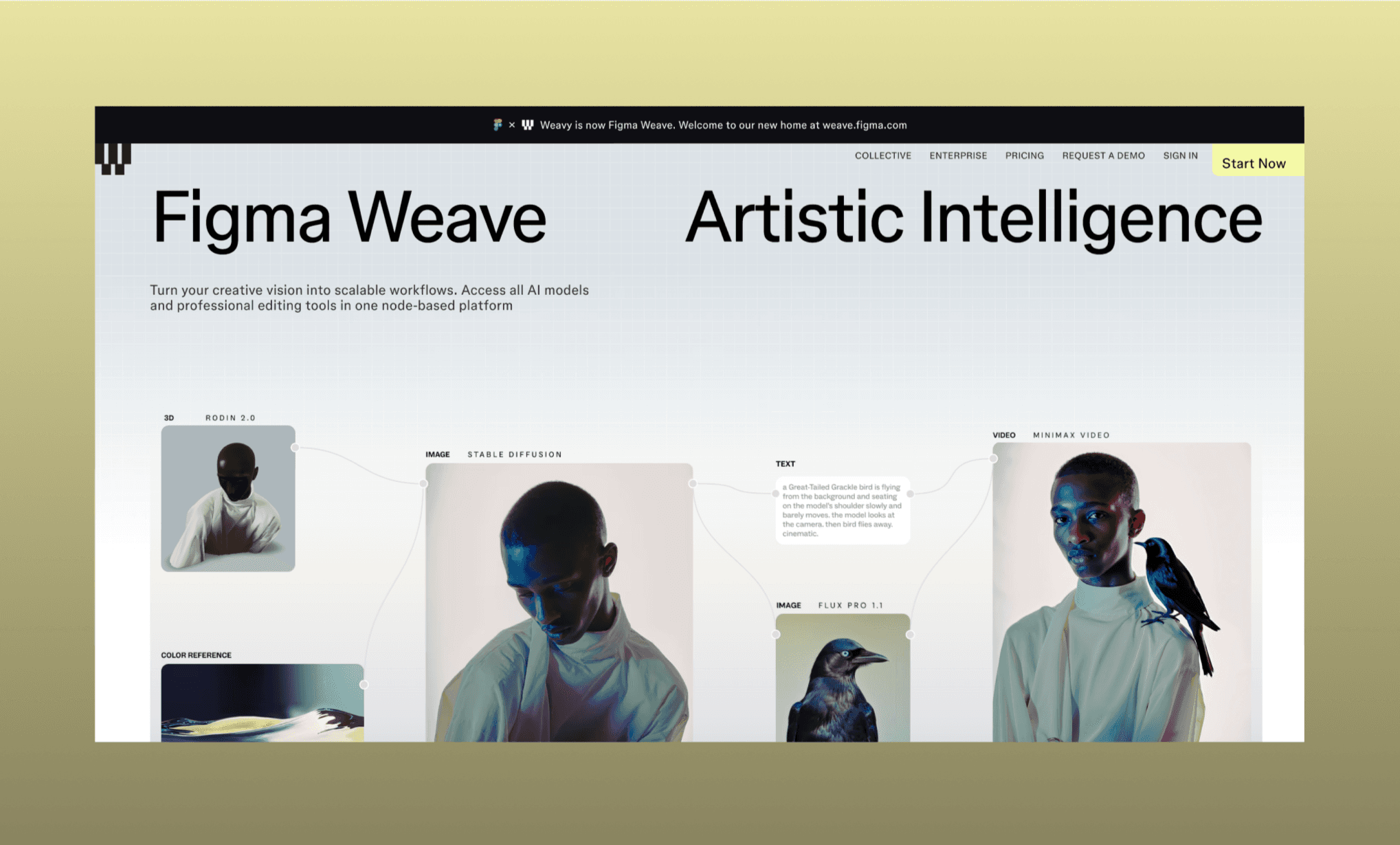
Figma Weave es una plataforma creativa de IA basada en nodos para generar y editar imágenes, vídeo y recursos visuales a través de flujos de trabajo multimodelo [1]. La respuesta de Figma a la producción creativa nativa en IA; se construyó originalmente como Weavy AI y fue adquirida por Figma a finales de 2025 [2].
Usando Figma Weave para recursos de UI de apps
Para probar las funciones clave de GenAI de Figma Weave, decidí crear los recursos para una app móvil de diseño de interiores llamada Interry; permite a los usuarios fotografiar su habitación para amueblarla y pintarla virtualmente. Al final, lo ensamblaré todo en un flujo de UI multipantalla usando Figma Agent y lo compararé con el montaje de un diseñador de UI nativo de IA, Banani AI. Como puedes imaginar, esta reseña también servirá como tutorial de Figma Weave.
Registrarse en Weave es sencillo, gratis y empiezas con 150 créditos. También tienes la opción de iniciar sesión en Weave AI con tu cuenta de Figma.
Usé Krea AI para generar recursos para una app de probador virtual >
Entiende el lienzo basado en nodos de Weave AI
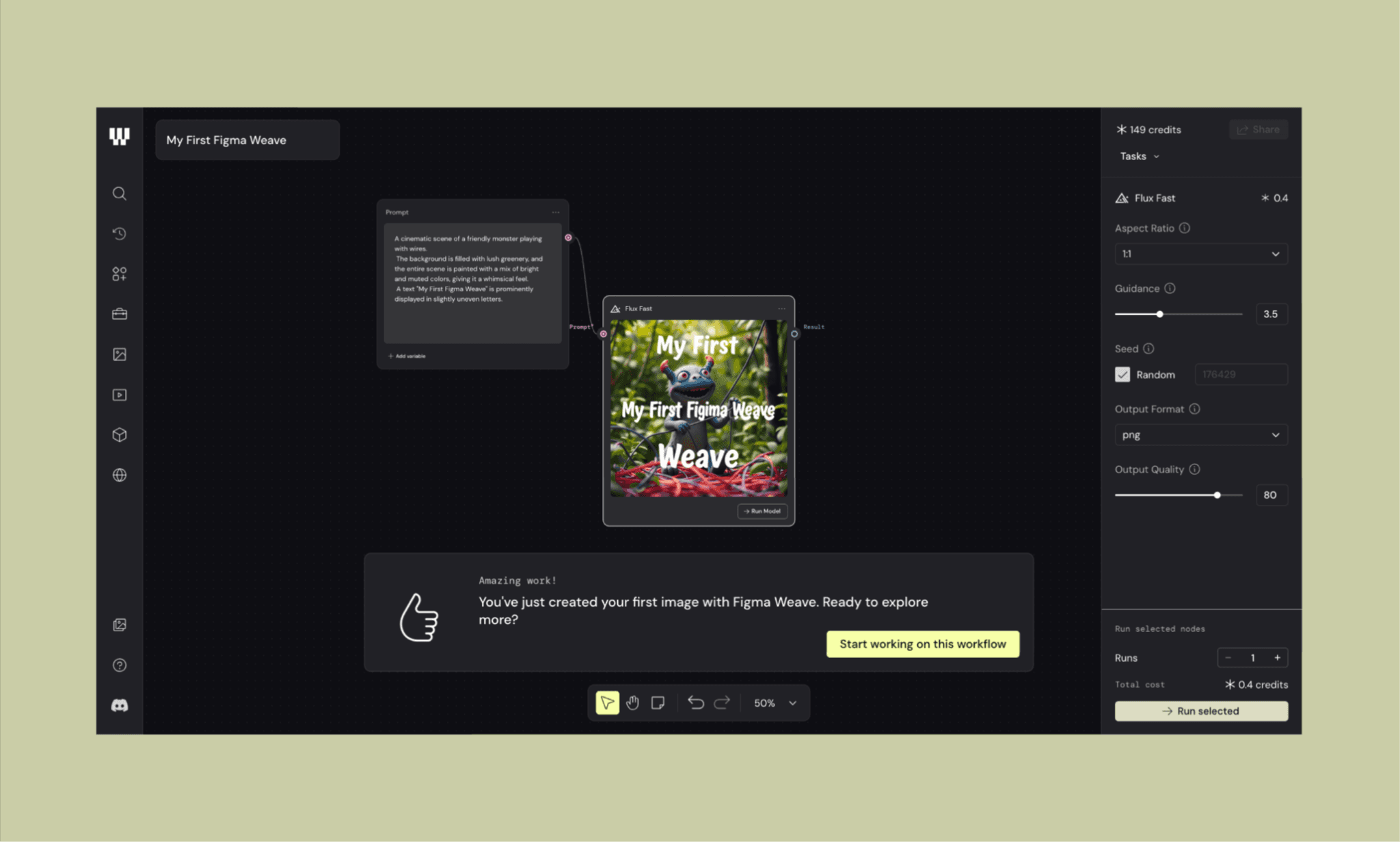
Lo primero es lo primero: Weave no es la típica herramienta de GenAI que te recibe con una caja de texto; es un generador de diseño basado en nodos. Cada prompt, referencia visual, resultado y edición es un nodo. Haz clic derecho en cualquier parte del lienzo para crearlos, arrastra cables para conectarlos y haz clic en 'Run' para procesar.
En la captura de pantalla superior puedes ver un nodo de prompt conectado a uno de imagen (el modelo elegido fue Flux Fast), el cual ejecuté para obtener la imagen resultante en el lienzo.
Tardó unos 30 segundos y costó 0.4 créditos. Puedes ver el coste aproximado en créditos antes de procesar, lo cual le da a Weave un punto positivo inmediato.
Cómo funciona el lienzo basado en nodos de Flora AI >
Creando un logo y palabra de marca de una sola vez

Una propuesta clave de Figma Weave es procesar múltiples referencias (imagen + prompt) para fusionarlas. Y hacerlo en paralelo para múltiples tareas.
Quería que el branding de Interry se inspirara en el logo de Airbnb, los colores de Tinder y la tipografía de Pinterest. Así que creé dos flujos simultáneamente (como en la captura de arriba):
i) Para el Logo
Creé un nodo con el logo de Airbnb y los colores de Tinder, y lo conecté con un nodo de prompt que pedía:
"Crea un logo para una app móvil llamada Interry. Icono minimalista y redondeado con forma de letra 'I', inspirado en el estilo de símbolo limpio de Airbnb. Aplica un degradado cálido de coral a rosa inspirado en la paleta de colores de Tinder. Fondo blanco."
Y luego vinculé ambos nodos a un nodo de imagen (potenciado por Qwen Image Edit Plus de Alibaba).
El logo tardó más de 10 minutos en generarse. Costó 3 créditos. Y el diseño es bastante mediocre.
ii) Para la palabra de marca (Wordmark)
Creé otro flujo similar usando recursos de marca de Pinterest e Tinder como referencias. Pero para este caso, el modelo de imagen de IA elegido fue Flux Canny Pro.
Generó un resultado incorrecto; en lugar de escribir Interry, editó mi wordmark de Pinterest con el degradado de Tinder. Costó unos dolorosos 6 créditos, aunque fue rápido: unos 30 segundos.
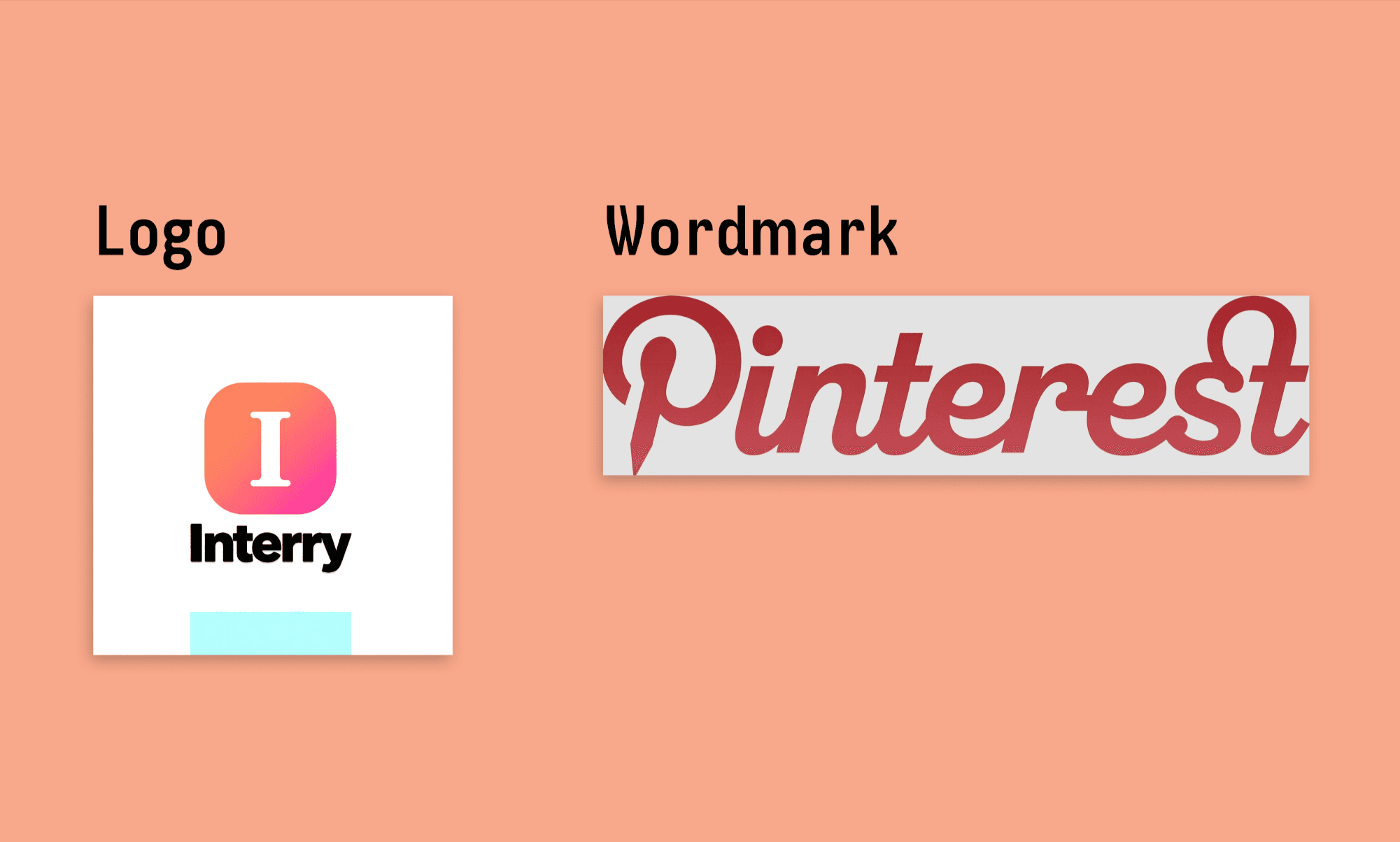
Observación: En primer lugar, juntar las 3 referencias para obtener 2 resultados no es posible en Weave AI. Funciona con un enfoque de nodos secuenciales para el refinamiento iterativo, no con mezclas de un solo disparo. Y segundo, elegir el modelo adecuado para cada tarea es una curva de aprendizaje en sí misma. Tener demasiadas opciones no ayuda a los principiantes.
Dados los créditos gastados y el tiempo invertido en cada iteración, decidí quedarme con el logo que generó Weave (con todo y sus imperfecciones) y seguir adelante.
Alternativas a Midjourney para diseño de logos >
Generando opciones para la imagen principal (Hero Image)
Lo siguiente que necesitaba era la imagen principal para la ficha de la App Store y la pantalla de onboarding. Así que usé un prompt que representaba visualmente la propuesta de valor de la app:
"Una pareja joven sentada en un sofá. La mujer sostiene un teléfono, ambos se inclinan hacia él deslizando la pantalla con entusiasmo. A medida que deslizan, todo tipo de objetos para el hogar salen de la pantalla y vuelan con energía a su alrededor: sofás, lámparas, armarios de cocina, camas, bañeras, plantas, sillas de exterior, baldosas, alfombras, estanterías, etc. Paleta de colores cálida y enérgica: rojo intenso, naranja quemado y negro. Estilo de fotografía editorial. Iluminación cinematográfica. Alto contraste."
Esta vez decidí probar dos modelos para comparar resultados: Google Imagen 4 (6 créditos) y GPT Images 2.0 (9 créditos). Me encanta cómo tienen montada la multitarea en paralelo.

Google Imagen 4 tardó unos 30 segundos, mientras que GPT Images 2.0 tardó un minuto. Aunque ambas imágenes se alinean con mi prompt, me gusta más el resultado de Google/Gemini.
Ejemplos de diseño web con Gemini 3.1 Pro >
Ejemplos de diseño web con GPT 5.4 >
Un collage para las categorías (con varios modelos de imagen)
Quiero que la página de inicio muestre 4 categorías de imágenes de producto en modo collage: salón, dormitorio, baño y terraza. Decidí usar 4 modelos de GenAI de imagen diferentes para comparar sus resultados cara a cara en Figma Weave. (Por mi reseña de Krea AI, ya sabía que cada modelo rinde y cuesta de forma distinta según el proveedor).
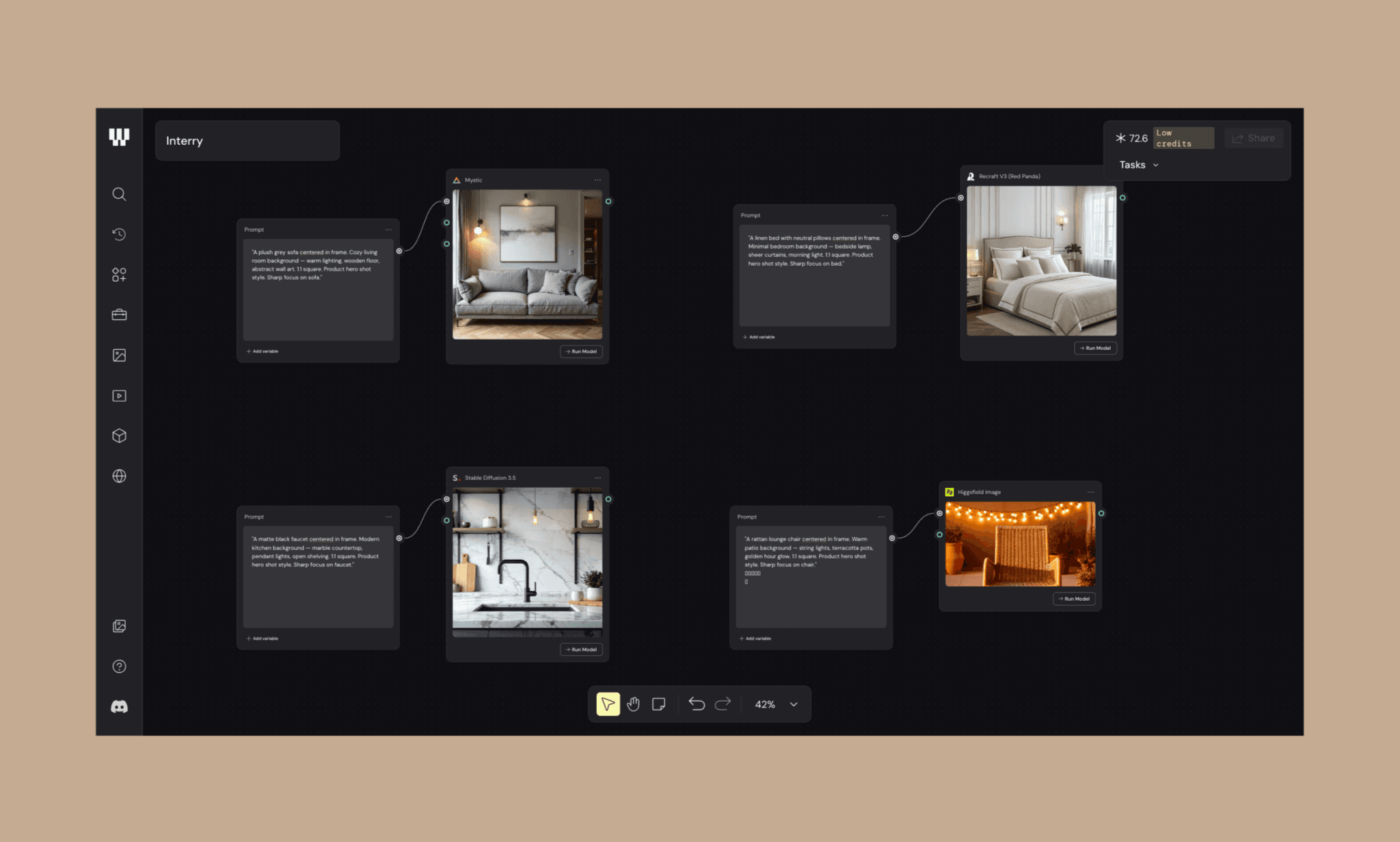
Modelo de imagen | Usado para | Adherencia | Calidad de | Coste en | Tiempo |
Mystic | Salón | 5/5 | 5/5 | 12 | 45s |
Recraft V3 | Dormitorio | 5/5 | 4/5 | 5 | 30s |
Stable Diffusion 3.5 | Cocina | 4/5 | 4/5 | 8 | 30s |
Higgsfield | Terraza | 4/5 | 5/5 | 21 | 1 min |
He sido bastante estricto evaluando los modelos en Figma Weave, pero sinceramente estoy impresionado con todos; la calidad y la velocidad son brutales. Y que respeten el coste en créditos mostrado antes de procesar es un puntazo (no como Freepik AI, que solo te da un costo estimado).
Comparación de modelos de imagen en Flora AI >
Decorando una habitación virtualmente con múltiples imágenes
Esta es la parte más interesante de mi prueba con Figma Weave: cojo la foto de una habitación (sacada de Google) e intento decorarla paso a paso con varios muebles (también de Google), probando además cambios de ángulo y de iluminación.
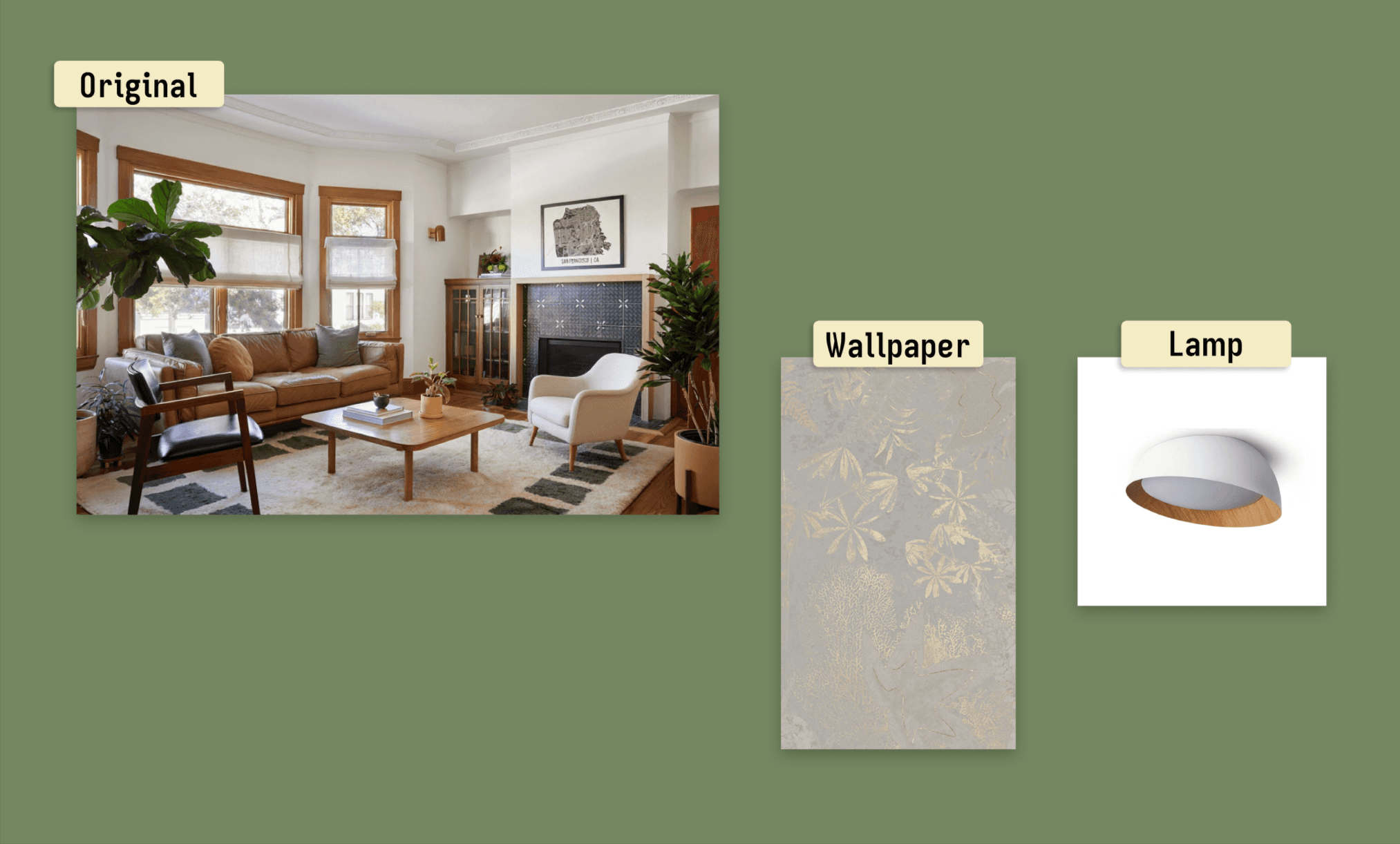
Paso 1: La habitación original
Conseguí la imagen de un salón que quería decorar virtualmente. Los dos elementos que quiero probar: un papel pintado botánico dorado y una lámpara de techo minimalista tipo domo.
Paso 2: Aplicar el papel pintado (Flux Kontext Multi Image | 10 créditos | 30s)
Introduje la imagen del salón y el patrón del papel pintado en un nodo de Flux Kontext Multi Image junto con este prompt:
“En el salón que se muestra en la imagen 1, cambia el color de las paredes con el patrón de papel pintado de la imagen 2. Mantén todo lo demás intacto.”
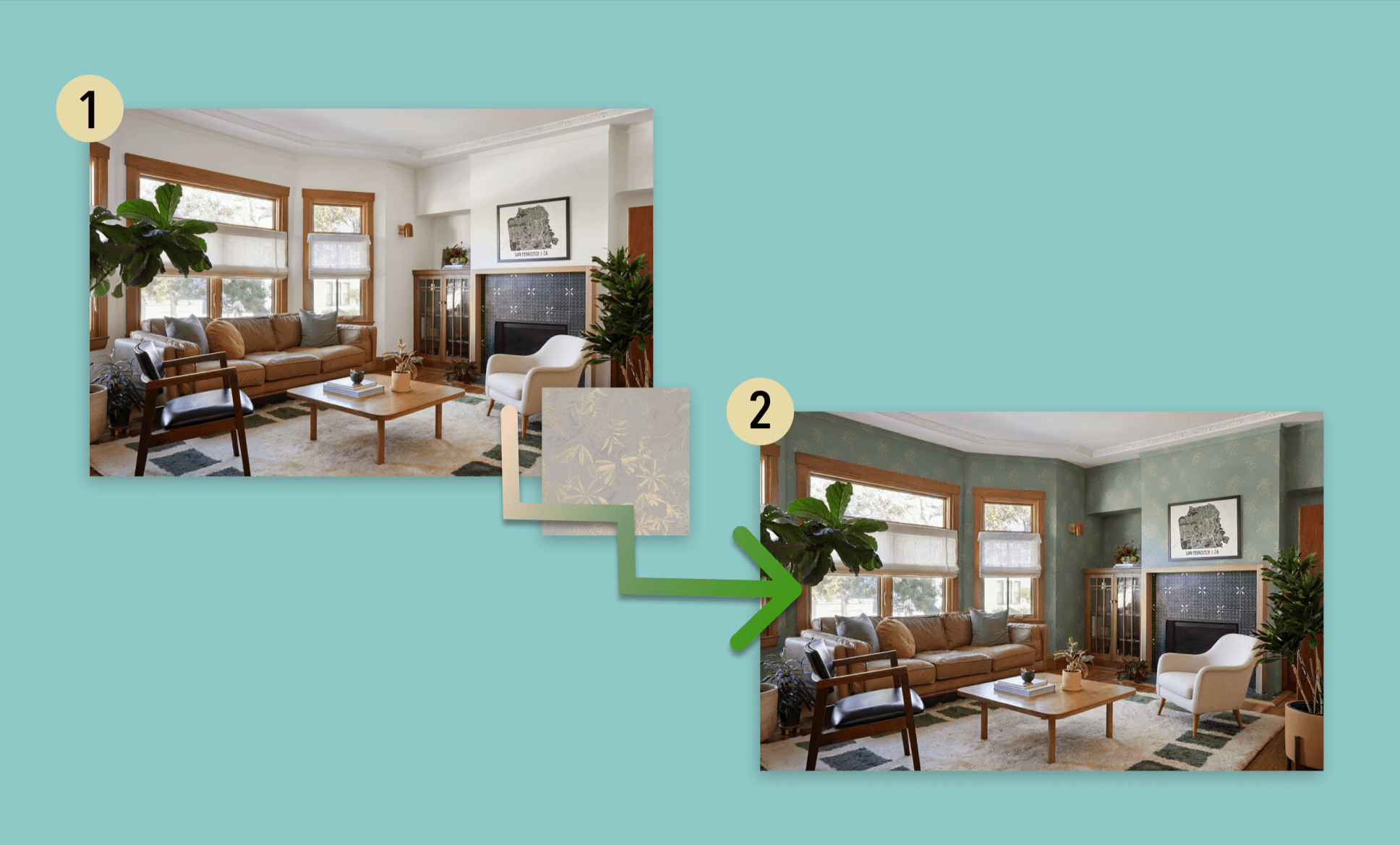
El resultado es buenísimo, ya que no solo pegó el papel pintado, sino que inteligentemente respetó el borde del techo y adaptó la iluminación. Todo lo demás sigue intacto, aunque mirando de cerca noté que la imagen final había perdido algo de nitidez respecto a la original.
*Nota: La imagen de referencia del cambio requerido debe estar muy limpia; es decir, solo el objeto, sin fondo ni otros elementos.
Paso 3: Rotación a 90° + vista de gusano (Qwen Edit Multiangle | 4 créditos | 10s) Evitando escribir un prompt para el cambio de ángulo, usé los ajustes de rotación integrados de Qwen: gran angular, rotación horizontal de 90° y vista contrapicada. El cambio es sutil pero consistente; la geometría de la habitación se mantiene y los muebles siguen proporcionados.
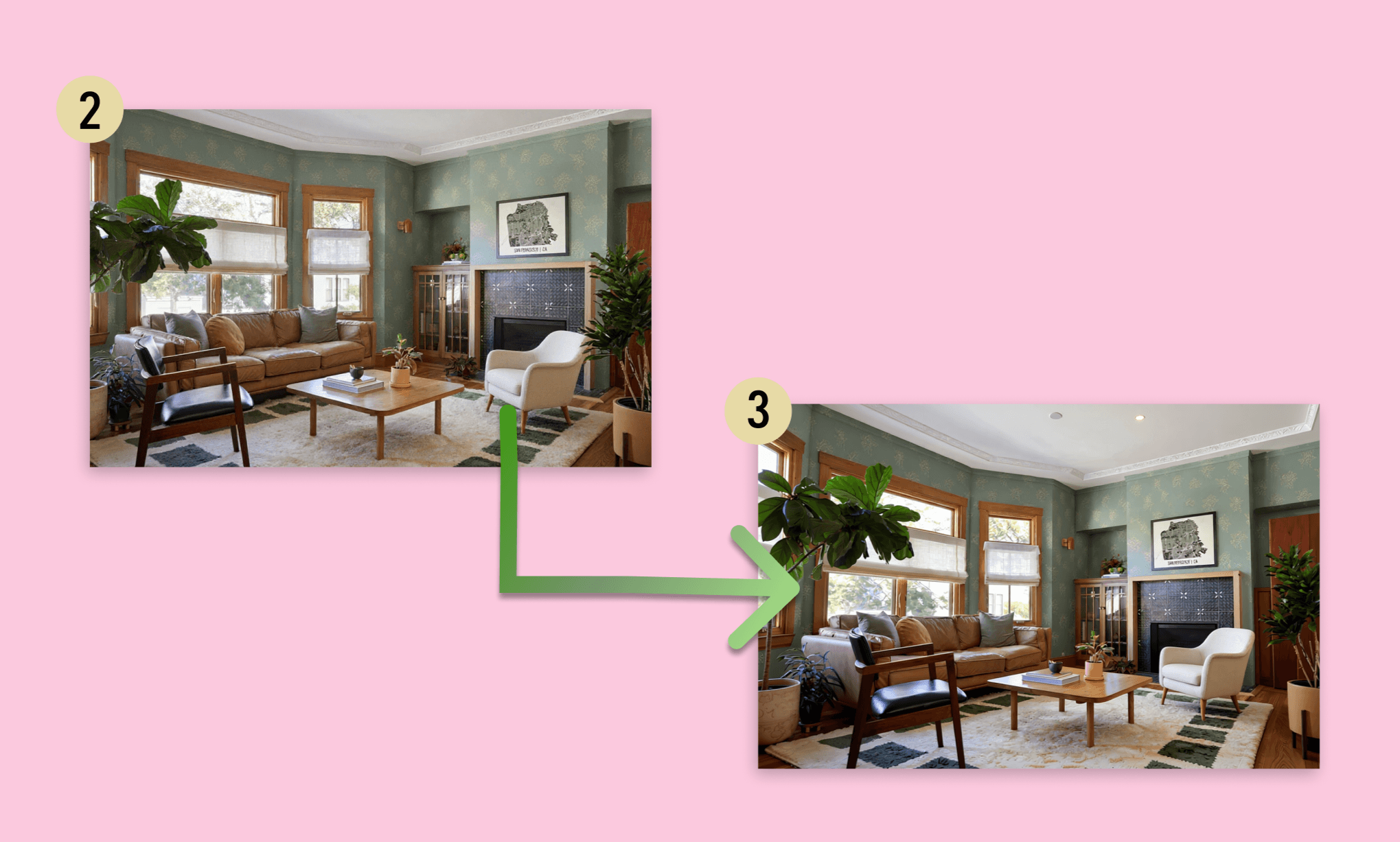
*Nota: Intentar cambiar el punto de vista mediante prompt sin usar los ajustes multianulares del modelo no sirve de nada.
Paso 4: Modo noche con lámpara de techo (Flux Kontext Multi Image | 10 créditos | 30s)
Introduje el salón ya empapelado + la imagen de la lámpara en Flux Kontext, y le pedí colocar la lámpara y cambiar a luz nocturna:
“En el salón de la imagen 1, coloca la lámpara de techo de la imagen 2. Haz que sea de noche, casi sin luz entrando por la ventana, y que la lámpara del techo ilumine el interior.”
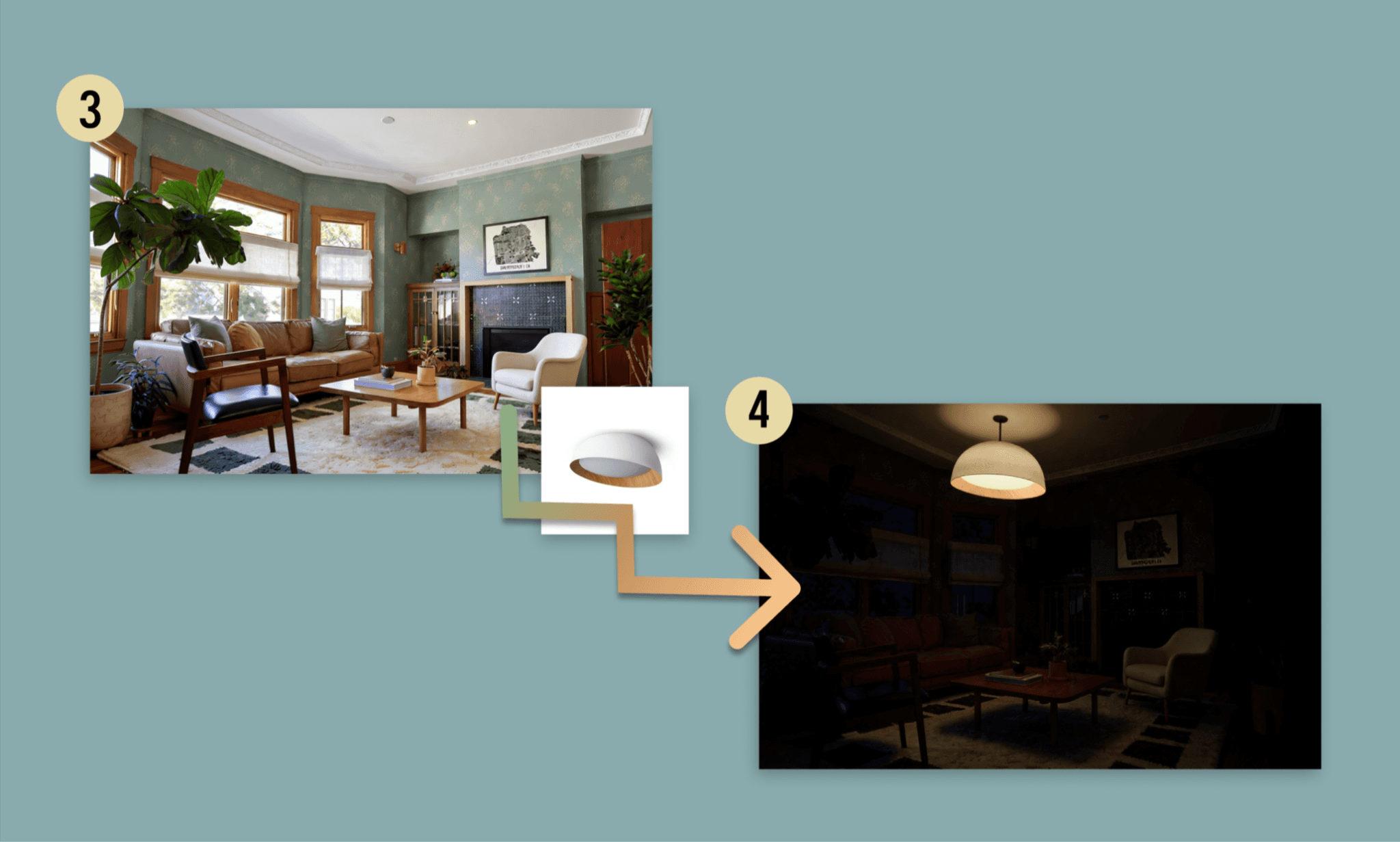
Salvo porque la lámpara quedó un poco sobredimensionada, todo lo demás es espectacular. La iluminación, las sombras, el ambiente. Ha sido la transformación más radical de la sesión y, sinceramente, la más impresionante.
Resumen: Comparativa de modelos GenAI en Figma Weave
A lo largo de mi prueba con la UI de Interry, usé más de una docena de modelos de IA dentro de Figma Weave. No todos aparecen en esta reseña, pero aquí tienes un resumen de mi experiencia con ellos:
Modelo GenAI | Mi experiencia | Créditos | Tiempo |
Flux Fast | Rápido, barato, fiable. Ideal para primeros borradores. | 0.4 | ~30s |
Qwen Image Edit Plus | Lento, resultado mediocre, malo mezclando referencias. | 3 | ~10 min |
Flux Canny Pro | Entendió mal la tarea; editó la referencia en vez de generar algo nuevo. | 6 | ~30s |
Google Imagen 4 | Preciso con el prompt y cinematográfico. El ganador para mi hero image. | 6 | ~30s |
GPT Images 2.0 | Buena calidad, pero más lento y caro que Imagen 4. | 9 | ~1 min |
Mystic | La mejor calidad de imagen de la prueba; vale lo que cuesta. | 12 | ~45s |
Recraft V3 | Preciso y asequible. La mejor relación calidad-precio de los cuatro. | 5 | ~30s |
Stable Diffusion 3.5 | Fiable y fiel al prompt; acabado ligeramente menos pulido. | 8 | ~30s |
Higgsfield | Ambiente y luces espectaculares; demasiado caro para tomas sencillas. | 21 | ~1 min |
Flux Kontext Multi Image | El mejor para editar estancias; exige imágenes de referencia limpias. | 10 | ~30s |
Qwen Edit Multiangle | El más barato y rápido; funciona solo por interfaz, no por texto. | 4 | ~10s |
Runway Gen-4 Image | Poco fiable: recortó la imagen e ignoró la referencia de la silla. | 6 | ~45s |
Comparación de herramientas y modelos de imagen en Krea AI >
De recursos de UI a prototipos (Mockups)
Para llevar el output de Figma Weave a una prueba real de utilidad, monté los recursos de UI que había generado en prototipos de mi app Interry. Decidí enfrentar a dos herramientas de diseño UI con IA: Figma Agent frente a Banani AI. Subí el mismo pack de imágenes y les di exactamente el mismo prompt:
"Diseña la interfaz de una app móvil para Interry, una app de diseño de interiores que permite fotografiar habitaciones y amueblarlas virtualmente. Necesito 4 pantallas:
- Pantalla 1: Inicio: Cabecera con logo + wordmark. Hero banner a ancho completo con botón CTA ‘Design Interior’. Debajo, burbujas de categorías de muebles en fila, y un collage de muebles parcialmente visible.
- Pantalla 2: Probador virtual: Muestra room.png a pantalla completa con 3 elementos favoritos debajo: wallpaper.png, lamp.png y un placeholder para un sofá. Añade un icono de opción de cambiar ángulo y un botón CTA ‘Try On’.
- Pantalla 3: Probador virtual (papel pintado aplicado): Muestra el salón con el wallpaper.png aplicado (usa room_with_wallpaper.png). Misma bandeja inferior con el papel pintado seleccionado.
- Pantalla 4: Probador virtual (lámpara aplicada): Muestra room.png oscuro a pantalla completa (el salón de noche con la lámpara instalada). La bandeja inferior destaca lamp.png como elemento activo.Dirección de diseño: cálido, moderno, minimalista. Color de acento rosa-coral que combine con el degradado del logo."
Figma Agent: Clavó el brief, pero no la disposición de recursos
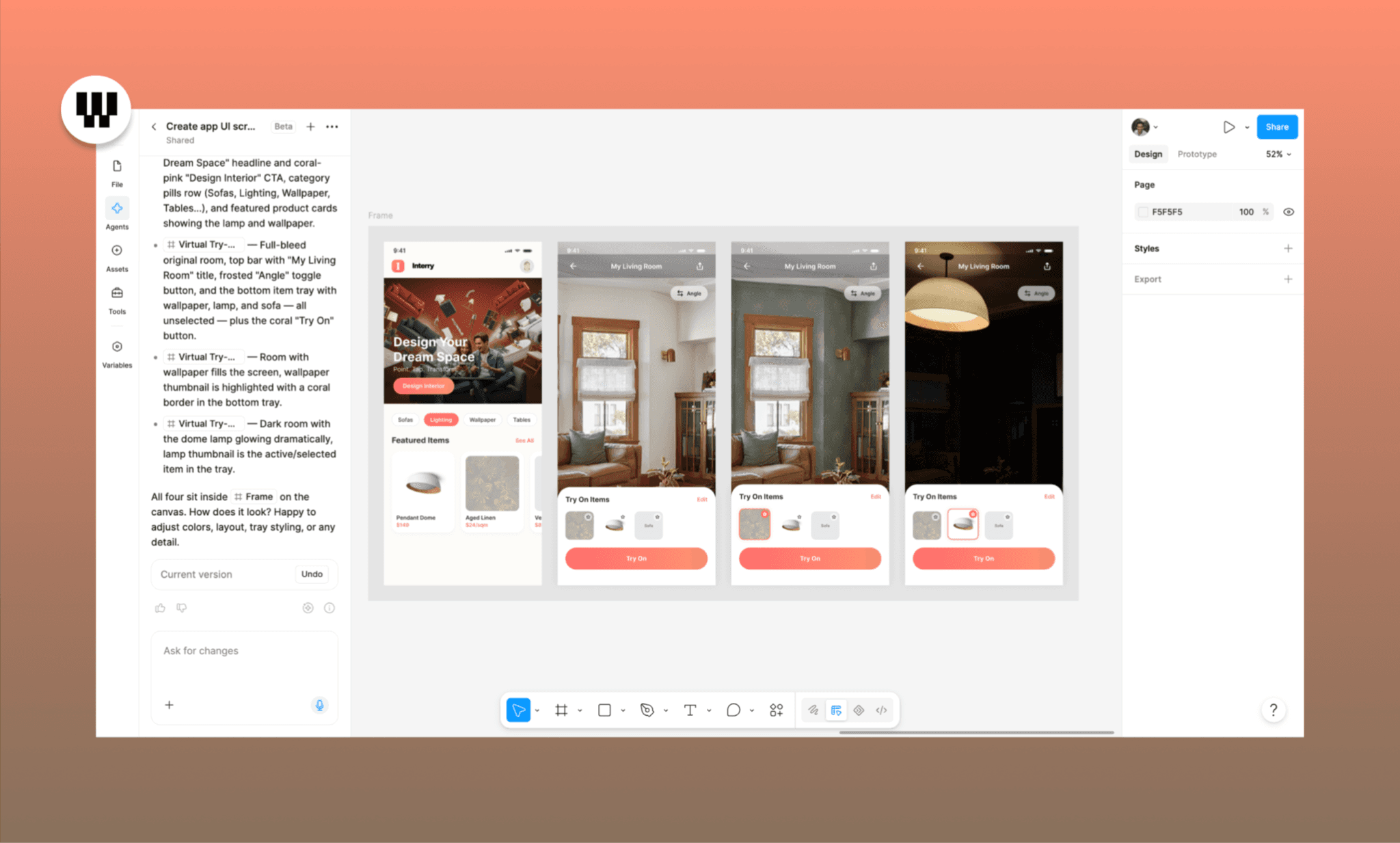
Clavó el brief en unos 3:30 mins, pero de forma demasiado literal. Las cuatro pantallas están ahí y los recursos bien colocados, pero las proporciones de las imágenes fallan; las fotos de las habitaciones se sienten encajonadas en lugar de inmersivas. Sin barra de navegación inferior ni placeholders en los contenidos que faltaban.
Usa un agente de UI con IA gratis >
Banani AI: Colocó bien los recursos y completó los detalles que faltaban

Revisa y edita este diseño gratis >
Más rápido (~3 mins) e inteligente rellenando huecos. Usó las proporciones correctas de las imágenes y añadió por su cuenta elementos para dar coherencia a la UI: barra de navegación inferior, icono para cambiar el ángulo e incluso textos descriptivos creados por la IA. Las pantallas de prueba virtual parecen de una app real.
Weave destaca generando y editando recursos creativos. Para ensamblarlos, mejor usa Banani AI, una herramienta especializada en interfaces para un diseño más rápido e inteligente. Incluso puedes pasar de prompt a UI sin subir referencias y luego exportar el diseño a Figma si lo necesitas.
Crea UI gratis con Banani AI >
¿Se puede usar Weave AI dentro de Figma?
Sí, pero solo en parte. Figma Weave se gestiona fuera de la plataforma de Figma. Sin embargo, en la Config 2026 [3] se anunció que algunos workflows de Weave estarán disponibles como Tools en beta cerrada dentro del lienzo de diseño, gratis para suscriptores de pago de Figma.
En la captura de abajo, probé la Weave Tool Change Lighting directamente en Figma Design.
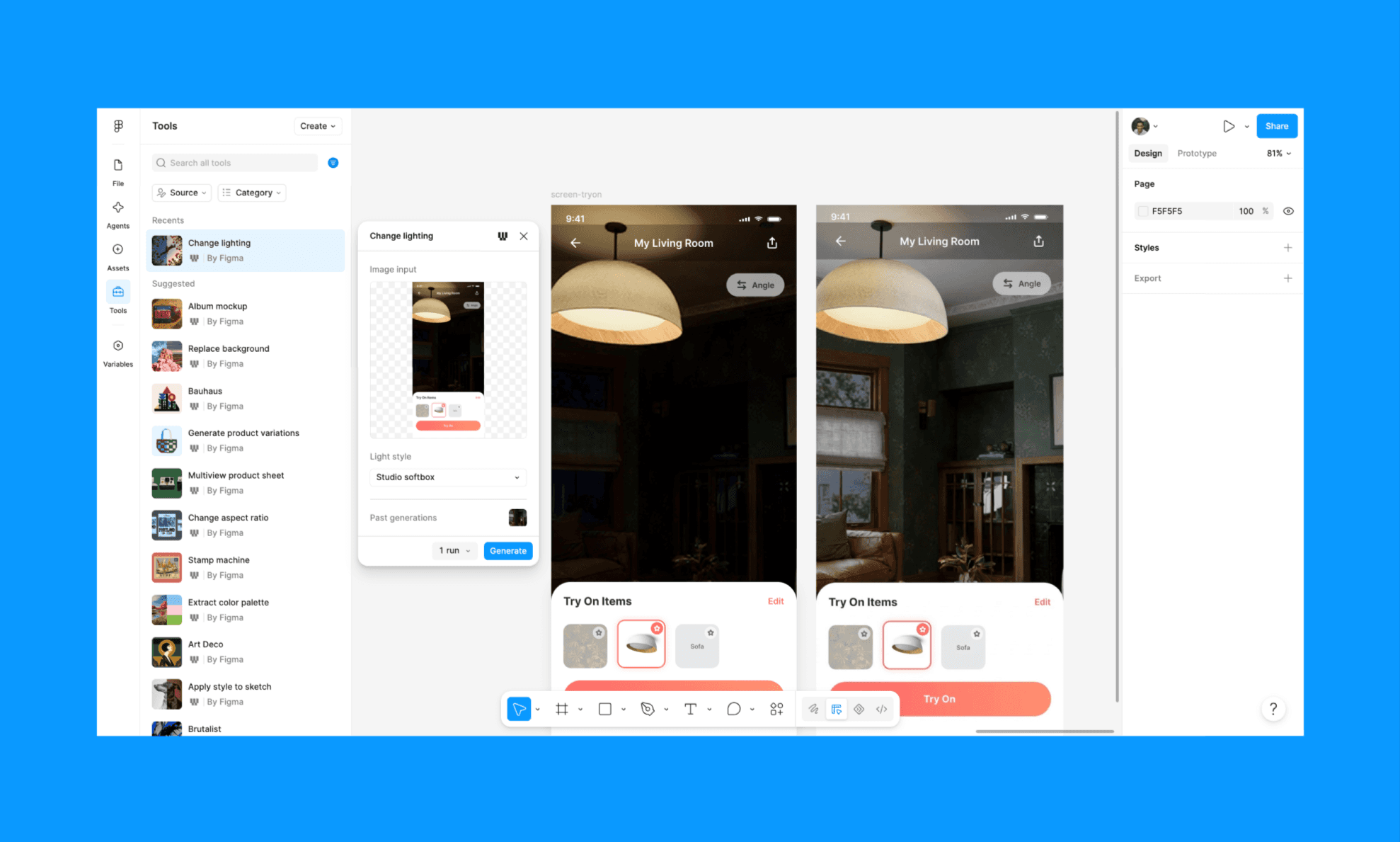
Funcionó rápido y prácticamente igual que en Weave AI, sin tener que configurar nodos, modelos ni prompts. De hecho, cada flujo de Weave que se muestra en el panel izquierdo incluye un enlace para abrir y editar el workflow original dentro de Weave AI.
Lo que aún no es posible es crear flujos personalizados de Weave dentro de Figma, ni usar nodos de Figma en Weave. A mitades de 2026, no se pueden insertar frames activos de Figma directamente en una pipeline de Weave.
Convierte diseño de UI a Figma >
Pros y Contras de Figma Weave
Lo que funciona muy bien | Lo que podría mejorar |
Más de 20 flujos ya preconstruidos para arrancar facilísimo | El lienzo de nodos puede liar a los principiantes |
La ejecución de tareas en paralelo ahorra muchísimo tiempo | Equivocarse de modelo funde tus créditos muy rápido |
Coste en créditos visible por adelantado antes de procesar | La mezcla con varias referencias suele priorizar una sola imagen |
Los cambios de iluminación y ambiente de habitaciones son brutales | La generación de logos y branding suele ser lenta y regular |
Amplia biblioteca de modelos para cualquier necesidad creativa | Sin creación de flujos personalizados dentro de Figma todavía |
Las referencias de imagen limpias dan resultados muy precisos | La nitidez de la imagen baja tras varias ediciones consecutivas |
Las Weave Tools en Figma funcionan de inmediato sin montar nodos |
Recepción de Figma Weave en la comunidad
Junto a mi experiencia de primera mano, las reacciones en los hilos de Reddit sobre Figma Weave muestran un optimismo prudente. La mayoría de diseñadores de UX valoran la flexibilidad multimodelo y el soporte de Figma AI, pero ven la empinada curva de aprendizaje como una barrera. Además, lo definen como ideal para equipos de producción con necesidades de pipeline complejas, pero excesivo para diseñadores freelance que buscan una imagen rápida; estos prefieren seguir usando Midjourney, Krea o alternativas similares.
Alternativas gratis a Midjourney para recursos de UI >
Precios de Figma Weave AI
Figma Weave - Plan Gratis
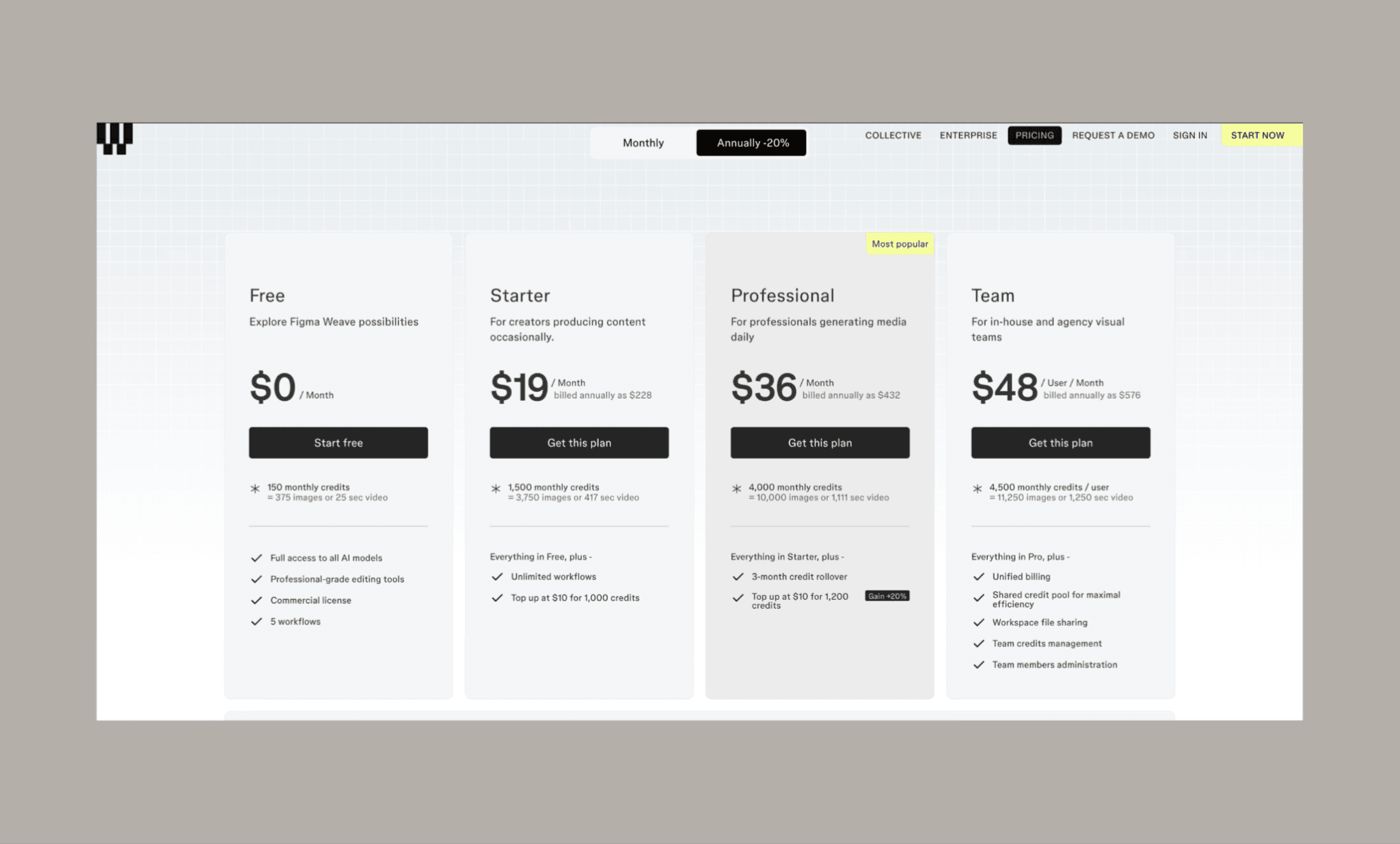
Weave AI de Figma tiene un modelo freemium (igual que los precios de Figma). Te permite registrarte en una generosa opción gratuita para explorar toda la biblioteca de modelos y flujos esenciales sin meter tarjeta.
150 créditos mensuales (~375 imágenes o 25s de vídeo)
Acceso total a todos los modelos de IA
Herramientas de edición de nivel profesional
Licencia comercial incluida
Hasta 5 flujos de trabajo
Figma Weave - Planes de pago
Plan | Precio (Anual) | Créditos/Mes | Características clave |
Starter | $19/mes ($228/año) | 1,500 (~3,750 imágenes) | Flujos ilimitados, recargas a $10 por cada 1,000 créditos |
Professional | $36/mes ($432/año) | 4,000 (~10,000 imágenes) | Acumulación de créditos por 3 meses, recargas a $10 por 1,200 créditos |
Team | $48/usuario/mes ($576/año) | 4,500/usuario (~11,250 imágenes) | Pool de créditos compartido, facturación unificada, administrador de equipo |
*Nota: La facturación mensual es un 20% más cara en todos los planes.
También ofrecen un plan Enterprise para Figma Weave con precios a medida para agencias y grandes departamentos de diseño in-house.
Figma Weave frente a la suscripción tradicional de Figma
Aunque es un desarrollo propio, pagar la suscripción de Figma no te da acceso directo a la de Weave. Tienes que comprar ambas por separado (al menos a fecha de mediados de 2026).
Aun así, como mencionaba antes, varias de las herramientas de Weave se pueden probar gratis dentro de Figma Design mientras dure la beta abierta.
¿Google Stitch es realmente gratis en 2026? >
Alternativas a Figma Weave
Flora AI frente a Figma Weave
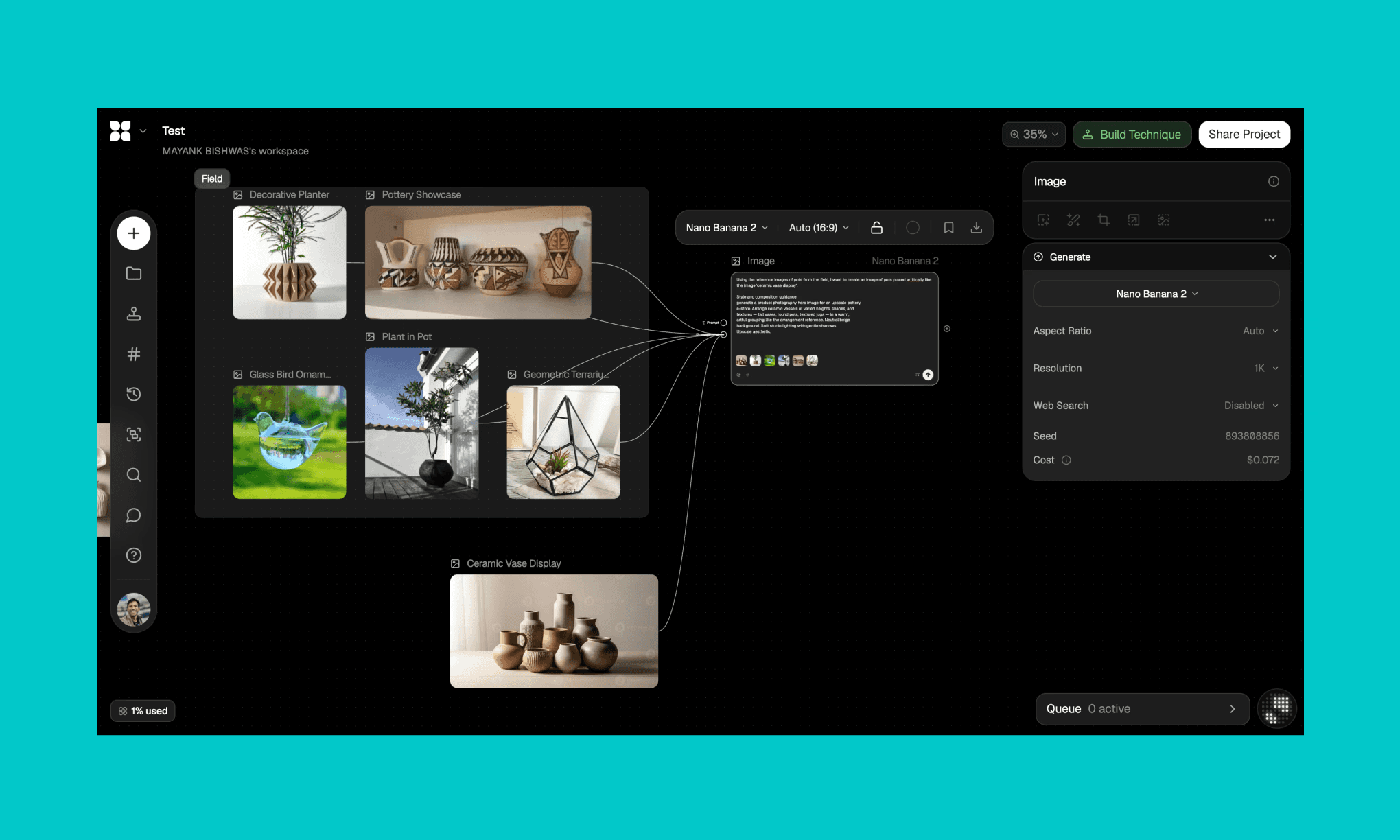
Flora AI es una suite creativa basada en nodos que incorpora más de 50 modelos para generar imagen, vídeo y sonido sobre un lienzo infinito. Su agente Fauna AI permite dirigir, encadenar y refinar los resultados mediante conversación. Estructuralmente es el rival más directo de Weavy AI/Figma Weave, con la misma lógica de nodos y variedad de modelos.
Elige Flora AI antes que Weave si buscas flujos complejos de audio/vídeo y no dependes del ecosistema de Figma.
Mi experiencia con el lienzo infinito de Flora >
Higgsfield frente a Figma Weave
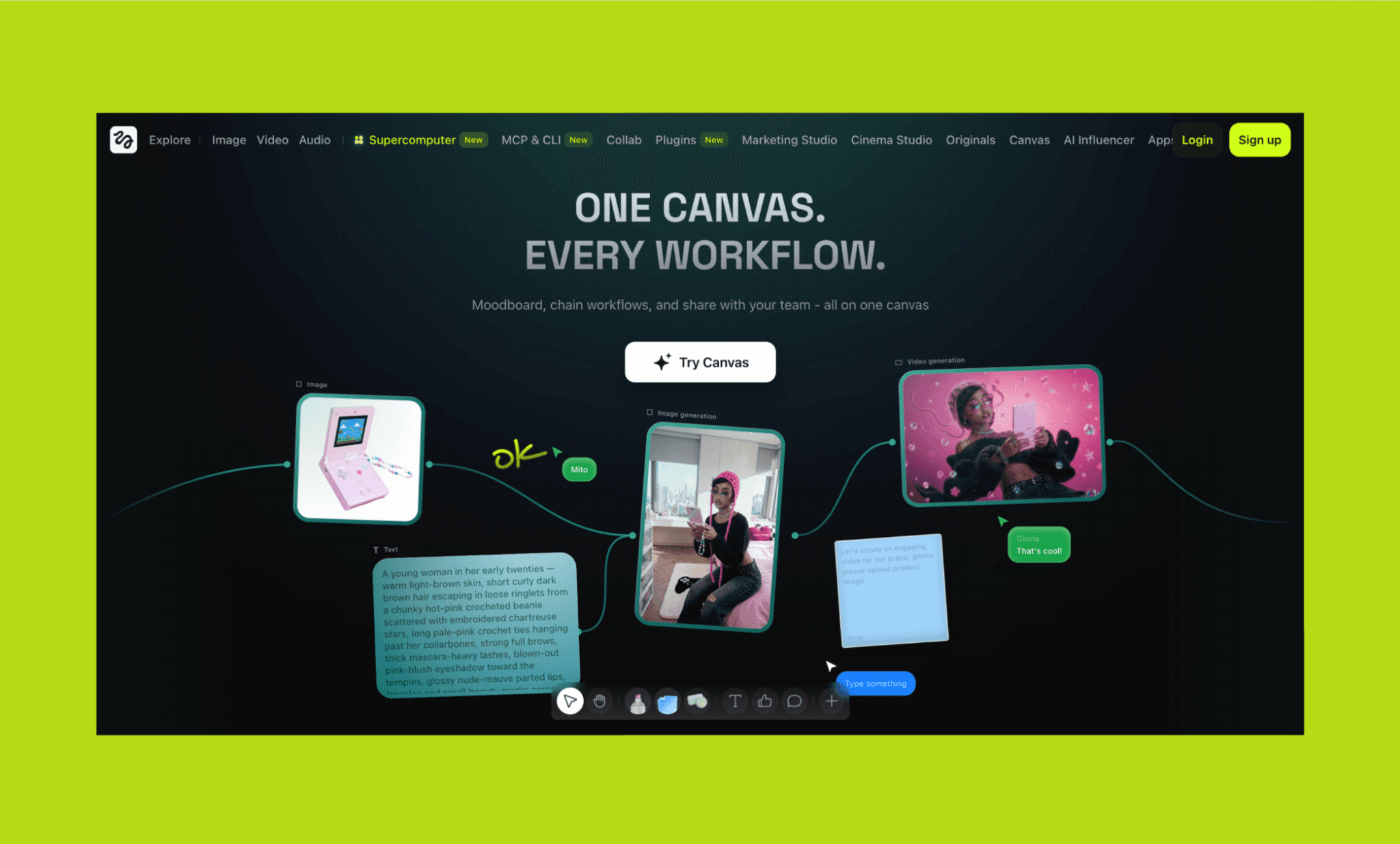
Higgsfield Canvas es una herramienta de pipeline para foto y vídeo basada en nodos pensada para resultados hiperrealistas y cinematográficos: VFX, foto de producto, editoriales de moda o animación comercial. Ejecuta modelos de vídeo punteros como Kling 3.0, Seedance 2.0 y Veo 3.1 cara a cara e incluye colaboración en tiempo real.
Elige Higgsfield antes que Weave si la creación de vídeo e historias cinematográficas es tu prioridad absoluta.
Magnific / Freepik Spaces frente a Figma Weave
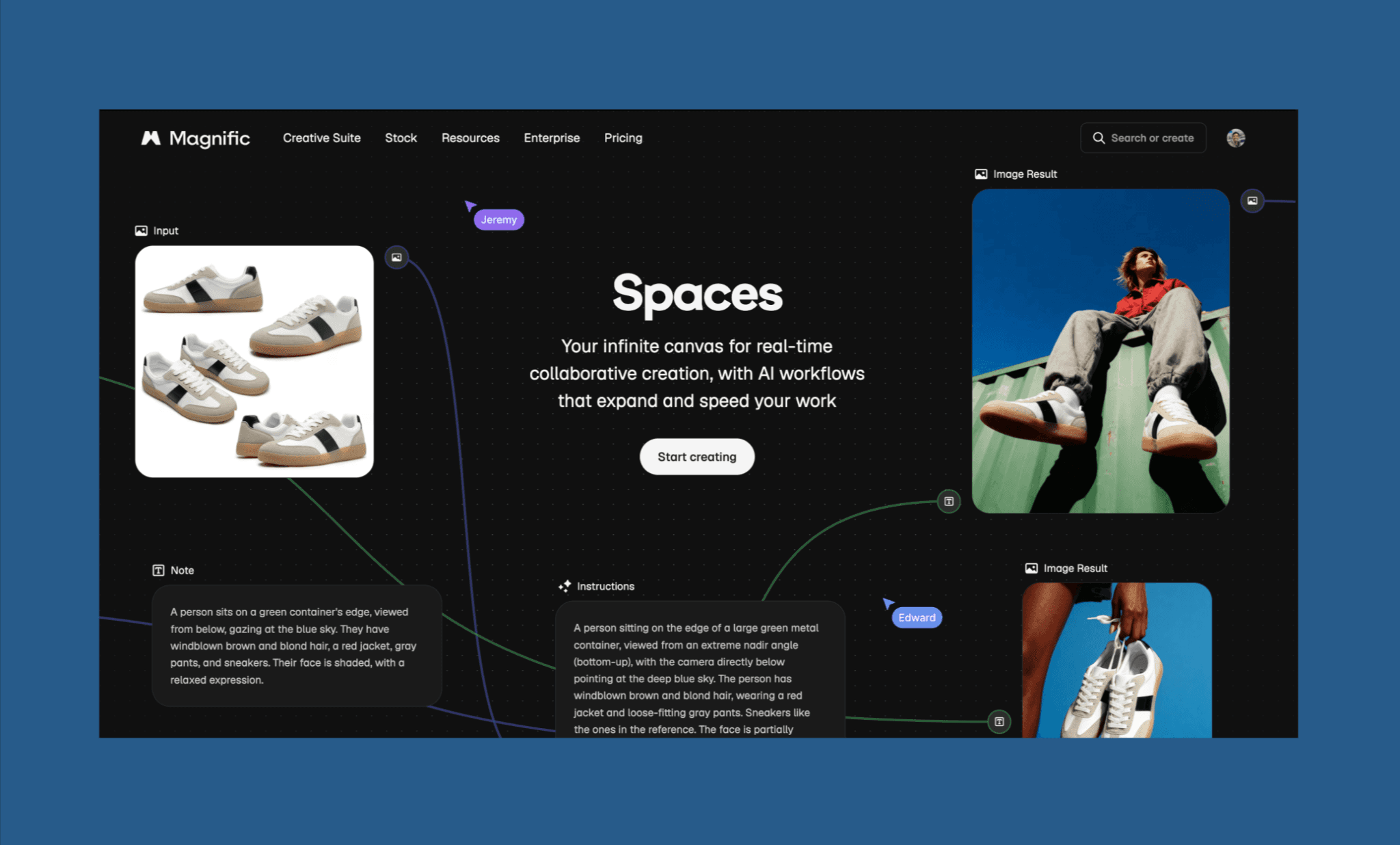
Freepik Spaces (antes Magnific Spaces) es un espacio de trabajo colaborativo integrado en la inmensa biblioteca de Freepik. Mezcla la generación de imágenes con herramientas de stock, reescalado y mejora; ideal para marketing o creación de contenido rápido sin meterte en la complejidad de los nodos.
Elige Freepik Spaces antes que Weave si prefieres combinar generación de imágenes y assets de stock de forma sencilla sin enredarte con flujos de nodos.
La evolución de Freepik hacia Magnific AI >
Veredicto: ¿Vale la pena Figma Weave?
Tras exprimirlo a fondo, creo que Figma Weave merece una oportunidad, pero difícilmente se convertirá en un imprescindible de tu proceso de diseño UI diario. La razón es que plantea la GenAI con una estructura de trabajo muy pesada. La variedad de modelos es brutal, el procesamiento en paralelo te ahorra muchas horas y la edición espacial me sorprendió positivamente. Pero el sistema de nodos, la selección de modelos a ciegas y el gasto rápido de créditos lo acotan a un perfil de equipos creativos pacientes y enfocados en pipelines.
Claramente Figma está apostando fuerte por la IA y habrá que seguirle la pista. Pero si buscas un diseñador de UI nativo de IA que sea rápido, intuitivo y más barato ya mismo, empieza con Banani. Está potenciado por los últimos modelos de Gemini y GPT, se integra a la perfección con Figma y permite exportar código mediante MCP.
Preguntas Frecuentes sobre Figma Weave AI
¿Es Figma Weave gratis?
Sí. Figma Weave ofrece un plan gratuito con 150 créditos al mes, suficiente para unas 375 imágenes. Si quieres más créditos, sus opciones de pago empiezan en $19/mes.
¿Cuándo estará disponible Figma Weave?
Ya puedes acceder a Figma Weave directamente desde weave.figma.com.
¿Cómo se usa Weave en Figma?
No puedes usar las funciones complejas de nodos de Weave AI dentro del propio lienzo de Figma. Lo más parecido es usar algunas utilidades de Weave adaptadas como Tools en Figma Design. Las verás en la barra de herramientas lateral junto con Figma Agent.
¿Cuánto cuesta Weave AI?
Figma Weave cuenta con un modelo freemium; las modalidades de suscripción oscilan entre los $19/mes (Starter) y los $48/usuario/mes (Team), con pago anual. El coste por generación varía entre los 0.4 y los más de 20 créditos dependiendo del modelo elegido.
¿Hay alguna IA para diseñar en Figma?
Sí, Figma cuenta con su propio agente de IA incorporado para componer y editar UI. Además tienes alternativas en forma de plugins para Figma como UXPilot o Visily. Si quieres generar pantallas completas y flujos a partir de prompts para exportar a Figma, Banani AI es la opción ideal para probar gratis.
Referencias
[1] https://weave.figma.com/
[2] https://techcrunch.com/2025/10/30/figma-acquires-ai-powered-media-generation-company-weavy/
[3] https://www.figma.com/blog/connecting-figma-and-weave/


